
Hp 600 G5-SFF ProDesk User Manual
Content
HP ProDesk 600 G5 SFF Product Manual
Introduction
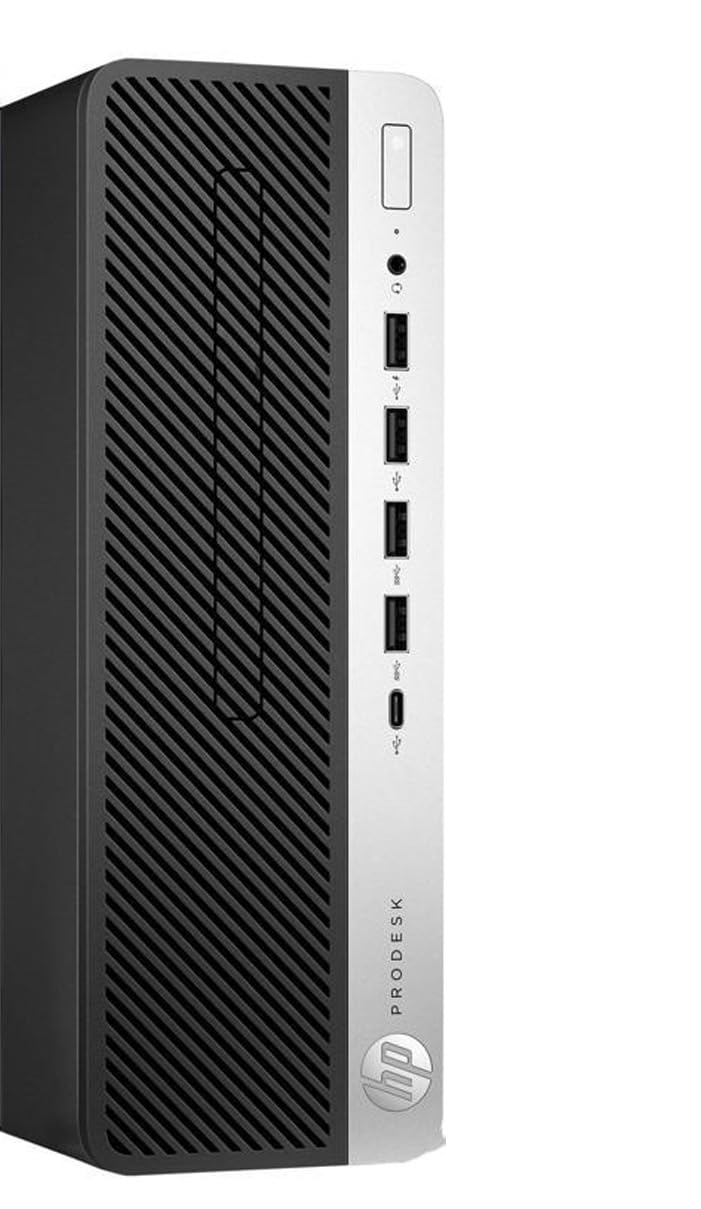
The HP ProDesk 600 G5 SFF is a compact business desktop designed for office productivity, administrative workloads, remote work setups, and space-constrained workstations. The small form factor chassis makes it easy to fit under a desk, behind a monitor, or into shared office environments where reliability and low noise matter. It is commonly configured with 9th Gen Intel Core processors, integrated Intel UHD Graphics 630, DDR4 memory, and SSD or HDD storage options, giving it a practical balance of speed, efficiency, and expandability.
One of the biggest strengths of the HP ProDesk 600 G5 SFF is its serviceability. It offers multiple USB ports, dual DisplayPort outputs, upgrade-friendly memory slots, and PCIe expansion support, making it suitable for long-term business use. Typical configurations include Windows 10 Pro or Windows 11 Pro, 8GB to 32GB RAM, and 256GB to 1TB SSD storage, depending on the seller and upgrade package. This makes the hp 600 G5-SFF ProDesk a strong choice for office teams, students, home users, and IT buyers looking for a dependable refurbished business desktop.
Estimated pricing varies by configuration and condition. Refurbished units often fall in the budget-to-midrange category, usually around $150 to $300, while upgraded bundles with more memory and larger SSDs can cost more. Availability is strongest through refurbished computer retailers, enterprise resellers, and marketplace listings, since this is a business-class model that remains popular in the secondary market. For users seeking a compact workstation with solid day-to-day performance, the hp 600 G5-SFF ProDesk remains a practical and cost-effective option.
Specifications
The HP ProDesk 600 G5 SFF is built around business-focused hardware and a compact chassis that supports useful upgrades. A typical configuration includes the following specifications:
- Processor: Intel Core i5-9500 9th Gen, 6 cores, 3.0GHz base clock, up to 4.4GHz turbo
- Memory: 8GB DDR4-2666 or 16GB/32GB depending on configuration
- Storage: 256GB SSD, 500GB HDD, or larger SSD upgrades
- Graphics: Integrated Intel UHD Graphics 630
- Networking: Gigabit Ethernet via Intel controller
- Ports: USB 2.0, USB 3.1 Gen 1, USB 3.1 Gen 2, USB-C, dual DisplayPort, audio in/out, RJ-45
- Expansion: PCIe x16, PCIe x4, and M.2 slots for storage and wireless upgrades
- Power Supply: 180W internal PSU in many standard builds
- Dimensions: Approximately 270 x 296 x 95 mm
- Operating System: Commonly Windows 10 Pro or Windows 11 Pro
In everyday use, this system is well suited to web browsing, office suites, conferencing, POS applications, and light multitasking. Compared with entry-level consumer desktops, the hp 600 G5-SFF ProDesk usually offers better build quality, easier maintenance, and stronger business connectivity. Compared with larger tower desktops, it sacrifices some internal expansion but wins on footprint and desk-space efficiency.
Troubleshooting
Like most business desktops, the HP ProDesk 600 G5 SFF is reliable, but a few common issues can appear over time. If the PC will not power on, check the power cable, wall outlet, and rear power switch before assuming a hardware failure. If the machine powers on but shows no display, reseat the RAM, confirm the monitor is connected to the correct DisplayPort, and test with a second cable or monitor.
- No boot device found: Enter BIOS and verify that the SSD or HDD is detected, then check boot order.
- Memory error or beep codes: Reseat RAM modules and test one stick at a time in different slots.
- Overheating or loud fan: Clean dust from vents, confirm the fan is spinning, and avoid blocking airflow.
- USB device not recognized: Try a different port, restart the system, and update chipset drivers.
- Slow performance: Replace a mechanical hard drive with an SSD and increase RAM to at least 8GB or 16GB.
Preventive maintenance includes periodic dust cleaning, BIOS updates, drive health checks, and using a surge protector. Warranty coverage depends on whether the unit is new, refurbished, or resold by a third party. For official HP support, use the HP Support website, product documentation, or the HP Virtual Agent. If the desktop was purchased through a reseller, contact the seller for return or warranty handling.
Pros & Cons
Pros
- Compact small form factor design fits easily into offices and home workspaces.
- Solid business-class reliability with good cooling and service access.
- Strong upgrade potential for RAM, storage, and select expansion cards.
- Useful port selection, including dual DisplayPort and multiple USB options.
- Good value for money in refurbished markets, especially with SSD and 16GB RAM.
Cons
- Integrated graphics are fine for office work but not ideal for gaming or heavy creative tasks.
- SFF design limits internal expansion compared with full-size towers.
- Many units are sold refurbished, so condition varies by seller.
- Base configurations with hard drives can feel slow until upgraded to an SSD.
Overall, the hp 600 G5-SFF ProDesk offers excellent value for business users who need a dependable desktop without paying for premium workstation hardware. It is more practical than many budget consumer PCs and usually easier to service than compact mini PCs.
Customer Reviews
Customer feedback for the HP ProDesk 600 G5 SFF is generally positive, especially for office productivity and refurbished value. Average user ratings commonly land around 4 out of 5 stars, with praise for fast boot times, quiet operation, and a clean business design. Buyers often describe it as a “great office computer” and a “solid refurb for everyday work.”
Common complaints include cosmetic wear on refurbished units, limited graphics performance, and the need to upgrade storage or RAM in some base models. Users also mention that seller configuration can vary, so checking the exact CPU, memory, and SSD capacity is important before purchase. For buyers seeking a compact business PC, the hp 600 G5-SFF ProDesk is usually recommended if the listing includes at least an SSD and 8GB of RAM, with 16GB preferred for smoother multitasking.
Final Buying Recommendation
If you need a compact, dependable, and affordable business desktop, the HP ProDesk 600 G5 SFF is an excellent choice. It works especially well for office teams, remote workers, and home users who want stable performance, upgrade flexibility, and a space-saving design. Upgraded configurations deliver the best experience, particularly when paired with an SSD and increased memory.
Faqs
How do I set up hp 600 G5-SFF ProDesk for the first time?
What should I do if hp 600 G5-SFF ProDesk will not power on?
Which RAM and storage upgrades are compatible with hp 600 G5-SFF ProDesk?
How can I improve performance on hp 600 G5-SFF ProDesk for office and multitasking use?
Why is my hp 600 G5-SFF ProDesk running slow, and how do I fix it?
What devices and accessories work best with hp 600 G5-SFF ProDesk?
How do I clean and maintain hp 600 G5-SFF ProDesk safely?
How do I troubleshoot display or no-signal issues on hp 600 G5-SFF ProDesk?
Tags
More hp manuals
Leave a Comment