
Hp Spectre x360 Convertible PC User Manual
Content
HP Spectre x360 Convertible PC: Premium 2-in-1 Laptop Manual and Buying Guide
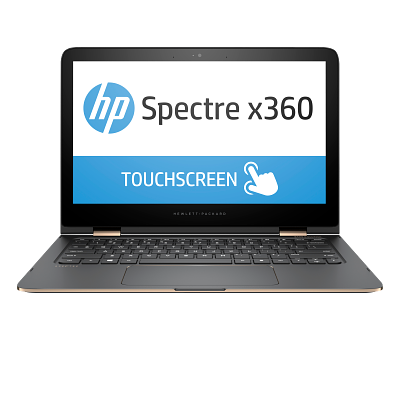
The HP Spectre x360 Convertible PC is a premium 2-in-1 laptop designed for users who want the flexibility of a tablet and the power of a full Windows notebook in one sleek device. Known for its convertible hinge, touch display, pen support on many configurations, and high-end materials, it is a strong choice for professionals, students, creators, and anyone who values portability without sacrificing performance. The hp Spectre x360 Convertible PC typically stands out for its refined design, sharp OLED or high-resolution display options, fast SSD storage, strong wireless connectivity, and features such as fingerprint login, IR camera support on select models, and Bang & Olufsen audio.
Common use cases include office productivity, note-taking, video calls, content editing, streaming, and light creative work. Buyers often choose the hp Spectre x360 Convertible PC for travel, hybrid work, and classroom use because it combines a slim chassis with flexible 360-degree mode switching. Depending on configuration, price can vary widely, but recent market listings place newer models around the premium range, often starting near $1,200 and rising to about $1,850 or more for higher-end variants with OLED displays, faster processors, and larger storage. Availability is generally best through HP’s online store and major retailers, though stock can fluctuate by region.
Troubleshooting Common HP Spectre x360 Convertible PC Problems
If your hp Spectre x360 Convertible PC is not powering on, first check the charger, USB-C or HP Smart adapter connection, and battery status. If Windows shows a startup or recovery issue such as error code 0xc000000e, restart into recovery mode and run Startup Repair. If the system displays a driver-related code like Code 43 in Device Manager, update the graphics or chipset driver from HP Support or Windows Update. For a blank screen, test an external monitor and adjust brightness, since display driver crashes can sometimes trigger a black screen.
For touchscreen or pen issues, confirm that the screen is clean and the device is in a supported mode. If Wi-Fi disconnects repeatedly, update the wireless driver and restart the router. To reduce future problems, keep the BIOS, Windows updates, and HP utilities current, avoid blocking vents, and use the laptop on a hard surface for better cooling. Warranty coverage depends on the purchase plan, and support is available through HP’s customer care, HP Support Assistant, and the official HP support website. For the fastest help, contact HP support through the support portal or the phone number listed for your region on HP’s official contact page.
Pros and Cons of the HP Spectre x360 Convertible PC
Pros
- Premium 2-in-1 design with a strong 360-degree hinge for laptop, tent, stand, and tablet modes.
- Sharp display options, including OLED and high-resolution panels, that are excellent for media and creative work.
- Fast SSD storage and modern wireless options such as Wi-Fi 6 on many configurations.
- Fingerprint reader, IR camera support on select models, and Windows Hello convenience.
- Excellent for travel, remote work, note-taking, and presentations.
Cons
- Premium pricing can make the hp Spectre x360 Convertible PC less attractive than mid-range 2-in-1 alternatives.
- Some users report touchpad sensitivity issues, bloatware, or inconsistent battery life depending on the model.
- Availability can be limited in some regions and certain configurations may sell out quickly.
- Not ideal for heavy gaming or demanding GPU workloads compared with dedicated gaming laptops.
For value for money, it is strongest when you need a high-end convertible laptop with polished design and strong everyday performance. Compared with alternatives like the Dell XPS 2-in-1 or Lenovo Yoga series, the Spectre x360 often feels more luxurious, though competitors may offer better port selection, battery efficiency, or lower pricing.
Customer Reviews and User Feedback on the HP Spectre x360 Convertible PC
Customer feedback for the hp Spectre x360 Convertible PC is generally positive, with many users praising the premium build, vivid display, and versatile 2-in-1 design. A common rating trend is around 4 out of 5 stars for users who value portability and style. One typical testimonial is: “The screen is gorgeous, the hinge feels solid, and it works perfectly for work and streaming.” Another frequent comment is: “I love the tablet mode, but I wish battery life were more consistent.”
Common complaints include missing SD card slots on some newer versions, occasional touchpad quirks, fan noise under load, and software bloat at first setup. Many buyers still recommend it for students, professionals, and travelers who want a premium Windows convertible. If you prioritize design, display quality, and flexible usage modes, the hp Spectre x360 Convertible PC is often considered a strong purchase. If you need maximum battery life or gaming power, a different thin-and-light laptop may be a better fit.
Faqs
How do I set up hp Spectre x360 Convertible PC for the first time?
Why is my hp Spectre x360 Convertible PC running slow after setup, and how can I fix it?
How do I switch between laptop, tent, and tablet modes on hp Spectre x360 Convertible PC?
What should I do if the touchscreen or pen is not working on my hp Spectre x360 Convertible PC?
Which accessories and USB-C devices work best with hp Spectre x360 Convertible PC?
How can I improve battery life on hp Spectre x360 Convertible PC for travel or remote work?
What are the best ways to keep hp Spectre x360 Convertible PC cool and prevent fan noise?
How should I clean and maintain hp Spectre x360 Convertible PC for long-term reliability?
Tags
More hp manuals
Leave a Comment