
Hp 260 G2-DM Business PC User Manual
Content
HP 260 G2-DM Business PC Overview
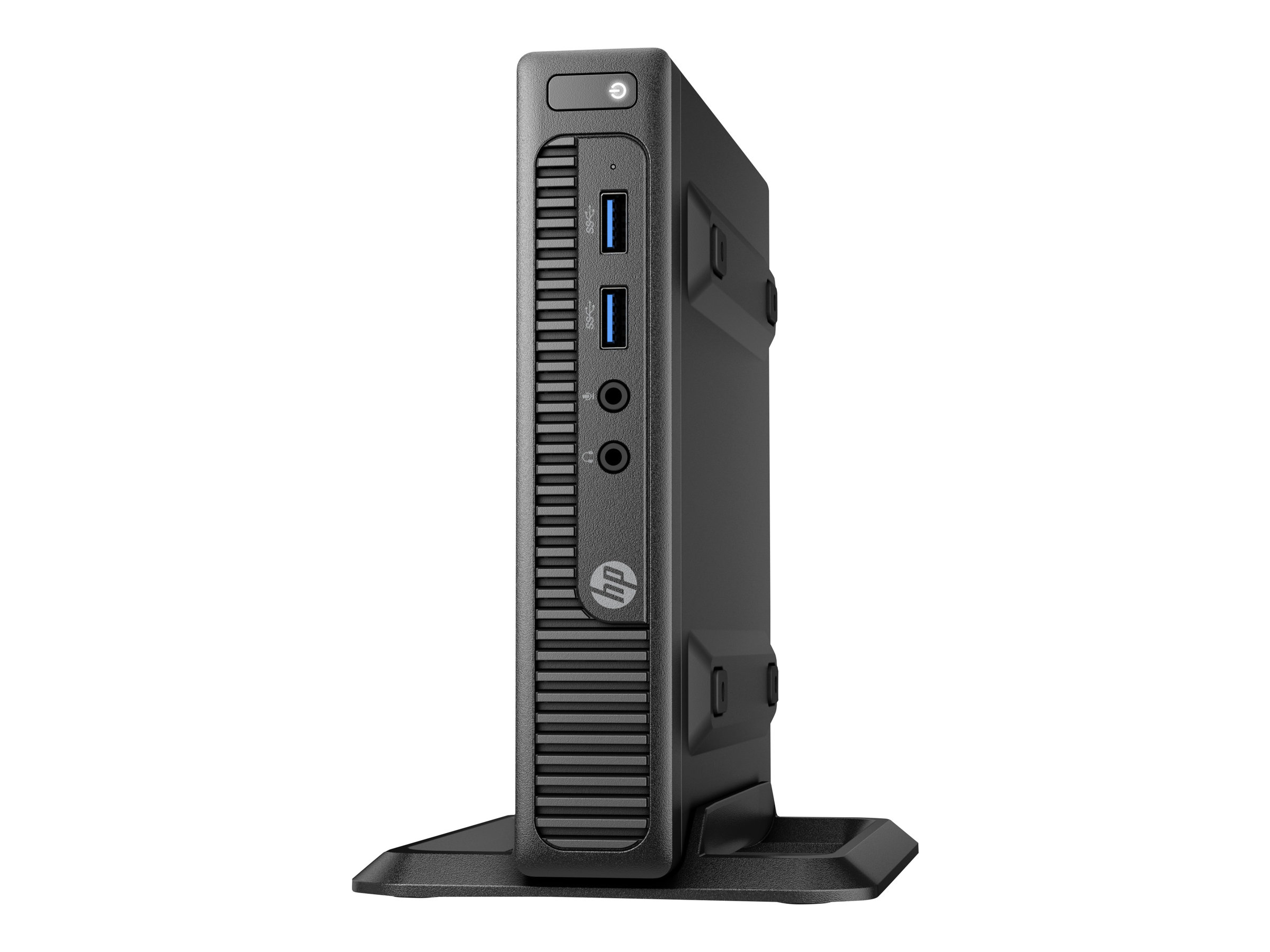
The hp 260 G2-DM Business PC is a compact mini desktop designed for office productivity, point-of-sale setups, digital signage, and space-conscious workstations. Built around 6th-generation Intel Core processors, it delivers dependable performance for everyday business tasks such as document editing, web browsing, conferencing, and light multitasking. Its small footprint makes it a practical choice for desks, reception counters, and behind-monitor installations, especially where a full-size tower would be too large.
One of its biggest strengths is flexibility. Configurations commonly include Intel Core i3 or i5 U-series processors, DDR4 memory, SATA SSD or HDD storage, HDMI and VGA video outputs, Gigabit Ethernet, and multiple USB ports. The system is also attractive to IT teams because it is easy to deploy, maintain, and upgrade compared with many ultra-compact consumer PCs. Depending on the configuration, it can support up to 32 GB of DDR4 memory and offers a solid balance of efficiency and reliability for business users.
Typical used and refurbished pricing generally falls in the budget-to-midrange category, often around $100 to $250 USD depending on CPU, RAM, storage, and operating system condition. New old stock and enterprise refurb units may vary by region and supplier availability. For small businesses, schools, and remote workers seeking a compact Windows desktop, the hp 260 G2-DM Business PC remains a sensible value purchase.
Specifications and Key Features of HP 260 G2-DM Business PC
- Processor options: Intel Core i3-6100U and Core i5-6200U class processors with dual-core, four-thread performance for office workloads.
- Memory: 2 SODIMM slots with support for up to 32 GB DDR4-2133 SDRAM.
- Storage: 2.5-inch SATA HDD or SATA SSD support, with common configurations ranging from 128 GB SSD to 500 GB HDD.
- Graphics: Integrated Intel HD Graphics 520 for everyday display output and basic multimedia use.
- Ports: Front USB 3.0, rear USB 3.0 and USB 2.0, HDMI 1.4, VGA, RJ-45 Ethernet, and audio jacks.
- Networking: Gigabit Ethernet; select configurations include Wi‑Fi and Bluetooth.
- Operating system: Commonly shipped with Windows 10 Pro 64-bit.
- Form factor: Ultra-small desktop mini PC for VESA mounting and space-saving setups.
- Performance note: Comparable to other 6th-gen business minis, but generally better suited to light productivity than heavy creative workloads.
Compared with similar mini business PCs, the hp 260 G2-DM Business PC offers strong value and broad compatibility, though newer mini PCs may provide faster multi-core performance, USB-C, and newer wireless standards.
Troubleshooting HP 260 G2-DM Business PC Common Problems
If the system will not power on, check the 65W adapter, wall outlet, and rear power connection first. If power is present but there is no display, reseat the RAM, verify the monitor input source, and test both HDMI and VGA outputs. If the PC shows a memory-related startup issue or beeping pattern, the most common fix is to remove and reinstall the SODIMM modules one at a time.
- No boot / black screen: Reconnect storage cables and test with a known-good SSD or HDD.
- Slow performance: Upgrade from HDD to SSD and increase RAM to 8 GB or 16 GB.
- Overheating or loud fan: Clean dust from vents and ensure adequate airflow around the mini PC.
- USB device not detected: Try another port and reinstall chipset or USB drivers.
- Network issues: Update Ethernet drivers and replace the cable if link lights are unstable.
For prevention, keep firmware and drivers updated, avoid blocking intake vents, and use a surge-protected power source. Warranty coverage depends on the seller and refurbisher, since many units are now sold through secondary markets. For help, use HP support channels, your reseller warranty, or enterprise IT service providers for diagnostics and replacement parts.
Pros and Cons of the hp 260 G2-DM Business PC
Pros
- Compact design: Fits easily on crowded desks, behind displays, or in kiosk environments.
- Business-friendly ports: HDMI, VGA, USB 3.0, and Gigabit Ethernet support a wide range of workplace setups.
- Upgradeable: RAM and storage upgrades are straightforward for IT maintenance.
- Good value: Refurbished units are often affordable for offices, labs, and schools.
- Quiet and efficient: Low-power U-series CPUs keep noise and energy use modest.
Cons
- Older hardware: 6th-generation Intel processors are fine for office work but dated for modern heavy multitasking.
- Limited graphics: Integrated Intel HD Graphics 520 is not suited for gaming or demanding creative apps.
- Storage speed varies: HDD-based models feel slow compared with SSD-equipped alternatives.
- Fewer modern ports: It lacks newer features found on recent mini PCs, such as USB-C on many models.
For value seekers, the hp 260 G2-DM Business PC is a practical buy. For buyers who want newer CPUs, Wi‑Fi 6, and faster everyday responsiveness out of the box, a newer mini desktop may be a better long-term alternative.
Customer Reviews and Real-World Feedback
Customer feedback for the hp 260 G2-DM Business PC is generally positive, especially among office users and refurb buyers. Average satisfaction commonly lands around 4 out of 5 stars for value, compact size, and ease of setup. Users often praise its quiet operation, reliable wired networking, and strong performance after an SSD upgrade.
- What buyers like: Small footprint, easy installation, decent speed for office apps, and good monitor compatibility.
- Common complaints: Slower performance on HDD models, limited upgrade headroom compared with newer machines, and aging integrated graphics.
- Typical testimonial: “Perfect for Word, Excel, web meetings, and a dual-monitor desk setup.”
- Another frequent comment: “Adding an SSD made it feel much newer and far more responsive.”
Best purchase recommendation: choose a configuration with at least 8 GB of RAM and a SATA SSD for the best experience. Buyers focused on basic business use will find this mini PC dependable, while users needing modern multimedia or heavier workloads should consider a newer business desktop.
Faqs
How do I set up the hp 260 G2-DM Business PC for first-time use?
What should I check if my hp 260 G2-DM Business PC does not turn on?
Which monitor and accessory connections are compatible with the hp 260 G2-DM Business PC?
How can I improve performance on the hp 260 G2-DM Business PC for daily office work?
Why is the hp 260 G2-DM Business PC running hot or making more noise than usual?
Can I upgrade the hp 260 G2-DM Business PC with more memory or storage?
What is the best way to troubleshoot Wi-Fi or network problems on the hp 260 G2-DM Business PC?
How should I maintain and clean the hp 260 G2-DM Business PC for long-term reliability?
Tags
More hp manuals
Leave a Comment