
Hp 5100 Series Smart Tank User Manual
Content
hp 5100 Series Smart Tank: Complete Product Manual and Buyer Guide
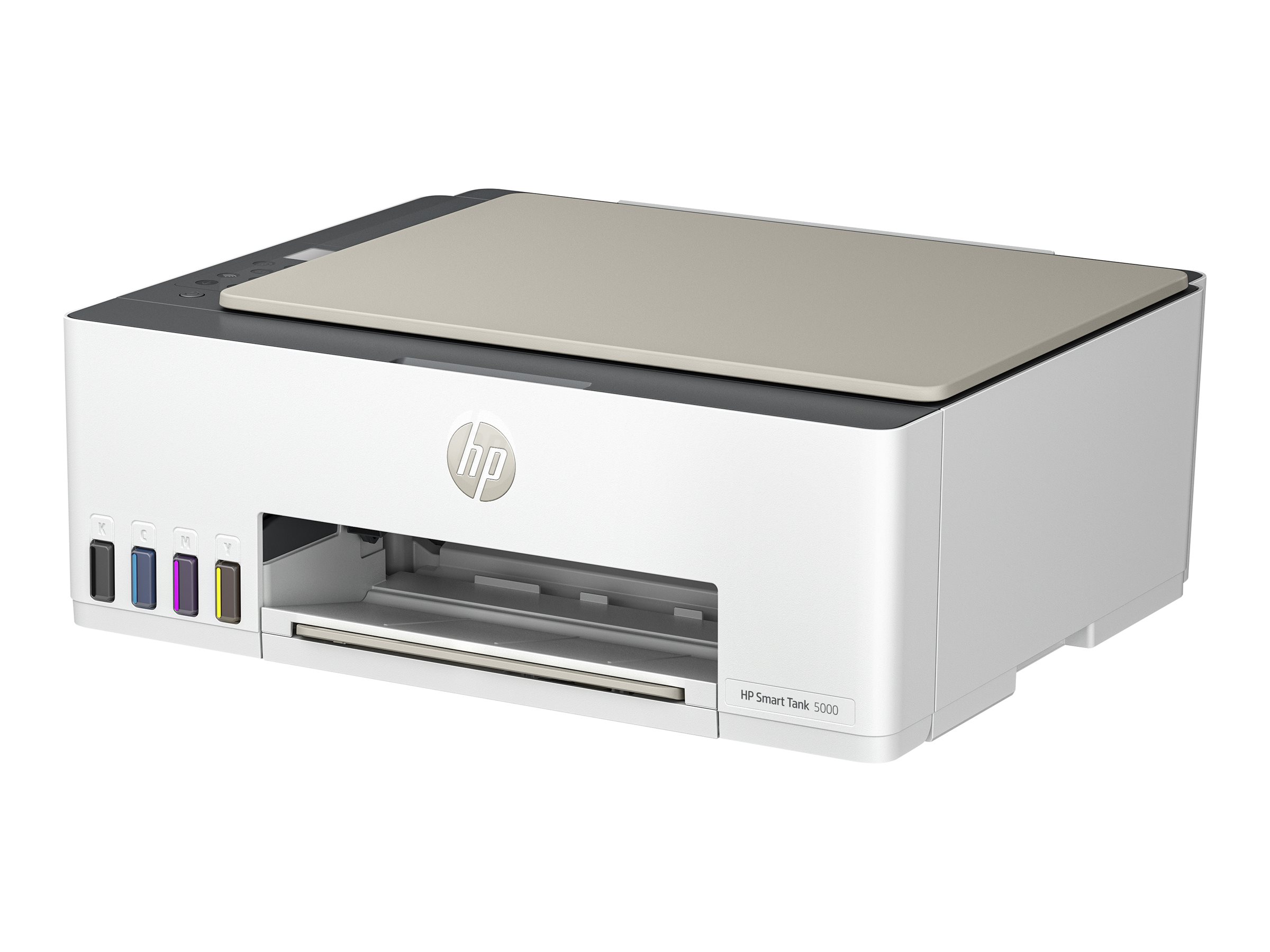
Introduction
The hp 5100 Series Smart Tank is a cartridge-free all-in-one ink tank printer designed for home offices, students, and small teams that print regularly and want lower running costs. It combines printing, scanning, and copying in a compact footprint, with wireless connectivity, Wi-Fi Direct, and mobile printing support for flexible everyday use.
One of its biggest advantages is the refillable ink tank system, which is built for high-volume, low-cost printing. HP positions this model for users who need reliable document output, simple setup, and a straightforward control panel without the complexity of a large business printer. It is especially useful for school projects, invoices, worksheets, reports, and general office paperwork.
The hp 5100 Series Smart Tank typically falls in the budget-to-midrange category, with an estimated price range of about $170 to $240 depending on region, bundle, and retailer. Availability is generally strong through HP stores, major electronics retailers, and online marketplaces. For buyers comparing ink tank printers, this model stands out for its easy maintenance, 100-sheet input capacity, manual duplex printing, and broad mobile compatibility.
Specifications for hp 5100 Series Smart Tank All-in-One Printer
- Print technology: HP Thermal Inkjet with refillable ink tank system.
- Print resolution: Up to 1200 x 1200 rendered dpi in black and up to 4800 x 1200 optimized dpi in color.
- Print speed: Up to 12 pages per minute in black and up to 5 pages per minute in color.
- Connectivity: Hi-Speed USB 2.0, Wi-Fi 802.11b/g/n, and Wi-Fi Direct.
- Mobile printing: HP app, Apple AirPrint, Mopria Print Service, and Android printing support.
- Display: 1.2-inch icon LCD with segmented controls.
- Processor and memory: 980 MHz processor and 64 MB memory.
- Paper handling: 100-sheet input tray and 30-sheet output tray.
- Duty cycle: Up to 3,000 pages per month.
- Dimensions and weight: Approximately 434.66 x 361.53 x 157.26 mm and 5.03 kg.
- Comparison: Compared with entry-level cartridge printers, the hp 5100 Series Smart Tank offers much lower ink cost per page. Compared with higher-end ink tank models, it is simpler, smaller, and better suited to light-to-moderate workloads rather than office-heavy scanning or automatic duplexing.
Troubleshooting the hp 5100 Series Smart Tank
If the printer will not print, first confirm that it is powered on, connected to Wi-Fi or USB, and has enough paper and ink. Reinstalling the driver or restarting both the printer and router often resolves connection issues. If print quality is streaky or faded, run the built-in printhead cleaning routine and check that the ink caps were removed properly during setup.
Common error symptoms include paper jams, offline status, wireless setup failures, and missing printhead recognition. For paper jams, remove the paper gently from the rear or front access path and reload fresh sheets. For wireless problems, reconnect using the HP app or Wi-Fi Direct and make sure the printer is on a 2.4 GHz network. If the display shows an ink or printhead warning, reseat the printheads and verify that all protective seals were removed.
Preventive care helps reduce downtime: keep firmware updated, use clean plain paper, avoid overfilling the tray, and print a test page every few weeks to prevent ink drying in the nozzles. HP typically includes a limited warranty, and support is available through the HP Support website, HP Smart app, and regional customer care lines. For direct help, contact HP support through the official support portal or the phone number listed for your country on the printer’s packaging and warranty card.
Pros and Cons of the hp 5100 Series Smart Tank
Pros
- Low running cost: The refillable tank system is ideal for users who print frequently and want to avoid expensive cartridges.
- Good everyday print quality: Text is sharp for reports, homework, and business forms, while color output is strong for charts and basic graphics.
- Wireless convenience: Wi-Fi Direct and mobile printing make it easy to print from phones, tablets, and laptops.
- Compact design: It fits well in home offices and shared workspaces.
- Easy maintenance: The ink bottle refill process is simple and cleaner than older tank-style systems.
Cons
- No automatic document feeder: Multi-page scanning is slower than on more advanced all-in-one printers.
- Manual duplex printing: Double-sided printing requires user intervention.
- Moderate speed: It is not built for high-volume office environments.
- Basic display: The small LCD is functional but not as advanced as touchscreen models.
- Best for light-to-medium use: Heavy-duty offices may prefer a faster Smart Tank alternative.
Overall, the hp 5100 Series Smart Tank offers strong value for money if the goal is affordable home or small-office printing. It compares well with entry-level cartridge printers and is easier to justify than many laser options for users who mainly print documents and occasional color pages.
Customer Reviews and User Feedback
Typical user feedback for the hp 5100 Series Smart Tank trends positive, with many owners giving it around 4.3 out of 5 stars. Buyers often praise the low ink cost, simple setup, and clean refill process. A common testimonial is that it “prints clearly and saves a lot on ink compared with cartridge printers.”
Frequent complaints center on the lack of automatic duplexing, the absence of an ADF, and occasional wireless setup frustration. Some users also note that print speed is adequate but not fast enough for large office batches. For most home users and students, however, the printer is seen as a practical and economical choice.
If you want a reliable ink tank printer for everyday documents, the hp 5100 Series Smart Tank is an easy recommendation. It is best for users who value low-cost printing, simple maintenance, and dependable wireless performance over advanced office features.
Faqs
How do I set up the hp 5100 Series Smart Tank for the first time?
Why is my hp 5100 Series Smart Tank not printing after setup?
What devices and operating systems are compatible with hp 5100 Series Smart Tank?
How can I improve print quality on the hp 5100 Series Smart Tank?
What should I do if the hp 5100 Series Smart Tank is not connecting to Wi‑Fi?
How often should I maintain the hp 5100 Series Smart Tank to keep it working well?
Can the hp 5100 Series Smart Tank print borderless photos and high-volume documents?
How do I fix paper jams in the hp 5100 Series Smart Tank without damaging the printer?
More hp manuals
Leave a Comment