
Hp 6970 OfficeJet Pro User Manual
Content
HP OfficeJet Pro 6970 Manual: Overview, Setup, and Key Features
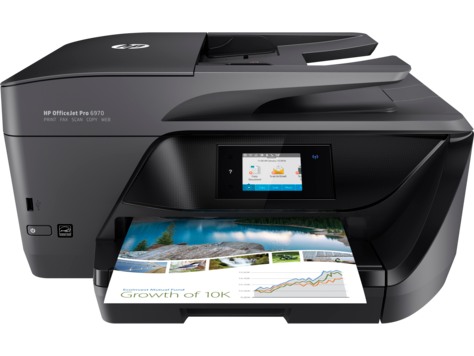
The HP OfficeJet Pro 6970 is a business-focused all-in-one inkjet printer designed for home offices, small teams, and users who need reliable everyday printing, scanning, copying, and faxing. It combines fast print speeds, automatic duplex printing, wireless connectivity, and mobile printing support in a compact desktop design. For users comparing productivity printers, the hp 6970 OfficeJet Pro stands out as a practical choice for handling invoices, reports, labels, and color documents with solid efficiency.
This model is especially useful for remote workers, students, and small businesses that want a versatile multifunction printer without moving into a larger laser-class machine. It supports wired Ethernet, Wi-Fi, USB, and fax connectivity, making it easy to fit into both shared office networks and single-user setups. The automatic document feeder and automatic two-sided printing save time and reduce paper usage, while the touchscreen interface simplifies everyday tasks. Print quality is well suited for business graphics and readable text, with strong color output for charts and presentations.
In current market conditions, the estimated price range typically falls in the budget-to-midrange category, depending on region, stock, and condition. Because this model is older, availability is often limited to third-party retailers, refurbished units, or remaining inventory rather than major storefronts. For buyers seeking an affordable multifunction printer with dependable office features, the hp 6970 OfficeJet Pro remains a useful option, especially if replacement ink and support access are considered before purchase.
Detailed Specifications for HP OfficeJet Pro 6970 All-in-One Printer
- Print technology: HP Thermal Inkjet for color and black-and-white office printing.
- Print speed: up to 20 pages per minute in black and up to 11 pages per minute in color.
- Duplex performance: automatic two-sided printing for paper-saving workflows.
- Print resolution: up to 600 x 1200 dpi for sharp business documents and graphics.
- Scan resolution: up to 1200 x 1200 dpi for documents, forms, and photos.
- Paper handling: 225-sheet input capacity with automatic document feeder support.
- Display: 2.65-inch color touchscreen for easy navigation and job control.
- Connectivity: USB 2.0, Ethernet, Wi-Fi 802.11b/g/n, USB host, and RJ-11 fax port.
- Mobile printing: Apple AirPrint, HP ePrint, Mopria support, and wireless direct printing.
- Ink system: 4-cartridge setup using black, cyan, magenta, and yellow inks.
- Approximate footprint: 463.7 x 390 x 228.7 mm, with a weight of about 8.1 kg.
- Comparison note: compared with basic home inkjets, this model offers stronger office features such as Ethernet, duplexing, ADF support, and fax capability.
Troubleshooting HP OfficeJet Pro 6970 Common Problems
Common issues with the OfficeJet Pro 6970 usually involve paper jams, connection failures, print queue errors, or ink cartridge recognition problems. If the printer stops responding, restart both the printer and the computer, then confirm that the USB, Wi-Fi, or Ethernet connection is active. For wireless issues, reconnect the printer through the control panel and verify that the router is broadcasting on a supported 2.4 GHz network. If the printer displays a paper jam message, open all access doors carefully, remove any torn paper, and check the rear path and tray rollers.
When users see cartridge errors, remove the ink cartridges, clean the electrical contacts gently, and reinstall them securely. If print quality is poor, run the built-in printhead cleaning and alignment tools before replacing supplies. Preventive maintenance includes using clean paper, avoiding overloaded trays, keeping firmware updated, and powering the printer down correctly instead of unplugging it during active jobs. For warranty or support help, check the product serial number, review the device status in HP Smart or the embedded web server, and contact HP support through the official support website or regional phone support channels. If the printer reports repeated error codes, document the exact code before reaching support for faster diagnosis.
Pros and Cons of HP OfficeJet Pro 6970
Pros
- Fast document printing for a multifunction inkjet printer, especially in black-and-white office use.
- Automatic duplex printing helps reduce paper costs and supports more efficient workflows.
- Ethernet and Wi-Fi connectivity make it flexible for shared office or home office environments.
- ADF support improves scanning and copying of multi-page documents.
- Touchscreen controls are simple enough for routine print, scan, and fax tasks.
- Strong value for users who need a feature-rich all-in-one printer without moving to a larger business model.
Cons
- Physical size is larger than many compact home printers, so it needs dedicated desk space.
- Ink costs can be higher than expected if printed volumes are heavy.
- As an older model, availability of new units and replacement parts may be inconsistent.
- Some users may prefer a newer model with faster wireless setup and updated app support.
- Compared with entry-level alternatives, it costs more but also offers more office features such as fax and Ethernet.
Overall, the hp 6970 OfficeJet Pro offers strong value for users who want business-grade features in a compact all-in-one printer. It is a sensible choice when performance, connectivity, and duplex printing matter more than the lowest possible purchase price.
Customer Reviews and User Feedback on HP OfficeJet Pro 6970
Customer feedback for the OfficeJet Pro 6970 is generally positive, with many users praising its speed, easy network setup, and useful office functions. Common praise includes clear text output, convenient duplex printing, and dependable scanning for work documents. Typical ratings often fall around 4 out of 5 stars among satisfied buyers who use it for home offices and small business tasks.
Frequent complaints focus on ink expense, occasional wireless connectivity issues, and the printer’s larger footprint. Some users also mention that setup can take longer than expected when adding the device to a new network. A common recommendation is to buy this model if you need faxing, Ethernet, and two-sided printing in one machine, but consider a newer printer if your priority is the lowest running cost. For most productivity-focused buyers, the hp 6970 OfficeJet Pro remains a practical and capable option.
Faqs
How do I set up hp 6970 OfficeJet Pro for the first time on Wi-Fi?
Why is my hp 6970 OfficeJet Pro not connecting to Wi-Fi?
What should I do if hp 6970 OfficeJet Pro prints blank pages or faded documents?
Which devices and operating systems work with hp 6970 OfficeJet Pro?
How do I use duplex printing and scanning features on hp 6970 OfficeJet Pro?
Why does hp 6970 OfficeJet Pro keep showing paper jam errors?
How can I improve print speed and overall performance on hp 6970 OfficeJet Pro?
What routine maintenance does hp 6970 OfficeJet Pro need to stay reliable?
Tags
More hp manuals
Leave a Comment