
Hp 3-in-1 NAS Docking Station User Manual
Content
HP 3-in-1 NAS Docking Station Review and Product Manual
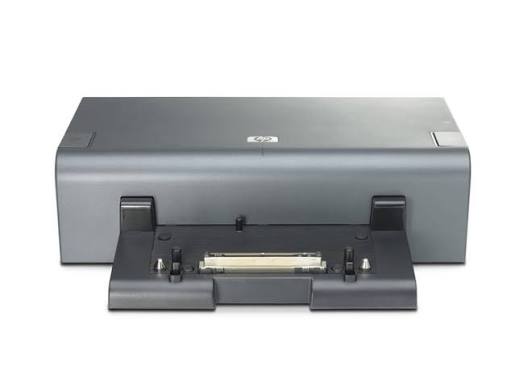
The HP 3-in-1 NAS Docking Station is a legacy all-in-one docking solution designed for HP business notebook users who need desktop-style connectivity, integrated storage, and simplified cable management in one device. It combines a traditional port replicator with an embedded 160GB 7200 rpm SATA hard drive and network-attached storage functionality, making it useful for users who want to back up files, share documents on a local network, and connect office peripherals from a single dock. The unit also supports advanced workspace expansion with multiple USB ports, MultiBay II, and ExpressCard slots, which made it especially attractive for mobile professionals and IT-managed environments.
One of the biggest selling points of the hp 3-in-1 NAS Docking Station is its ability to act as both a laptop dock and a small NAS-style file-sharing hub. It was built for compatibility with several HP Compaq notebook and tablet PC families, and it helped reduce desk clutter while improving productivity. Typical use cases included office hot-desking, secure backup workflows, and shared printer access. Because this model is discontinued, availability is mostly limited to used, refurbished, or surplus markets. Estimated pricing typically falls in the low used-equipment range, often around $40 to $150 depending on condition, accessories, and seller. For buyers searching for a classic HP docking station with NAS support, this product remains a niche but functional option.
Troubleshooting HP 3-in-1 NAS Docking Station Problems
Common issues usually involve power, driver recognition, network sharing, or drive access. If the dock is not detected, reseat the notebook firmly on the connector and confirm that the AC adapter is connected. If the network drive does not appear, check that the embedded hard drive is initialized and that the NAS configuration utility is installed correctly. If a USB printer or external drive is not showing up, try a different USB port and verify that the notebook supports the dock’s legacy connection set.
Possible error symptoms may include setup failures, drive access delays, or network authentication prompts. In practical terms, users often report issues such as “dock not recognized,” “shared drive unavailable,” or “backup software not launching.” To prevent these problems, keep the dock firmware and HP support software installed, avoid abrupt power loss during backups, and safely eject network drives before disconnecting the laptop. Because this is an older product, warranty coverage is typically limited or expired on used units, so support is usually provided through HP documentation, driver downloads, or seller warranty policies. For help, contact HP Support through the official support portal, or use the support phone and chat options listed for your region on HP’s website.
Pros and Cons of the HP 3-in-1 NAS Docking Station
Pros
- Combines docking, backup storage, and file sharing in one device, reducing desktop clutter.
- Includes an integrated 160GB 7200 rpm SATA hard drive for local backup and network access.
- Useful for small office setups that need a simple network print or file-sharing hub.
- Offers strong expansion for its era, including USB ports, MultiBay II, and ExpressCard support.
- Good value for collectors, legacy IT environments, and users maintaining older HP business notebooks.
Cons
- Limited compatibility with specific older HP Compaq notebook models only.
- Discontinued product with reduced availability and sparse modern support.
- Older NAS performance is far below current external SSD docks and modern NAS appliances.
- Used units may have worn drives, missing AC adapters, or aging connectors.
- Not ideal for users who want USB-C, Thunderbolt, or current-generation security features.
For value for money, the hp 3-in-1 NAS Docking Station makes sense mainly if you already own a compatible legacy HP laptop or need a retro workstation solution. Compared with modern docking stations, it is less flexible but more specialized because it adds integrated network storage. Compared with a separate dock plus entry-level NAS, it is more compact but far less future-proof.
Customer Reviews and User Feedback
Overall user sentiment trends positive among legacy HP owners who appreciate the convenience of combining a dock and NAS in one unit. Typical ratings from used-equipment buyers often land around 4 out of 5 stars for functionality and workspace organization. Users frequently praise the clean desk setup, reliable port replication, and the usefulness of built-in backup storage. One common style of testimonial is: “It solved my cable mess and gave me a simple backup drive at the same time.”
Common complaints focus on age-related wear, compatibility limits, and difficulty finding replacement parts. Some buyers also note that setup can be confusing without the original software or manual. If you are buying the hp 3-in-1 NAS Docking Station today, it is best suited for collectors, IT repair teams, and users with supported HP business notebooks. For general-purpose users, a modern USB-C docking station or a separate NAS box is usually the better choice.
Frequently Asked Questions
What is the HP 3-in-1 NAS Docking Station used for?
It is used to dock a compatible HP notebook, connect office peripherals, and provide network-attached storage for file backup and sharing.
Does it still work with modern laptops?
No, it was built for specific older HP Compaq business models and is not designed for modern USB-C or Thunderbolt laptops.
Is the hp 3-in-1 NAS Docking Station worth buying today?
Yes, only if you need a legacy HP docking solution with integrated NAS features and already own a compatible device.
Faqs
How do I set up hp 3-in-1 NAS Docking Station for the first time without losing network speed?
What devices are compatible with the hp 3-in-1 NAS Docking Station and what should I check before buying?
Why is my hp 3-in-1 NAS Docking Station not showing the drive after installation?
How do I improve transfer speed on the hp 3-in-1 NAS Docking Station for large files?
What should I do if the hp 3-in-1 NAS Docking Station keeps disconnecting from the network?
Can I use the hp 3-in-1 NAS Docking Station for backups, media streaming, and file sharing at the same time?
How do I secure files on the hp 3-in-1 NAS Docking Station and prevent unauthorized access?
What maintenance routine helps the hp 3-in-1 NAS Docking Station last longer?
More hp manuals
Leave a Comment