
Hp Chromebook 14a User Manual
Content
HP Chromebook 14a Product Manual: Overview, Features, and Buying Guide
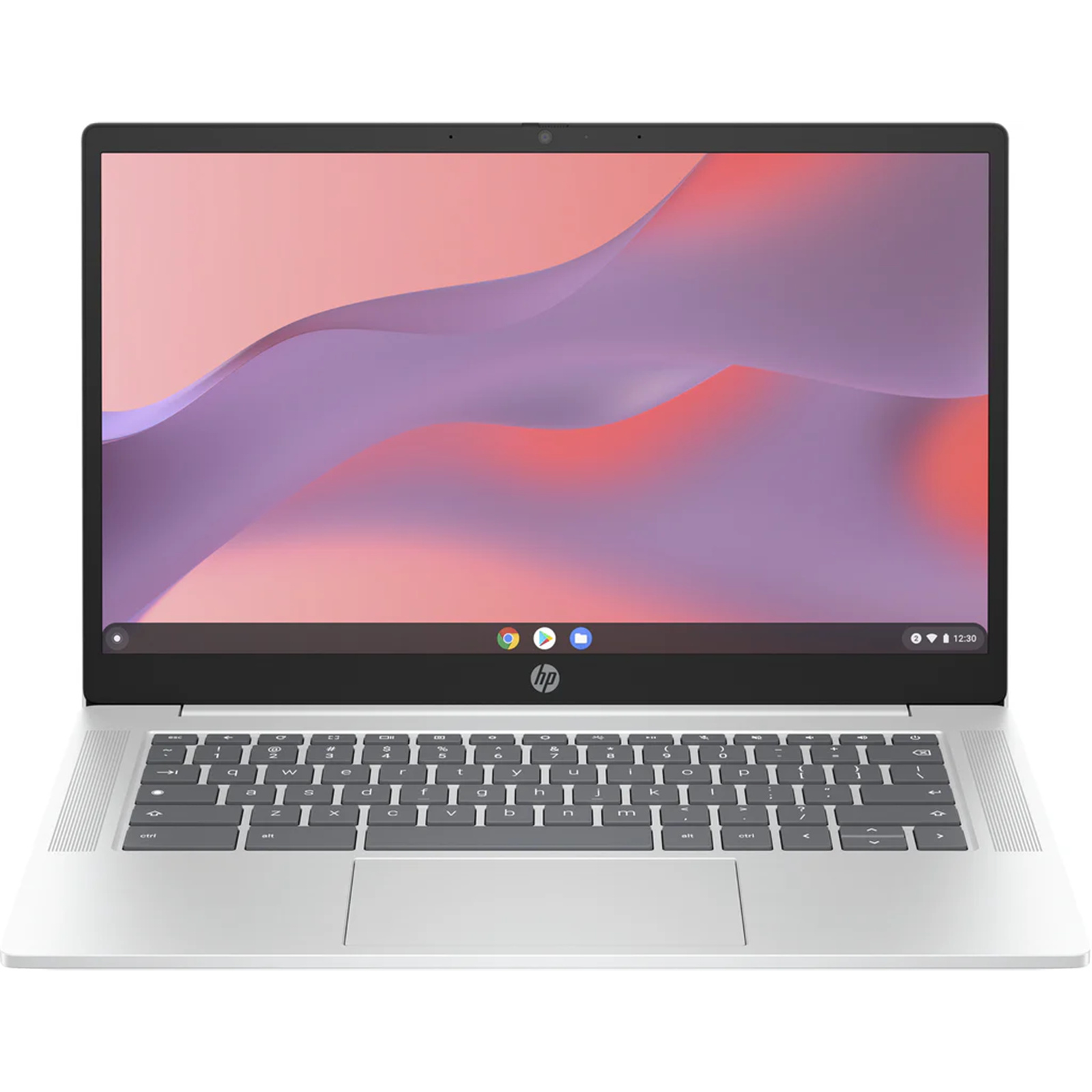
The hp Chromebook 14a is a practical, budget-friendly ChromeOS laptop designed for students, remote workers, and everyday users who need a lightweight device for browsing, streaming, email, and cloud-based productivity. With a 14-inch display, fast boot times, built-in Google services, and low-maintenance software, it delivers a simple computing experience that works well for schoolwork, video calls, and light multitasking. Depending on the configuration, the hp Chromebook 14a may include an Intel Celeron or Intel N-series processor, 4GB or 8GB of RAM, and either eMMC or UFS storage, giving buyers a range of entry-level to more capable options.
One of the biggest advantages of the hp Chromebook 14a is its balance of portability and usability. Many models feature anti-glare displays, USB-C charging, Wi-Fi 6, and enough battery life for a full day of typical use. The 14-inch form factor makes it easier to work on than smaller Chromebooks while still remaining easy to carry in a backpack. It is especially well suited to students, first-time laptop buyers, and anyone who prefers web apps and Google Workspace over traditional desktop software.
Estimated pricing typically falls in the budget category, with entry-level models often around the low-$200 range and better-equipped versions costing more depending on processor, memory, and storage. Availability is usually strong through major retailers and HP’s official store, though stock can vary by region and configuration. For shoppers looking for an affordable Chromebook for school, home use, or travel, the hp Chromebook 14a remains a strong value-oriented option.
Troubleshooting Common HP Chromebook 14a Problems
If your hp Chromebook 14a is running slowly, start by closing unused tabs, restarting the device, and checking for ChromeOS updates. Performance issues are often caused by too many browser tabs, low storage space, or heavy extensions. If the screen freezes, hold the power button for about 10 seconds to force a restart. For Wi‑Fi problems, forget the network, reconnect, and move closer to the router.
Common error messages such as “Chrome OS is missing or damaged” usually require a recovery process using a USB recovery drive. If you see a battery charging issue, inspect the USB-C cable and power adapter, then test another outlet. A full drain and recharge cycle can sometimes restore proper battery reporting. If the keyboard or touchpad stops responding, a restart often resolves temporary driver or system glitches.
Preventive care includes keeping at least 10–15% free storage, installing updates promptly, avoiding unnecessary extensions, and using the original charger. For support, HP typically offers warranty coverage, troubleshooting articles, and virtual assistance through its official support channels. If hardware failure is suspected, contact HP support directly or visit an authorized service center with your serial number ready for faster help.
Pros and Cons of the HP Chromebook 14a
Pros
- Affordable price makes it a strong value for students and casual users.
- Lightweight 14-inch design is easy to carry for school or travel.
- ChromeOS boots quickly and is simple to use for beginners.
- Good battery life on many configurations supports all-day productivity.
- USB-C charging and modern wireless connectivity improve convenience.
Cons
- Entry-level models with 4GB RAM can feel limited during multitasking.
- eMMC storage in cheaper versions is slower than SSD-based alternatives.
- HD displays on some models are less sharp than Full HD competitors.
- Not ideal for demanding software, gaming, or professional creative work.
- Some alternatives in the same price range offer better screens or more storage.
Overall, the hp Chromebook 14a is best for buyers who want a reliable everyday laptop at a low cost. Compared with Windows budget laptops, it is often easier to maintain and faster to start up, but it is less flexible for desktop software. For the money, it is a smart buy if your work is mostly online.
Customer Reviews and Real User Feedback on HP Chromebook 14a
Customer feedback for the hp Chromebook 14a is generally positive, especially among users who value simplicity, portability, and long battery life. Average impressions often land around 4 out of 5 stars, with many owners praising how quickly it powers on and how easy it is to use for school and streaming. Typical testimonials highlight smooth web browsing, solid build quality for the price, and a comfortable keyboard for everyday typing.
Common complaints include limited storage, slower performance on base models, and lower-resolution displays on some variants. Buyers also mention that 4GB RAM configurations are best for light use only. For most students and home users, however, the overall experience is considered dependable and cost-effective. If you want a budget Chromebook for basic tasks, the hp Chromebook 14a is frequently recommended. If you need stronger multitasking or premium display quality, it is worth comparing it with higher-memory Chromebooks or entry-level Windows laptops.
Faqs
How do I set up hp Chromebook 14a for the first time and sign in correctly?
Why is my hp Chromebook 14a not connecting to Wi‑Fi, and how can I fix it?
Can hp Chromebook 14a run Android apps, and what should I know before installing them?
What should I do if hp Chromebook 14a is slow, lagging, or freezing during use?
How much storage and memory does hp Chromebook 14a need for schoolwork and everyday use?
How do I connect accessories like a printer, mouse, or external monitor to hp Chromebook 14a?
How do I improve battery life on hp Chromebook 14a during long classes or travel?
What is the best way to clean and maintain hp Chromebook 14a without damaging it?
More hp manuals
Leave a Comment