
Hp EliteBook 8 Next Gen AI PC User Manual
Content
hp EliteBook 8 Next Gen AI PC: Complete Product Manual and Buyer Guide
Introduction
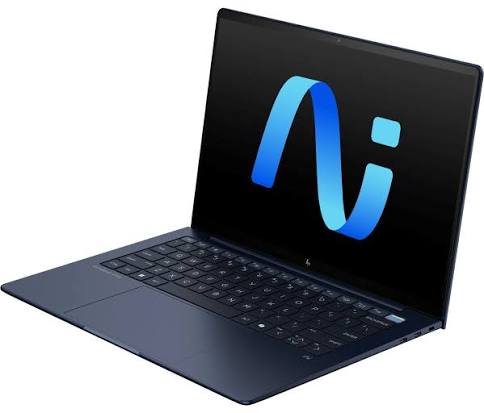
The hp EliteBook 8 Next Gen AI PC is a premium business laptop designed for professionals who need strong performance, advanced security, and modern AI-powered productivity features in a portable form factor. Built for hybrid work, executive use, and IT-managed environments, this EliteBook line combines Intel Core Ultra or AMD Ryzen AI PRO processor options, Windows 11 Pro, fast NVMe SSD storage, and high-efficiency displays for all-day business workloads. Depending on configuration, models can include 14-inch or 16-inch WUXGA panels, up to 1 TB SSD storage, up to 32 GB or more of memory, Thunderbolt 4 connectivity on select versions, and enterprise-grade security features such as Wolf Pro Security Edition. The hp EliteBook 8 Next Gen AI PC is especially well suited for remote work, video conferencing, spreadsheet-heavy office tasks, secure document handling, and AI-assisted workflows such as summarization, transcription, and content generation. Its main selling points are mobility, business durability, strong platform security, and Copilot+ PC readiness on select models. Estimated pricing varies by configuration, but typical enterprise-class starting prices generally fall in the mid-range premium segment, with many versions landing around $1,200 to $2,000+ depending on CPU, memory, storage, and display options. Availability is currently through HP’s direct store and business sales channels, with multiple SKUs and customizable configurations offered in some regions.
Troubleshooting Common hp EliteBook 8 Next Gen AI PC Issues
If the laptop will not power on, check the charger, dock, and USB-C power delivery connection first, then perform a hard reset by holding the power button for 15 seconds. If the system runs slowly, confirm that Windows updates, BIOS updates, and HP driver updates are current, and close unnecessary background apps. Common startup error codes such as “Boot Device Not Found,” “Hard Disk 3F0,” or “CMOS Reset” usually point to boot order problems, SSD detection issues, or BIOS settings that need to be restored. Reseat or test the SSD if the device is not recognized, and run built-in diagnostics from the HP startup menu. For Wi-Fi or Bluetooth issues, toggle airplane mode, reinstall wireless drivers, and reset network settings. To prevent recurring problems, keep the BIOS updated, avoid blocking ventilation, and use only certified chargers and accessories. Warranty coverage and support depend on the configuration, but HP business models often include limited warranty options and optional extended coverage. For help, users can contact HP Support through the official support portal, live chat, phone support, or the HP Support Assistant app installed on the device.
Pros and Cons of the hp EliteBook 8 Next Gen AI PC
Pros
- Strong business performance with Intel Core Ultra or AMD Ryzen AI PRO processor options for multitasking, analytics, and conferencing.
- Enterprise security features, including Wolf Pro Security Edition on select models, make it a good fit for managed IT environments.
- Portable design with 14-inch and 16-inch options helps users choose between mobility and screen space.
- Fast SSD storage and modern memory configurations improve boot times, file access, and application responsiveness.
- Good long-term value for organizations that need durable, AI-ready laptops with premium support options.
Cons
- Premium pricing may be high for small businesses compared with mainstream office laptops.
- Some configurations prioritize efficiency over raw graphics power, so they are not ideal for heavy 3D rendering or gaming.
- Display brightness and color coverage vary by configuration, so buyers must choose carefully.
- Custom business SKUs can make side-by-side comparisons confusing for first-time buyers.
Compared with alternatives such as Lenovo ThinkPad T-series or Dell Latitude models, the hp EliteBook 8 Next Gen AI PC stands out for its AI-focused platform options and polished business design, but it should be selected based on exact configuration rather than model name alone.
Customer Reviews and Real-World Feedback
Early customer feedback for the hp EliteBook 8 Next Gen AI PC has been mostly positive, with many users praising the screen quality, quiet operation, and strong everyday performance. Common ratings trend around 4.4 out of 5 stars for some configurations, especially among business buyers who value speed and portability. One reviewer described it as offering “great computing power in a small package,” while another highlighted the display brightness and premium feel. Frequent complaints focus on price, limited upgrade flexibility on certain SKUs, and the need to carefully compare specs before buying. Many buyers recommend it for professionals, executives, and IT teams that want a secure, AI-capable business laptop rather than a consumer device. If battery life, enterprise security, and dependable performance matter more than gaming or workstation graphics, this is a strong purchase candidate.
Faqs
How do I set up the hp EliteBook 8 Next Gen AI PC for the first time?
What should I do if my hp EliteBook 8 Next Gen AI PC is running slowly after setup?
How can I use the AI features on the hp EliteBook 8 Next Gen AI PC effectively?
Is the hp EliteBook 8 Next Gen AI PC compatible with USB-C docks, monitors, and accessories?
Why is my hp EliteBook 8 Next Gen AI PC battery draining faster than expected?
How do I fix Wi-Fi or Bluetooth problems on the hp EliteBook 8 Next Gen AI PC?
What maintenance should I perform to keep the hp EliteBook 8 Next Gen AI PC in good condition?
How do I improve security on the hp EliteBook 8 Next Gen AI PC for business use?
Tags
More hp manuals
Leave a Comment