
Hp Pavilion 15 Laptop PC User Manual
Content
HP Pavilion 15 Laptop PC Manual and Buyer Guide
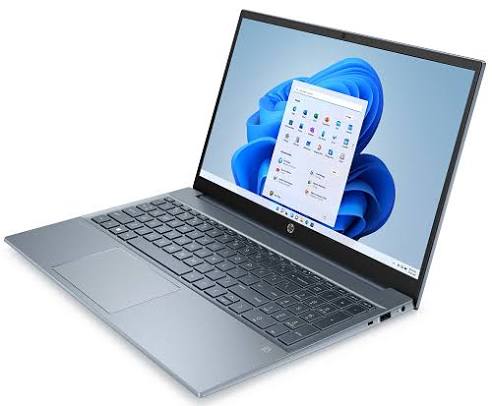
Introduction: HP Pavilion 15 Laptop PC Overview, Features, and Best Uses
The hp Pavilion 15 Laptop PC is a versatile 15.6-inch notebook designed for everyday productivity, online learning, streaming, and light creative work. It is popular for its balanced mix of performance, portability, and value, making it a strong choice for students, home users, and remote workers who need a reliable Windows laptop without paying premium prices. Depending on the configuration, it may include an AMD Ryzen or Intel Core processor, Full HD IPS display, SSD storage, Wi-Fi, Bluetooth, and a backlit keyboard, with newer models often offering USB-C, HDMI, and fast charging support.
One of the biggest benefits of the hp Pavilion 15 Laptop PC is its flexibility. Buyers can choose entry-level versions for web browsing and document work or upgraded models with more RAM and larger SSDs for multitasking, photo editing, and office workloads. The 15.6-inch display gives users more screen space than compact ultrabooks, which is helpful for split-screen work, spreadsheets, and media consumption. In real-world use, it is often favored as an affordable all-round laptop with a clean design, decent battery life, and a comfortable keyboard for long sessions.
The estimated price range typically starts around $589 and can rise to about $850 or more depending on the processor, memory, and storage configuration. Availability is generally strong through HP, major electronics retailers, and online marketplaces, though pricing varies by region and seasonal promotions. For buyers comparing value, the HP Pavilion 15 laptop remains one of the most recognizable mainstream choices in the mid-range laptop category.
Troubleshooting: Common HP Pavilion 15 Problems and Quick Fixes
If your hp Pavilion 15 Laptop PC will not power on, first confirm the charger is connected securely, test a different wall outlet, and perform a hard reset by holding the power button for about 15 seconds. If the laptop turns on but does not boot, disconnect all external devices and restart. Common startup error messages such as “Boot Device Not Found” usually indicate a storage detection issue, loose SSD connection, or corrupted boot files. Reinstalling the drive, running startup repair, or resetting Windows may resolve the problem.
For Wi-Fi dropouts, update the wireless adapter driver and move closer to the router. If the screen is black but the fan runs, try connecting to an external monitor to rule out panel or backlight issues. Error codes related to battery or adapter detection often improve after removing dust, using the original charger, and checking power settings. Preventive measures include regular Windows updates, keeping vents clear, avoiding overheating, and backing up important files. If the laptop is still under warranty, HP support, authorized service centers, and retailer support are the best options for repair. Users can usually reach help through HP Support online, live chat, or regional phone support listed on the official HP support page.
Pros and Cons of the HP Pavilion 15 Laptop PC
- Pros: Strong value for money with a competitive starting price and a wide range of configurations.
- Pros: 15.6-inch Full HD display offers good workspace for school, office, and media use.
- Pros: SSD storage and modern processors deliver responsive everyday performance for browsing, streaming, and multitasking.
- Pros: Comfortable keyboard, useful port selection, and broad availability make it practical for daily use.
- Cons: Entry-level models may feel limited for heavy video editing, gaming, or large creative projects.
- Cons: Plastic construction is common, so build quality is solid but not premium.
- Cons: Battery life and display quality vary by configuration, so shoppers need to compare specs carefully.
- Cons: Competing laptops like Dell Inspiron, Lenovo IdeaPad, and Acer Aspire may offer similar performance at comparable prices.
Overall, the hp Pavilion 15 Laptop PC is a smart mid-range option if you want dependable everyday performance without overspending.
Customer Reviews: What Buyers Say About the HP Pavilion 15
Customer feedback for the HP Pavilion 15 laptop is generally positive, with many users rating it around 4 out of 5 stars for value, display size, and ease of use. Buyers frequently praise the fast SSD response, quiet operation, and comfortable typing experience. A common testimonial style comment is, “It is a great student laptop for classes, Zoom calls, and office work.” Another typical reaction is that the Pavilion 15 feels like a practical upgrade from older budget laptops.
Frequent complaints focus on battery life in lower-cost models, plastic chassis feel, and occasional fan noise under load. Some users also mention that certain configurations are better suited to productivity than heavy gaming. Purchase recommendations usually favor mid-tier versions with 8GB or 16GB RAM and a 512GB SSD for the best balance of speed and longevity. For shoppers who want an affordable Windows notebook with a large screen and dependable everyday performance, the hp Pavilion 15 Laptop PC is often recommended as a solid buy.
Faqs
How do I set up hp Pavilion 15 Laptop PC for the first time?
Why is my hp Pavilion 15 Laptop PC running slowly, and how can I speed it up?
How do I fix Wi‑Fi connection problems on hp Pavilion 15 Laptop PC?
What accessories and devices are compatible with hp Pavilion 15 Laptop PC?
How can I improve battery life on hp Pavilion 15 Laptop PC?
Why is the fan on my hp Pavilion 15 Laptop PC so loud?
How do I reset or recover hp Pavilion 15 Laptop PC without losing important files?
How should I clean and maintain hp Pavilion 15 Laptop PC for long-term reliability?
Tags
More hp manuals
Leave a Comment