
Hp LA1956x Backlit LCD Monitor User Manual
Content
hp LA1956x Backlit LCD Monitor: Overview, Features, and Buying Guide
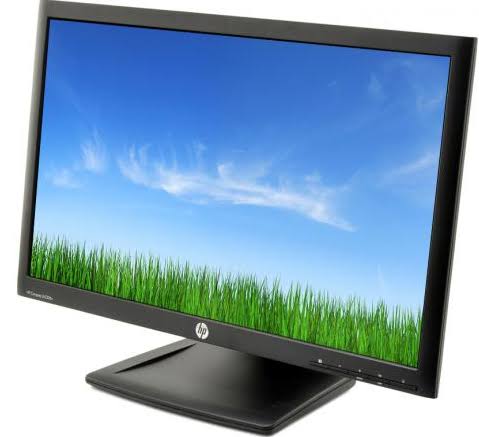
The hp LA1956x Backlit LCD Monitor is a compact 19-inch business-class display designed for office productivity, legacy workstation setups, and users who need a dependable 5:4 screen format. With a native resolution of 1280 x 1024, LED backlighting, and a TN panel, it delivers crisp text clarity for spreadsheets, ERP systems, point-of-sale stations, and administrative tasks. Its 250 cd/m² brightness, 1000:1 static contrast ratio, and fast 5 ms response time help keep everyday visuals sharp and usable in bright office environments.
One of the biggest advantages of the hp LA1956x Backlit LCD Monitor is its flexible connectivity. Typical ports include VGA, DVI-D with HDCP support, DisplayPort, and a built-in USB hub, making it suitable for mixed-generation PCs and docking stations. The adjustable stand adds tilt, swivel, pivot, and height adjustments, which improves ergonomics during long work sessions. It also supports VESA mounting for wall arms and multi-monitor setups.
This monitor is best suited for businesses, IT departments, home offices, and refurbished PC buyers looking for a reliable display at a budget-friendly price. The estimated price range is usually around $70 to $170 depending on condition, seller, and region, with refurbished units often being the most available option. If you need a compact monitor for legacy software, office documents, or inventory systems, the hp LA1956x Backlit LCD Monitor remains a practical and value-focused choice.
hp LA1956x Backlit LCD Monitor Troubleshooting Guide
Common Problems and Quick Fixes
- No display or black screen: Check power connections, verify the input source, and test with a different cable or port.
- “No Signal” message: Confirm that the PC is turned on, the correct input is selected, and the DisplayPort, DVI, or VGA cable is firmly connected.
- Flickering or unstable image: Replace damaged cables, lower refresh-rate mismatches, or try another video output on the computer.
- Incorrect resolution: Set the display to the native 1280 x 1024 resolution for the sharpest image quality.
- USB hub not responding: Reconnect the upstream USB cable and restart the system.
Common on-screen status messages such as “Input Signal Out of Range” usually indicate a resolution or refresh-rate mismatch, so reset the PC display settings to 1280 x 1024 at 60 Hz. To prevent recurring issues, keep cables secured, avoid bending connectors, and clean the vents to reduce heat buildup. The hp LA1956x Backlit LCD Monitor typically includes a 3-year limited warranty on supported units, but warranty coverage depends on age and seller status. For help, use HP Support through the official product support page or contact HP customer service for serial-number-based warranty verification and driver assistance.
hp LA1956x Backlit LCD Monitor Pros and Cons
Pros
- Business-friendly 5:4 aspect ratio: Ideal for documents, data entry, and older enterprise applications.
- Flexible connectivity: VGA, DVI-D, and DisplayPort make it compatible with legacy and modern systems.
- Ergonomic stand: Height, tilt, swivel, and pivot adjustments improve comfort.
- Built-in USB hub: Convenient for keyboards, mice, and flash drives.
- Good value for money: Refurbished pricing is attractive for budget-conscious buyers.
Cons
- Lower resolution by modern standards: 1280 x 1024 is fine for office use but limited for creative work.
- TN panel limitations: Colors and viewing angles are weaker than IPS alternatives.
- Smaller 19-inch screen: Less suitable for immersive media or multitasking-heavy workflows.
- Older design: Better matched to refurbished desktops than current premium setups.
Compared with modern 24-inch IPS office monitors, the hp LA1956x Backlit LCD Monitor offers better legacy compatibility but less screen space and weaker color performance. For simple productivity tasks, it still delivers strong value, especially in refurbished or enterprise bulk-buy scenarios.
Customer Reviews for hp LA1956x Backlit LCD Monitor
User feedback is generally positive, with many buyers giving it around 4 out of 5 stars for reliability, office usability, and sturdy build quality. Customers frequently praise the adjustable stand, sharp text rendering, and versatile port selection. One common testimonial theme is that it works especially well as a “no-frills office monitor” for spreadsheets and administrative work.
Frequent complaints focus on the smaller screen size, dated resolution, and the TN panel’s limited viewing angles. Some buyers also mention that refurbished units may show cosmetic wear. Overall, the hp LA1956x Backlit LCD Monitor is a solid purchase for users who want a dependable budget monitor for business or home office tasks. It is less compelling for gaming, design, or high-resolution media, but it remains a smart choice for practical everyday computing.
Faqs
How do I set up the hp LA1956x Backlit LCD Monitor for the first time?
What should I do if the hp LA1956x Backlit LCD Monitor shows a black screen but the power light is on?
Which devices are compatible with the hp LA1956x Backlit LCD Monitor?
How can I improve picture quality on the hp LA1956x Backlit LCD Monitor?
Why is the hp LA1956x Backlit LCD Monitor flickering, and how do I fix it?
How do I clean and maintain the hp LA1956x Backlit LCD Monitor safely?
What should I check if the hp LA1956x Backlit LCD Monitor has no signal from my computer?
How can I optimize the hp LA1956x Backlit LCD Monitor for long work sessions?
Tags
More hp manuals
Leave a Comment