
Hp DQHD Monitor User Manual
Content
HP DQHD Monitor Manual: Setup, Features, Troubleshooting, and Buying Guide
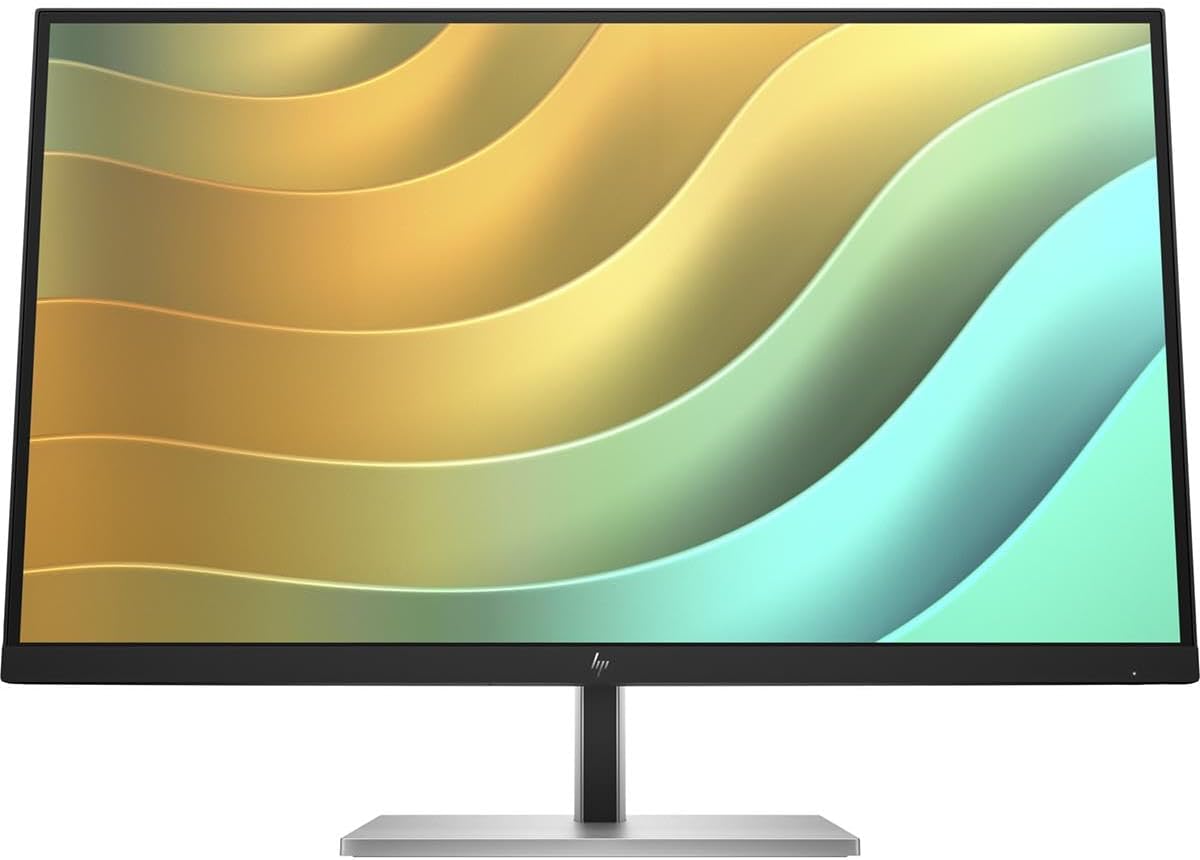
Introduction
The HP DQHD Monitor is designed for users who want expansive screen real estate, sharp productivity-focused visuals, and a cleaner workspace with fewer displays. DQHD, or Dual Quad High Definition, delivers a 5120 x 1440 resolution that combines the equivalent space of two QHD monitors into one ultra-wide panel, making the HP DQHD Monitor ideal for multitasking, content creation, data analysis, finance, and hybrid work. It is especially useful for professionals who manage multiple windows side by side, as well as users who prefer an immersive setup for streaming, editing, and gaming.
Popular models in the HP DQHD lineup include the 44.5-inch HP E45c G5 and the 49-inch HP Series 5 Pro conferencing monitor, both built around ultra-wide curved designs and USB-C connectivity. Depending on the model, you can expect features such as integrated USB hubs, Ethernet, high brightness, wide color coverage, and support for laptop charging through USB-C. Some variants also include conferencing-focused features like pop-up webcams and built-in collaboration tools, making them strong choices for modern office environments.
Estimated pricing typically ranges from about $950 to $1,500 USD, depending on size, configuration, and retailer availability. The HP DQHD Monitor is generally available through HP’s official store, major electronics retailers, and business resellers, though pricing and stock may vary by region. For buyers who want a premium ultrawide monitor with strong productivity benefits, the HP DQHD Monitor offers a compelling balance of screen space, connectivity, and professional design.
How to Use the HP DQHD Monitor: Quick Setup Guide
- Unpack the monitor carefully and attach the stand or VESA mount if supported.
- Connect your laptop or desktop using USB-C, DisplayPort, or HDMI depending on the model.
- Power on the monitor and select the correct input source from the on-screen menu.
- Adjust brightness, contrast, and image mode for your room lighting and workload.
- Install any optional HP display software or firmware updates for best performance.
Troubleshooting
Common problems with an HP DQHD Monitor usually involve no signal, incorrect resolution, USB-C charging issues, or screen flicker. If the monitor shows “No Signal,” verify that the input source matches the connected cable and confirm the cable supports the required bandwidth. If the image appears stretched or blurry, set the display output to the native 5120 x 1440 resolution and use the recommended refresh rate for your specific model. For USB-C power delivery problems, check whether your laptop supports video over USB-C and confirm that the cable is rated for display and charging.
Some monitors may display simple on-screen warnings rather than formal error codes. If the screen shows a power or input warning, restart both the monitor and the connected device, then reseat all cables. If flickering occurs, try a different DisplayPort or USB-C cable and disable any variable refresh or incompatible scaling settings. Prevent future issues by keeping firmware updated, avoiding low-quality cables, and using the monitor within the supported temperature and ventilation range.
HP monitors are typically covered by a limited warranty that varies by model and region. For help, contact HP Support through the official HP support website, use the support phone number listed in your region, or reach out to the retailer if the unit was recently purchased and still within the return period. Business buyers can also use HP commercial support channels for faster troubleshooting.
Pros and Cons of the HP DQHD Monitor
Pros
- Massive 32:9 ultrawide workspace that reduces the need for dual-monitor setups.
- 5120 x 1440 DQHD resolution delivers crisp multitasking and strong detail for professional work.
- USB-C connectivity simplifies laptop docking, charging, and display output with one cable.
- Curved panels improve immersion and help keep wide content easier to view.
- Strong fit for productivity, spreadsheets, video conferencing, and creative workflows.
Cons
- Premium pricing makes it less suitable for budget buyers.
- Very large size can overwhelm smaller desks and shallow workspaces.
- Some users may need time to adjust to the extreme ultrawide aspect ratio.
- Gaming alternatives from brands like Samsung or Dell may offer higher refresh rates or different feature sets at similar prices.
- Value for money is strongest for professionals who truly use the extra screen space every day.
Compared with standard ultrawide monitors, the HP DQHD Monitor stands out for office productivity and docking convenience. Compared with budget 49-inch models, it usually offers better business-focused integration and a more polished professional experience.
Customer Reviews
Customer feedback for the HP DQHD Monitor is generally positive, with many users rating it around 4.5 out of 5 stars for productivity and screen comfort. Buyers frequently praise the huge workspace, clean desk setup, and the convenience of USB-C docking. One common testimonial is that the monitor “feels like replacing two displays with one seamless panel,” which appeals strongly to spreadsheet users and remote workers.
Common complaints focus on price, desk space requirements, and occasional setup complexity when using older laptops or unsupported cables. Some reviewers also mention that the panel is best for work rather than fast-paced competitive gaming. For most professionals, however, the monitor is recommended as a high-value premium tool if the budget and workspace allow it.
Final Verdict
The HP DQHD Monitor is best for users who want an ultra-wide productivity display with modern connectivity and premium build quality. If you need a monitor for multitasking, business conferencing, or replacing a dual-screen setup, it is one of the strongest options in the ultrawide category.
Faqs
How do I set up hp DQHD Monitor for the first time without missing any steps?
What resolution and refresh rate should I use on hp DQHD Monitor for the best sharpness and smooth performance?
Why is my hp DQHD Monitor showing a black screen even though my PC is on?
Can hp DQHD Monitor work with laptops, gaming PCs, and docking stations?
How do I use split-screen and multitasking features on hp DQHD Monitor effectively?
What should I do if text looks blurry or oversized on hp DQHD Monitor?
Which cable and port are best for getting full performance from hp DQHD Monitor?
How should I clean and maintain hp DQHD Monitor to keep the screen and panel in good condition?
More hp manuals
Leave a Comment