
Setup: Hp Pro Display P222c Monitor User Manual
Content
HP Pro Display P222c Monitor Manual and Product Overview
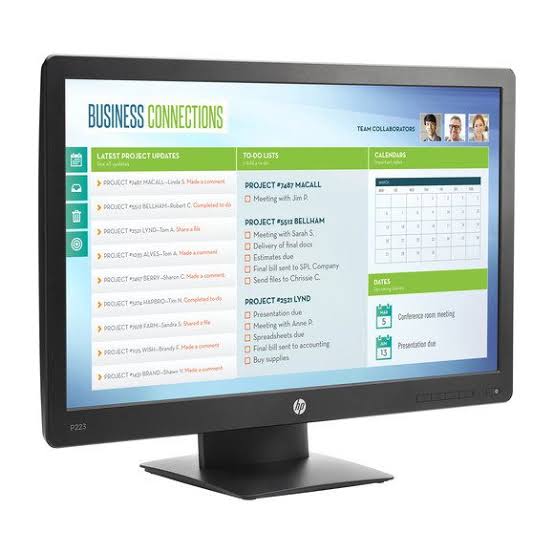
The hp Pro Display P222c Monitor is a 21.5-inch business display built for video conferencing, office productivity, and daily professional use. It combines a Full HD 1920 x 1080 panel with an integrated 720p webcam, dual microphones, and stereo speakers, making it a convenient all-in-one communication monitor for remote workstations and conference-ready desks. With a VA LED-backlit screen, wide viewing angles, and a 3000:1 static contrast ratio, this monitor delivers clear text, solid color depth, and dependable performance for everyday tasks.
This model is especially useful for business users, small offices, customer support teams, and hybrid workers who want fewer external accessories and a cleaner workspace. The built-in webcam and audio hardware reduce setup complexity, while VGA, DisplayPort 1.2, and USB connectivity help it fit into older and newer PC environments. The monitor also supports tilt adjustment and VESA mounting, which makes it easier to position in shared workspaces or wall-mounted setups.
As an older business-class model, the hp Pro Display P222c Monitor is typically found through refurbished sellers, surplus dealers, and used-office equipment marketplaces rather than standard retail shelves. Estimated pricing generally falls around the budget-to-midrange segment for refurbished monitors, often influenced by condition, accessories, and warranty coverage. For buyers looking for a practical video conferencing monitor with integrated peripherals, this display remains a strong value-focused option.
Troubleshooting HP Pro Display P222c Monitor Problems
If the screen stays blank, first confirm that the power cable is secure, the input source is set correctly, and the PC is powered on. If the image appears distorted or out of range, reset the display resolution to the native 1920 x 1080 at 60 Hz. A flashing or unstable picture usually points to a loose video cable, a damaged VGA or DisplayPort connection, or an unsupported refresh setting.
Common on-screen messages such as “No Signal” or “Input Signal Out of Range” usually mean the wrong source is selected or the computer is sending an unsupported resolution. If the webcam, microphone, or speakers do not work, check the USB upstream cable, system privacy settings, and audio device selection. Preventive care includes keeping vents clear, using high-quality cables, updating graphics drivers, and avoiding frequent unplugging of the USB hub. Warranty coverage depends on the seller, since many units are now refurbished or second-hand. For help, contact HP Support through the official HP support website or the regional HP customer care line listed for your country.
Pros & Cons of the hp Pro Display P222c Monitor
Pros
- Integrated 720p webcam, dual microphones, and speakers reduce desk clutter and simplify video calls.
- Full HD 21.5-inch screen offers sharp text and good workspace efficiency for office tasks.
- DisplayPort, VGA, and USB support improve compatibility with older and newer systems.
- VA panel provides strong contrast and wide viewing angles for meetings and document work.
- Good value for money when purchased refurbished with a warranty.
Cons
- Tilt-only adjustment is less flexible than modern ergonomic stands with height, swivel, and pivot.
- Older design means lower brightness and fewer premium features than newer IPS conference monitors.
- Availability is limited and pricing varies widely depending on refurbished condition.
- Integrated webcam and audio are convenient, but not as high quality as dedicated external devices.
Compared with newer business monitors, the hp Pro Display P222c Monitor offers stronger built-in conferencing features but less ergonomic adjustment and fewer modern display refinements. For buyers who need an affordable all-in-one desktop solution, it remains a practical choice.
Customer Reviews for HP Pro Display P222c Monitor
Customer feedback is generally positive, especially from office users who appreciate the built-in webcam, microphones, and speakers. Many buyers rate it around 4 out of 5 stars for convenience, easy setup, and dependable performance in meetings and remote work.
Common praise includes “great for video calls,” “clean desk setup,” and “solid image quality for documents.” The most frequent complaints mention limited adjustability, older styling, and inconsistent condition in refurbished listings. Some users also note that the built-in audio is serviceable but not ideal for music or conference-heavy environments.
Overall, the hp Pro Display P222c Monitor is a smart purchase for budget-conscious professionals who want an integrated business monitor with conferencing features. It is best suited for office work, teleconferencing, and light multimedia use rather than color-critical creative work.
Faqs
How do I set up the hp Pro Display P222c Monitor for the first time?
What should I do if the hp Pro Display P222c Monitor shows no signal?
Which devices are compatible with the hp Pro Display P222c Monitor?
How do I adjust the brightness and color settings on the hp Pro Display P222c Monitor?
Why is the image on my hp Pro Display P222c Monitor blurry or scaled incorrectly?
Can I mount the hp Pro Display P222c Monitor on a wall or arm?
What are the best ways to optimize the hp Pro Display P222c Monitor for office use?
How should I clean and maintain the hp Pro Display P222c Monitor safely?
More hp manuals
Leave a Comment