
Hp optical disc drive User Manual
Content
HP Optical Disc Drive Review: Complete Guide for Buyers
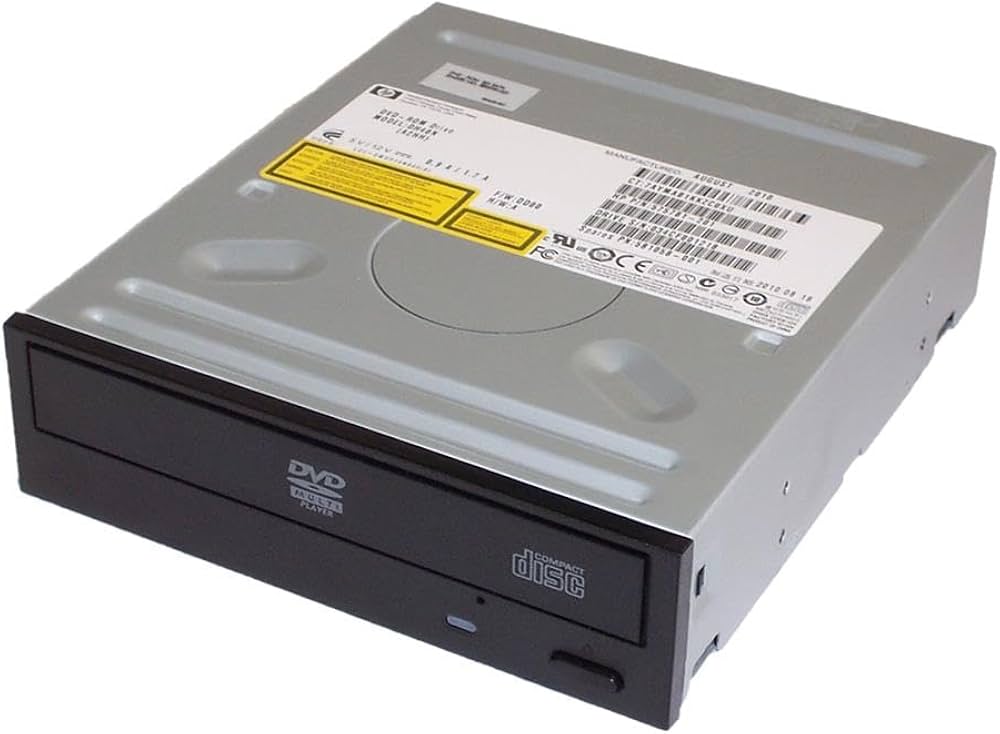
The HP optical disc drive remains a practical solution for users who still rely on DVDs and CDs for software installs, media playback, data backup, and legacy file access. Whether you need an external DVD writer for a slim laptop or an internal SATA optical drive for a desktop or workstation, HP’s lineup is known for straightforward setup, broad compatibility, and dependable everyday performance.
One of the biggest advantages of an HP optical disc drive is convenience. External models connect through USB and typically work without complicated installation, making them ideal for modern notebooks that no longer include built-in disc drives. Internal models are a strong fit for business desktops, older PCs, and workstations that still need optical media support. Many HP drives offer DVD±R, DVD±RW, and dual-layer recording, with common write speeds up to 8X DVD and 24X CD on external DVDRW models, while some slim internal drives focus on DVD-ROM reading and compact installation. LightScribe support appears on select legacy models, adding disc-labeling capability for users who still archive physical media.
For target users, the hp optical disc drive is best suited to students, office workers, technicians, IT admins, and home users who need a reliable way to read or burn discs. It is also useful for installing older software, accessing archived photos and videos, and creating backups for long-term storage. Current HP external DVD-RW drives generally fall in the budget-to-midrange category, with estimated prices often around $25 to $60 depending on model, seller, and region. Availability remains good through HP stores and major online retailers, though internal and specialty models can vary by market.
HP Optical Disc Drive Specifications and Performance
- Interface: USB 2.0 or USB 3.0 for external models; SATA for internal slim drives.
- Supported media: DVD-ROM, DVD±R, DVD±RW, DVD±R DL, CD-R, CD-RW; some models support DVD-RAM and LightScribe.
- Write speeds: Common external HP DVD-RW drives support up to 8X DVD writing and 24X CD writing.
- Read speeds: Typical DVD read speeds reach up to 8X or higher on writer models, while CD read speeds often reach 24X or 48X on select units.
- Dual-layer capacity: Up to 8.5 GB on compatible DVD±R DL media.
- Typical access time: Around 160 ms for DVD and CD on many HP external models.
- Transfer performance: Burst transfer rates can reach roughly 33 MB/s on older high-speed external units.
- Form factor: Slim external units are compact and portable; internal slim drives are designed for 9.5 mm or 12.7 mm bays.
- OS support: Common compatibility includes Windows, macOS on select external models, and Chrome OS on some USB drives.
Compared with generic external DVD drives, the hp optical disc drive usually offers better documentation, solid compatibility, and trusted brand support. Compared with premium all-in-one media solutions, it is less expensive but more focused on basic optical reading and writing rather than advanced archival workflows.
Pros and Cons of HP Optical Disc Drives
Pros
- Simple plug-and-play setup on most external USB models, making them easy for non-technical users.
- Reliable support for common disc formats such as DVD±R, DVD±RW, and CD-R/CD-RW.
- Portable external designs are ideal for laptops, travel, and temporary workstation use.
- Good value for money for users who only need occasional disc reading or burning.
- Internal slim drives are a smart option for desktops and business systems that still require optical media.
Cons
- Slower than USB flash drives, SSDs, and cloud storage for file transfer and backup tasks.
- External models depend on USB power and can be limited by cable quality or older ports.
- Many newer laptops and ultrabooks no longer include built-in disc drive bays, so external use is often required.
- Optical media has limited capacity compared with modern storage alternatives.
- Some advanced features, such as LightScribe, are only available on older or legacy models.
For users who need occasional disc access, the hp optical disc drive is a cost-effective choice. If you need frequent large-file transfers, a USB SSD or cloud backup service is usually a better alternative.
Customer Reviews and Real-World Feedback
Average user rating: 4.3/5 stars
Customers commonly praise the easy setup, compact design, and dependable disc reading performance. Many buyers say the drive works well for installing software, playing older DVDs, and recovering archived files. One typical comment is: “It connected instantly and burned my backup discs without issues.”
Common complaints focus on slower write speeds than modern storage devices, short USB cables on some models, and occasional compatibility issues with older operating systems. Another frequent note is that external drives can be less convenient on laptops with only one or two USB ports.
Overall, the hp optical disc drive is recommended for users who still depend on physical media and want a reliable, affordable solution. It is especially worthwhile for students, office users, and anyone maintaining a collection of DVDs or CD-based software.
Faqs
How do I set up an HP optical disc drive for the first time on a laptop or desktop?
Why is my HP optical disc drive not reading discs, and how can I fix it?
What types of discs are compatible with an HP optical disc drive?
Can I use an HP optical disc drive to install software, games, or operating systems?
Why is my HP optical disc drive spinning but not opening files or folders?
How do I improve burning speed and reduce errors on an HP optical disc drive?
What maintenance steps keep an HP optical disc drive working reliably?
How do I know if my HP optical disc drive is compatible with my computer and operating system?
Tags
More hp manuals
Leave a Comment