
Hp PRO WEBCAM 575739-001 User Manual
Content
HP Pro Webcam 575739-001: Product Manual and Buyer’s Guide
Introduction
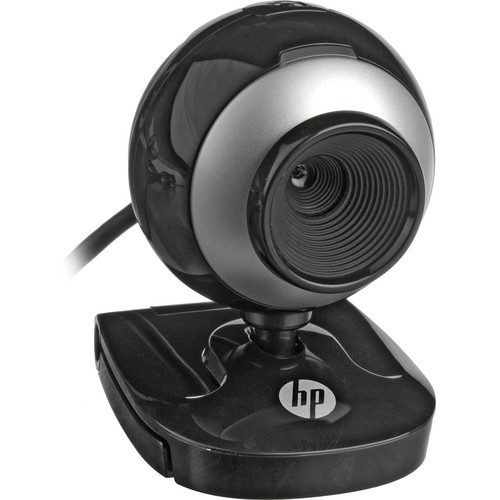
The hp PRO WEBCAM 575739-001 is a compact USB webcam designed for users who need dependable video calling, basic content creation, and everyday office communication. Built around a VGA 640 x 480 CMOS sensor with up to 30 frames per second, it delivers smooth, stable video for meetings, classroom use, and online chats. Its integrated microphone, adjustable clip, focus ring, and front status LED make it practical for laptops, LCD monitors, and CRT displays alike.
This HP Pro Webcam is especially well suited for business professionals, students, remote workers, and anyone replacing an older built-in laptop camera. The simple plug-and-play style setup and broad compatibility with popular messaging and communication platforms make it easy to use in real-world scenarios such as video conferencing, virtual interviews, and basic streaming. While it is not a modern high-definition webcam, it remains a reliable choice for users who value simplicity and affordability over advanced imaging features.
Estimated pricing typically falls in the budget category, often around $10 to $20 depending on condition and seller, with availability mostly limited to resale and marketplace listings rather than new retail stock. That makes the hp PRO WEBCAM 575739-001 a practical low-cost option for secondary systems, replacement setups, or users who want a no-frills external webcam.
Specifications for HP Pro Webcam 575739-001
- Sensor: VGA 640 x 480 CMOS sensor
- Video resolution: 640 x 480 pixels
- Still image capture: 1.3 MP via software interpolation
- Frame rate: Up to 30 fps for smooth motion
- Interface: Full-speed USB 2.0, backward compatible with USB 1.1
- Audio: Integrated microphone for voice calls
- Controls: Snapshot button, focus ring, front LED on/off indicator
- Mounting: Versatile clip for LCD, CRT, and notebook screens
- Compatibility: Designed for common Windows-based systems and major messaging apps
- Dimensions: 44 x 52 x 65 mm unboxed
- Weight: 0.070 kg unboxed
In performance terms, this model is best viewed as a standard-definition webcam rather than a high-resolution camera. Compared with newer 720p or 1080p webcams, it offers lower image detail but remains usable for simple video calls and lightweight office tasks. Against similarly priced legacy webcams, its built-in microphone and easy mounting clip make it competitive for basic everyday communication.
Pros and Cons of the hp PRO WEBCAM 575739-001
Pros
- Affordable replacement option: Useful for users who need a low-cost external webcam instead of buying a newer model.
- Simple setup: USB connection and clip-on design make installation straightforward for laptops and desktop monitors.
- Built-in microphone: Eliminates the need for a separate mic in casual video calls.
- Good motion smoothness: Up to 30 fps helps conversations look more natural than very old webcams.
- Compact design: Small footprint makes it easy to carry or keep on a desk.
Cons
- Low resolution by modern standards: VGA output is noticeably less sharp than HD webcams.
- Limited appeal for creators: Not ideal for streaming, professional recording, or detailed product demos.
- Older hardware generation: Availability is mainly through resale channels, so condition may vary.
- Basic image quality in low light: Like many legacy webcams, performance drops in dim rooms.
For value for money, the hp PRO WEBCAM 575739-001 is strongest when the goal is simply to get a working webcam at the lowest possible cost. Newer alternatives such as budget HD webcams offer better image clarity, but this HP model can still be a sensible choice for secondary PCs or office backups.
Customer Reviews and Real-World Feedback
Typical user feedback for the HP Pro Webcam trends positive on reliability and ease of use, with common praise for its straightforward USB connection, compact form factor, and usable microphone. Many buyers rate it around 4 out of 5 stars for basic video calling, especially when replacing a broken built-in camera.
Common complaints focus on the webcam’s standard-definition image quality, which feels dated compared with modern 720p and 1080p models. Users also mention that low-light performance is limited and that availability can be inconsistent because the product is often found through used or surplus listings.
Typical testimonial: “Works well for meetings and calls, easy to clip onto my monitor, but the picture is clearly older tech.”
Purchase recommendation: Choose this model if you need a dependable budget webcam for basic communication. Skip it if you want sharper video for streaming, content creation, or professional presentations. The hp PRO WEBCAM 575739-001 is best for practical everyday use rather than image-quality demands.
Faqs
How do I set up hp PRO WEBCAM 575739-001 for the first time on a Windows PC?
Why is hp PRO WEBCAM 575739-001 not showing up in Zoom, Teams, or Skype?
What should I do if hp PRO WEBCAM 575739-001 has a blurry or dark image?
Is hp PRO WEBCAM 575739-001 compatible with macOS and video conferencing apps?
How can I improve video quality when using hp PRO WEBCAM 575739-001 for meetings?
What common problems cause hp PRO WEBCAM 575739-001 to freeze or lag during calls?
How do I clean and maintain hp PRO WEBCAM 575739-001 without damaging it?
What features should I check before buying hp PRO WEBCAM 575739-001 for home office use?
Tags
More hp manuals
Leave a Comment