
Pairing: Jbl Quantum 360P Console Wireless Headphones Setup Guide
Content
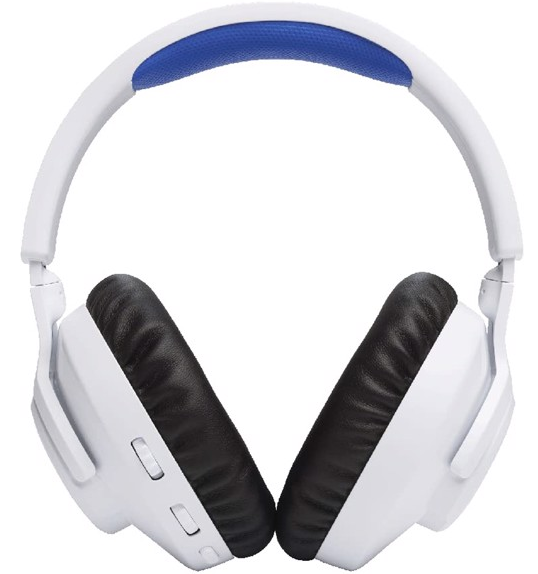
JBL Quantum 360P Console Wireless Headphones
Inroduction
Congratulations on your purchase! This manual includes information on the JBL QUANTUM360P CONSOLE WIRELESS gaming headset. We encourage you to take a few minutes to read this manual, which describes the product and includes step-by-step instructions to help you to set up and get started. Read and understand all the safety instructions before using your product.
If you have any questions about this product or its operation, please contact your retailer or customer service, or visit us at www.JBLQuantum.com
Product Specifications
- Model: QUANTUM360P CONSOLE WIRELESS
- Driver size: 40 mm Dynamic drivers
- Frequency response (Passive): 20 Hz - 20 kHz
- Frequency response (Active): 20 Hz - 20 kHz
- Microphone frequency response: 100 Hz - 8 kHz
- Max input power: 30 mW
- Sensitivity: 98 dB SPL @1 kHz / 1 mW
- Maximum SPL: 94 dB
- Microphone sensitivity: -42 dBV / Pa @1 kHz
- Impedance: 32 ohm
- 2.4GHz Wireless transmitter power: < 7 dBm (EIRP)
- 2.4GHz Wireless modulation: GFSK
- 2.4GHz Wireless carrier frequency: 2402 MHz - 2480 MHz
- Bluetooth transmitted power: < 6 dBm (EIRP)
- Bluetooth transmitted modulation: GFSK, π/4-DQPSK
- Bluetooth frequency: 2402 MHz - 2480 MHz
- Bluetooth profile version: HFP: v1.5, A2DP: v1.3
- Bluetooth version: BT Core: v5.2
- Battery type: Li-ion battery (3.7 V / 500 mAh)
- Power supply: 5 V, 1 A
- Charging time: 2 hrs
- Music play time with only 2.4GHz on: Up to 22 hrs
- Talk time with only 2.4GHz on: Up to 22 hrs
- Music play time with only BT on: Up to 26 hrs
- Talk time with only BT on: Up to 26 hrs
- Microphone pickup pattern: Omni-directional
- Weight: 256.4 g
What’s in the box

- JBL QUANTUM360P CONSOLE WIRELESS gaming headset
- USB charging cable (USB-A to USB-C)
- Removable microphone
- 2.4GHz USB wireless dongle
- QSG, warranty card,, and safety sheet
- Windshield foam for boom microphone
PRODUCT OVERVIEW
Controls on headset
 dial
dial- Balances the chat volume in relation to the game audio volume.
- Volume +/- dial
- Adjusts headset volume.
 button
- Press to mute or unmute the microphone.
- Charging LED
- Indicates the charging and battery status.
- USB-C port
- Jack for a 2.5 mm boom microphone
- Flat-fold ear cup
- Status LED (Power / 2.4GHz / Bluetooth)
 slider
- Slide upwards to power on and enter 2.4GHz pairing mode, or slide downwards to power off the headset.
- Slide upwards and hold for 2 seconds to enter Bluetooth pairing mode.
Controls on 2.4GHz USB wireless dongle
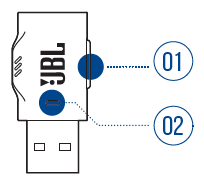
Connect Button
- Hold for more than 5 seconds to enter 2.4GHz wireless pairing mode.
LED
- Indicates the status of the 2.4GHz wireless connection.
Wearing your headset
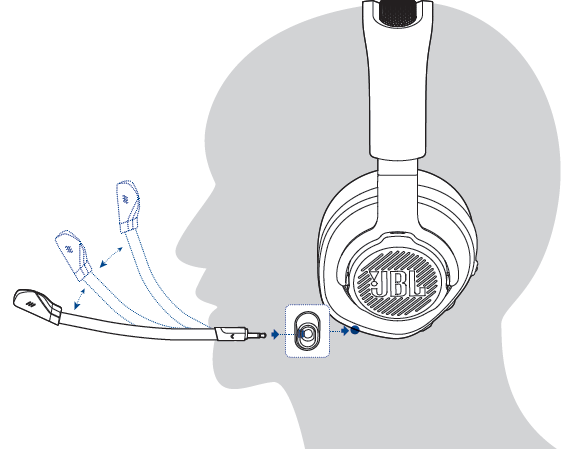
- Attach the detachable boom microphone.
- Put the side marked L onto your left ear and the side marked R onto your right ear.
- Adjust the earpads and headband for a comfortable fit.
- Adjust the microphone as necessary.
Troubleshooting Common Issues
If you have problems using this product, check the following points before you request service.
No power
- The headset turns off automatically after 10 minutes of inactivity. Power on the headset again.
- Recharge the headset (see “Charging your headset”).
2.4GHz pairing failed between the headset and the 2.4GHz USB wireless dongle
- Move the headset closer to the dongle. If the issue remains, pair the headset with the dongle again manually (see “To pair manually”).
Bluetooth pairing failed
- Make sure you have enabled the Bluetooth feature on the device to connect with the headset.
- Move the device closer to the headset.
- The headset is connected to another device through Bluetooth. Disconnect the other device, then repeat the pairing procedures. (see “With Bluetooth (secondary connection)”).
No sound or poor sound
- Make sure you have chosen JBL Quantum360P Console Wireless Game as the default device in the game sound settings of your PC, Mac,, or gaming console device.
- Adjust volume on your PC, Mac, AC, or gaming console device.
- You may experience obvious sound quality degradation when using the headset near a U3.0-enabledled device. This is not a malfunction. Use an extension USB dock instead to keep the dongle as far from the USB 3.0 port as possible.
- Make sure the headset and 2.4GHz wireless dongle are paired and connected successfully.
- The USB-A ports on some gaming console devices may be incompatible with the JBL QUANTUM360P. This is not a malfunction.
My voice cannot be heard by my teammates.
- Make sure you have chosen JBL Quantum360P Console Wireless Chat as the default device in the chat sound settings of your PC, Mac,,c or gaming console device.
- Make sure the microphone is not muted.
No response or malfunction
- Connect the headset to a powered USB-A port with the supplied USB charging cable, then disconnect the cable to reset the headset.
Pros and Cons of JBL Quantum 360P Console Wireless Headphones
Pros:
- Wireless Freedom: Enjoy lossless 2.4GHz and Bluetooth connectivity for uninterrupted gaming.
- Immersive Audio: Powered by 40mm drivers and JBL QuantumSOUND Signature for an epic gaming experience.
- Long Battery Life: Up to 22 hours of continuous playtime.
- Comfortable Design: Memory foam ear cushions for marathon gaming sessions.
Cons:
- Compatibility Limitations: Not compatible with Xbox.
- Price Point: May be slightly higher than some budget options.
Customer Reviews and Feedback
Users praise the JBL Quantum 360P for its excellent sound quality and comfortable design. Common praises include the bass performance and the removable microphone. However, some users note that the price might be a bit steep for some budgets. Overall, the JBL Quantum 360P Console Wireless Headphones have received positive reviews for their performance and value.
For those looking for a reliable gaming headset with wireless capabilities and strong audio performance, the JBL Quantum 360P is a solid choice. It is recommended for gamers seeking a headset that can handle both casual and competitive gaming sessions.
Conclusion
The JBL Quantum 360P Console Wireless Headphones offer a compelling blend of wireless convenience, immersive audio, and comfort, making them an excellent choice for gamers across multiple platforms. With its robust features and compatibility with various devices, it stands out as a strong contender in the gaming headset market.
Faqs
How do I set up jbl Quantum 360P Console Wireless Headphones for dual wireless connection with PlayStation 5 and my phone?
Why is the microphone on my jbl Quantum 360P Console Wireless Headphones not working during gameplay?
Can I use jbl Quantum 360P Console Wireless Headphones with Nintendo Switch in handheld mode?
How do I optimize the audio quality of jbl Quantum 360P Console Wireless Headphones for competitive gaming?
What should I do if my jbl Quantum 360P Console Wireless Headphones won’t charge or hold a charge?
How do I clean and maintain my jbl Quantum 360P Console Wireless Headphones for long-lasting comfort?
Are jbl Quantum 360P Console Wireless Headphones compatible with Mac computers, and how do I connect them?
What is the difference between using jbl Quantum 360P Console Wireless Headphones in Bluetooth mode versus 2.4 GHz wireless mode?
More jbl manuals
- Usage & Pairing: Jbl Quantum 360X Wireless for XBOX Headphones User Manual
- Pairing : Jbl Live Flex 3 Earphones User Manual
- Pairing & Usage: Jbl Quantum TWS Air Earphones User Guide
- Pairing & Setup: Jbl Live 670NC Headphones Usage Guide
- Pairing & Usage: Jbl Soundgear Sense Earphones User Manual
- Pairing & Setup: Jbl Wave Flex 2 Earphones User Guide
Leave a Comment