
Setup: Jlab Epic Mouse 2 User Manual
Content
JLab Epic Mouse 2
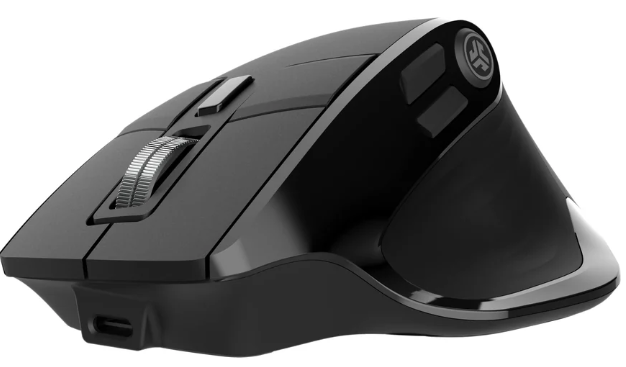
The JLab Epic Mouse 2 is a feature-rich, ergonomic wireless mouse designed for professionals, creatives, and power users who demand seamless connectivity, customizable controls, and quiet operation. Engineered to boost productivity, the Epic Mouse 2 stands out with its Infinity + Tilt scroll system, allowing effortless vertical and horizontal navigation through spreadsheets, creative software, and lengthy web pages—ideal for both office and remote work environments.
This advanced mouse connects via Bluetooth 5.2 or a USB-C 2.4GHz wireless dongle, supporting up to three devices simultaneously. Switching between devices is intuitive, and the ergonomic, full-size design ensures comfort during extended use. The silent click technology minimizes distractions, making it perfect for shared workspaces. With eight customizable buttons (nine total), adjustable DPI (1200–2400), and rechargeable battery life exceeding four months, the JLab Epic Mouse 2 delivers pro-level performance at an accessible price point.
Target users include office professionals, designers, programmers, and anyone seeking a reliable, feature-packed mouse for multitasking. The JLab Work app unlocks deep customization, letting users tailor button functions and save up to three profiles. Compatibility spans Windows, macOS, and Chrome OS.
Available through major electronics retailers and JLab’s official site, the Epic Mouse 2 typically retails in the $50–$70 range, offering strong value for its advanced feature set. For those seeking a versatile, high-performance wireless mouse, the JLab Epic Mouse 2 is a compelling choice that balances innovation, comfort, and productivity.
Specifications
General
- Orientation: Right-handed ergonomic design.
- Color: Black.
- Buttons: 8 programmable buttons
- Connectivity: Three device connection modes: USB-C 2.4 GHz dongle + 2 × Bluetooth 5.2.
- Wireless range: Up to ~9.14 m (≈30 ft) for the wireless connection.
Sensor & Performance
- Detection technology: Optical.
- Maximum resolution: 2,400 dpi.
- Real-time sensitivity switching: ~1,200 dpi ↔ 2,400 dpi.
- Frame rate: ~4,000 frames/sec (for the sensor) according to some spec sheets.
Dimensions & Weight
- Dimensions (approx): 4.81 in × 3.19 in × 2.01 in (≈ 12.2 cm × 8.1 cm × 5.1 cm)
- Weight: ~113 g.
Battery & Power
- Battery: Rechargeable (700 mAh) according to product sheet.
- Battery life: Up to 4 months on a single charge (under typical usage) according to reviews.
- Charging: USB-C cable included.
Features
- Silent-click buttons (quiet operation) for less noise in the click action.
- Dual-mode scroll wheel (standard stepped scroll + “infinite” free-spin mode) and tilt-scroll function.
- 2-year manufacturer warranty.
- Cross-platform compatibility: Windows, macOS, ChromeOS.
SETUP
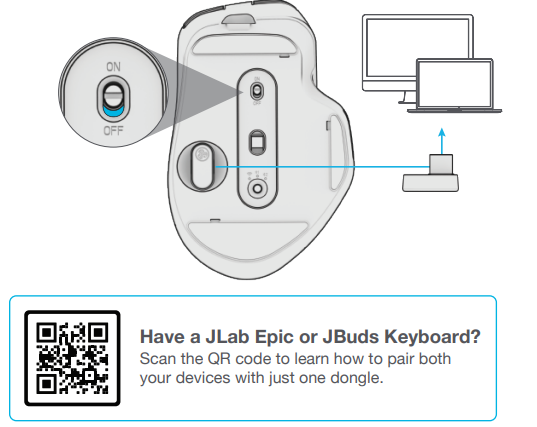
2.4 Connect
Plug in the USB-C dongle to the computer and turn it ON. Epic Mouse 2 will auto-connect.
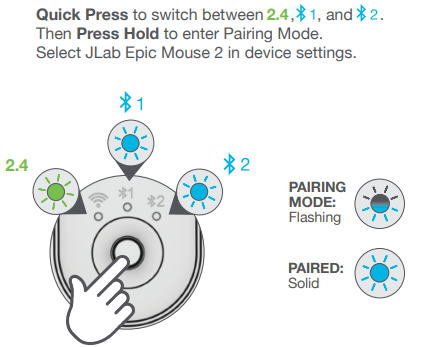
Bluetooth Connect
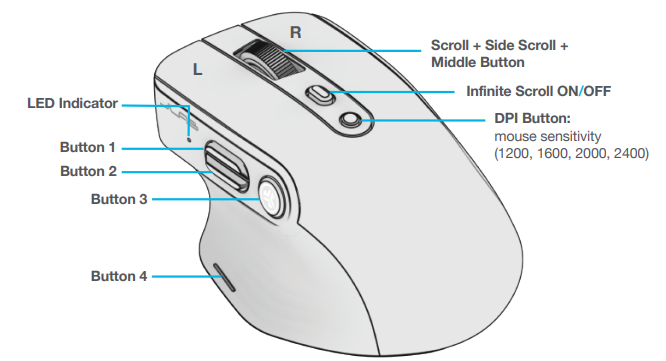
INTERFACE
CHARGING
Connect the Epic Mouse 2 to a computer or a USB 5V 1A (or less) to charge.
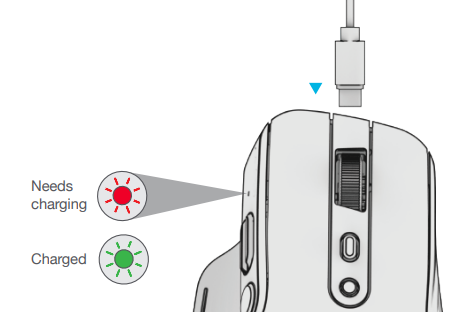
CUSTOMIZATION
Download the JLab Work App (for Mac and PC) to fully customize the Epic Mouse 2 at: JLAB.COM/SOFT..WARE
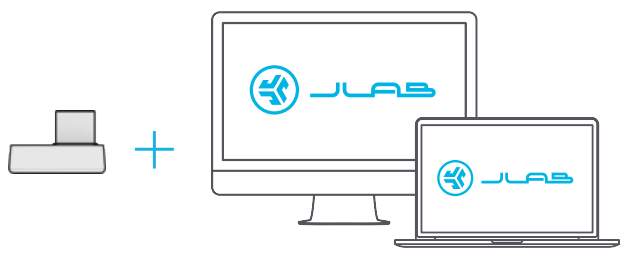
(USB-C dongle needs to be plugged in for customizing software)
Troubleshooting Your JLab Epic Mouse 2: Common Issues and Solutions
Even the most reliable devices can encounter hiccups. Here’s a guide to troubleshooting the JLab Epic Mouse 2, ensuring you get the most from your productivity powerhouse.
Common Problems and Fixes
- Mouse Not Connecting: Ensure the USB-C dongle is firmly inserted, or re-pair via Bluetooth by holding the mode button until the LED flashes, then selecting “JLab Epic Mouse 2” in your device’s Bluetooth settings.
- Battery Not Charging: Use the included USB-C cable and a reliable power source. Check charging indicators; if issues persist, try a different cable or port.
- Unresponsive Buttons or Scroll: Update or reinstall the JLab Work app, reset button assignments, and ensure firmware is current via the app.
- Lag or Connectivity Drops: Reduce wireless interference, keep the mouse within 30 feet (9.14 m) of the receiver, and avoid obstructing the signal path.
Preventive Measures
Regularly charge your mouse, keep the JLab Work app updated, and store the dongle safely. Avoid exposing the mouse to extreme temperatures or moisture.
Warranty and Support
The JLab Epic Mouse 2 comes with a 2-year limited warranty. For further assistance, contact JLab’s U.S.-based support at +1 (405) 445-7219 or support@jlab.com. EU/UK users can call +44 (20) 8142 9361. Comprehensive guides and videos are available at help.jlab.com.
YOUR WARRANTY
All warranty claims are subject to JLab authorization and at our sole discretion. Retain your proof of purchase to ensure warranty coverage.
CONTACT US
Reach out to us at support@jlab.com or visit jlab.com/contact
JLab Epic Mouse 2: Pros and Cons
Advantages
- Multi-Device Connectivity: Seamlessly switch between three devices via Bluetooth 5.2 or USB-C dongle—perfect for multitaskers.
- Infinity + Tilt Scroll: Effortless vertical and horizontal navigation enhances productivity for spreadsheets, creative apps, and web browsing.
- Silent Click Technology: Quiet operation reduces distractions in shared or quiet environments.
- Customizable Buttons: Eight programmable buttons and adjustable DPI cater to power users and gamers.
- Long Battery Life: Rechargeable 700mAh battery lasts over four months on a single charge.
- Ergonomic Design: Full-size, right-handed shape ensures comfort during extended use.
Limitations
- No Left-Handed Model: Currently designed for right-handed users only.
- No Onboard Memory: Profiles and customizations require the JLab Work app, which is only available for Mac and PC.
- Polling Rate: Bluetooth polling rate (115 Hz) is lower than some gaming mice, which may affect ultra-competitive gamers.
- No Wireless Charging: Charging is via USB-C cable only.
Compared to alternatives like Logitech MX Master, the JLab Epic Mouse 2 offers similar multi-device and scroll features at a more affordable price, though with fewer advanced gestures and a simpler app ecosystem.
JLab Epic Mouse 2 Customer Reviews: Real User Feedback
Users consistently praise the JLab Epic Mouse 2 for its silent clicks, smooth scroll wheel, and comfortable ergonomic design. Many highlight the convenience of switching between multiple devices and the impressive battery life, with several noting months of use between charges. Customizable buttons and the JLab Work app receive positive mentions for enhancing productivity, especially for office and creative tasks.
Common complaints include the lack of a left-handed version and occasional connectivity hiccups when switching between Bluetooth and the dongle. A few users wish for a higher polling rate for gaming, but most agree the mouse excels for general productivity and daily use.
Star ratings average around 4.5 out of 5 across major retailers, with testimonials citing “excellent value for money” and “a game-changer for my workflow.” Frequent recommendations encourage purchase for professionals, students, and anyone needing a reliable, feature-rich wireless mouse. If you prioritize quiet operation, multi-device support, and customizable controls, the JLab Epic Mouse 2 is a top contender in its class.
Faqs
How do I set up the jlab Epic Mouse 2 for multi-device use?
What should I do if my jlab Epic Mouse 2 is not responding or disconnecting frequently?
How can I customize the buttons and scroll settings on the jlab Epic Mouse 2?
Is the jlab Epic Mouse 2 compatible with all operating systems?
What are the benefits of the Infinity + Tilt scroll feature on the jlab Epic Mouse 2?
How do I maximize battery life and charge the jlab Epic Mouse 2 efficiently?
What ergonomic features does the jlab Epic Mouse 2 offer for extended use?
Why isn’t the tilt scroll on my jlab Epic Mouse 2 working, and how can I fix it?
Tags
More jlab manuals
Leave a Comment