
Pairing & Usage: Jlab Epic Mouse User Manual
Content
Jlab Epic Mouse
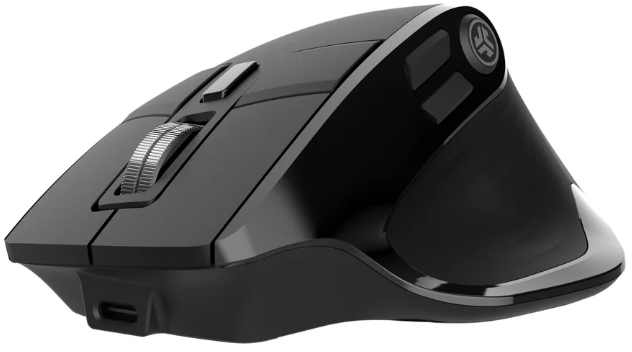
Introduction
The JLab Epic Mouse is a cutting-edge wireless mouse designed for both productivity and comfort. With its ergonomic design, it fits seamlessly into any work or gaming setup, catering to users who value precision and efficiency. The mouse offers dual connectivity options via Bluetooth 5.2 and a 2.4 GHz USB dongle, allowing users to connect up to three devices simultaneously across Windows, Mac, and Chrome OS. It features adjustable DPI settings (1200, 1600, 2000, and 2400) and a silent click mechanism, making it ideal for quiet work environments.
The target audience includes professionals, gamers, and anyone seeking a reliable wireless mouse. The estimated price range is generally under $100, depending on the retailer and any ongoing promotions. The JLab Epic Mouse is widely available at major electronics retailers.
Specifications
Here are the key specifications of the JLab Epic Mouse:
- Connectivity: Bluetooth 5.2 and 2.4 GHz USB dongle
- DPI Settings: 1200, 1600, 2000, 2400
- Polling Rates: 125 Hz and 250 Hz
- Battery Life: Up to 6 months on a single charge
- Sensor Type: Optical
- Frame Rate: 4000 frames/sec
- Button Acting Force: 60 ± 15 g
- Wheel Acting Force: 30 ± 10 g
- Compatibility: Windows, Mac, Chrome OS
- Weight: 137 g
- Dimensions: 4.81 x 3.30 x 2.01 inches
SETUP
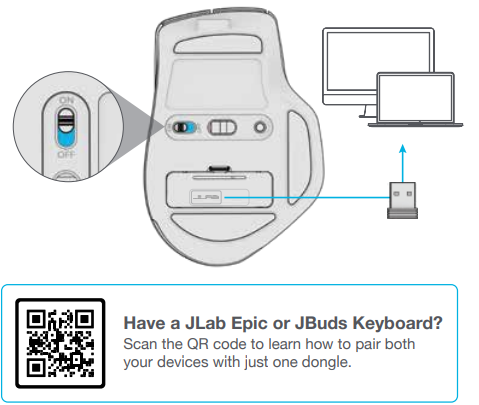
2.4 Connect
Plug in the USB dongle into the computer and turn it on. The Epic Mouse will auto-connect to the device.
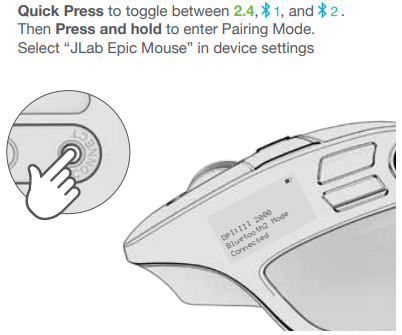
Bluetooth Connect
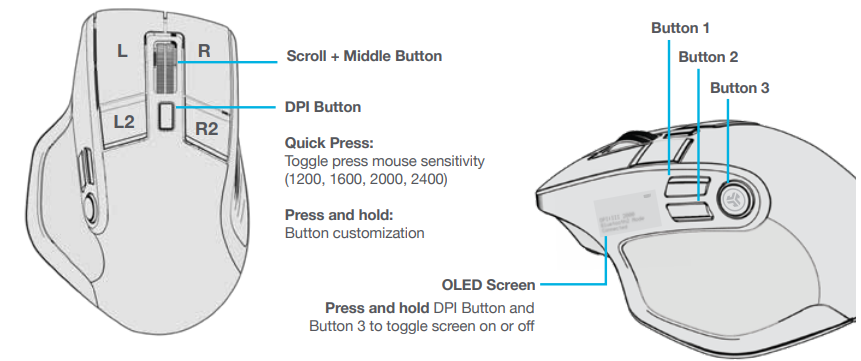
INTERFACE
CHARGING
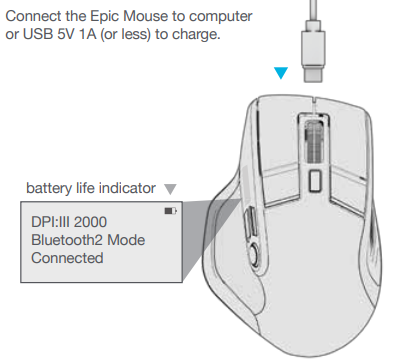
Connect the Epic Mouse to a computer or USB 5V 1A (or less) to charge.
CUSTOMIZATION
Download the JLab App (for Mac and PC) to fully customize the Epic Mouse at: JLAB.COM/SOFTWARE
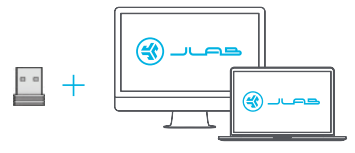
(2.4 dongle needs to be plugged in for customizing software)
Troubleshooting
Here are some common issues and solutions for the JLab Epic Mouse:
- Issue: Connection Problems
- Solution: Ensure the USB dongle is properly inserted or Bluetooth is enabled on the device.
- Issue: Battery Life Concerns
- Solution: Check for updates in the JLab Work app, and ensure the mouse is properly charged.
- Issue: DPI Settings Not Saving
- Solution: Use the JLab Work app to save profiles and customize button settings.
The JLab Epic Mouse comes with a 2-year limited warranty. For support, contact JLab through their website or via phone.
YOUR WARRANTY
All warranty claims are subject to JLab authorization and at our sole discretion. Retain your proof of purchase to ensure warranty coverage.
CONTACT US
Reach out to us at support@jlab.com or visit jlab.com/contact
Pros & Cons
Pros
- Ergonomic Design: Provides comfort and support for extended use.
- Long Battery Life: Offers up to 6 months of continuous use.
- Customizable Buttons: Allows for personalized workflow with the JLab Work app.
Cons
- Weight: May be heavier than some ultra-light options.
- Software Compatibility: Limited customization on Chrome OS and mobile devices.
Customer Reviews
Users praise the JLab Epic Mouse for its ergonomic design, long battery life, and silent clicks. Some users note that while the mouse is great for most users, it may not offer the same level of customization on Chrome OS and mobile devices as on Windows and Mac. Overall, the mouse is well-regarded for its value and performance, with many users recommending it for both work and gaming applications.
The JLab Epic Mouse generally receives a rating of 4.3 out of 5 stars, with reviewers highlighting its comfort, functionality, and value for the price.
Faqs
How do I connect my jlab Epic Mouse to multiple devices via Bluetooth and 2.4GHz wireless?
Why is my jlab Epic Mouse not responding when connected via Bluetooth?
How can I customize the buttons and DPI settings on my jlab Epic Mouse?
How long does the battery last on a single charge with the jlab Epic Mouse, and how do I recharge it?
Is the jlab Epic Mouse compatible with Chromebooks and mobile devices like tablets or smartphones?
What should I do if the scroll wheel on my jlab Epic Mouse is not working smoothly?
Can I use the jlab Epic Mouse while it’s charging, and does it come with a wall adapter?
How do I clean and maintain my jlab Epic Mouse for optimal performance and longevity?
Tags
More jlab manuals
Leave a Comment