
Setup: Jlab Jbuds Mouse User Manual
Content
JLab Jbuds Mouse
Introduction
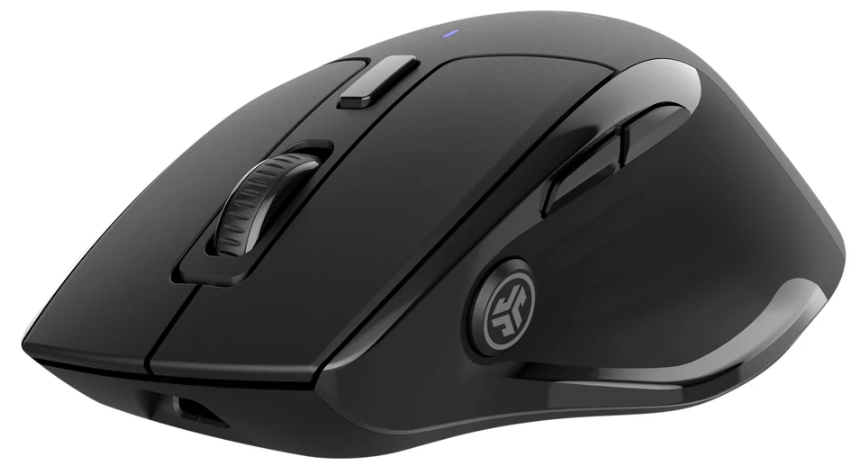
The jlab Jbuds Mouse is a versatile, ergonomic wireless mouse designed to enhance productivity and comfort for users across professional, educational, and casual settings. It combines full-sized functionality with a sleek design, delivering seamless multi-device connectivity via Bluetooth 5.2 and a 2.4 GHz USB wireless dongle. This mouse is ideal for remote workers, gamers, and students who require a reliable and customizable pointing device that can switch effortlessly between up to three saved devices such as laptops, tablets, and desktops.
Featuring silent clicks and seven customizable buttons, the Jbuds Mouse offers precision control with adjustable DPI settings ranging from 1200 to 2400, catering to both detailed work and fast-paced gaming. Its rechargeable 600 mAh battery provides impressive endurance, lasting over four months on a single charge, minimizing downtime. The mouse’s ergonomic vertical design supports a natural wrist angle, reducing strain during extended use.
Offered at an estimated price range of $40 to $60, the jlab Jbuds Mouse is widely available through online retailers and tech stores, backed by a 2-year warranty. Its compatibility with Windows, MacOS, and Chrome OS ensures broad usability, making it a compelling choice for users seeking a high-performance wireless mouse with advanced features and long battery life.
SETUP
Bluetooth Connect
INTERFACE
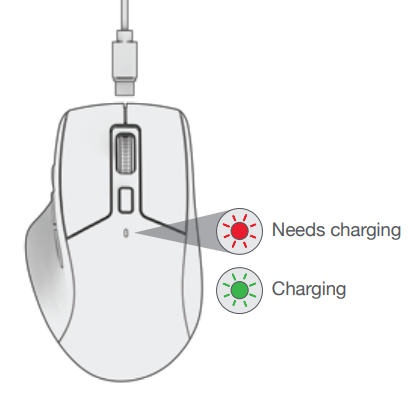
CHARGING
Connect the JBuds Mouse to computer or USB 5V 1A (or less) to charge
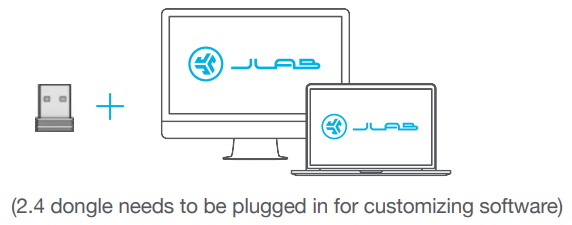
CUSTOMIZATION
Download the JLab App (for Mac and PC) to fully customize the JBuds Mouse
Specifications of the jlab Jbuds Mouse
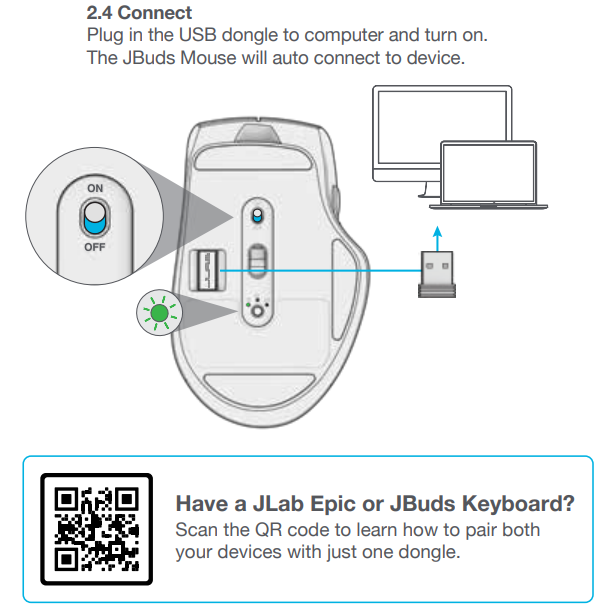
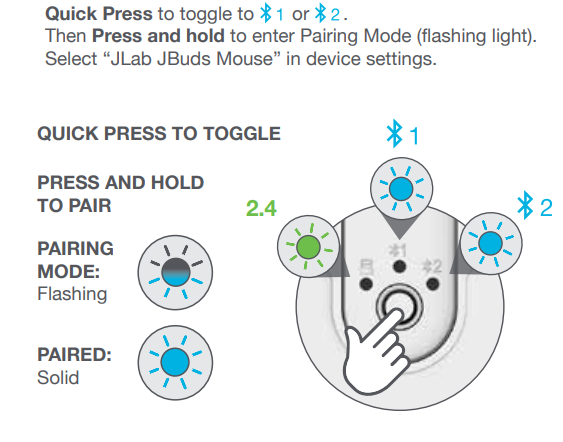
- Connectivity: Bluetooth 5.2 and USB 2.4 GHz wireless dongle
- Device Compatibility: Supports up to 3 saved devices for quick switching
- Battery: Rechargeable 600 mAh lithium-ion battery with over 4 months battery life per charge
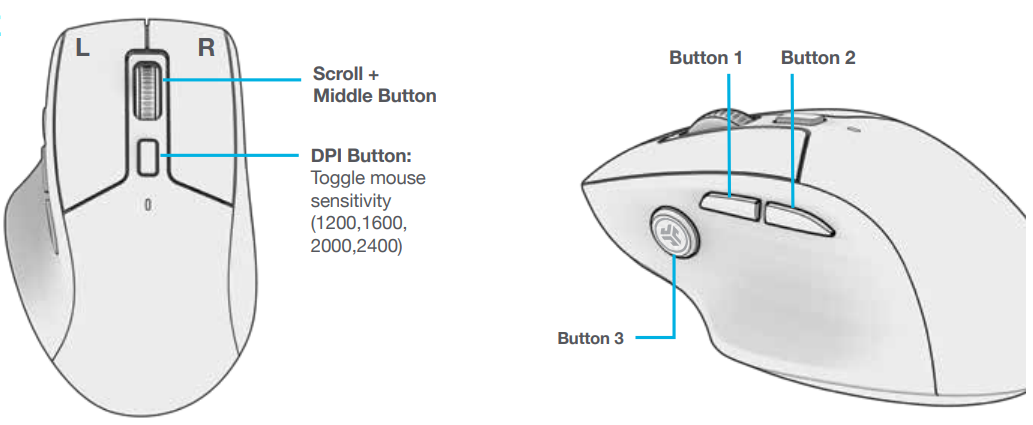
- Buttons: 7 total—left click, right click, scroll wheel, DPI adjustment, forward, backward, and desktop (JCon) button
- DPI Settings: Adjustable between 1200 and 2400 for precision control
- Sensor Type: Optical sensor
- Wireless Range: Up to 30 feet (9 meters)
- Dimensions: 4.68 x 2.98 x 1.68 inches
- Weight: 96 grams
- Button Force: Buttons require 60 ± 15 g acting force, scroll wheel 30 ± 10 g
- Special Features: Silent click technology for quiet operation; ergonomic vertical design
- Compatibility: Windows 10 or later, MacOS 10.15 or later, Chrome OS
- Included Accessories: USB-C to USB-A charging cable, quick start guide
Compared to similar wireless mice like Logitech MX Master 3 and Razer Basilisk X, the jlab Jbuds Mouse stands out with its multi-device switching, longer battery life, and silent click feature, making it an excellent budget-friendly option for both work and play.
Troubleshooting the jlab Jbuds Mouse
- Mouse Not Connecting: Ensure the USB dongle is plugged in or Bluetooth is enabled on your device. Try re-pairing by turning off the mouse and restarting the connection process via the JLab Work App.
- Buttons Not Responding: Check if button customization via the JLab Work App has disabled certain functions. Reset to default settings if necessary.
- Cursor Lag or Stuttering: Confirm the wireless range is within 30 feet and that there are no physical obstructions or interference from other wireless devices.
- Battery Issues: If battery drains quickly, fully recharge using the USB-C cable. Avoid charging with adapters exceeding 5 watts to protect battery health.
- Error Codes: No specific error codes; persistent issues can be troubleshooted via JLab support.
Preventive measures include keeping the charging port clean, avoiding exposure to moisture, and regularly updating the JLab Work App for firmware enhancements. The jlab Jbuds Mouse comes with a 2-year warranty covering manufacturing defects. For support, users can contact JLab customer service via their official website.
Pros & Cons of the jlab Jbuds Mouse
- Pros:
- Multi-device connectivity with easy switching up to three devices
- Long-lasting rechargeable battery providing over 4 months per charge
- Silent clicks ideal for quiet environments
- Ergonomic vertical design reduces wrist strain
- Seven customizable buttons via JLab Work App
- Compatibility across major operating systems (Windows, MacOS, Chrome OS)
- Affordable price point with a 2-year warranty
- Cons:
- Not suitable for users preferring ultra-high DPI settings beyond 2400
- Vertical design may require an adjustment period for some users
- Does not include a wall charger; user must supply a compatible USB power adapter
- Limited to saving three device profiles, which might be insufficient for some multitaskers
Customer Reviews and Feedback on the jlab Jbuds Mouse
Users generally praise the jlab Jbuds Mouse for its comfortable ergonomic design and silent clicks, highlighting the quiet operation as a major plus in office and home environments. The ability to switch seamlessly between Bluetooth and USB dongle connections across multiple devices receives consistently positive feedback. Many reviewers commend the long battery life, noting that the recharge frequency is rare and convenient.
On the downside, some users mention a learning curve adapting to the vertical design, and a few report minor connectivity hiccups initially resolved by firmware updates. Customization through the JLab Work App is viewed positively, though some users desire more advanced DPI options. Overall, the mouse averages around 4.5 out of 5 stars, with strong recommendations for remote workers, gamers, and students looking for a reliable, feature-rich wireless mouse.
Faqs
How do I set up the jlab Jbuds Mouse for the first time?
What should I do if my jlab Jbuds Mouse is not connecting via Bluetooth?
Can I use the jlab Jbuds Mouse with multiple devices simultaneously?
How often should I recharge the jlab Jbuds Mouse battery?
What are the benefits of using the silent clicks on the jlab Jbuds Mouse?
Is the jlab Jbuds Mouse compatible with different operating systems?
How do I optimize the performance of the jlab Jbuds Mouse?
What maintenance is required for the jlab Jbuds Mouse?
Tags
More jlab manuals
Leave a Comment