
Setup: Jlab Create Wireless LAV Mic System User Manual
Content
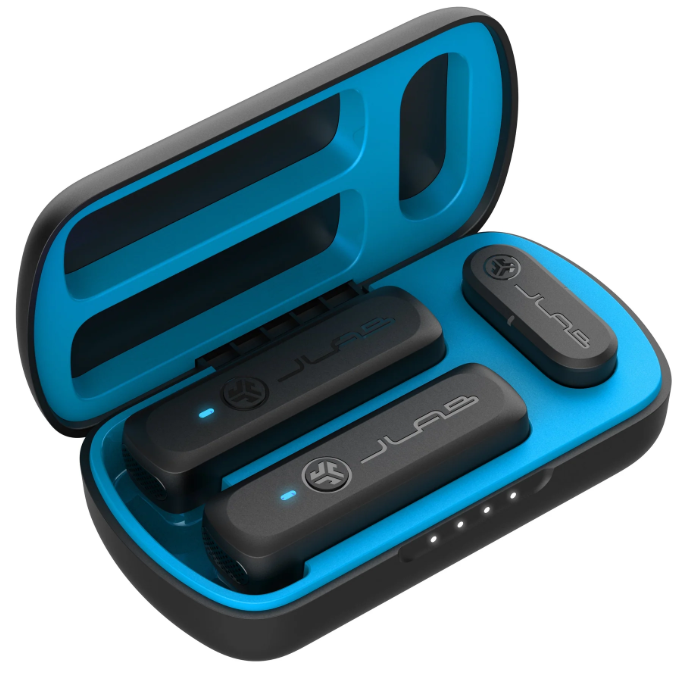
JLab Create Wireless LAV Mic System
Introduction
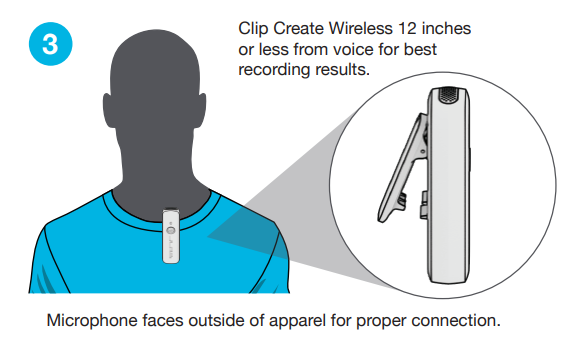
The JLab Create Wireless LAV Mic System is a revolutionary tool designed for content creators, offering a discreet, versatile, and professional-grade audio experience. This wireless microphone system is perfect for solo content creation or interviews, providing clear sound from any angle within a 100-foot range. It features a small design with a lapel clip, allowing for easy attachment to clothing, and offers up to 18 hours of total recording time. The system includes a quick mute feature for seamless control and supports the use of one or two microphones. It is compatible with a wide range of devices, including Android, Windows, macOS, and iOS devices, and is available in the price range of approximately $100 to $150.
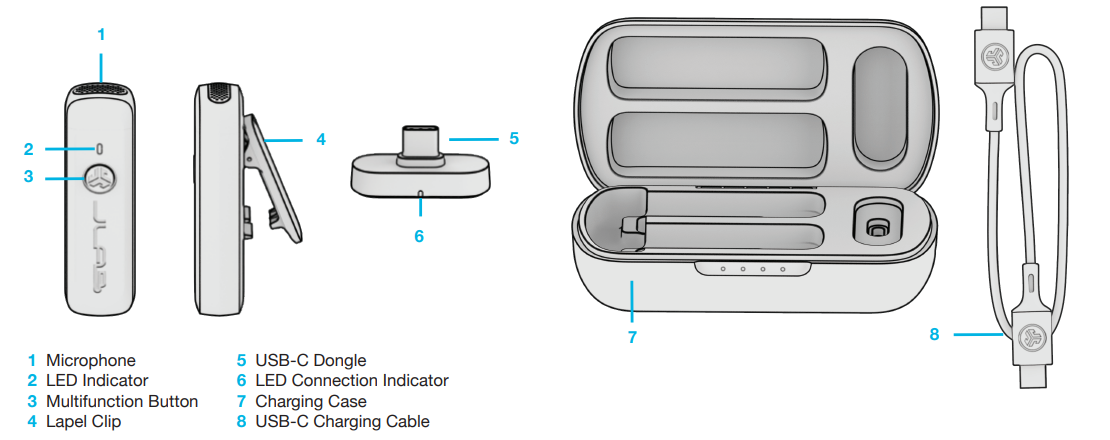
Specifications
The JLab Create Wireless LAV Mic System boasts impressive technical specifications:
- Frequency Response: 20 Hz to 20 kHz (though sometimes specified as 100Hz to 10KHz for the microphone itself)
- Dynamic Range: 100 dB
- Directional Type: Omnidirectional
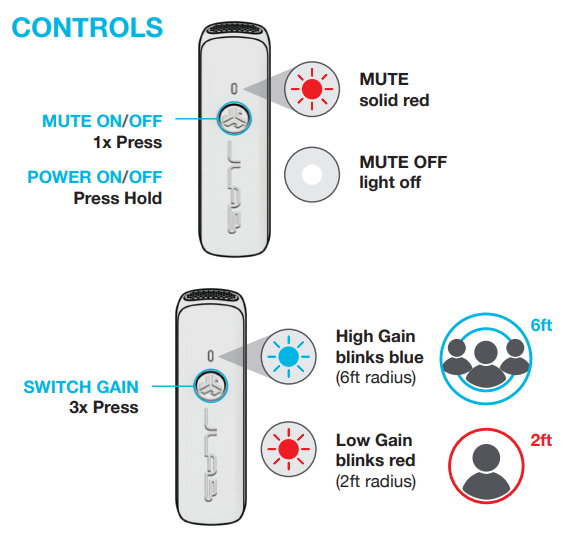
- Gain Control: Yes, with two gain modes (High and Low)
- Connectivity: Bluetooth 5.3 via USB-C dongle
- Range: 100+ feet
- Power: Up to 18 hours of recording time
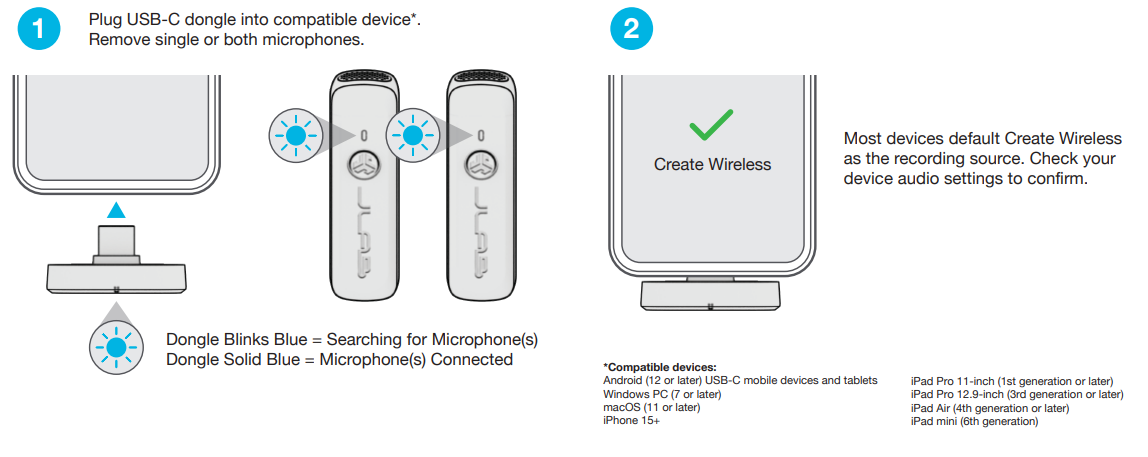
- Compatibility: Android (12 or later), Windows PC (7 or later), macOS (11 or later), and select iOS devices
PAIR UP
CONTROLS
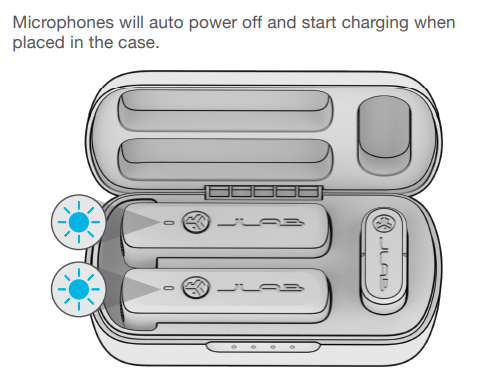
GET CHARGED (MICROPHONES)
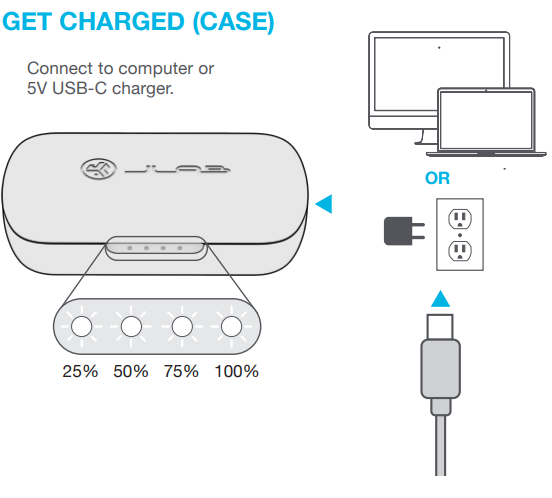
GET CHARGED (CASE)
Troubleshooting
Common issues and solutions for the JLab Create Wireless LAV Mic System include:
- Connection Issues: Ensure the USB-C dongle is properly plugged in and that the microphone is paired correctly. Check device audio settings for the default recording source.
- Audio Quality: Adjust the gain settings to optimize audio quality. Ensure the microphone is not obstructed or covered
- Charging: Place microphones in the charging case to charge. Connect the case to a USB-C charger or computer.
For further assistance, contact JLab Support or 1-405-445-7219. The system is backed by a 2-year limited warranty.
Pros & Cons
A balanced assessment of the JLab Create Wireless LAV Mic System:
Pros
- Convenience: Easy to set up and use, with a plug-and-play design.
- Long Recording Time: Up to 18 hours of battery life.
- Range and Versatility: Offers a 100-foot range and supports one or two microphones.
- Compatibility: Works with a variety of devices, including Android, Windows, macOS, and iOS.
Cons
- Cost: May be more expensive than some budget options.
- Audio Quality Variability: Some users may notice slight variations in audio quality depending on the environment and settings.
Customer Reviews
Users generally praise the JLab Create Wireless LAV Mic System for its ease of use, long battery life, and clear audio quality. Some users mention that the system is easy to set up and provides excellent value for the price. However, a few users note that the audio quality can vary in noisy environments. Overall, the system receives positive reviews for its versatility and performance.
Recommended for content creators seeking a reliable and portable wireless microphone solution.
Faqs
How do I set up the jlab Create Wireless LAV Mic System for the first time?
What should I do if the jlab Create Wireless LAV Mic System is not pairing properly?
Can I use the jlab Create Wireless LAV Mic System with my iPhone or iPad?
How do I optimize the audio quality of the jlab Create Wireless LAV Mic System?
What are the key features that make the jlab Create Wireless LAV Mic System different?
How often should I maintain the jlab Create Wireless LAV Mic System?
Can I use multiple jlab Create Wireless LAV Mic Systems together?
What should I do if the jlab Create Wireless LAV Mic System's audio is not clear?
Tags
More jlab manuals
Leave a Comment