
Setup : Jlab Epic Webcam User Manual
Content
JLab Epic Webcam
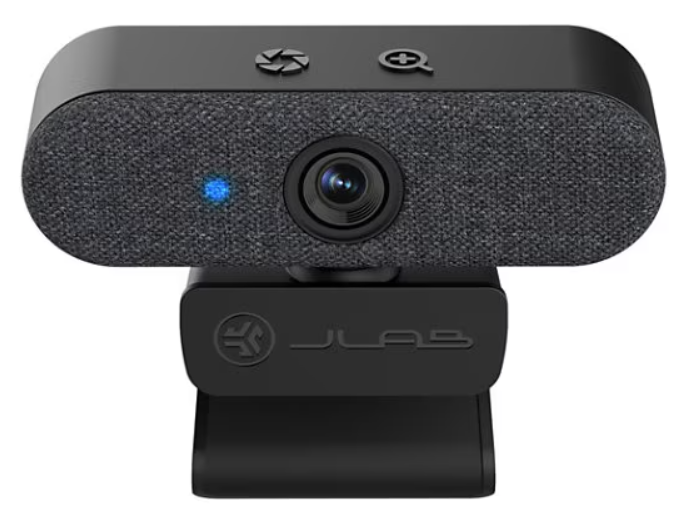
Introduction
The JLab Epic Webcam is a high-definition USB webcam designed to deliver professional-level image quality and sound, making it ideal for video calls, webinars, live streaming, and more. With its 2K or 1080p/30FPS resolution and 5 megapixels, this webcam provides crystal-clear video. It features a 90-degree field of view with auto focus and light correction, ensuring excellent performance in various lighting conditions. The Epic Webcam is equipped with two omnidirectional microphones, offering superior audio quality. It is compatible with PC, Mac, and Chromebook, making it versatile for different users. The estimated price range is around $99.98, and it is widely available at major retailers like Office Depot and online marketplaces.
Targeted at professionals and individuals who frequently use video conferencing tools, the JLab Epic Webcam is perfect for home offices, remote work setups, or educational environments. Its adjustable zoom and exposure settings allow users to customize their video quality without needing additional software, making it a practical choice for those who value ease of use.
SETUP
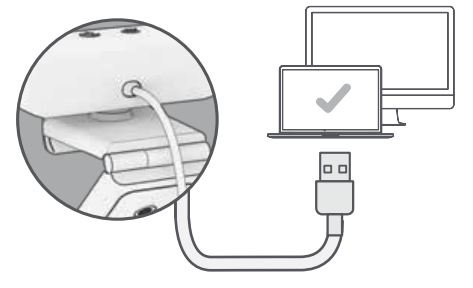
Connect to your PC or Mac USB I/O. Enter your PC or Mac settings to make sure the connection is established.
Unfold and place Epic Cam on monitor
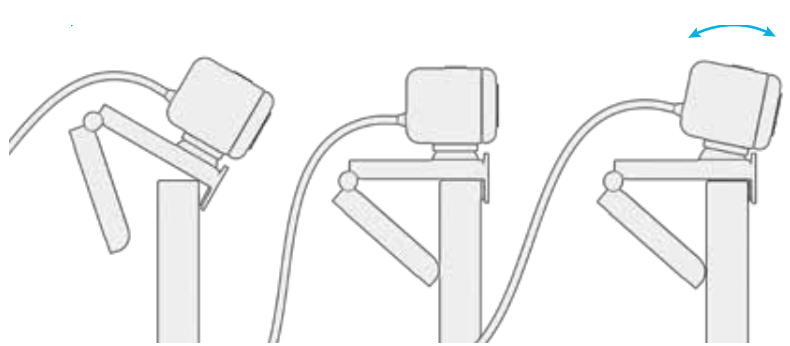
Configure as desired
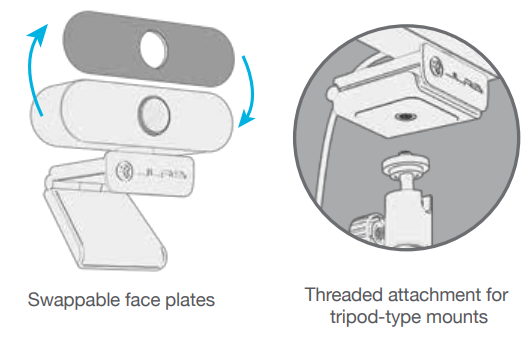
INTERFACE
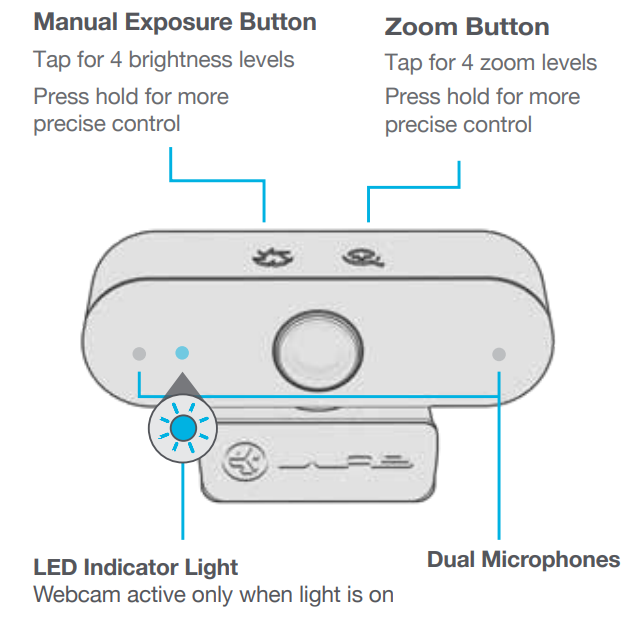
Specifications of the JLab Epic Webcam
Below are the key specifications of the JLab Epic Webcam:
- Resolution and Frame Rate: 2K or 1080p at 30 frames per second
- Megapixels: 5 megapixels
- Field of View: 90 degrees with auto focus and light correction
- Audio Features: Two omnidirectional microphones with frequency response from 30Hz to 8kHz
- Zoom and Exposure: Adjustable zoom and 15 exposure settings
- Connectivity: USB-A connection compatible with PC, Mac, and Chromebook
- Additional Features: Removable faceplates (gray or white), universal adjustable clip, and 2-year warranty
Compared to similar webcams, the JLab Epic stands out with its high-quality video, robust audio capabilities, and ease of use without requiring additional software.
Troubleshooting the JLab Epic Webcam
Here are some common issues and solutions for the JLab Epic Webcam:
- Video Quality Issues: Ensure proper lighting and adjust exposure settings as needed.
- Audio Problems: Check microphone settings and ensure they are enabled in your system.
- Connection Issues: Verify that the USB connection is secure and try restarting your device.
- Warranty and Support: The JLab Epic Webcam comes with a 2-year warranty. For support, visit the JLab official website or contact their customer service.
Pros and Cons of the JLab Epic Webcam
Here's a balanced view of the JLab Epic Webcam's pros and cons:
Pros
- High-Quality Video: Offers 2K or 1080p resolution with 30 frames per second for clear video.
- Adjustable Settings: Features adjustable zoom and exposure for customized video quality.
- Superior Audio: Includes two omnidirectional microphones for excellent sound.
- Compatibility: Works with PC, Mac, and Chromebook, making it versatile.
Cons
- Limited App Support: While it doesn't require additional software for basic use, some users might prefer more advanced settings available through apps.
- Fixed Focus: While auto focus is available, some users might find the lack of manual focus limiting.
Customer Reviews and Feedback
Users generally praise the JLab Epic Webcam for its high-quality video and audio, ease of use, and affordability. Some users mention that it performs well in low-light conditions and is great for remote work or streaming. However, a few users noted that while it does not require additional software for basic adjustments, some might find the lack of advanced app support limiting.
The JLab Epic Webcam typically receives positive reviews, with many users recommending it for its value for money. Common praises include its clear video and audio, while some criticisms focus on the lack of advanced manual focus options.
Faqs
How do I set up the jlab Epic Webcam for the first time on my PC or Mac?
What should I do if the jlab Epic Webcam video appears blurry or out of focus?
Can I adjust the zoom and exposure levels on the jlab Epic Webcam without extra software?
Is the jlab Epic Webcam compatible with Chromebooks and other operating systems besides Windows and Mac?
How do the dual omni-directional microphones on the jlab Epic Webcam enhance audio quality?
What is the field of view of the jlab Epic Webcam, and how does it affect video framing?
How should I maintain and clean my jlab Epic Webcam to ensure optimal performance?
What troubleshooting steps can I take if the jlab Epic Webcam is not detected by my computer?
Tags
More jlab manuals
Leave a Comment