
Setup & Pairing: Jlab Go Talk USB Microphone User Manual
Content
JLab Go Talk USB Microphone
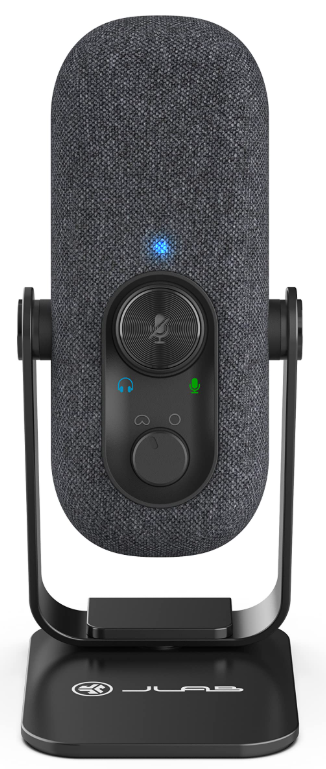
Introduction
The JLab Go Talk USB Microphone is designed to provide high-quality audio for various applications, including podcasting, streaming, and home recording. This microphone is perfect for those seeking a reliable, easy-to-use solution for capturing clear and crisp sound. Key benefits include its plug-and-play functionality, compact design, and affordability. The JLab Go Talk is ideal for beginners and professionals alike, offering a smooth user experience across different platforms. With an estimated price range of $50 to $100, it is an accessible option for anyone looking to enhance their audio setup. The microphone is widely available through major retailers and online marketplaces.
ASSEMBLY
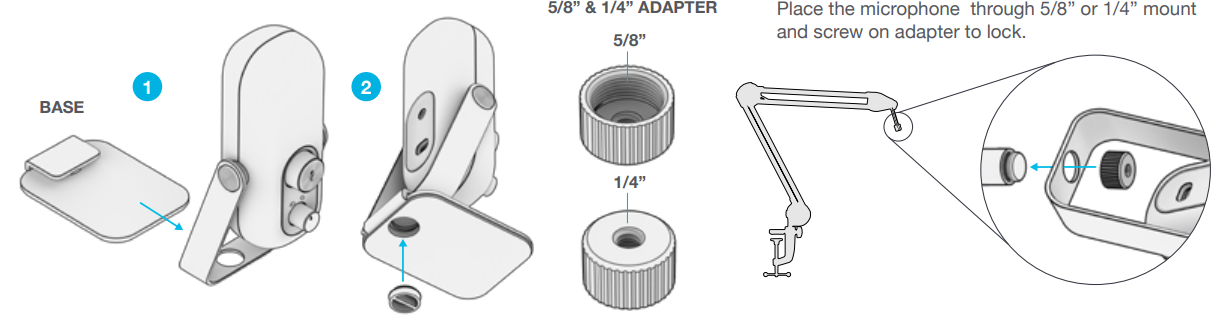
SETUP
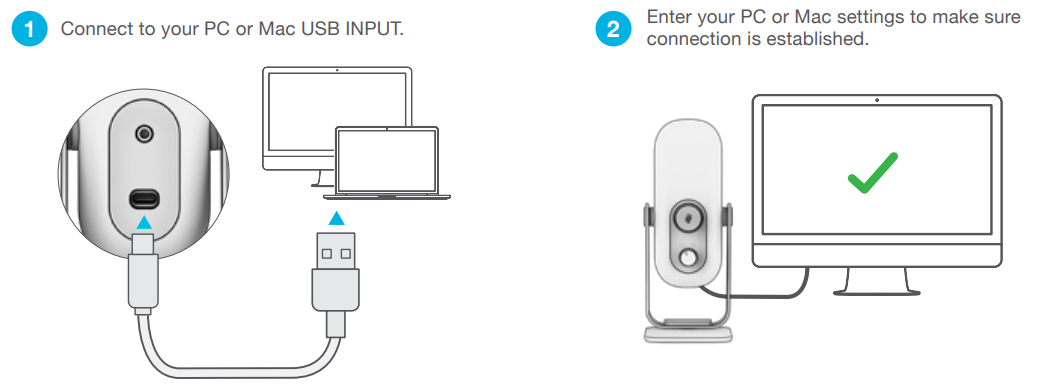
SETUP GO TALK WITH PC (WINDOWS 7, 8, or 10)
- From the Start menu, select the Control Panel.
- From the Control Panel, select the Sound icon.
- Select the Recording tab and select “JLab GO Talk”.
- Select the Playback tab and select “JLab GO Talk”.
SETUP GO TALK WITH MAC (macOS 10.10 or HIGHER)
- Open System Preferences and select the Sound icon.
- Select the Input tab and select “JLab GO Talk”.
- Select the Output tab and select “JLab GO Talk”.
- From this screen, set the Output volume to desired level.
CONTROLS
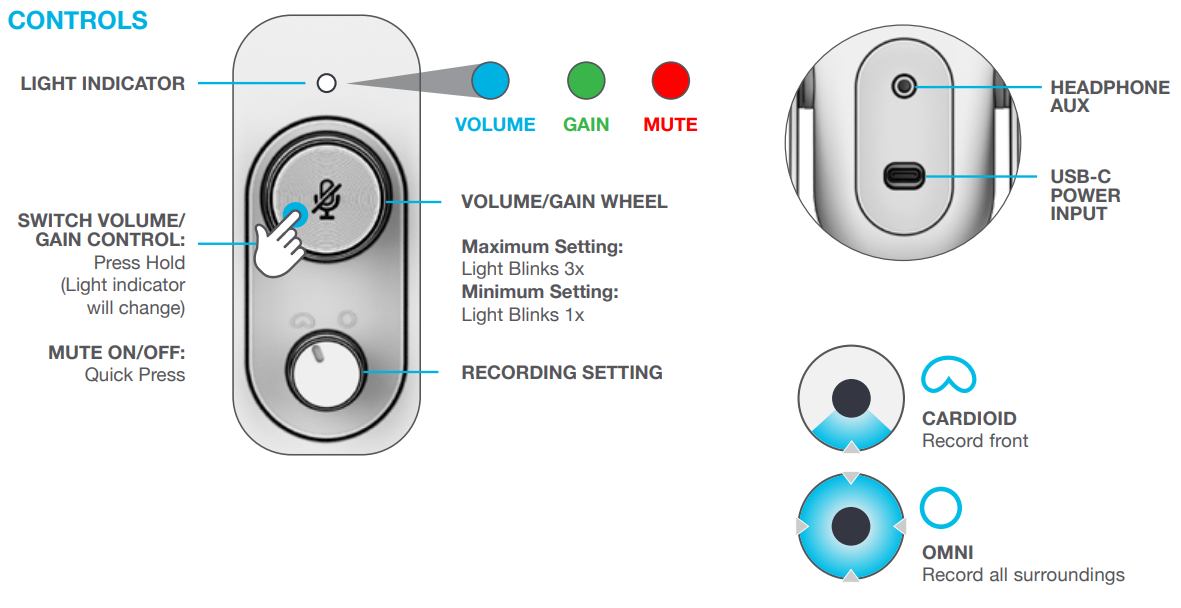
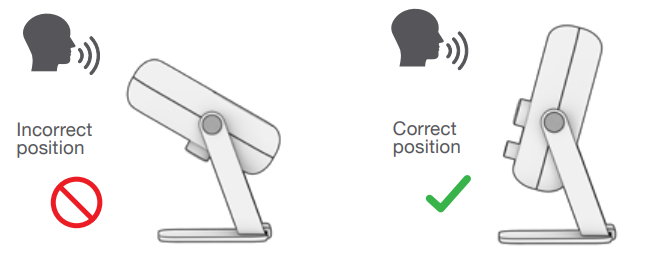
IN USE
TROUBLESHOOTING
- The GO Talk works with almost any recording software installed on macOS, Windows, or Linux. Review in your software’s setting and adjust accordingly.
- No additional drivers/software are needed for the GO Talk. Simply plug in and setup in device settings.
- GO Talk will not work through most tablets or mobile phones due to their power limitations. The output power source needs to produce 5v or greater to operate.
- GO Talk will not work through a power bank/battery pack. It will only work with USB-A input with an operating system.
- If you are connecting through a USB hub or 3rd party adapter, make sure the product has the correct power output support and connection support.
- Using external speakers for playback can cause microphone reverberation and echo. It is recommended to use headphones/earbuds for recording playback if this occur
Specifications of the JLab Go Talk USB Microphone
The JLab Go Talk USB Microphone boasts several impressive features that make it stand out in its class:
- Polar Pattern: Cardioid, focusing on the sound source to reduce background noise.
- Frequency Response: 20 Hz to 20 kHz, providing a full range of audio frequencies.
- Bit Depth: 16-bit or 24-bit for high-quality audio capture.
- Sampling Rate: Supports rates up to 48 kHz for clear audio.
- Output: USB connection for easy integration with computers and devices.
- Additional Features: Includes a headphone output for real-time monitoring and a compact design for portability.
Compared to similar products, the JLab Go Talk offers excellent value for its price, with a focus on simplicity and ease of use.
Pros and Cons of the JLab Go Talk USB Microphone
Pros:
- Easy Setup: Plug-and-play functionality makes it simple to get started.
- Affordable: Offers great value for its price.
- Compact Design: Ideal for portability and desk space.
- Good Audio Quality: Suitable for podcasting and streaming.
Cons:
- Build Quality: Some users report a less durable build compared to more expensive models.
- Limited Features: Does not include advanced features like pop filters or multiple polar patterns.
Customer Reviews
The JLab Go Talk USB Microphone has received positive reviews for its ease of use and affordability. Users appreciate its compact size and clear audio quality. However, some users mention that it lacks advanced features found in more expensive models. Overall, it is rated highly for beginners and those on a budget, with an average rating of 4 out of 5 stars.
Common testimonials include praise for its plug-and-play functionality and criticism for its build quality. If you're looking for a straightforward, budget-friendly USB microphone, the JLab Go Talk is a good option.
More jlab manuals
Leave a Comment