
Setup : Jlab Go Webcam User Manual
Content
jlab Go Webcam
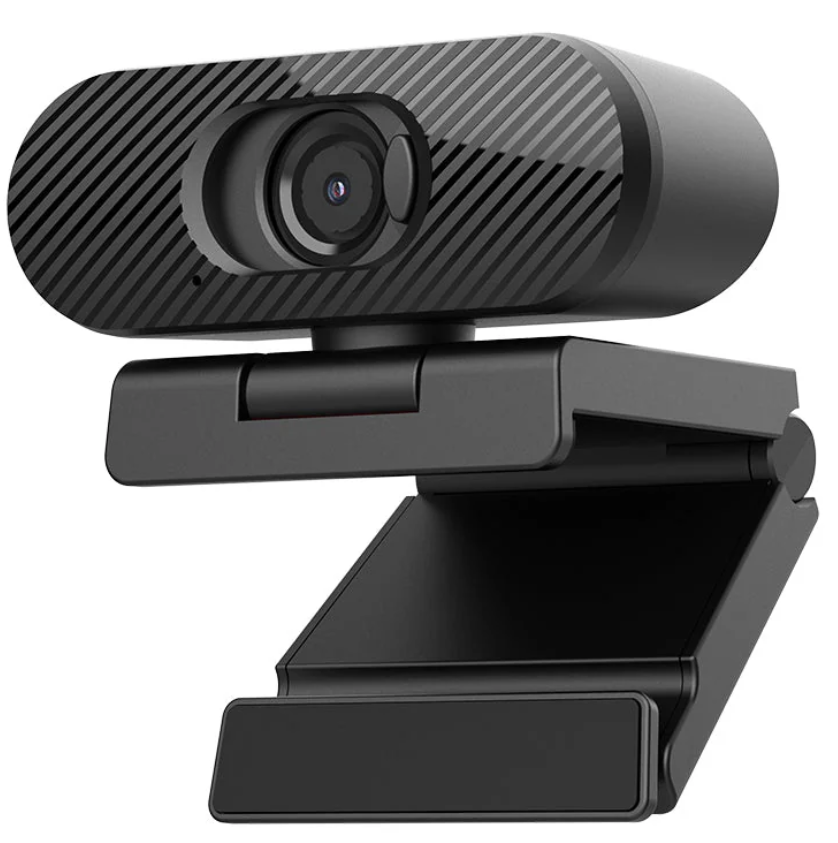
Introduction
The JLab Go Webcam is a compact, stylish, and high-quality USB HD webcam designed for seamless video communication and content creation. Offering a crisp 1080p resolution at 30 frames per second, this webcam delivers sharp, clear visuals ideal for virtual meetings, live streaming, online classes, and remote collaborations. Its 2.1-megapixel sensor, combined with a 75-degree field of view and fixed focus,s ensures that users appear professional and well-framed in every call or recording.
Equipped with an omnidirectional microphone, the JLabb Go Webcam captures clear audio from all directions, making conversations and recordings more natural and immersive. Its universal adjustable clip allows easy mounting on laptops, monitors, or tripods, suiting various workspaces and setups. Targeted toward professionals, educators, content creators, and remote workers, this webcam balances performance with portability.
Available for approximately $39.99, the JLab Go Webcam offers excellent value, backed by a 2-year warranty and broad compatibility with Windows, Mac, Chromebook, and other USB-enabled devices. Whether upgrading your home office or enhancing your streaming setup, the JLab Go Webcam is an accessible and reliable option for users seeking quality and simplicity.
SETUP
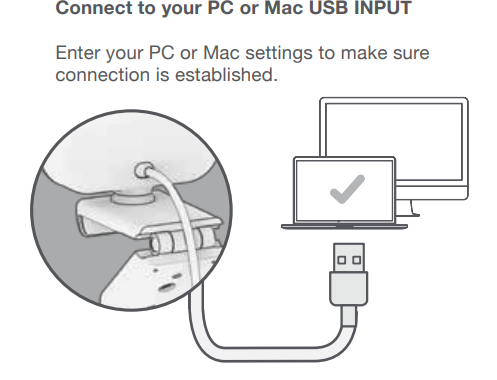
Configure as desired
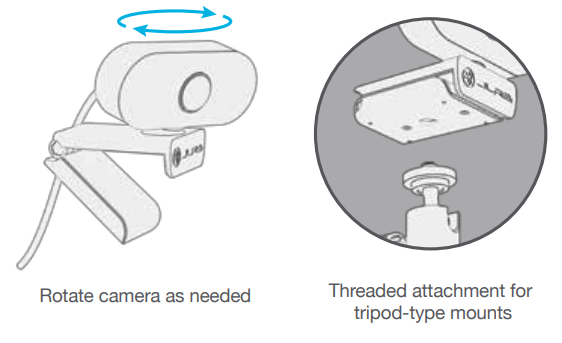
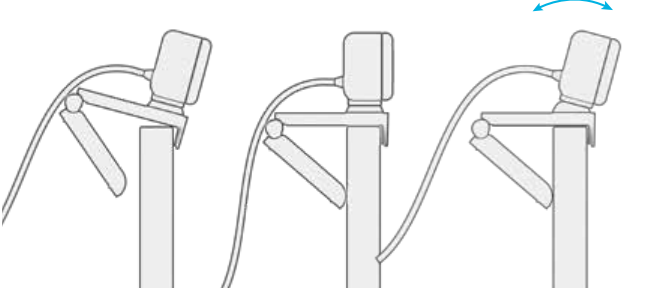
Unfold and place the GO Cam on the monitor
INTERFACE
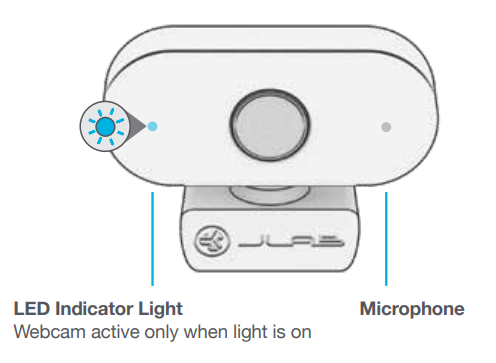
Technical Specifications and Features of the JLab Go Webcam
- Video Resolution: Full HD 1080p at 30 frames per second
- Image Sensor: 1/2.7" CMOS sensor with 2.1 megapixels
- Field of View: 75 degrees with fixed focus and light correction
- Microphone: Built-in omnidirectional microphone with frequency response 30Hz to 8kHz
- Connectivity: USB-A plug-and-play for PC, Mac, Chromebook
- Dimensions: Approximately 2.76" (length) x 2.2" (width) x 2.01" (height)
- Cable Length: 6.5 feet for flexible placement
- Compatibility: Works seamlessly with popular video conferencing platforms and recording software
- Additional Features: Auto exposure, auto white balance, low brightness compensation
- Warranty: 2-year limited warranty included
Compared to similar webcams in the budget category, the jlab Go Webcam stands out with its balanced mix of video clarity, audio quality, and ease of use. It offers a slightly narrower field of view than some competitors but compensates with reliable image correction features and a sturdy universal clip, making it well-suited for a wide range of setups.
Common Troubleshooting Tips for the JJLabGo Webcam.
- No video or black screen: Ensure the USB-A connector is securely plugged into the computer. Restart the computer and check for driver updates or software conflicts.
- Microphone not detected or low audio: Check the system sound settings to confirm the JLabb Go Webcam mic is selected as the input device. Test with different apps and ensure no mute is enabled.
- Poor image quality or lighting issues: Use the webcam in well-lit environments. Enable the auto exposure and light correction settings if available in your video software.
- Error codes or device not recognized: Disconnect and reconnect the webcam, try different USB ports, and update the operating system if needed.
- Preventive measures: Avoid exposing the webcam to dust or moisture. Use the included adjustable clip carefully to prevent damage.
All JLab Go Webcam products come with a 2-year warranty. For additional technical support or warranty claims, users can contact JLab customer service via their official website or support hotline.
Pros and Cons of the JLab Go Webcam
- Pros:
- Affordable price point offering excellent 1080p video quality
- A clear omnidirectional microphone enhances audio clarity in calls and recordings
- Universal adjustable clip fits most monitors and laptops securely
- Plug-and-play USB-A connectivity with broad compatibility
- 2-year warranty provides reliable customer support
- Cons:
- Fixed focus limits, manual focus adjustment,s and may affect close-up shots
- 75-degree field of view is moderate; some competitors offer wider angles
- Lacks advanced features like autofocus or background replacement
- Image quality is good, but not comparable to higher-end webcams with HDR or 4K resolution
Compared to alternatives like the JLab Go Pop Webcam, which has autofocus but lacks a microphone, the JLab Go Webcam is a balanced choice for users needing both good video and audio in an affordable package.
Customer Reviews and Feedback on the jlab Go Webcam.
Users consistently praise the JLabb Go Webcam for its sharp 1080p video quality and clear microphone, making it a strong performer for remote work, online teaching, and streaming. Many highlight the ease of setup and compatibility across platforms as standout benefits. The included 6.5-foot cable and adjustable clip receive positive mentions for flexible placement.
Common complaints focus on the fixed focus lens, which some users find limiting for close-range use, and occasional low-light performance issues despite light correction. A few reviews note that the image quality is good for its price, but it does not match premium webcams.
The JLabbabb Go Webcam earns an average rating of around 4 out of 5 stars, with frequent recommendations for anyone needing a reliable, budget-friendly USB webcam with built-in audio.
Faqs
How do I set up my jlab Go Webcam for the first time on Windows or Mac?
Why is my jlab Go Webcam not recognized by my computer?
Does the jlab Go Webcam work with Chromebooks and Android devices?
How can I improve video quality and lighting when using the jlab Go Webcam?
What should I do if audio from the jlab Go Webcam microphone sounds muffled or unclear?
How do I clean and maintain my jlab Go Webcam to ensure long-lasting performance?
Can I use the jlab Go Webcam for live streaming and content creation?
What warranty and support options are available for the jlab Go Webcam?
Tags
More jlab manuals
Leave a Comment