
Lenovo K6 NOTE V1.0 Smartphone User Guide | Specs & Features
Content
Lenovo K6 NOTE V1.0 Smartphone
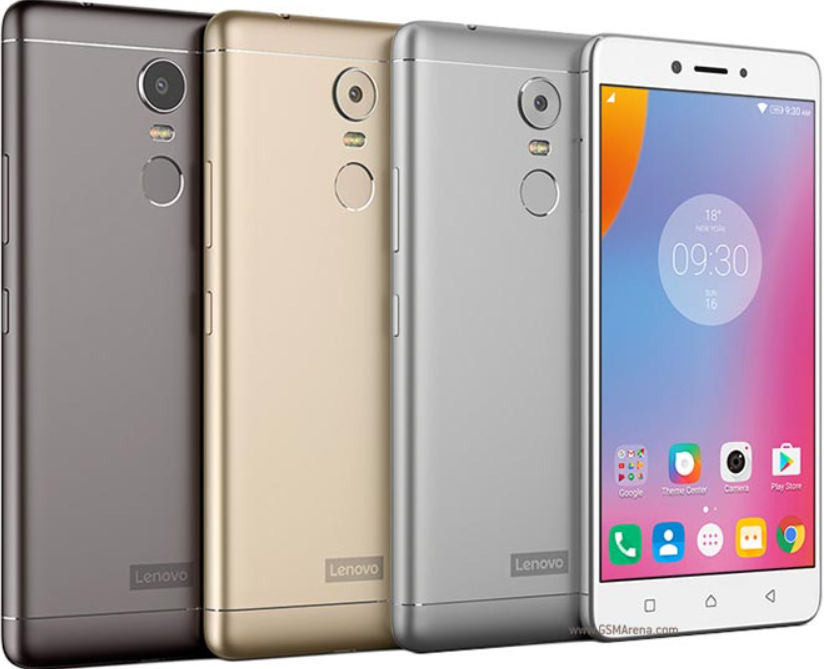
Introduction
The Lenovo K6 NOTE V1.0 Smartphone is a feature-packed device that offers a seamless user experience. With its powerful specifications and stunning design, it is perfect for both work and play.
Technical specifications
- Data
- FDD-LTE/TDD-LTE/WCDMA/GSM
- Note: In some countries, LTE is not supported. To know if your smartphone works with LTE networks in your country, contact your carrier.
- Wi-Fi
- Wi-Fi 802.11 b/g/n, 2.4 GHz
- Bluetooth Bluetooth
- 4.2
- GPS
- Supported
- GLONASS
- Supported
Key Features
- 5.5-inch Full HD display
- Octa-core processor
- 4GB RAM and 64GB internal storage
- 16MP rear camera with PDAF
- 8MP front camera with wide-angle lens
- Fingerprint sensor for enhanced security
- 4000mAh battery with fast charging support
- Dual SIM functionality
- 4G LTE connectivity
- Android 7.0 Nougat operating system
Home screen
The home screen is the starting point for using your phone. For your convenience, the home screen is already set up with some useful apps and widgets.
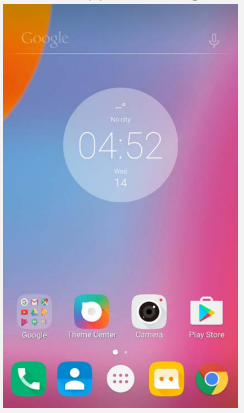
Note: Your phone's features and the home screen may be different depending on your location, language, carrier, and model.
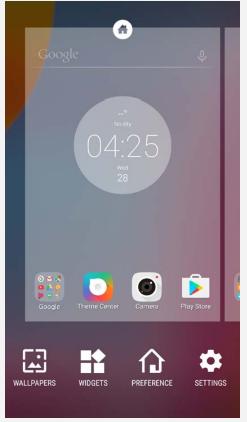
Customizing home screens in edit mode
Press and hold the Multitask button or touch and hold an empty spot on the home screen to enter edit mode. Tap the back button to exit edit mode.
Screen lock
When your phone is on, press the On/Off button to lock the screen manually. Press the On/Off button again to display the lock screen, and then swipe up from the bottom of the screen to unlock.
Note: Slide is the default screen unlocking method. To change your screen lock, see Settings.
Notifications and Quick Settings
The Notification panel (see Figure 1: Notification) informs you of missed calls, new messages, and activities in progress,, such as file downloading. The Quick Settings panel (see Figure 2: Quick Settings) allows you to access frequently-used settings such as the Wi-Fi switch.
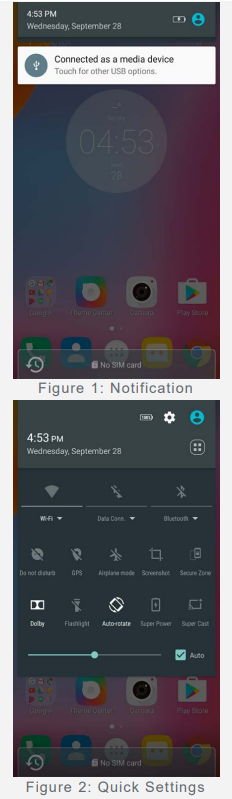
You can do any of the following:
- To see notifications, swipe down from the top of the screen.
- To close the Notification panel, swipe up from the bottom of the screen.
- To dismiss a notification, swipe left or right across the notification.
- To dismiss all notifications, tap at the bottom of the Notification panel.
- To open the Quick Settings panel, swipe down from the top of the screen twice. To close the Quick Settings panel, swipe up from the bottom of the screen twice.
USB connection
When you connect your phone to a computer using a USB cable, the Notification panel displays a notification such as "Connected as a media device". You can tap the notification, and then select one of the following options:
- Media device (MTP): Select this mode if you want to transfer any media files on Windows, or use Android File Transfer on Mac
- Camera (PTP): Select this mode if you want to transfer photos using camera software, or transfer any files on computers that don't support MTP.
- MIDI: Select this mode if you want MIDI-enabled applications on your phone to work with MIDI software on the computer.
- Charge only: Select this mode to stop all USB functions, speed up USB charging, and decrease power consumption.
Network
Wi-Fi connection
Turning the Wi-Fi connection on or off
Do one of the following:
- Go to the Quick Settings panel, and then tap the Wi-Fi switch to turn the Wi-Fi connection on or off.
- Tip: When you turn on the Wi-Fi connection, a list of detected Wi-Fi hotspots appears. If the list does not appear, press and hold the Wi-Fi switch in the Quick Settings panel.
- Go to Settings > Wi-Fi, and then tap the On or Off switch to turn the Wi-Fi connection on or off.
- Tip: When you turn on the Wi-Fi connection, a list of detected Wi-Fi hotspots appears. If the Wi-Fi hotspot that you want to connect to is not listed, tap > Refresh to manually scan for Wi-Fi hotspots or tap Add network to manually add the Wi-Fi hotspot.
Connecting to a Wi-Fi network
- Turn on the Wi-Fi connection and check the list of available Wi-Fi hotspots.
Note: You need to have some valid Wi-Fi hotspots to connect to. - Tap the Wi-Fi hotspot that you want to connect to.
- If you selected a secured network, enter your login name and password, and then tap CONNECT.
Data connection
Turning the data connection on or off
Do one of the following:
- Go to the Quick Settings panel, tap the Data Conn. switch, and then tap the Mobile data switch to turn the data connection on or off.
- Go to Settings > Data usage > SIM1 (or SIM2), and then tap the Mobile data switch to turn the data connection on or off.
- Note: You need a valid SIM card with a data service. If you do not have a SIM card, contact your carrier.
Selecting a SIM card for data connection
- If your phone has dual SIM cards, you can select a SIM card for data connection. Both slots support 4G/3G/2G data services, but you can enable only one SIM card for data connection at a time. To decide which SIM card to use for data connection, do one of the following:
- Go to the Quick Settings panel, tap the Data Conn. switch, and then select a SIM card within the Primary Data section.
- Go to Settings > SIM management > Mobile data and select a SIM card.
Setting up a hotspot
You can use a Wi-Fi hotspot to share an Internet connection with another phone or other devices.
- Go to Settings > More... > Personal hotspot.
- Tap the Portable Wi-Fi hotspot switch to turn it on.
Note: You can also share a network via Bluetooth or USB. - If this is your first time turning on the Wi-Fi hotspot, tap Set up Wi-Fi hotspot to view or change the configuration information.
Note: Tell your friends the Network SSID and password, and they can connect to your network.
Chrome
If your phone has been connected to a Wi-Fi or a mobile network, you can use the Chrome app to surf the Internet. For more information about connecting to a Wi-Fi or a mobile network, see Network.
Visiting websites
Settings
Setting the date and time
- Go to Settings > Date & time.
- Do any of the following:
- To use the network date and time, turn the Automatic date & time switch on.
- To set the date and time manually, turn the Automatic date & time switch off, and then tap Set date and Set time respectively.
- To use the network time zone, turn the Automatic time zone switch on.
- To set the time zone manually, turn the Automatic time zone switch off, tap Select time zone, and then choose a time zone.
- To switch between the 24-hour and 12-hour formats, turn the Use 24-hour format switch on or off.
Setting the language
- Go to Settings > Language & input > Language .
- Select the display language that you want to use.
Setting the input method
- Go to Settings > Language & input > Default.
- Select the input method that you want to use as the default.
Setting a screen lock
Go to Settings > Security > Screen lock to select a screen lock option and set up the screen lock.
Enabling app installation
Before you install apps that you downloaded from unknown sources, do all of the following:
- Go to Settings > Security.
- Tap the Unknown sources switch to turn it on.
Setting the ringtone
You can define the default ringtone for incoming calls, messages, and notifications. You can also adjust the volume for each sound type.
Go to Settings > Ringtones and volumes.
Performing a factory reset
- Go to Settings > Backup & reset > Factory data reset.
- Tap RESET PHONE.
- Tap ERASE EVERYTHING .
Charging
You can use any of the following charging methods to safely recharge the internal battery of the Lenovo Phone.
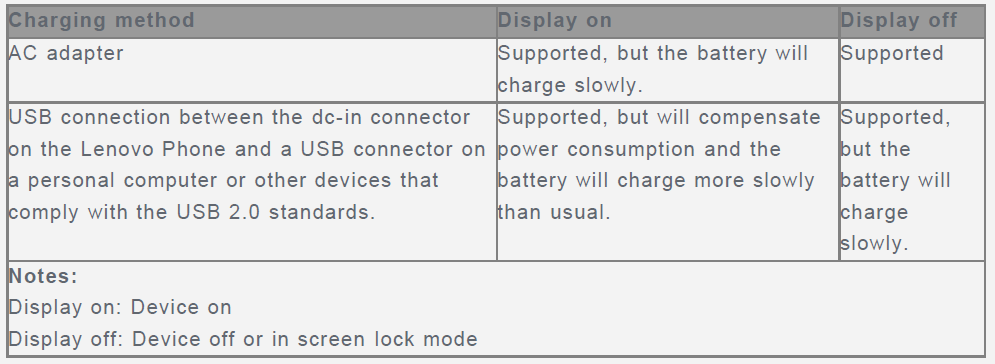
Charging devices might become warm during normal use. Ensure that you have adequate ventilation around the charging device. Unplug the charging device if any of the following occur:
- The charging device has been exposed to rain, liquid, or excessive moisture.
- The charging device shows signs of physical damage.
- You want to clean the charging device.
- Lenovo is not responsible for the performance or safety of products not manufactured or approved by Lenovo. Use only approved Lenovo aACadapters and batteries.
- NOTE: The Adapter shall be installed near the equipment and shall be easily accessible. Users have to use the connection to USB interfaces with a USB 2.0 version or higher.
Distraction
- Take care when using the Lenovo Phone in a motor vehicle or on a bicycle. Always prioritize your safety and the safety of others. Follow the law. Local laws and regulations might govern how you can use mobile electronic devices, such as the Lenovo Phone, while you drive a motor vehicle or ride a bicycle.
- Choking hazard
- Keep the Lenovo Phone and accessories away from small children. The Lenovo Phone contains small parts that can be a choking hazard to small children. Additionally, the glass screen can break or crack if dropped on or thrown against a hard surface.
Explosive atmospheres
- Do not charge or use the Lenovo Phone in any area with a potentially explosive atmosphere, such as at a fueling area, or in areas where the air contains chemicals or particles (such as grain, dust, or metal powders). Obey all signs and instructions.
- Radio frequency interference
- Observe signs and notices that prohibit or restrict the use of mobile phones (for example, in healthcare facilities or blasting areas). Although the Lenovo Phone is designed, tested, and manufactured to comply with regulations governing radio frequency emissions, such emissions from the Lenovo Phone can negatively affect the operation of other electronic equipment, causing them to malfunction. Turn off the Lenovo Phone or use Airplane Mode to turn off the Lenovo Phone wireless transmitters when use is prohibited, such as while traveling in an aircraft, or when asked to do so by authorities.
Medical devices
- The Lenovo Phone contains radios that emit electromagnetic fields. These electromagnetic fields may interfere with pacemakers or other medical devices. If you wear a pacemaker, maintain at least 15 cm (6 inches) of separation between your pacemaker and the Lenovo Phone. If you suspect the Lenovo Phone is interfering with your pacemaker or any other medical device, stop using the Lenovo Phone and consult your physician for information specific to your medical device.
Important handling info
Cleaning
- Clean the Lenovo Phone immediately if it comes in contact with anything that may cause stains, such as dirt, ink, makeup, or lotions. To clean:
- Disconnect all cables and turn off the Lenovo Phone (press and hold the Sleep/Wake button, then slide the on-screen slider).
- Use a soft, lint-free cloth.
- Avoid getting moisture in openings.
- Do not use cleaning products or compressed air.
Operating temperature
Be aware of the heat generated by the Lenovo Phone. When using the Lenovo Phone, keep it away from hot or high-voltage environments, such as electric appliances, electric heating equipment, or electric cooking equipment. Use the Lenovo Phone only in the temperature range of -10°C (14 °F)—35°C (95 °F) to avoid damage.
When the Lenovo Phone is turned on or the battery is charging, some parts might become hot. The temperature that they reach depends on the amount of system activity and the battery charge level. Extended contact with your body, even through clothing, could cause discomfort or even a skin burn. Avoid keeping your hands, your lap, or any other part of your body in contact with a hot section of the Lenovo Phone for any extended time.
Protecting your data and software
Do not delete unknown files or change the names of files or directories that were not created by you; otherwise, the Lenovo Phone software might fail to work.
Be aware that accessing network resources can leave the Lenovo Phone vulnerable to computer viruses, hackers, spyware, and other malicious activities that might damage the Lenovo Phone, software, or data. It is your responsibility to ensure that you have adequate protection in the form of firewalls, antivirus software, and anti-spyware software,e and keep such software up to date.
Keep electrical appliances away from the Lenovo Phone, such as an electric fan, a radio, high-powered speakers, an air conditioner, and a microwave oven. The strong magnetic fields generated by electrical appliances can damage the screen and the data on the Lenovo Phone.
Faqs
What is the screen size of the Lenovo K6 NOTE V1.0 Smartphone?
How much RAM does the Lenovo K6 NOTE V1.0 Smartphone have?
What is the internal storage capacity of the Lenovo K6 NOTE V1.0 Smartphone?
Does the Lenovo K6 NOTE V1.0 Smartphone have a fingerprint sensor?
What is the battery capacity of the Lenovo K6 NOTE V1.0 Smartphone?
Does the Lenovo K6 NOTE V1.0 Smartphone support dual SIM functionality?
What is the operating system of the Lenovo K6 NOTE V1.0 Smartphone?
What is the resolution of the rear camera on the Lenovo K6 NOTE V1.0 Smartphone?
Can the Lenovo K6 NOTE V1.0 Smartphone connect to 4G LTE networks?
What is the front camera resolution of the Lenovo K6 NOTE V1.0 Smartphone?
More lenovo manuals
- Lenovo IdeaPad Gaming 3 16ARH7 User Guide | Specifications
- How to Use & Set: Lenovo TAB 2 A10-30 User Guide
- Specs & Features: Lenovo IdeaPad 3 17ABA7 User Guide
- Lenovo ideapad 710S Plus User Guide | Specifications
- Lenovo Legion 5 Pro 16ACH6H User Guide | Specifications
- How to Use : Lenovo YOGA BOOK YB1-X90F User Guide
Leave a Comment