
How to Use & Set: Lenovo TAB 2 A10-30 User Guide
Content
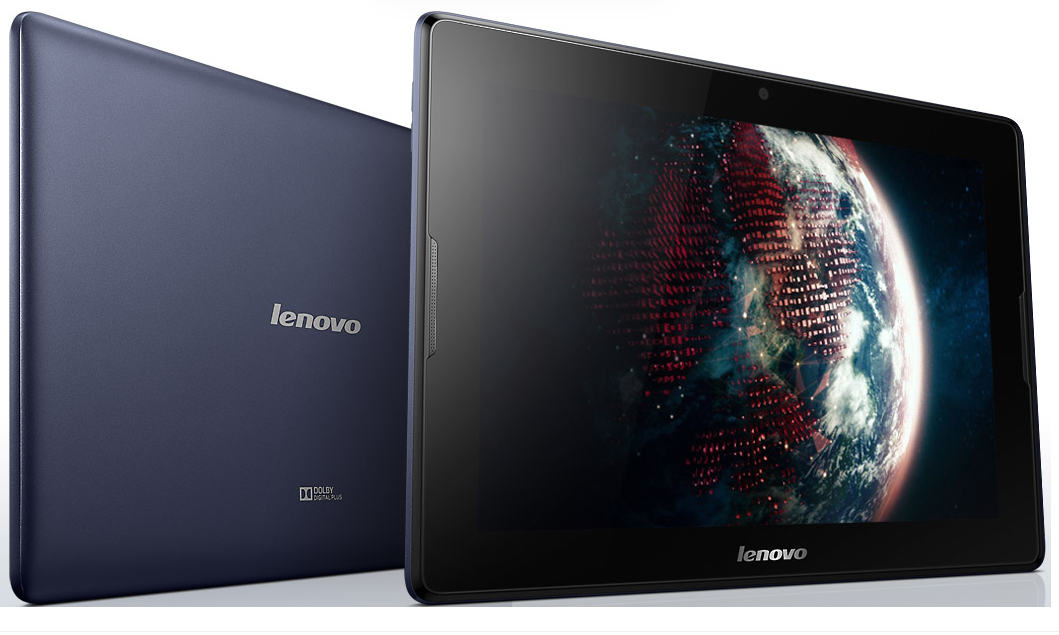
Lenovo TAB 2 A10-30
Introduction
The Lenovo TAB 2 A10-30 is a versatile tablet that offers great performance and features at an affordable price. Whether you're browsing the web, watching movies, or playing games, this tablet has you covered.
Specifications
- Display: 10.1-inch IPS LCD
- Resolution: 1280 x 800 pixels
- Processor: Quad-core 1.3 GHz
- RAM: 2GB
- Storage: 16GB (expandable up to 64GB with microSD card)
- Operating System: Android 5.1 Lollipop
- Camera: 5MP rear camera, 2MP front camera
- Battery: 7000mAh
- Connectivity: Wi-Fi, Bluetooth
Instructions
- Power on the tablet by pressing and holding the power button.
- Follow the on-screen instructions to set up your tablet.
- Connect to a Wi-Fi network to access the internet.
- Install your favorite apps from the Google Play Store.
- Customize your tablet's settings to suit your preferences.
Notifications and Quick Settings
You can do any of the following:
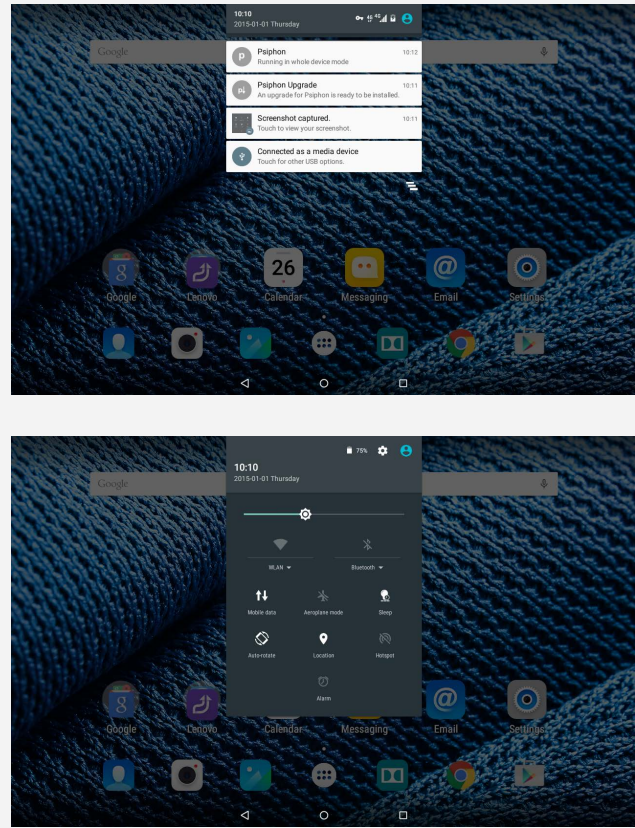
- To see notifications, swipe down from the top of the screen with one finger. To close the Notification panel, swipe up from the bottom of the screen with one finger.
- To dismiss a notification, swipe left or right across the notification.
- To open Quick Settings, swipe down from the top of the screen twice with one finger or once with two fingers.
- To close Quick Settings, swipe up from the bottom of the screen twice with one finger or once with two fingers.
Force shutdown
Press and hold the On/Off button until the screen goes dark.
Camera
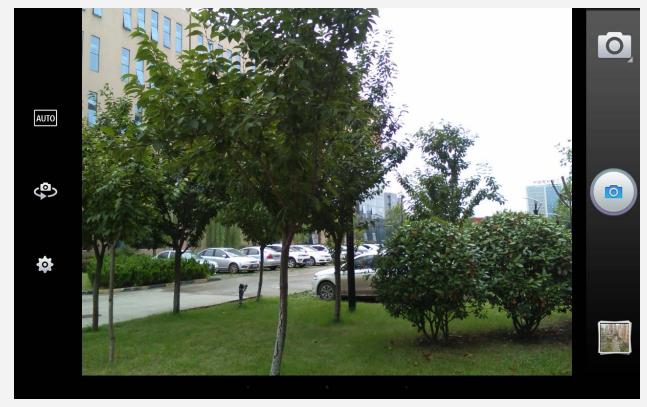
To open the Camera app, go to Camera.
Taking photos and videos
You can take photos and record videos with your device's built-in camera.
Taking screenshots
Press and hold the On/Off button and the Volume down button at the same time.
Viewing pictures and videos
Photos and videos are stored in your device's internal storage. You can view your photos and videos by using the following methods:
- Tap the review button when using the Camera app.
- Go to the Gallery.
- The screenshots are stored in your device's internal storage. You can view the screenshots in the Gallery.
Network
You need to set up a wireless network before connecting to the Internet.
- Set up a WLAN network
- Set up a mobile network
- Set up a VPN network
You can also share your mobile network with others.
- Set up a hotspot
Setting up a WLAN network
- Go to Settings > WLAN.
- Turn on the WLAN block and tap a WLAN hotspot in the list to connect to the Internet. When you access a secure link, you need to enter your login name and password to connect.
- NOTE: You need to have some valid WLAN hotspots to connect to.
Setting up a mobile network
- Go to Settings > Data usage, turn on the Mobile data.
- NOTE: You need a valid SIM card with a data service. If you don't have a SIM card, contact your carrier.
Setting up a VPN network
VPNs used within organizations allow you to communicate private information securely over a non-private network. You may need to configure a VPN, for example, to access your work email. Ask the network’s administrator for the settings necessary to configure a VPN for your network. When one or more VPN settings are defined, you can:
- Go to Settings > More > VPN.
- Tap to edit the VPN profile, including the server name, the type, and the server address, and then tap SAVE.
- Tap the VPN server name, enter the username and password, and then tap CONNECT to connect to the VPN network.
- Tap and hold the VPN server name to edit or delete the VPN.
Setting up a hotspot
- You can use Tethering & portable hotspot to share an Internet connection with a computer or other device.
- Go to Settings > More > Tethering & portable hotspot and do the following:
- Turn on the Portable WLAN hotspot.
- Tap Set up WLAN hotspot to configure the hotspot.
- You can also use Bluetooth tethering and USB tethering.
- NOTE: Tell your friends the Network SSID and password, and then they can share your mobile network.
- You can receive and send emails if your device has been connected to a wireless network.
- To access the Email app, go to Email.
- To access the Google Email app, go to Gmail.
Setting up an Email account
- You can sign in too Email if you have an email account. If not, you will need to create an email account.
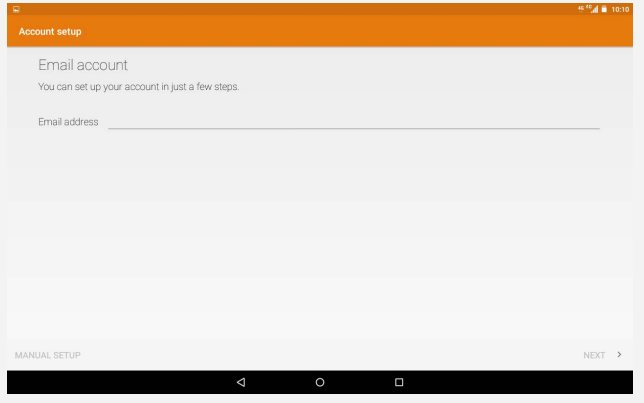
- You need to set up an email account the first time you use the Email app.
- On the Account setup page, type your email address and password and tap NEXT.
Using Email
After setting up an email account,nt you can use the Email app to send and receive emails.
Adding an Email account
- You can add several email accounts.
- Go to Settings > Accounts > Add account, then tap Email.
Maps
Before you use Maps, go to Settings > Personal > Location and enable location access for Google apps.
Finding a location
Type the address that you want to find, then in the ap Google Search bar.
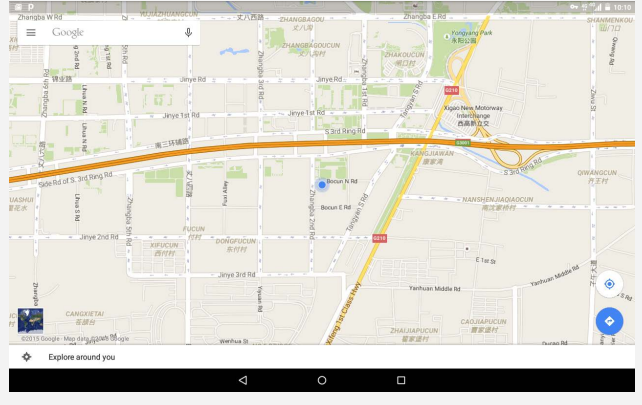
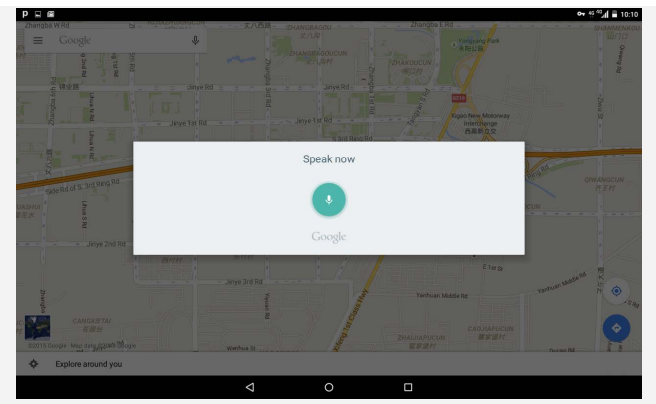
Current location
- Tap to see your current location.
- Then tap Explore around you to check what's nearby.
Planning a route
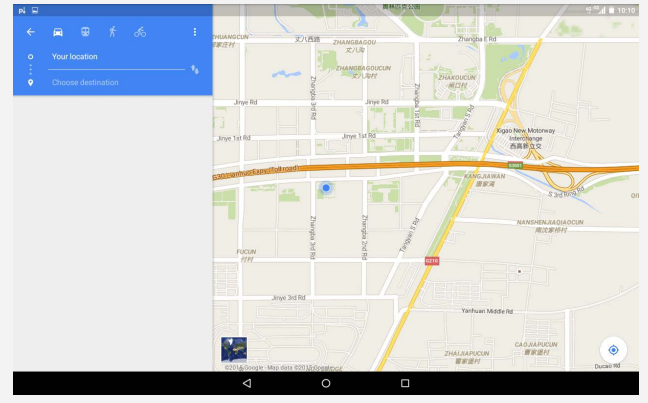
Sync
You can transfer data between your device and computer. Transfer music, pictures, videos, documents, Android application package (APK) files, and so on.
Connecting your device and computer
- Connect your device and computer with a USB cable.
- Swipe down from the top of the screen, and you will see "Connected as a media device" in the notification bar.
- Tap Connected as a media device for other options.
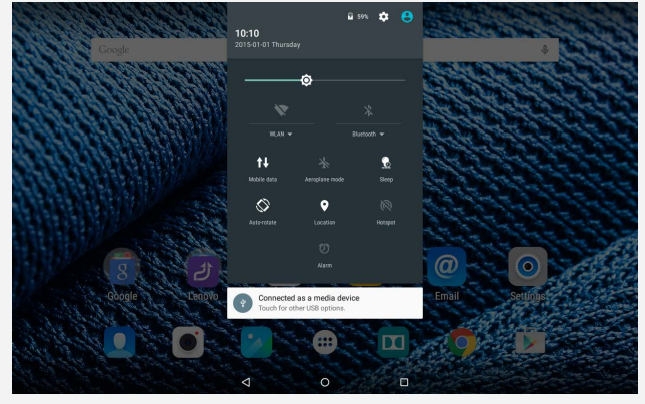
Operating the computer
Follow these steps:
- Find the new disk on the device.
- Copy the files.
Installing APK
Follow these steps:
- You need to set the device to allow installation of apps obtained from unknown sources.
- Go to Settings > Security, select Unknown sources, and tap OK.
- Copy the APK file from the computer to the device in "Media device (MTP)" mode.
Faqs
Can I make phone calls with Lenovo 2 A10-30 tablet?
Can I expand the storage of Lenovo TAB 2 A10-30?
Does this tablet support multi-user profiles?
Does this tablet have a fingerprint scanner?
Can I connect a keyboard to this Lenovo TAB 2 A10-30 User Guide?
Does Lenovo TAB 2 A10-30 support HDMI output?
What is the weight of Lenovo 2 A10-30 tablet?
Does this tablet support 4G LTE connectivity?
Is the battery removable?
What is the screen resolution of this tablet?
Tags
More lenovo manuals
- Lenovo K6 NOTE V1.0 Smartphone User Guide | Specs & Features
- Lenovo ideapad 710S Plus User Guide | Specifications
- Lenovo IdeaPad Gaming 3 16ARH7 User Guide | Specifications
- How to Use : Lenovo YOGA BOOK YB1-X90F User Guide
- Specs & Features: Lenovo IdeaPad 3 17ABA7 User Guide
- Lenovo Legion T5 26AMR5 User Guide | Specifications
Leave a Comment