
Lenovo K8 Note Smartphone User Guide | Settings & Usage
Content
Lenovo K8 Note Smartphone
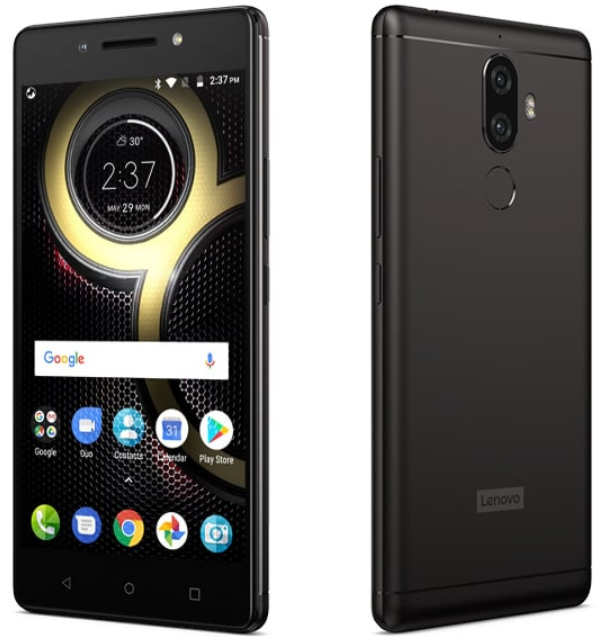
Introduction
The Lenovo K8 Note is a powerful smartphone that offers a range of features and capabilities to enhance your mobile experience. With its sleek design and impressive specifications, this device is perfect for both work and play.
Specifications
- Display: 5.5-inch Full HD IPS display
- Processor: Deca-core MediaTek Helio X23 processor
- RAM: 3GB/4GB
- Storage: 32GB/64GB (expandable up to 128GB with microSD card)
- Camera: Dual rear cameras (13MP + 5MP) with depth sensor, 13MP front camera
- Battery: 4000mAh
- Operating System: Android 7.1.1 Nougat
- Connectivity: Dual SIM, 4G LTE, Wi-Fi, Bluetooth
- Additional Features: Fingerprint sensor, Dolby Atmos support, TheaterMax technology
Instructions
- Insert your SIM card(s) into the designated slot(s).
- Charge your phone using the provided charger and cable.
- Power on the device by pressing and holding the power button.
- Follow the on-screen instructions to set up your device.
- Customize your settings and install your favorite apps.
- Explore the various features and functionalities of the Lenovo K8 Note.
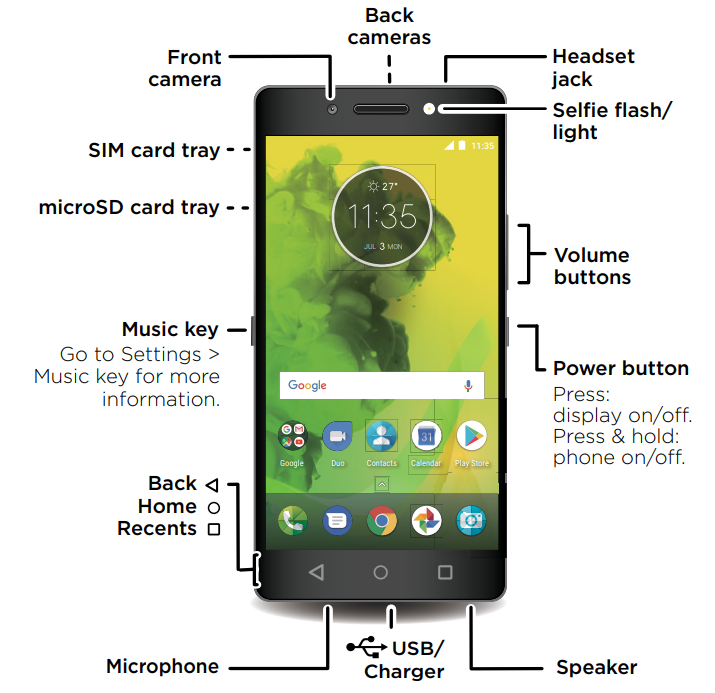
First look - Lenovo K8 Note
Let's get started. We'll guide you through the start-up and tell you a bit about your phone's features.
Note: software updates happen frequently, so your phone may look a little different.
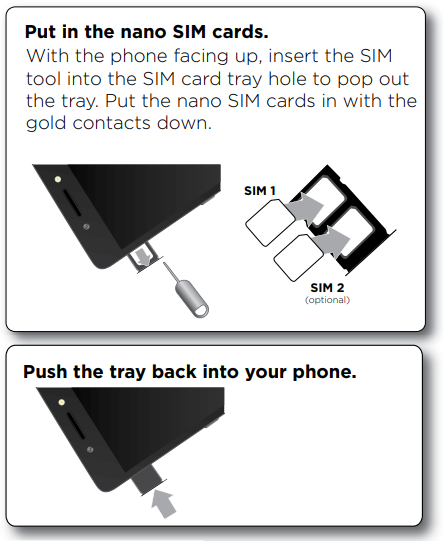
Put in the SIM cards
Your phone supports using two SIM cards.
Caution: Make sure you use the correct-sized SIM cards and don't cut the SIM cards.
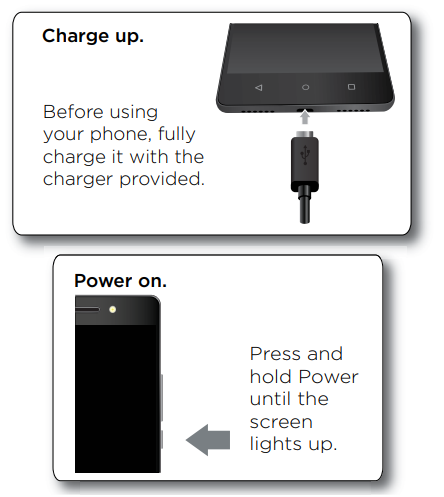
Charge up & power on
Charge your phone fully and turn the power on. Then select your language and follow the screen prompts to get started.
TROUBLESHOOTING & MAINTENANCE GUIDE
BASIC DEVICE CHECKS
Before deep troubleshooting:
- Restart the phone — fixes many temporary bugs.
- Remove SIM & microSD, reinsert properly.
- Charge with the original charger for at least 30 minutes if the battery is low or the phone doesn’t power on.
- Check for physical damage (screen, charging port, etc.).
TROUBLESHOOTING GUIDE
PHONE WON’T TURN ON
Possible causes: drained battery, system crash, or charger issue.
Fix:
- Hold Power + Volume Up for 10–15 seconds (forces reboot).
- Try another charger and cable.
- Charge for at least 30 minutes.
- If it vibrates but the screen stays black → display/backlight issue.
BATTERY DRAIN / CHARGING PROBLEMS
Fixes:
- Avoid using the phone while charging.
- Check Settings → Battery → Battery usage for apps draining power.
- Uninstall or restrict high-usage apps.
- Turn off Bluetooth, GPS, Mobile data, and Wi-Fi when not needed.
- Enable Battery Saver mode.
- If charging is slow:
- Clean the USB port gently with a dry toothbrush.
- Use the original 15W Turbo charger.
- Avoid cheap third-party cables.
OVERHEATING
Common during gaming or charging.
Fixes:
- Close background apps.
- Avoid charging while gaming or streaming.
- Use in a well-ventilated area.
- Remove the thick case while charging.
- Check for rogue apps causing CPU stress (Settings → Battery → Usage).
NETWORK / SIM ISSUES
Fixes:
- Toggle Airplane Mode ON, then OFF.
- Reinsert the SIM card properly.
- Go to Settings → Network & Internet → Mobile network → Preferred network type → Select 4G/3G Auto.
- Reset network settings:
- Settings → System → Reset → Reset Wi-Fi, mobile & Bluetooth.
- If the SIM is not detected → test the SIM in another phone (to rule out SIM fault).
SOUND / MIC / SPEAKER PROBLEMS
Fixes:
- Check volume keys & Sound settings.
- Plug in & unplug earphones to reset audio routing.
- Restart the device.
- Test in Safe Mode:
- Hold Power → Long-press “Power Off” → Tap “OK” for Safe Mode.
- If sound works in Safe Mode, a third-party app is causing it.
- Clean the speaker grill gently with a dry brush.
CAMERA ISSUES
Fixes:
- Clear Camera app cache:
- Settings → Apps → Camera → Storage → Clear Cache & Clear Data.
- Restart phone.
- Ensure adequate lighting and focus.
- Update camera app (if using Google Camera).
- If the black screen persists, use Safe Mode to test the hardware.
PERFORMANCE / LAG
Fixes:
- Restart phone weekly.
- Delete unused apps and media.
- Clear app cache:
- Settings → Storage → Cached data → Clear.
- Disable background sync for non-essential apps.
- If lag persists → Factory Reset (backup first).
STORAGE / APP ISSUES
Fixes:
- Move media to a microSD card or Google Drive.
- Clear cache and unused files.
- Uninstall apps you don’t use.
- Use the “Files by Google” app for cleanup.
WI-FI / BLUETOOTH TROUBLE
Fixes:
- Turn Wi-Fi or Bluetooth off → wait 10 sec → on again.
- Restart router (for Wi-Fi issues).
- Forget and reconnect to the network.
- Reset network settings (see Section 5).
MAINTENANCE GUIDE
BATTERY CARE
- Keep charge between 20%–80% most of the time.
- Avoid using the phone while charging.
- Keep away from direct sunlight or heat.
- Use the original Lenovo charger only.
SYSTEM MAINTENANCE
- Update Software:
- Settings → About Phone → System Update → Check for updates.
- Wipe Cache Partition (Monthly):
- Power off the phone.
- Hold Volume Up + Power until “Android Recovery” appears.
- Use volume keys → select Wipe cache partition → confirm with Power button.
- Reboot the system now.
FACTORY RESET (Last Resort)
If major bugs persist:
Backup first.
- Settings → System → Reset → Factory data reset → Erase all.
- OR via Recovery Mode:
- Power off → Hold Power + Volume Up → choose Wipe data/factory reset.
PHYSICAL MAINTENANCE
- Clean screen with a microfiber cloth (no alcohol-based liquid).
- Keep the charging port dry and dust-free.
- Avoid moisture or extreme temperatures.
- Use a case and tempered glass protector to prevent damage.
LENOVO SUPPORT
- Official Support: https://support.lenovo.com
- Search “K8 Note” → choose “Drivers & Software” or “Diagnostics”.
- For service center locations: Support → Contact Us → Service Center Finder.
Faqs
What is the screen size of the Lenovo K8 Note?
What is the processor used in the Lenovo K8 Note?
How much RAM does the Lenovo K8 Note have?
Can I expand the storage on the Lenovo K8 Note?
What is the battery capacity of the Lenovo K8 Note?
Which operating system does the Lenovo K8 Note run on?
Does the Lenovo K8 Note support dual SIM cards?
What are the additional features of the Lenovo K8 Note?
What are the camera specifications of the Lenovo K8 Note?
Does the Lenovo K8 Note support 4G LTE?
More lenovo manuals
- How to Use : Lenovo Tab3 7 Essential TB3-710F User Guide
- Lenovo Chromebook C330 and S330 User Guide | Settings
- Lenovo V110 Ideapad User Guide | Specifications
- Lenovo IdeaPad Slim 5 14IRL8 User Guide | Connectivity
- Lenovo Legion T5 26AMR5 User Guide | Specifications
- How to Use : Lenovo YOGA BOOK YB1-X90F User Guide
Leave a Comment