
Pairing & Setup: Logitech G A50 X Wireless Headset User Manual
Content
Logitech G A50 X Wireless Headset
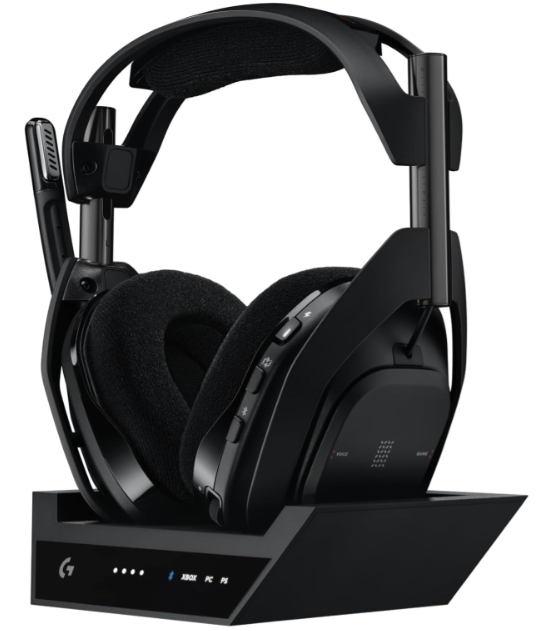
Introduction
The Logitech G A50 X Wireless Headset is a premium gaming headset engineered for serious gamers who demand top-tier audio performance, seamless multi-platform connectivity, and long-lasting comfort. Designed for console, PC, and Mac users, the A50 X delivers immersive sound with Dolby Atmos and 3D audio support, making it ideal for competitive gaming, streaming, and multimedia entertainment. Its standout feature, PLAYSYNC, allows instant switching between Xbox, PlayStation 5, and PC, making it the ultimate headset for multi-system players.
Equipped with PRO-G GRAPHENE drivers, the A50 X offers crystal-clear audio with deep bass and precise highs, while LIGHTSPEED wireless technology ensures ultra-low latency and broadcast-quality audio. The headset boasts a 24-hour battery life, a magnetic charging dock, and a sleek, ergonomic design that’s perfect for extended gaming sessions. Whether you’re a pro gamer, streamer, or casual player, the Logitech G A50 X Wireless Headset is built to elevate your gaming experience.
Available at major retailers, the Logitech G A50 X Wireless Headset typically retails between $300 and $350, making it a premium investment for those seeking the best in wireless gaming audio.
Specifications: Logitech G A50 X Wireless Headset
- Driver Size: 40 mm PRO-G GRAPHENE drivers
- Frequency Response: 20 Hz – 20,000 Hz
- Wireless Technology: LIGHTSPEED 2.4 GHz RF, Bluetooth 5.0
- Connectivity: HDMI 2.1 passthrough, USB-Audio, 3.5 mm jack
- Microphone: Omnidirectional boom mic, 60 Hz – 20,000 Hz frequency response
- Battery Life: Up to 24 hours
- Charging: Magnetic charging dock, USB-C
- Weight: 12.8 oz (363 g)
- Audio Formats: Dolby Atmos, Windows Sonic, 3D Audio (PS5)
- Multi-Platform Support: Xbox Series X|S, PS5, PC, Mac
- Additional Features: Game/Voice balancer, StreamPort, Bluetooth audio mixing
The Logitech G A50 X Wireless Headset outperforms competitors like the SteelSeries Arctis Nova Pro and Razer BlackShark V2 Pro with its multi-system switching, HDMI 2.1 passthrough, and superior battery life.
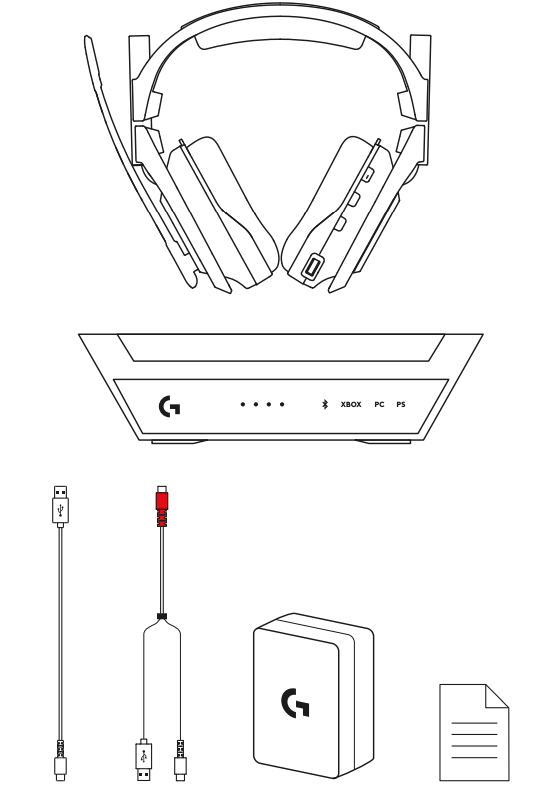
WHAT’S IN THE BOX
- A50 X Wireless Headset
- A50 X HDMI Base Station
- 1x USB-C to USB-A Cables
- 1x USB-C to Dual USB Combo (Y) Cable
- 1x USB-C Power Adapter and Plug Head
- Dolby Atmos Info Card
Additional Items (not included) that may be needed:
- HDMI cables are not included with A50 X.
- A minimum of 2 HDMI cables and 1 USB cable are needed to connect one game console with the A50 X to the TV.
- A50 X supports HDMI connectivity with 2 game consoles. Doing so requires 3 HDMI cables; you may have received 1 HDMI cable from each console at the time of purchase. 2 USB-A to USB-C cables are also needed.
- For optimal video performance and passthrough of HDMI 2.1 features such as Variable Refresh Rate, make sure all HDMI cables used are certified for HDMI 2.1 Ultra High Speed and/or rated for 48Gbps.
PRODUCT OVERVIEW
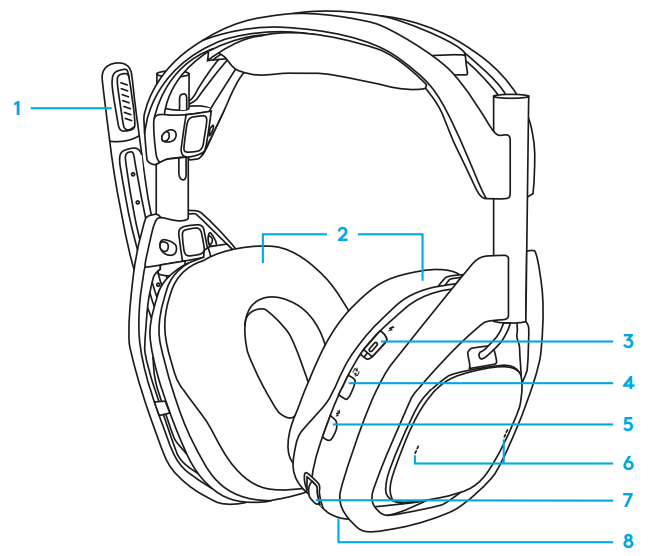
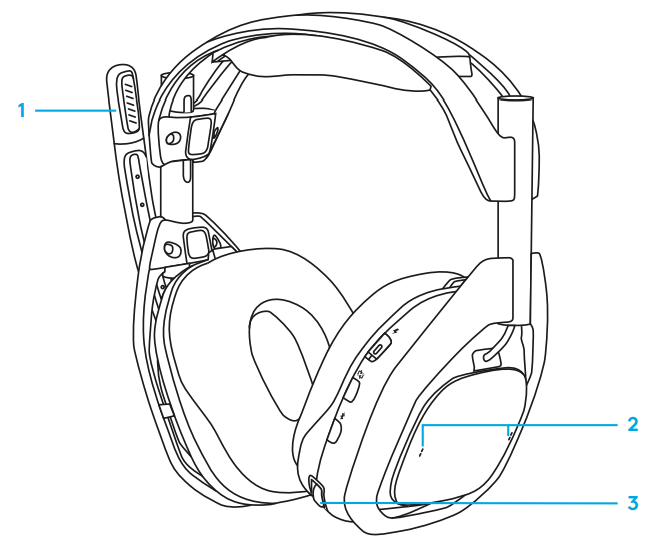
HEADSET
- Flip-to-Mute Boom
- Magnetic Ear Cushions
- Power Switch and LED indicator
- PLAYSYNC button
- Bluetooth Button
- Game/Voice Balancer
- Volume Control
- USB-C port
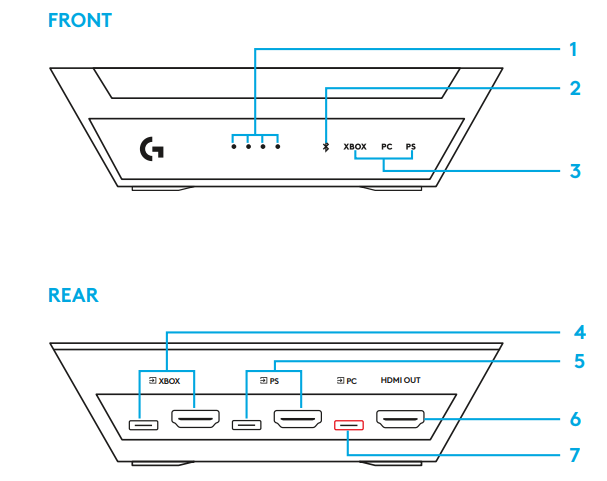
HDMI BASE STATION
- Headset Battery Indicator
- Bluetooth Indicator
- 3 Systems Indicator
- Inputs for XBOX
- Inputs for PlayStation
- Output to 4K TV
- Input for PC and 5v Power Supply
USB COMBO (Y) CABLE
- To Power Adapter
- To PC - USB Audio
- To Base Station
_cable_a.png)
USB-C TO A CABLE
- To Base Station USB
- To Game Console

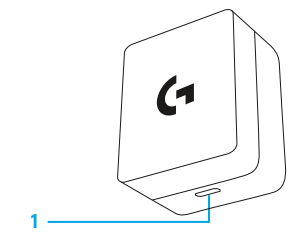
POWER ADAPTER
- 5v DC Power Out
SETUP RECOMMENDATIONS
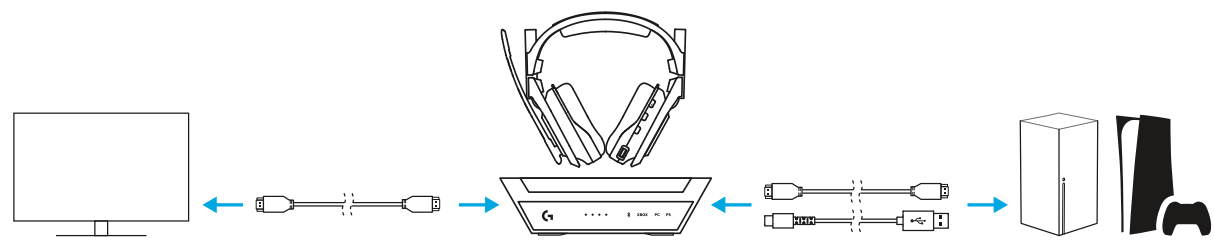
CONSOLES: For the best experience, the recommended setup method uses both HDMI and USB connectivity. The A50 X sits between your console and the TV/Display; one HDMI and one USB cable are needed to connect the A50 X Base Station to a Game Console. Then another HDMI cable is needed to connect the Base Station to your TV.
- When using HDMI and USB cables, Audio and Voice Chat mix is adjustable using the Game/Voice Balancer controls on the headset, for both XBOX and PlayStation consoles. Make sure both HDMI and USB cables are plugged into the same group of ports for each platform. See section 3.7 for more details about A50 X HDMI capabilities.
For PC - The A50 X connects with a Windows machine using USB-Audio with multiple USB-Audio endpoints. This allows you to route media audio to a primary endpoint and voice chat apps to another endpoint, allowing you to balance the Game/Voice audio mix on–the-fly with headset controls.
HOW TO USE
HEADSET CONTROLS
- Flip-to-Mute Microphone: The A50 X headset features an adjustable boom microphone. When flipped to the fully upright position, your mic signal is muted at the headset level. When flipping y, you will feel a mechanical engagement point.
- Game/Voice Balancing: When connected appropriately or used with supported sources, the A50 X is capable of dual audio signal playback and balancing between both.
This feature is known collectively as Game/Voice balancing. It lets you quickly adjust how much of the game or friend’s voice-chatter you want to hear, depending on your needs and preferences. This can be done using the Game/Voice balancer controls on the right ear of the headset. An audible notification tone will be played at Game Max, Mid, and Voice Max points. - Headset Volume and Adjustment:
The A50 X features an internal volume management and control scheme; the headset’s volume is independent and does not sync with the source system. Volume is adjusted intuitively using the control wheel. An audible notification tone will be played at volume max and volume zero points.
CHANGING INPUTS
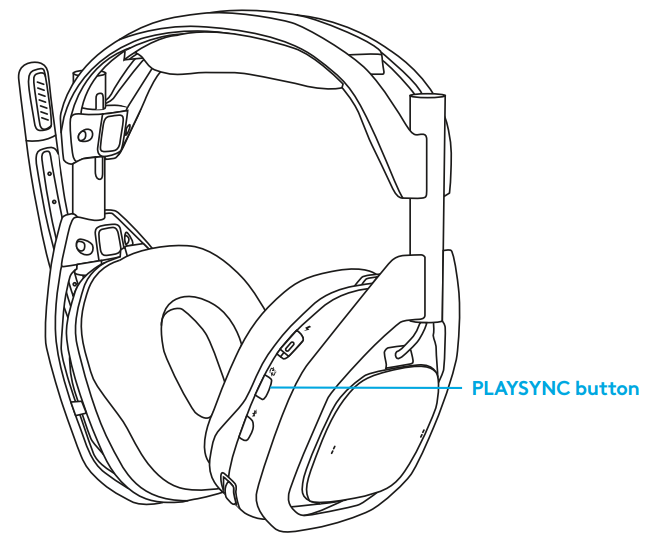
If multiple systems are plugged in, A50 X allows you to switch between each system using the PLAYSYNC button, located on the headset, under the Power Switch.
- When the headset is undocked, the power must be on for the PLAYSYNC button to function. Single-press the to cycle between systems. The Base Station’s Input LED Indicator will respond.
- Both Audio and Video will switch; your TV/Display may go dark momentarily when switching.
- When all three systems are active, pressing the PLAYSYNC button will switch inputs sequentially from XBOX to PC to PlayStation.
- You can use the PLAYSYNC button when the headset is docked to the Base Station, no matter what state the Power Switch is toggled to.
- In some instances, switching inputs may wake systems that are in sleep mode. If this is undesired, please try toggling/disabling Sleep or HDMI-CEC features if available.
Setup Guide: Logitech G A50 X Wireless Headset
Setting up the Logitech G A50 X Wireless Headset is simple and intuitive:
- Place the headset on the magnetic charging dock to power on and charge.
- Connect the base station to your console, PC, or Mac using HDMI 2.1 or USB-Audio.
- Power on your device and select the A50 X as your audio output.
- Use the PLAYSYNC button to switch between connected systems.
- Pair Bluetooth devices via the Bluetooth button on the headset.
- Adjust game and voice balance using the Game/Voice balancer on the right ear.
For troubleshooting, ensure all cables are securely connected and the headset is fully charged. Avoid placing the base station near sources of interference.
Troubleshooting: Logitech G A50 X Wireless Headset
- No Sound: Check audio output settings and ensure the headset is paired correctly.
- Bluetooth Issues: Restart Bluetooth on your device and re-pair the headset.
- Microphone Not Working: Ensure the boom mic is extended and not muted.
- Low Battery: Place the headset on the charging dock.
- Connection Drops: Move the base station closer to your device and away from interference.
The Logitech G A50 X Wireless Headset comes with a 2-year limited warranty. For support, visit Logitech’s official website or contact customer service.
Pros & Cons: Logitech G A50 X Wireless Headset
Pros
- Multi-system switching with PLAYSYNC
- Superior audio quality with PRO-G GRAPHENE drivers
- 24-hour battery life and magnetic charging dock
- Dolby Atmos and 3D audio support
- Comfortable for long gaming sessions
Cons
- Premium price point
- Some users report Bluetooth connectivity issues
- Microphone noise cancellation can be aggressive
The Logitech G A50 X Wireless Headset offers excellent value for gamers who need multi-platform support and top-tier audio.
Customer Reviews: Logitech G A50 X Wireless Headset
Users consistently praise the Logitech G A50 X Wireless Headset for its sound quality, comfort, and multi-system switching. Many highlight the 24-hour battery life and the convenience of the magnetic charging dock. Some users mention minor Bluetooth connectivity issues and find the microphone noise cancellation too aggressive in quiet environments. The headset averages a 4.5-star rating across major retailers, with most buyers recommending it for serious gamers and streamers.
Faqs
How do I set up the Logitech G A50 X Wireless Headset for use with Xbox Series X or S?
What should I do if my Logitech G A50 X Wireless Headset is not charging when docked?
Can I use the Logitech G A50 X Wireless Headset with Bluetooth devices like smartphones or tablets?
How do I switch audio input between PC, Xbox, and PlayStation on the Logitech G A50 X Wireless Headset?
What are the key features of the Logitech G A50 X Wireless Headset that enhance gaming audio performance?
How can I troubleshoot audio dropouts or connectivity issues with the Logitech G A50 X Wireless Headset?
What maintenance steps should I follow to keep my Logitech G A50 X Wireless Headset in optimal condition?
Is the Logitech G A50 X Wireless Headset compatible with PlayStation consoles, and how do I connect it?
More logitech g manuals
- Setup: Logitech G G522 LightSpeed Headset User Manual
- Pairing: Logitech G ASTRO A20 X Wireless Gaming Headset User Manual
- Logitech G Pro-X2 Superstrike Wireless Gaming Mouse User Manual
- Pairing: Logitech G G735 Wireless Gaming Headset User Manual
- Setup: Logitech G G335 Wired Gaming Headset User Manual
- Pairing & Setup: Logitech G A50 Wireless Headset Casque Sans Fil User Manual
Leave a Comment