
Pairing: Logitech G ASTRO A20 X Wireless Gaming Headset User Manual
Content
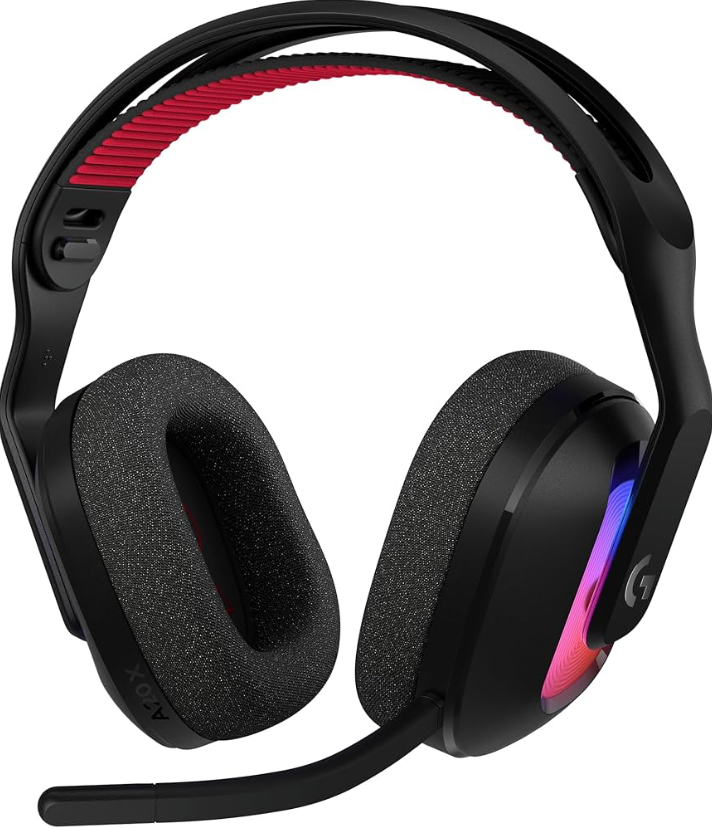
Logitech G ASTRO A20 X Wireless Gaming Headset
Introduction
The Logitech G ASTRO A20 X Wireless Gaming Headset is a cutting-edge audio solution designed for gamers seeking superior sound quality, comfort, and versatile connectivity. Tailored for competitive and casual gamers alike, this headset supports next-level immersion with advanced PLAYSYNC AUDIO technology, allowing seamless switching between two gaming systems, such as PS5, Xbox Series X|S, Nintendo Switch, and P, C with a single button press. Featuring an ultra-lightweight design and breathable woven fabric, it ensures prolonged comfort during marathon gaming sessions.
Key benefits include broadcast-quality voice communication with a detachable 48 kHz bandwidth microphone enhanced by Blue VO!CE technology, customizable RGB lighting with 16.8 million colors across eight zones for personalization, and an impressive battery life of up to 90 hours without lighting. Its dual wireless connectivity options—LIGHTSPEED 2.4 GHz and Bluetooth 5.3—offer flexible use both at home and on the go.
This headset targets gamers who demand cross-platform compatibility, crystal-clear chat, and immersive audio fidelity for FPS, RPG, and multiplayer titles. Whether coordinating team strategies in Overwatch 2 or enjoying immersive single-player adventures, the Astro A20 X delivers precision sound and communication. Currently, the headset is available worldwide through Logitech’s official channels and major retailers, with an estimated price range between $150 and $170 USD.
Specifications of the Logitech G ASTRO A20 X Wireless Gaming Headset
- Audio Drivers: 40mm PRO-G biocellulose drivers for rich, detailed sound
- Frequency Response: 20 Hz – 20 kHz for headphones; 70 Hz – 20 kHz for microphone
- Microphone: Detachable omnidirectional boom mic with 48 kHz broadcast-quality audio and Blue VO!CE enhancements
- Connectivity: LIGHTSPEED Wireless (USB), Bluetooth 5.3, and USB wired options
- Wireless Range: Up to 30 meters (approx. 98 feet)
- Battery Life: Up to 90 hours without RGB lighting; ~40 hours with default RGB lighting active
- Weight: Lightweight at 290 grams (10.22 ounces) for comfortable extended wear
- RGB Lighting: Eight programmable zones with 16.8 million customizable colors via LIGHTSYNC RGB
- Special Features: PLAYSYNC AUDIO for dual-device audio switching, onboard DSP, game/chat volume mixer, mute indicator light
- Compatibility: Supports PS5, Xbox Series X|S, Nintendo Switch, PC, and mobile devices
Compared to similar headsets like the Logitech G A50 X, the A20 X offers easier cross-platform play with two-system PLAYSYNC AUDIO and more affordable pricing, while maintaining high-quality audio and mic performance. Its ultra-lightweight design and extended battery life make it competitive in the mid to high-end wireless gaming headset market.
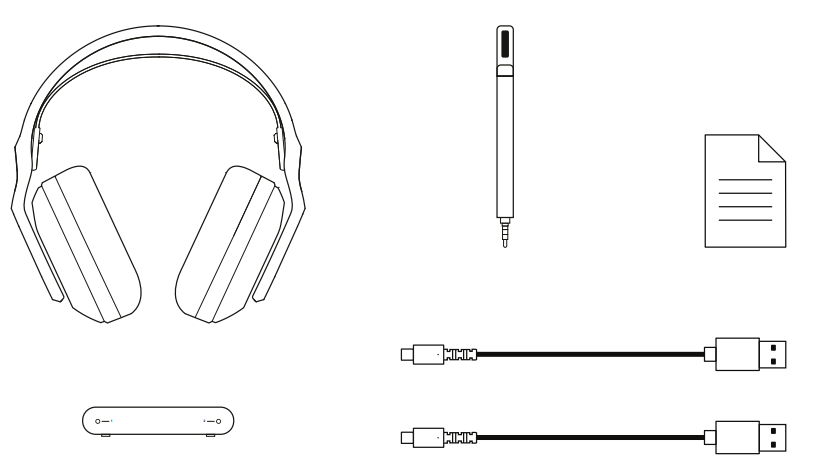
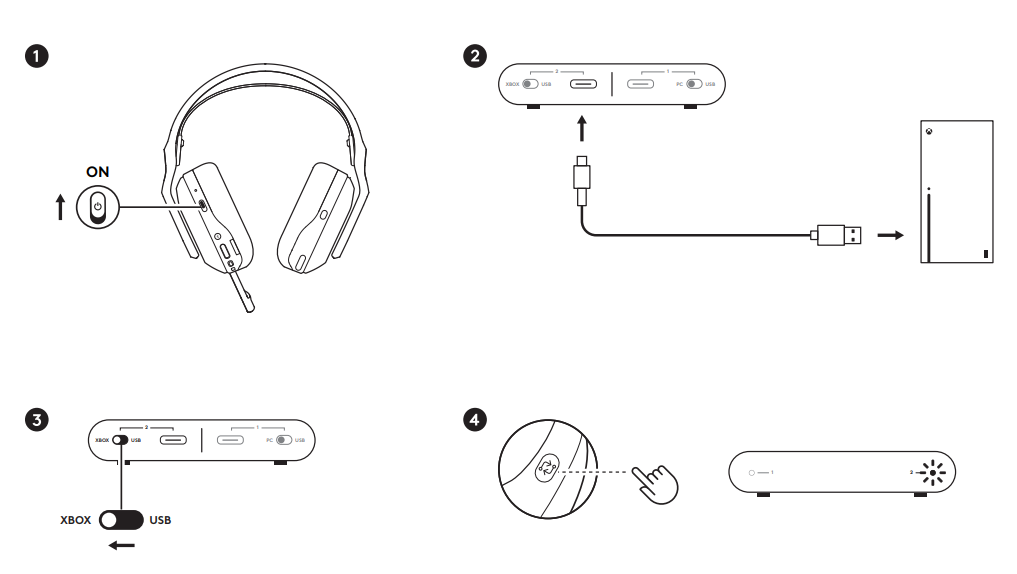
XBOX SERIES X|S
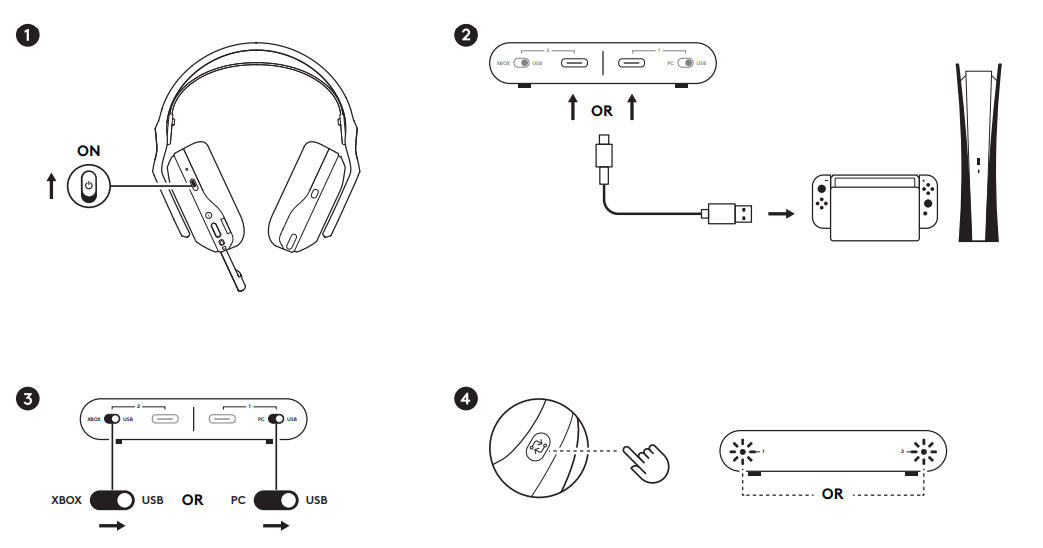
PLAYSTATION / NINTENDO
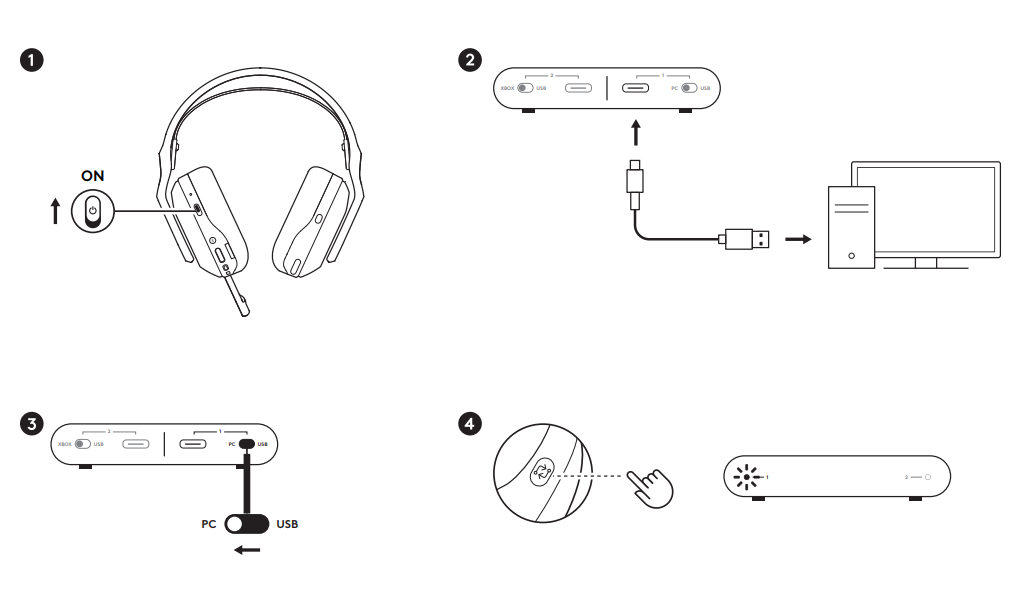
PC WINDOWS | MAC
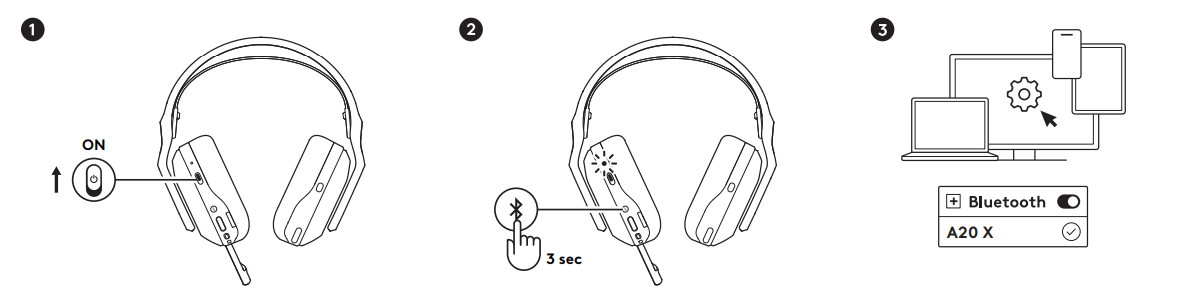
Bluetooth®
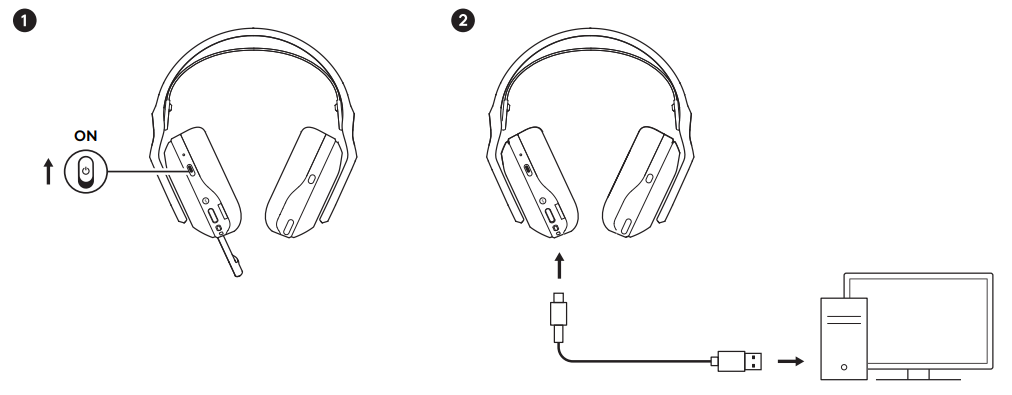
USB
Troubleshooting the Logitech G ASTRO A20 X Wireless Gaming Headset
- No Sound or Audio Dropouts: Check wireless range (max 30 meters), ensure no physical obstructions, and verify the headset battery is charged.
- Microphone Not Working: Confirm the boom mic is properly attached and not muted. Test the mic on another device to isolate issues.
- Bluetooth Connection Issues: Turn off other Bluetooth devices to avoid interference. Reset the headset by powering off and on, then re-pair.
- Volume Controls Unresponsive: Restart the headset and confirm compatibility with the device (note: game/chat mixer buttons do not function on PS5).
- Error Codes: No specific error codes reported; general reset resolves most issues.
- Preventive Measures: Regularly update Logitech G HUB software, keep firmware up-to-date, and store the headset in a protective case when not in use.
- Warranty & Support: The Astro A20 X includes a limited 2-year warranty. For technical support, contact Logitech customer service via their official website or support hotline.
Pros & Cons of the Logitech G ASTRO A20 X Wireless Gaming Headset
- Pros:
- Exceptional cross-platform support with PLAYSYNC AUDIO, enabling easy switching between two gaming systems
- High-quality 48 kHz broadcast-grade detachable microphone with Blue VO!CE technology for crystal-clear communication
- Ultra-lightweight and breathable design for extended comfort during long gaming sessions
- Long battery life—up to 90 hours without RGB lighting—for uninterrupted gameplay
- Customizable RGB lighting with 16.8 million colors across eight zones for personal style and setup matching
- Convenient game/chat volume mixer and mute indicators enhance usability
- Cons:
- Game/chat mixer controls do not function on PlayStation 5, limiting some features on that platform.
- Limited simultaneous audio streaming; Bluetooth and LIGHTSPEED connections cannot be used concurrently
- RGB lighting customization is somewhat basic compared to premium models with more zones
- Price point may be a consideration for budget-conscious gamers compared to entry-level headsets.
Customer Reviews of the Logitech G ASTRO A20 X Wireless Gaming Headset
Users consistently praise the Logitech G ASTRO A20 X Wireless Gaming Headset for its excellent cross-platform functionality and comfort. Many highlight the clear and rich audio quality, both for gameplay and voice chat, noting the detachable mic’s superior clarity and noise-filtering capabilities. The PLAYSYNC AUDIO feature receives positive feedback for simplifying device switching during gaming sessions.
Common complaints include the non-functionality of the game/chat mixer on PS5 and occasional Bluetooth connection hiccups, though these are often resolved with firmware updates or device resets. The long battery life and lightweight feel are frequently cited as outstanding features that enhance prolonged gaming enjoyment.
Star ratings average around 4.5 out of 5, with many recommending it for serious gamers who play on multiple consoles or PCs. Buyers also appreciate the customizable RGB lighting as a fun bonus to complement their gaming setups.
Faqs
How do I set up the logitech g ASTRO A20 X Wireless Gaming Headset for the first time on Xbox Series X|S?
What should I do if my logitech g ASTRO A20 X Wireless Gaming Headset is not pairing with the USB transmitter?
Can I use the logitech g ASTRO A20 X Wireless Gaming Headset with both PC and console simultaneously?
How do I optimize audio performance on the logitech g ASTRO A20 X Wireless Gaming Headset using software?
What are the wireless range and battery life specifications for the logitech g ASTRO A20 X Wireless Gaming Headset?
Is the logitech g ASTRO A20 X Wireless Gaming Headset compatible with PlayStation 5 and Xbox Series X|S?
How can I maintain and clean my logitech g ASTRO A20 X Wireless Gaming Headset to ensure durability?
How do I troubleshoot microphone issues on the logitech g ASTRO A20 X Wireless Gaming Headset during gameplay?
More logitech g manuals
- Pairing & Setup: Logitech G A50 X Wireless Headset User Manual
- Pairing: Logitech G G735 Wireless Gaming Headset User Manual
- Setup: Logitech G G522 LightSpeed Headset User Manual
- Setup: Logitech G G335 Wired Gaming Headset User Manual
- Logitech G Pro-X2 Superstrike Wireless Gaming Mouse User Manual
- Pairing & Setup: Logitech G A50 Wireless Headset Casque Sans Fil User Manual
Leave a Comment