
Pairing & Setup: Logitech G A50 Wireless Headset Casque Sans Fil User Manual
Content
Logitech G A50 Wireless Headset Casque Sans Fil
Introduction
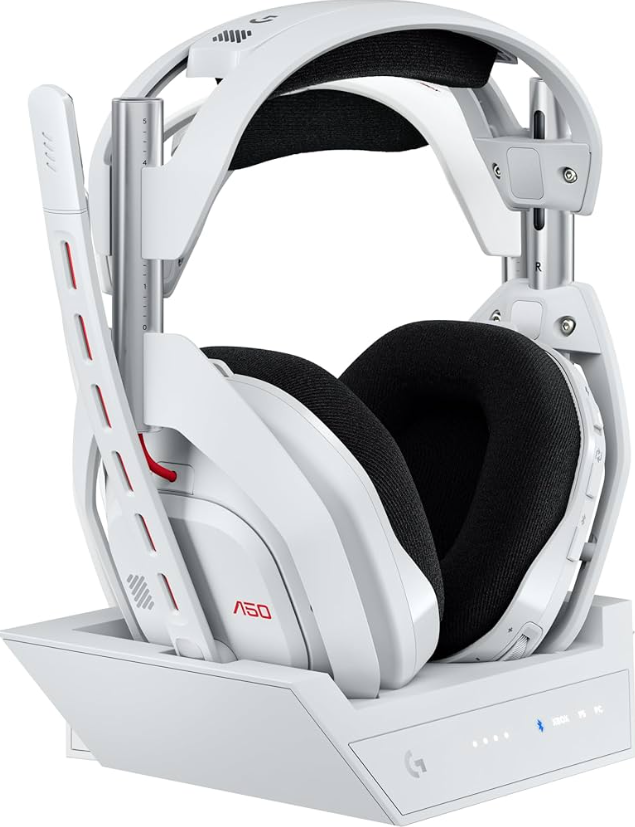
The Logitech G A50 Wireless Headset Casque Sans Fil is a premium gaming headset designed for serious gamers who demand exceptional audio performance and wireless freedom. Featuring advanced PRO-G GRAPHENE drivers and 24-bit LIGHTSPEED wireless technology, the A50 delivers crystal-clear, immersive sound with ultra-low latency. Its sleek design includes a comfortable, over-ear fit with magnetic ear cushions and a flip-to-mute boom microphone, making it ideal for extended gaming sessions.
This headset uniquely supports PLAYSYNC AUDIO technology, allowing users to connect and switch effortlessly between up to three gaming platforms, such as Xbox, PlayStation 5, PC, Mac, and Nintendo Switch—all from the headset itself. With up to 24 hours of battery life and a magnetic charging base station, it ensures uninterrupted gaming experiences.
Targeted at competitive and casual gamers who value clear teamwork communication and immersive sound quality, the Logitech G A50 is perfect for FPS, RPGs, and multiplayer online games. The headset is also suitable for streamers and content creators requiring broadcast-quality audio. The estimated price ranges from $280 to $32,0 depending on the retailer, with wide availability through Logitech’s official store, major electronics outlets, and online platforms.
Technical Specifications
- Drivers: 40 mm PRO-G GRAPHENE audio drivers for high-fidelity sound with enhanced clarity and precision
- Frequency Response: 20 Hz to 20,000 Hz, covering the full audio spectrum for detailed highs, mids, and deep bass
- Wireless Technology: 24-bit LIGHTSPEED 2.4 GHz radio for ultra-low latency, uncompressed audio transmission
- Bluetooth Connectivity: Dual-device mixing to simultaneously handle game audio and phone calls/music
- Battery Life: Up to 24 hours of continuous use on a full charge with magnetic charging dock included
- Microphone: Broadcast-quality 48 kHz full-bandwidth boom mic with flip-to-mute function and noise isolation
- PLAYSYNC AUDIO: Seamlessly switch among three connected platforms (Xbox, PS5, PC, Nintendo Switch) via on-ear controls
- Base Station: Integrated charging stand, USB-C connectivity, optical pass-through, and AUX support
- Comfort: Over-ear magnetic ear cushions with breathable fabric for hours of wear without discomfort
Compared to similar wireless gaming headsets, the Logitech G A50 offers superior multi-platform flexibility, longer battery life, and advanced audio customization through Logitech G HUB software, giving it an edge over competitors like the SteelSeries Arctis Pro Wireless and Razer BlackShark V2 Pro.
WHAT’S IN THE BOX
- A50 Wireless Headset
- A50 USB Base Station
- 1x USB-C to USB-A cable
- 1x USB-C to USB-C cable
- 1x USB-C Power Adapter and Plug Head
- Dolby Atmos Card
- QR code link to web QSG and support site PSPCXBOX
- User document
PRODUCT OVERVIEW
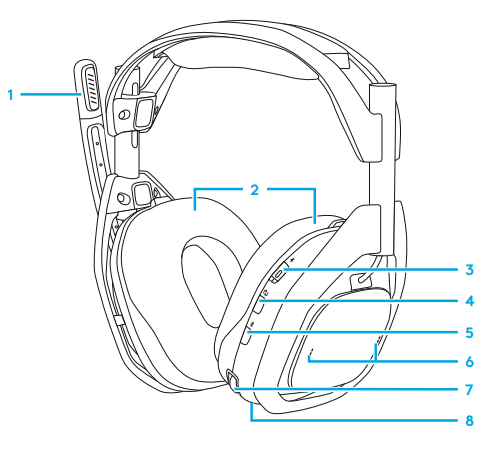
Headset
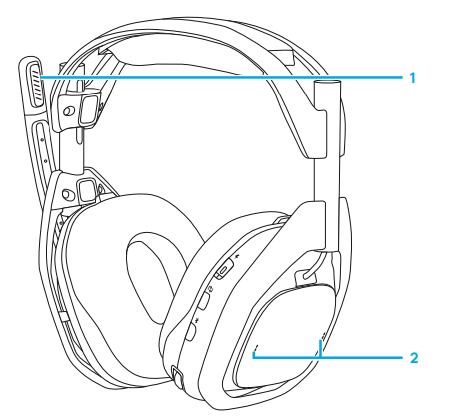
- Flip-to-mute boom mic
- Magnetic Ear Cushions
- Power Switch and LED indicator
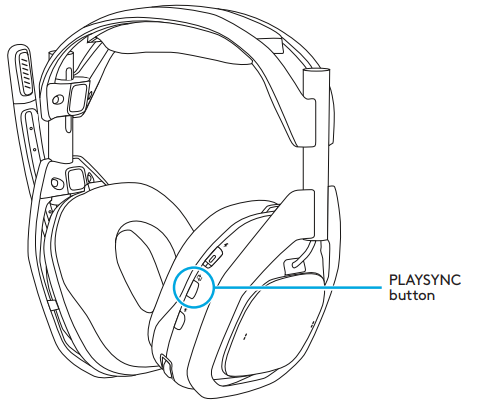
- PLAYSYNC Button
- Bluetooth® Button
- MixAmp Game/Voice balancer
- Volume Control
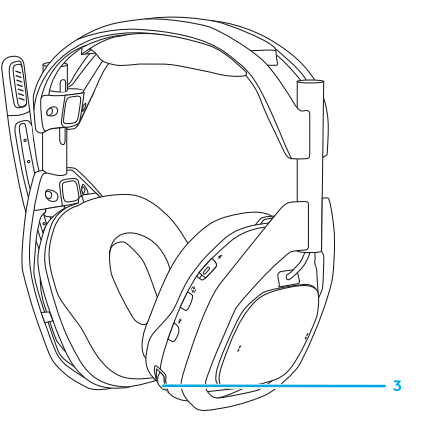
- USB-C charge port
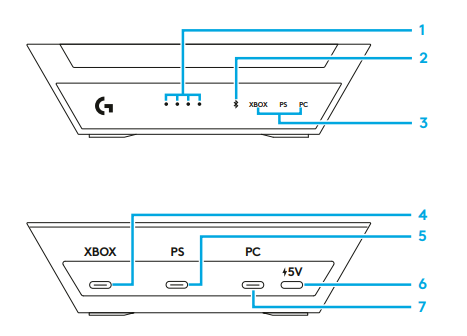
HDMI Base Station
Front
- Headset Battery Indicator
- Bluetooth® Indicator
- Input Selection Indicator
Rear - Inputs for XBOX
- Inputs for PlayStation/Switch
- 5v Power Supply
- Input for PC
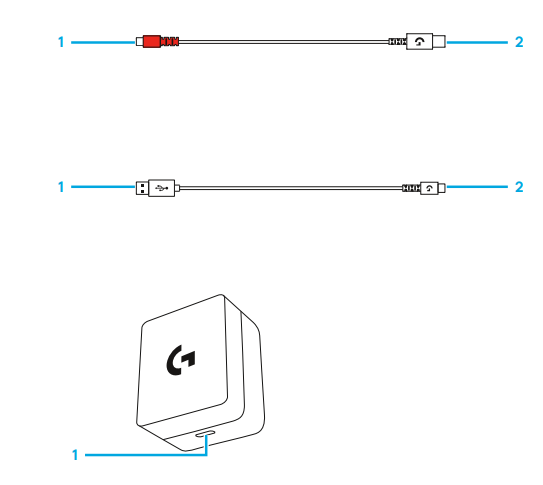
USB-C to USB-C cable
- To BaseStation 5V DC Power Port
- To Power Adapter
USB-C to A Cable
- To BaseStation USB
- To Game Console Power Adapter 1 5v DC Power Out
HOW TO USE
How to Configure and Use
Before using your A50, please read the following section to familiarize yourself with the headset controls, how to configure, and helpful tips to get the most out of your Logitech G A50. Please go to the following sections for the device and system types:
Headset Controls
- Flip-to-Mute Microphone: The A50 headset features an adjustable boom microphone that automatically mutes when flipped away. When rotated to the fully upright position, your mic signal is muted at the headset level. When rotating the boom, you will feel a mechanical engagement point that indicates when the mute is engaged or disengaged.
- MixAmp Game/Voice Balancing: On supported platforms and when properly configured, the A50 MixAmp feature allows on-the-fly adjustment between two distinct audio signals. This lets you quickly dial in and balance how much of the game’s audio or a friend’s voice-chatter you want to hear at any given moment. MixAmp Game/Voice balancer controls are accessible using the two paddle switches located on the right ear of the headset. An audible notification tone will be played at Game Max, Mid, and Voice Max points.
- Headset Volume and Adjustment: The A50 features an internal volume management and control scheme; the headset’s volume is independent and does not sync with the source system. Volume is adjusted intuitively using the control wheel. An audible notification tone will be played at volume max and volume zero points.
CHANGING INPUTS
If multiple systems are plugged in, A50 allows you to switch between each system using the PLAYSYNC button, located on the headset, under the Power Switch.
- When the headset is undocked, the power must be on for the PLAYSYNC button to function. Single-press the button to cycle between systems. The Base Station’s Input LED Indicator will respond.
- When all three systems are active, pressing the PLAYSYNC button will cycle through each input sequentially, XBOX to PlayStation to PC.
- You can use the PLAYSYNC button when the headset is docked to the Base Station, no matter what state the Power Switch is toggled to.
XBOX
To use the A50 with your XBOX, please make sure it is first configured. Your A50 also features Dolby Atmos with the included lifetime license.
Configure
- Place the A50 headset in the Base Station dock and power it on.
- Press the PLAYSYNC button to set it in XBOX mode.
- Undock the headset and leave it powered on, and an on-screen notification will indicate the headset has been assigned. This can take several seconds.
- In XBOX Settings > Volume and audio output > Headset audio: For Headset format, select Stereo uncompressed or Dolby Atmos for Headphones.
- Under Additional options, leave everything else unchecked. Optionally, you can enable Mute speaker audio when the headset is attached, if preferred. This is recommended while on team chat, so that audio from your TV/Speaker is not picked up by your A50 microphone and disrupts your team.
Use
- The A50 MixAmp technology integrates seamlessly with your XBOX. The A50 volume control and MixAmp Game/Voice balancer states are synced to the XBOX, they are viewable and also adjustable using your controller via the guide menu under the audio tab.
- When the A50 Headset is docked/powered off, Audio from the XBOX is automatically routed to the TV/Speaker.
- When the Headset is undocked/powered on, Audio from the XBOX will be rerouted to the headset. XBOX will notify on screen when the headset is assigned.
- While the A50 Headset is undocked, you can power it off at any time to resume audio playback to your TV/Speakers.
- Note: the included Dolby Atmos license is hardware-bound to your A50. Activating and using this feature requires a valid USB connection to the console and power supplied to the A50 Base Station.
PlayStation
To use the A50 with your PlayStation, please make sure it is first configured.
Configure
- Place the A50 headset in the Base Station dock and power it on.
- Use the PLAYSYNC button to set it in PS mode, and an on-screen notification will indicate the headset has been detected.
- Optional: if desired, 3D Audio (Headphones) can be enabled, and Audio Profile can be adjusted to your preference.
- In Setting > Sound > Audio Output:
- For Output Device, choose USB Headset (A50).
- Navigate to the bottom and under Audio Form (Priority), select Linear PCM.
- Then inSettings > Sound > Microphone:
- For the Input Device, choose USB Headset (A50).
Use
- To use the A50 headset, ensure the audio output is set to USB Headset (A50) and the Mic is set to USB Headset (A50). This can be accessed using either Settings or Control Center by pressing the PS button on your controller.
- The A50 headset volume is separately managed from the PlayStation and is designed not to sync. Carefully adjust both PlayStation and A50 volume to ensure a comfortable level before use.
- Note: The Game/Voice balancer feature and controls will not be available when used with the PlayStation.
- Note: As designed, the PlayStation’s Switch Output Device Automatically feature works when the A50 is either physically unplugged or is set to another operating mode (XBOX or PC), using the PLAYSYNC button. Docking or undocking the headset will not affect your console’s audio output and does not cause it to redirect. You can manually choose the audio output by selecting the desired device. This can be done using Settings or Control Center by pressing the PS button on your controller.
Switch
To use the A50 Headset and Base Station with your Nintendo Switch in docked mode, please follow these instructions.
Configure
- Place the A50 headset in the Base Station dock and power it on.
- Use the PLAYSYNC button to set in PS mode. An on-screen notification will indicate the headset has been detected.
Switch
To use the A50 Headset and Base Station with your Nintendo Switch in docked mode, please follow these instructions.
Configure
- The Switch console will automatically route audio to A50 when the Base Station is USB-connected and is set to the appropriate operating mode.
- The A50 headset volume is separately managed from the Switch and is designed not to sync. Carefully adjust both Switch and A50 volume to ensure a comfortable level before use.
Note: The Game/Voice balancer feature and controls will not be available when used with the Switch.
Note: Due to the way the Switch is designed and functions, audio to TV/Speaker will not be restored until the A50 is either physically unplugged or is set to another operating mode (XBOX or PC), using the PLAYSYNC button. Docking or undocking the headset will not affect your console’s audio output and does not cause it to redirect.
PC
To use the A50 with your PC, please make sure it is first configured. A50 offers several USB Audio endpoints that can be used for different functions or needs. Your A50 also features Dolby Atmos with the included lifetime license.
Configure
- Place the A50 headset in the Base Station dock, powered on.
- Press the PLAYSYNC button to set the product in PC mode.
- Under Setting > Sound > Output:
Make sure Output is set to A50 Game. Your system will now use this Audio Endpoint as the main output.
Optional: You can also set the Spatial Audio format by clicking on A50 Game to navigate to its Properties, then under the Spatial Audio drop-down, select either Microsoft Windows Sonic for Headphones or Dolby Atmos for Headphones if desired. - Under Setting > Sound > Input:
Make sure Input is set to A50 Mic Out. Your system will now use the A50 X as the main microphone. - Optional: You’ll notice a secondary USB Audio Output Endpoint labeled A50 Voice. If desired, you can point your chat application or your game’s chat output to this Audio Endpoint. Doing so will allow the MixAmp Game-Voice balancing controls to function when accessed using the two paddle switches located on the right ear of the headset.
- Optional: You notice a secondary USB Audio Input Endpoint labeled A50 Stream Out. This is used for the Stream Output.
Use
- Whenever the Base Station is connected to your PC and powered, the A50 will always output audio from your PC if set as the primary audio device. Docking and undocking the headset will not affect your system’s audio output and does not cause it to redirect.
- The A50 headset volume is separately managed from the PC and is designed not to sync. Utilize both Windows and A50 volume adjustments to ensure a comfortable level before use.
- Note: the included Dolby Atmos license is hardware-bound to your A50. Activating and using this feature requires a valid USB connection to the console and power supplied to the A50 Base Station.
Bluetooth®
The A50 headset needs to be connected to the Base Station for all audio playback, including Bluetooth. The Bluetooth feature will not be available if the headset is out of range of the Base Station.
Configure
- When the headset is in range of the Base Station and powered on.
- Press and hold the Bluetooth button for 3 seconds.
- On your Bluetooth device, find A50 in the pairing list and connect to it.
- NOTE: If A50 is powered off,f it will not automatically reconnect to the last Bluetooth device used.
Use
- When A50 is connected to your Bluetooth device, the following audio and playback controls become available using the Bluetooth button located on the headset:
- Play / Pause: Single Tap.
- Track Forward: Double Tap.
- Track Back or Previous Track: Triple Tap.
- When receiving a voice call, the following controls are available:
- Call Answer / Call End: Single Tap.
- Call Reject: Hold.
- To adjust the volume of the Bluetooth audio (music or calls), simply do so using the Bluetooth device’s volume buttons or controls.
Docking and Charging
The A50 requires a dedicated external power source. Please use the included AC adapter with the product.
The A50 headset is designed to be docked and charged on the Base Station when not in use. This ensures the headset is sufficiently charged and ready for the next session. After each session, we recommend docking the headset to the Base Station. Alternatively, the headset includes a USB-C port (located on the right ear) to allow for wired charging during use or quick-offs.
Use
- Before docking, make sure the headset is in the correct orientation; the boom mic should be on the left-hand side, and the button controls should be facing you.
- Make sure to flip the boom mic to the up (muted) position and the ear cups are not rotated or flipped inwards towards you.
- Gently place the headset on the Base Station;, doing so will allow the headset to properly align with the charging pins.
- The Base Station has 4 LEDs indicating the headset’s battery state of charge, in 25% increments.
- The headset has one LED integrated into the power switch:
- Power On / Battery Full: White.
- Sleep Mode: Breathing White.
- Battery Charging: Orange.
- Battery Low: Steady Red.
- Battery Critical (less than 15 minutes playtime remaining): Breathing Red.
Troubleshooting Common Issues with the Logitech G A50 Wireless Headset
- No sound or distorted audio: Ensure the headset is fully charged, the base station is properly connected via USB or optical cable, and the volume is turned up on both the headset and gaming device.
- Microphone not working or static noise: Confirm the boom mic is securely attached and not muted (flip-to-mute switch disengaged). Adjust noise gate settings in Logitech G HUB software.
- Wireless connectivity drops or latency: Keep within the 15m wireless range without physical obstructions. Avoid interference from other 2.4 GHz devices.
- Error codes or pairing issues: Reset the headset and base station by powering off and on, then re-pair using the PLAYSYNC button. Update firmware through Logitech G HUB.
- Battery drains quickly: Ensure the headset is charged fully via the base station dock. Avoid charging with incompatible cables.
Preventive measures include keeping firmware updated and regularly cleaning ear cushions and the microphone. The Logitech G A50 comes with a standard manufacturer’s warranty, and customer support is accessible via Logitech’s official website or authorized retailers.
Pros & Cons of the Logitech G A50 Wireless Headset Casque Sans Fil
- Pros:
- Exceptional audio clarity with PRO-G GRAPHENE drivers and Dolby Atmos support
- Multi-platform PLAYSYNC AUDIO allows seamless switching between consoles and PC
- Long-lasting 24-hour battery with magnetic charging dock for convenience
- Comfortable over-ear design with breathable, magnetic ear cushions
- Broadcast-quality boom microphone with flip-to-mute for clear communication
- Advanced customization through Logitech G HUB software
- Cons:
- Premium price point may be a consideration for budget-conscious gamers
- Wireless range is limited to approximately 15 meters, potentially constraining setup flexibility
- The base station adds extra desk space requirements
- Requires occasional firmware updates for optimal performance
While alternatives like the SteelSeries Arctis Pro Wireless offer dual-battery swappable systems, the Logitech G A50 excels in wireless audio quality and multi-device connectivity, providing strong value for its price.
Customer Reviews and Feedback on the Logitech G A50 Wireless Headset Casque Sans Fil
Users consistently praise the Logitech G A50 Wireless Headset Casque Sans Fil for its rich, immersive sound quality and comfortable design, often highlighting its crisp highs and powerful bass response. The PLAYSYNC multi-system switching is frequently cited as a game-changer for those who game on multiple platforms.
Common compliments focus on the long battery life, ease of setup, and the effective noise isolation of the boom mic during multiplayer sessions. Some users mention minor inconveniences with the headset’s wireless range and the need to keep the base station close.
Overall, the headset maintains an average rating of 4.5 out of 5 stars across major retailers, with recommendations especially strong among competitive gamers and streamers who value premium audio and connectivity features.
More logitech g manuals
- Setup: Logitech G G335 Wired Gaming Headset User Manual
- Setup: Logitech G G535 LightSpeed Wireless Gaming Headset User Manual
- Pairing: Logitech G G735 Wireless Gaming Headset User Manual
- Setup: Logitech G PRO X SE Wired Gaming Headset User Manual
- Pairing: Logitech G ASTRO A20 X Wireless Gaming Headset User Manual
- Logitech G Flight Control System X52 User Guide | Settings
Leave a Comment