
Setup: Logitech G G535 LightSpeed Wireless Gaming Headset User Manual
Content
Logitech G G535 LightSpeed Wireless Gaming Headset
Introduction
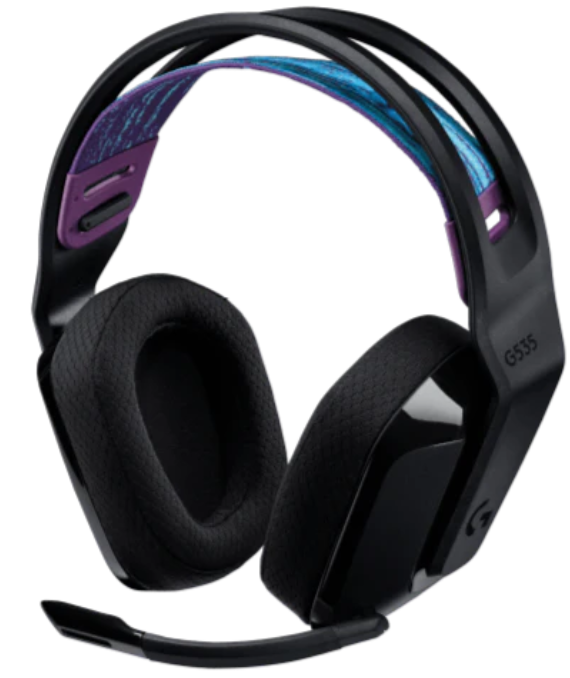
The Logitech G G535 LightSpeed Wireless Gaming Headset offers a high-performance, lightweight solution designed specifically for gamers seeking freedom from wires without sacrificing audio quality. Featuring advanced LIGHTSPEED wireless technology, this headset delivers ultrafast, low-latency connectivity up to 12 meters, ensuring seamless audio-to-visual synchronization during intense gaming sessions. Its 33-hour battery life supports extended playtime, making it ideal for marathon gaming or streaming sessions.
Weighing just 236 grams and equipped with soft memory foam earpads and an adjustable suspension headband, the G535 prioritizes comfort for long usage. The headset includes 40mm drivers that provide clear, immersive stereo sound with rich bass, and a foldaway boom microphone certified by Discord for crisp voice communication. Compatible with PC, Mac, PS4, PS5, and Xbox consoles, this headset meets the needs of casual and competitive gamers alike.
Retailing around $120, the Logitech G G535 is widely available through major online retailers and electronics stores, often bundled with gaming accessories. This headset appeals to gamers who want professional-grade wireless performance, a comfortable design, and customizable sound without the premium price tag of high-end models.
Specifications of the Logitech G G535 LightSpeed Wireless Gaming Headset
- Wireless Technology: LIGHTSPEED 2.4 GHz wireless, low-latency up to 12 meters (39 feet)
- Drivers: 40 mm audio drivers delivering stereo sound with clear mids and deep bass
- Battery Life: Up to 33 hours of continuous use at 50% volume
- Weight: 236 grams (lightweight for long gaming comfort)
- Microphone: Foldaway boom mic with Discord certification for noise isolation
- Controls: On-ear volume wheel, power switch, and mic mute via boom mic
- Compatibility: PC, Mac, PlayStation 4, PlayStation 5, Xbox Series X/S, Xbox One
- Software Support: Logitech G HUB for EQ customization, presets, and noise removal (PC only)
- Frequency Response: 20 Hz – 20 kHz
- Impedance: 36 ohms
- Additional Features: Memory foam ear pads, adjustable suspension headband, USB-A wireless dongle
Compared to similar models like the Logitech G Pro X Wireless or other mid-range gaming headsets, the G535 offers excellent battery life and comfort but lacks wired connectivity options and customizable media controls. Its lightweight design and solid sound quality make it a strong choice for gamers prioritizing wireless freedom and long-term comfort.
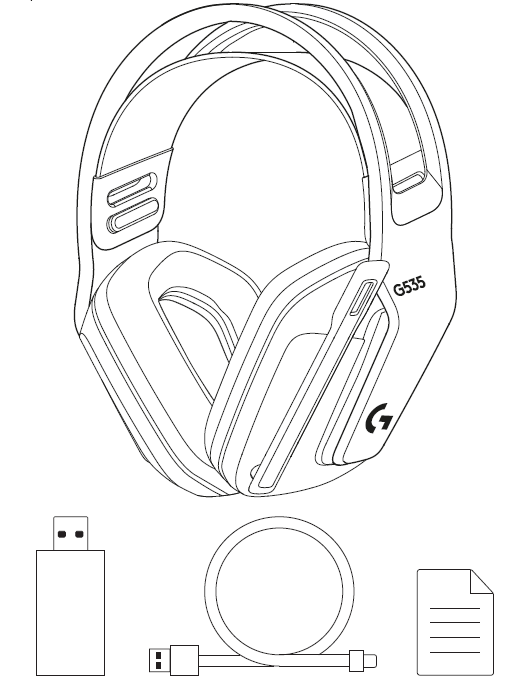
In Box
SETUP INSTRUCTIONS
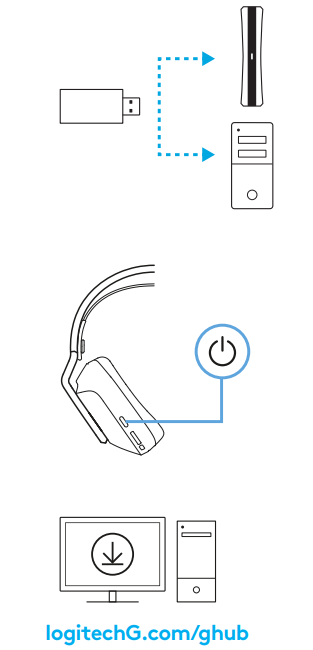
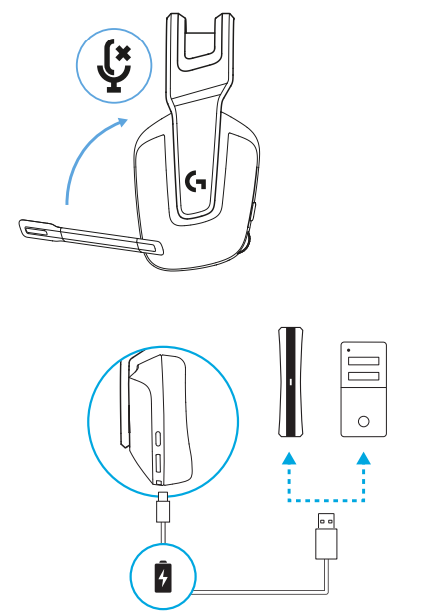
- Insert the receiver into the USB port of your PC or PlayStation® 5.
- Short-press to turn ON.
- (Optional) Download Logitech G HUB software to access advanced features. Download at logitechG.com/ghub
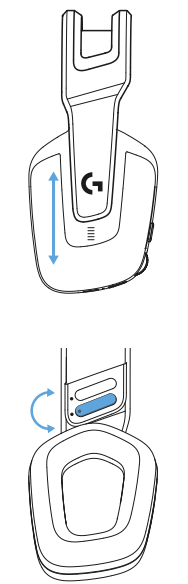
- The earcups can be adjusted up and down.
- The length of the headband can be adjusted.
- Flip boom up to mute.
- Charge the Headset when low on battery.
FEATURES
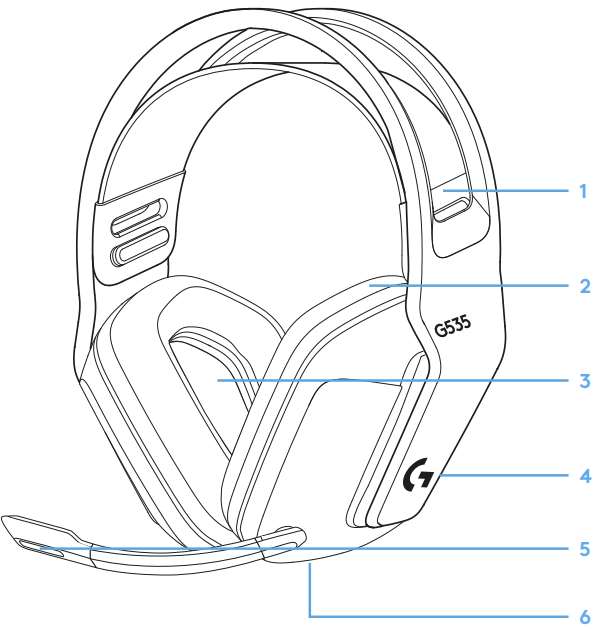
- Adjustable, reversible suspension band
- Memory foam earpads
- 40 mm drivers
- On-ear volume control
- Flip-to-mute 6-mm mic
- USB-C charging port
Setup Guide for Your Logitech G G535 LightSpeed Wireless Gaming Headset
- Unbox the headset and locate the included LIGHTSPEED USB wireless dongle.
- Plug the USB dongle into an available USB-A port on your PC, Mac, or compatible console.
- Power on the headset using the switch located on the left ear cup; the headset will automatically pair with the dongle.
- Adjust the suspension headband for a comfortable fit; ensure memory foam earpads fully cover your ears.
- Use the volume wheel and mic mute function on the headset for quick in-game adjustments.
- For PC users, download and install the Logitech G HUB software to customize sound settings such as EQ presets and noise removal.
- Troubleshoot connectivity by replugging the dongle or restarting the headset if audio cuts out or latency issues occur.
- Always keep the headset within 12 meters of the dongle to maintain stable wireless performance.
- Safety Precautions: Avoid exposure to moisture, excessive heat, and do not disassemble the unit.
Troubleshooting the Logitech G G535 LightSpeed Wireless Gaming Headset
- No audio or connectivity issues: Ensure the USB dongle is firmly connected; try reconnecting the headset by powering it off and on.
- Mic not working: Confirm the boom mic is unfolded and not muted; check microphone settings in your system or game.
- Audio latency or dropouts: Keep within 12 meters of the dongle; remove potential wireless interference from other devices.
- Battery drains quickly: Lower volume levels; fully charge the headset before use; avoid leaving the headset powered on when idle.
- Error codes: Logitech G HUB software may display device errors—reinstall the software or update firmware via G HUB.
- Preventive measures: Store headset in a cool, dry place; avoid rough handling of the USB dongle and headset cables.
- Warranty & Support: Logitech offers a standard 2-year limited warranty; contact Logitech support via their official website or authorized retailers for repair or replacement.
Pros & Cons of the Logitech G G535 LightSpeed Wireless Gaming Headset
Pros
- Lightweight design (236g) ensures comfort during long gaming sessions.
- Long-lasting 33-hour battery life supports uninterrupted gameplay.
- Low-latency LIGHTSPEED wireless technology provides near-instant audio syncing.
- Discord-certified boom mic delivers clear voice communication.
- Customizable sound profiles via Logitech G HUB software (PC only).
- Wide compatibility across multiple gaming platforms,, including PC, Mac, and consoles.
Cons
- No wired connection option limits versatility for some users.
- Basic on-ear controls without dedicated media buttons may hinder quick adjustments.
- Mic quality is good, but it lacks richness compared to higher-end headsets.
- Sound profile can be neutral and may require software customization for bass-heavy preferences.
- Compatible mainly with USB-A ports; no Bluetooth support.
Overall, the Logitech G535 represents excellent value for money in the mid-range wireless gaming headset market, balancing performance and affordability. For users seeking wired options or more premium audio features, models like the Logitech G Pro X Wireless may be preferable but come at a higher cost.
Customer Reviews and Feedback on the Logitech G G535 LightSpeed Wireless Gaming Headset
Users commonly praise the Logitech G G535 LightSpeed Wireless Gaming Headset for its lightweight comfort and long battery life, often citing its suitability for extended gaming marathons. The clarity of the wireless connection and low latency receive positive remarks, especially for competitive gameplay. Many appreciate the easy setup and plug-and-play functionality across different platforms.
Common complaints focus on the lack of wired connectivity, which some users find limiting. A few reviewers mention occasional audio inconsistencies or slight mic quality issues, though most find the boom mic adequate for in-game chat. The absence of additional media controls is also noted as a drawback by some users.
Star ratings generally range from 4 to 4.5 out of 5, with repeated recommendations for gamers wanting reliable wireless freedom and comfort without a premium price. The headset is frequently highlighted as a solid choice for casual and semi-professional gamers looking for dependable performance in a lightweight design.
Faqs
How do I set up my Logitech G G535 LightSpeed Wireless Gaming Headset for the first time?
What can I do if my Logitech G G535 LightSpeed Wireless Gaming Headset is not connecting or producing sound?
Can I use the Logitech G G535 LightSpeed Wireless Gaming Headset with gaming consoles like PlayStation 5?
How do I adjust the fit and comfort features of the Logitech G G535 LightSpeed Wireless Gaming Headset?
What are the best practices for charging and maintaining battery life on the Logitech G G535 LightSpeed Wireless Gaming Headset?
How do I mute the microphone on the Logitech G G535 LightSpeed Wireless Gaming Headset during gameplay?
What advanced audio customization features are available with the Logitech G G535 LightSpeed Wireless Gaming Headset?
How should I clean and care for my Logitech G G535 LightSpeed Wireless Gaming Headset to ensure longevity?
More logitech g manuals
- Pairing & Setup: Logitech G A50 Wireless Headset Casque Sans Fil User Manual
- Setup: Logitech G PRO X SE Wired Gaming Headset User Manual
- Setup: Logitech G G335 Wired Gaming Headset User Manual
- Logitech G Flight Control System X52 User Guide | Settings
- Pairing: Logitech G G735 Wireless Gaming Headset User Manual
- Pairing: Logitech G ASTRO A20 X Wireless Gaming Headset User Manual
Leave a Comment