
Setup: Logitech G G522 LightSpeed Headset User Manual
Content
Logitech G G522 LightSpeed Headset
Introduction
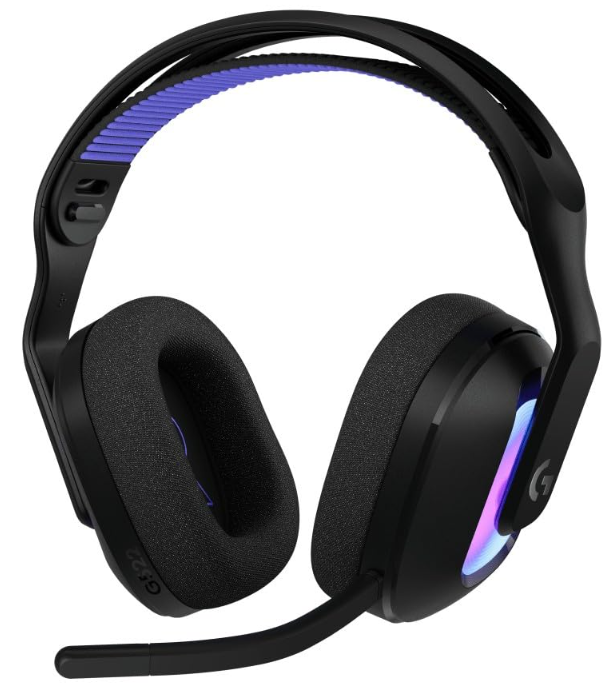
The Logitech G G522 LightSpeed Headset is a cutting-edge wireless gaming headset engineered to deliver premium audio performance combined with versatile connectivity. Designed for gamers and multimedia enthusiasts, it offers an immersive sound experience that enhances every gaming session, whether on PC, console, or mobile devices. Featuring Logitech's signature LIGHTSPEED wireless technology, this headset ensures ultra-low latency and stable connection for seamless gameplay.
Equipped with synchronized PRO-G 40mm drivers, the G522 produces rich, detailed soundscapes with potent bass and crystal-clear highs. The headset also includes a detachable omnidirectional microphone enhanced with BLUE VO!CE technology, delivers broadcast-quality voice clarity essential for competitive gaming and streaming. Adding to its appeal, dynamic LIGHTSYNC RGB lighting with customizable zones provides vibrant aesthetics suited for any gaming setup.
Ideal for serious gamers, streamers, and audiophiles who demand high-fidelity audio combined with comfort for extended use, the Logitech G G522 is also suitable for everyday multimedia consumption and communication. Its tri-mode connectivity — LIGHTSPEED wireless, Bluetooth 5.3, and wired USB-C — allows effortless switching between gaming platforms and mobile devices.
Available in sleek black or white color options, the Logitech G G522 LightSpeed Headset typically ranges between $150 and $180, offering excellent value given its performance and feature set. It is widely available through major retailers and online stores, making it accessible for gamers seeking a premium audio solution with versatile connectivity and professional microphone capabilities.
Specifications of the Logitech G G522 LightSpeed Headset
- Audio Drivers: Dual synchronized PRO-G 40mm drivers
- Frequency Response: 20 Hz – 20,000 Hz for both headphones and microphone
- Impedance: 39 Ω
- Sensitivity: 97 dB
- Microphone: Detachable omnidirectional mic with BLUE VO!CE technology, 48 kHz/16-bit bandwidth
- Connectivity: Tri-mode — LIGHTSPEED 2.4 GHz wireless, Bluetooth 5.3, USB-C wired
- Battery Life: Up to 70-90 hours with RGB off
- Audio Features: DTS Headphone:: X surround sound compatibility, customizable 10-band EQ via G HUB software
- Lighting: LIGHTSYNC RGB with 8 customizable zones
- Comfort: Dual-layer memory foam ear pads, suspension headband design
- Compatibility: PC, Mac, PS5, mobile devices
- Weight: Approximately 10.2 oz (290 grams)
Compared to similar wireless gaming headsets, such as the Logitech G733 or Astro A50 Gen 5, the G522 offers competitive battery life and microphone quality at a lower price point, making it a compelling choice for gamers prioritizing audio fidelity and connectivity flexibility.
CONNECTING
TO A BLUETOOTH® DEVICE
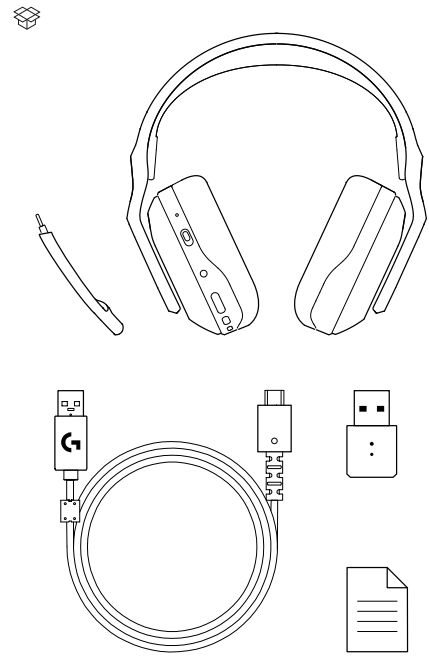
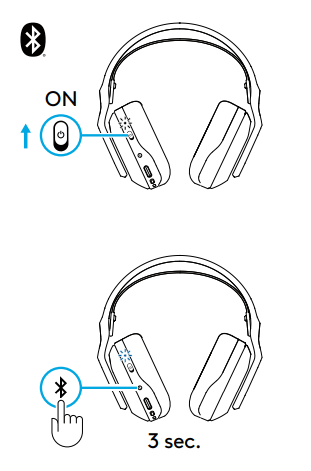
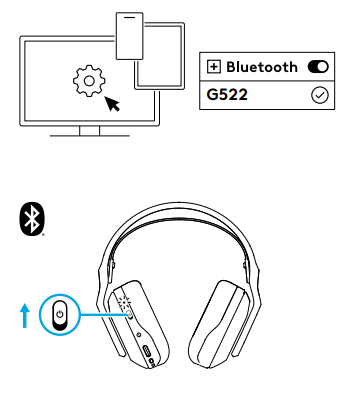
- Turn on the headset by sliding the power switch up.
- Out of the box, the headset will be in LIGHTSPEED wireless mode by default.
- LED indicator will be white, indicating USB wireless mode.
- Press and hold the Bluetooth® / Wireless button.
- LED will fast blink blue, and you will hear a sonification when in pairing mode.
Follow the Bluetooth® connection steps for your device.
- If the headset is powered down in Bluetooth® mode,
- it will default to Bluetooth® mode when powered on again. Conversely, if the headset is switched back to LIGHTSPEED wireless mode and then powered down, it will default to LIGHTSPEED wireless when powered on again.
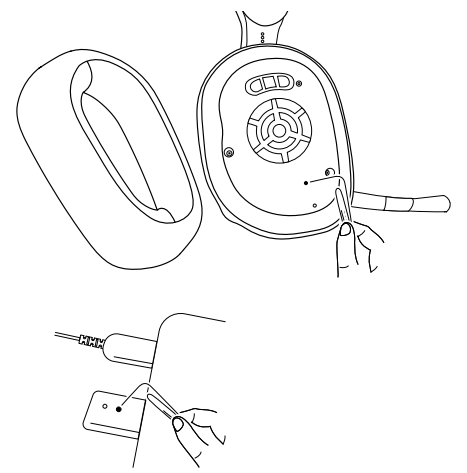
RESET AND PAIRING HEADSET WITH DONGLE
- Plug in the ongle (if already plugged in, unplug and replug).
- Remove the left earpad cushion.
- Use a paperclip to long-press the headset pairing button.
- Use a paperclip to press the dongle pairing button.
Troubleshooting the Logitech G G522 LightSpeed Headset
- Headset Not Powering On: Ensure battery is charged. If unresponsive, hold the power button for 5 seconds to reset.
- No Sound Output: Verify connection mode (wireless, Bluetooth, or wired). Check device audio output settings and volume controls on the headset.
- Microphone Not Detected: Confirm the microphone is securely attached. Check mute toggle and device recording settings. Use G HUB to test the mic input.
- Bluetooth Connectivity Drops: Reduce the distance from the device to under 30 feet. Remove wireless interference or re-pair Bluetooth.
- Error Codes: No specific error codes reported; addressing connectivity or audio driver update on PC often resolves issues.
Preventive Measures: Regularly update Logitech G HUB software, keep firmware current, and store headset in protective case when not in use.
Warranty & Support: Logitech offers a standard 2-year limited hardware warranty for the G522 headset. For assistance, contact Logitech customer support via their official website or authorized retailers.
Pros & Cons of the Logitech G G522 LightSpeed Headset
Pros
- Exceptional Audio Quality: Dual PRO-G drivers and DTS Headphone: :X Deliver immersive, detailed sound with clear positional cues.
- Versatile Connectivity: Tri-mode support (LIGHTSPEED wireless, Bluetooth 5.3, USB-C wired) suits multiple platforms and use cases.
- Long Battery Life: Up to 90 hours with RGB off supports extended gaming sessions without frequent charging.
- Customizable RGB Lighting: Eight LIGHTSYNC zones allow personalized aesthetics.
- Advanced Microphone: Detachable BLUE VO!CE mic with real-time filters ensures professional-grade voice communication.
- Comfortable Build: Memory foam ear pads and suspension headband reduce fatigue during prolonged use.
Cons
- Premium Price Point: Slightly higher cost compared to entry-level headsets may deter budget-conscious buyers.
- Weight: Heavier than some ultra-light options, potentially less comfortable for some users over many hours.
- Limited Platform-Specific Features: Some advanced software customization is primarily PC-focused.
Customer Reviews of the Logitech G G522 LightSpeed Headset
Users consistently praise the Logitech G G522 LightSpeed Headset for its outstanding sound clarity and microphone quality. The immersive PRO-G drivers and crisp surround sound receive high marks from gamers appreciating positional audio precision in competitive titles.
Common compliments highlight the headset’s versatile connectivity and extended battery life, making it suitable for both gaming and everyday use. The LIGHTSYNC RGB lighting is also frequently mentioned as an attractive feature, enhancing gaming setups.
Some users report minor issues with the headset's weight and occasional Bluetooth pairing delays, but these are generally outweighed by overall satisfaction. Star ratings across multiple platforms average between 4 to 4.5 out of 5 stars.
Many reviewers recommend the Logitech G G522 for gamers seeking a premium wireless headset with professional mic capabilities and ease of setup. The inclusion of customizable audio profiles and real-time mic filters is a standout feature appreciated by streamers and content creators.
Faqs
How do I set up the logitech g G522 LightSpeed Headset for the first time?
What should I do if my logitech g G522 LightSpeed Headset is not connecting wirelessly?
Can the logitech g G522 LightSpeed Headset be used in wired mode, and how?
How do I switch between Bluetooth, LIGHTSPEED wireless, and wired modes on the logitech g G522 LightSpeed Headset?
Is the logitech g G522 LightSpeed Headset compatible with PlayStation and Nintendo Switch?
How can I optimize the microphone settings on the logitech g G522 LightSpeed Headset?
What maintenance steps should I follow to keep my logitech g G522 LightSpeed Headset in good condition?
Why is there no sound coming from my logitech g G522 LightSpeed Headset and how do I fix it?
More logitech g manuals
- Logitech G Pro-X2 Superstrike Wireless Gaming Mouse User Manual
- Pairing & Setup: Logitech G A50 X Wireless Headset User Manual
- Pairing: Logitech G ASTRO A20 X Wireless Gaming Headset User Manual
- Pairing: Logitech G G735 Wireless Gaming Headset User Manual
- Setup: Logitech G G335 Wired Gaming Headset User Manual
- Pairing & Setup: Logitech G A50 Wireless Headset Casque Sans Fil User Manual
Leave a Comment