
Setup: Lowrance FishHunter 3D/PRO Castable Fish Finders User Manual
Content
Lowrance FishHunter 3D/PRO Castable Fish Finders
Introduction
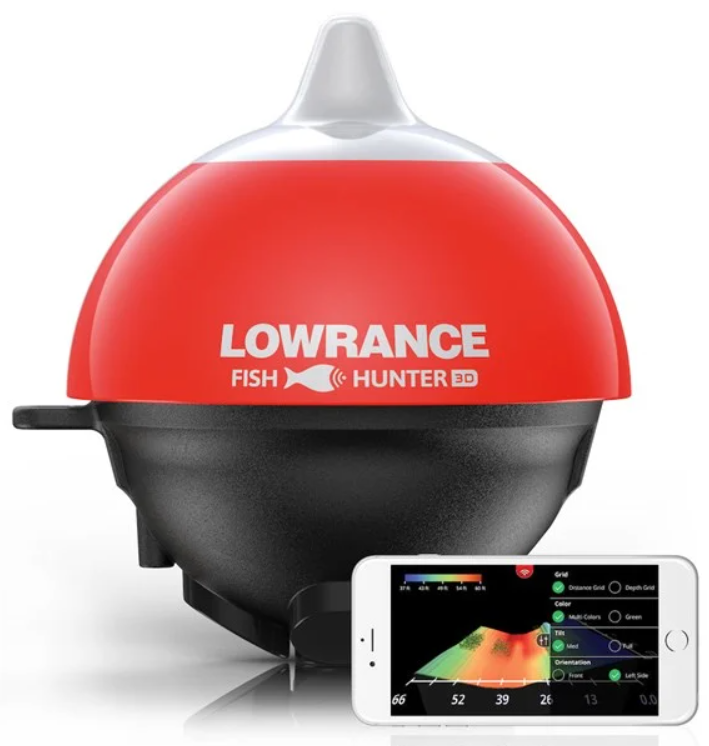
The Lowrance FishHunter 3D/PRO Castable Fish Finders represent a cutting-edge, portable solution for anglers seeking precise underwater insights without the need for bulky equipment. Designed for both shore fishermen and boaters, these devices offer seamless fish detection, detailed bottom contour mapping, and multi-view sonar displays that enhance fishing success. The 3D version stands out with its innovative five-transducer design providing three-dimensional panoramic and contour views, while the PRO version excels in utility with tri-frequency sonar for diverse fishing scenarios, including ice fishing.
Key benefits include Wi-Fi-enabled connection to smartphones and tablets, up to 10 hours of continuous use, and the ability to cast or troll in waters as deep as 160 feet. The FishHunter series is perfect for freshwater and light saltwater anglers who want an affordable, easy-to-use fish finder with advanced sonar technology. Typical price ranges for these models fall between $200 and $350, making them accessible for both casual and serious fishermen. Available through major outdoor retailers and online platforms, they provide reliable performance in a compact, user-friendly package.
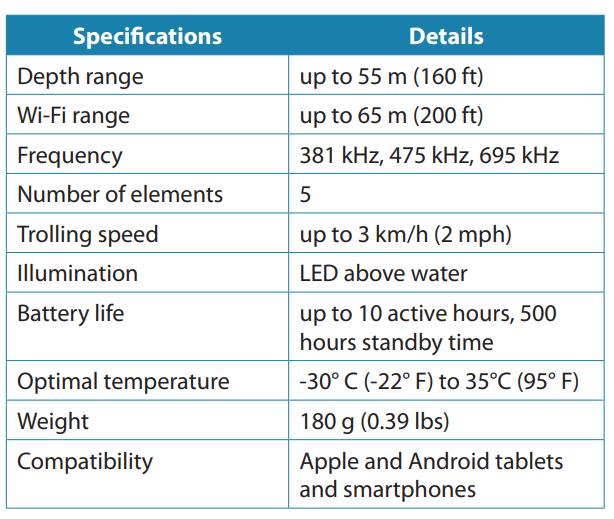
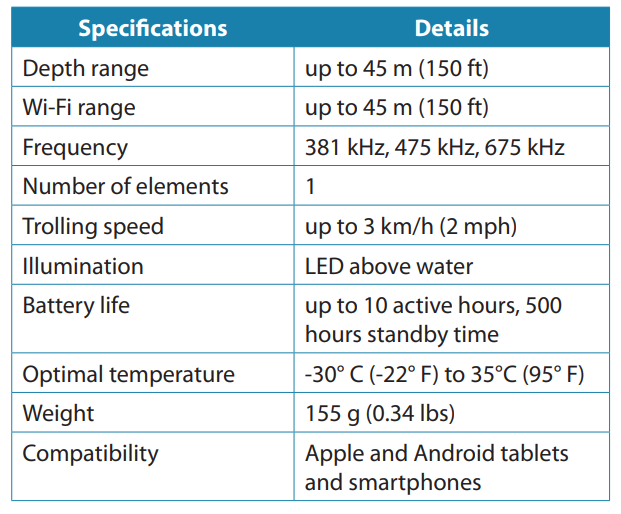
Specifications of Lowrance FishHunter 3D/PRO Castable Fish Finders
Setup Guide for Lowrance FishHunter 3D/PRO Castable Fish Finders
- Charge the FishHunter unit fully before first use using the provided USB cable.
- Download the free FishHunter app compatible with iOS and Android devices.
- Power on the FishHunter device; it will emit a Wi-Fi signal identifiable on your smartphone.
- Connect your phone’s Wi-Fi to the FishHunter network (e.g., “FishHunter Wi-Fi Pro”).
- Open the app and select your model (3D or PRO) to activate sonar functions.
- Cast the sonar device into the water from shore, dock, or boat, or use it for trolling or ice fishing.
- Use the app interface to switch between sonar views—3D panoramic, directional casting, bathymetric maps, or ice fishing mode.
- Configure sonar frequency, depth range, and sensitivity through the app settings for optimal performance.
Troubleshooting tips: If the Wi-Fi connection is unstable, move closer to the FishHunter device or restart both the device and smartphone. Ensure the app is updated to the latest version. Avoid interference from other wireless devices.
Safety Precautions: Do not submerge the FishHunter device beyond recommended depths, avoid impact damage, and keep the device clean and dry when not in use.
Overview
- Features labelled with an asterisk (*) are only available for FishHunter 3D.
- FishHunter 3D/PRO is a powerful fish finder created for Apple and Android phones and tablets. The sonar floats on the surface of the water where it tracks water temperature, water depth, bottom contour, and fish locations. FishHunter transducers can be cast from a bank or dock as well as trolled behind your boat or used for ice fishing.
- The FishHunter 3D/PRO wireless fish finder sonar connects to your smartphone/tablet via Wi-Fi using our free software app, so you don’t need to have a cell tower connection or use your cellular data to use your new fish finder.
- Using our free FishHunter software app, you will also have the ability to access and store critical fishing information like your favorite fishing spots, your catch details, and share your information with your friends and other anglers.
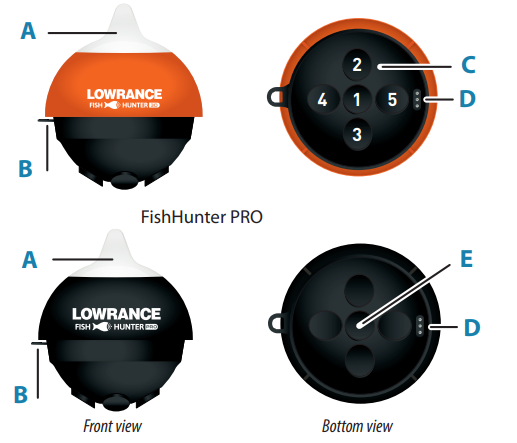
- Night-time fish attraction illumination
- Towing point
- 5Tri-Frequencyy transducers (381KHz, 475 KHz, 695 KHz)
- USB charging port
- Tri-Frequency transducer (381KHz, 475 KHz, 675 KHz)
Charging
- Locate the 3-pin charging port on the bottom of the sonar. It is on the opposite side from the tow point at the back of the sonar
- Push the USB cord into the bottom of the sonar so that it is snug. You must slide the charge cord past the transducer on the bottom of the sonar, which makes it slightly difficult to get the charge cord into the side of the unit. This is the correct way to ensure a good connection with your sonar.
- Plug the USB cord into the USB charger. A red light will appear on the top of the sonar and stay on until fully charged.
Connecting
- Download the FishHunter app from the Google Play Store or iOS App Store.
- Create an account by opening the app and following the steps on the screen. Be sure to do this before you leave your coverage area.
- Ensure you have charged your FishHunter for a minimum of 4 hours before first usage.
- Attach your FishHunter to the braided line on the end of your fishing line , or tether it to the red leash that was provided in your box. Tether it by threading the red leash through the tow point on the front of your FishHunter or by attaching the line tying clip onto the front of your sonar and the end of the red leash provided.
- Drop the FishHunter into the water.
- The sonar will automatically turn on when placed in water and will begin slowly flashing red from the top of the sonar. If you don’t see any light,s then the FishHunter is not charged.
- Open your Wi-Fi settings on your smartphone or tablet. Refresh the list and select FishHunter Wi-Fi XXX.
Note: It may take up to 1 minute to appear. - Wait for your phone/tablet to tell you that you are connected to FishHunter Wi-Fi. You will see a check mark on your Wi-Fi settings to show you are connected.
Note: Other phones or tablets can cause connection errors. Ensure their Wi-Fi settings are turned off. - Once connected, open the FishHunter app and go to the Sonar section.
- If you are connected to your FishHunter correctly, you will see the following options:
• Bathymetric Mapping*
• Ice Fishing Flasher
• Switch Device - The slow red flashing light on your sonar will start flashing quickly when connected and sending information to your phone or tablet.
The unit will automatically power down and turn off when not in the water after a few minutes. If the lights remain on after it is removed from water, ensure the charging pins are free from any water or debris by blowing on them. Additionally, you can insert and remove the charging cord,d and that should enable the sonar to power down after 60 seconds. If the unit still remains on, then double-check that your wifi is turned off and repeat the above.
- You can reset your sonar at any time by inserting the charge cord into the bottom of the unit and removing it.
- Wi-Fi connectivity and FishHunter
- In order for you to get the best possible signal and connection with your FishHunter, we recommend that you follow the instructions below.
For the best connection, your smartphone/tablet should be looking down towards the sonar and should be elevated above the floating sonar.
Best practices:
- Line of sight.
- Good elevation.
- No obstructions.
Troubleshooting Lowrance FishHunter 3D/PRO Castable Fish Finders
- Problem: Wi-Fi connection drops frequently
Solution: Reduce the distance between the phone and the device; restart the device and reconnect; check for software updates. - Problem: No sonar data displayed
Solution: Confirm device is powered on; ensure proper Wi-Fi connection; recast sonar unit in water. - Problem: Fish location is inaccurate or missing
Solution: Adjust sonar frequency and sensitivity; use directional casting mode for enhanced precision. - Error Codes: The device generally uses app notifications; refer to the FishHunter user manual for specific error troubleshooting.
- Preventive Measures: Regularly update the app and firmware; handle the device carefully to avoid sensor damage.
The FishHunter 3D/PRO models come with a limited warranty typically covering defects for one year. For support, contact Lowrance customer service through their official website or authorized retailers.
Pros & Cons of Lowrance FishHunter 3D/PRO Castable Fish Finders
- Pros:
- Highly portable and easy to use with smartphone connectivity
- Advanced sonar technology with tri-frequency and multiple transducers (3D model)
- Multiple sonar views , including 3D panoramic and bathymetric mapping
- Long battery life (~10 hours) and wide operating temperature range
- Affordable compared to traditional fish finders with similar features
- Cons:
- Wi-Fi connection can be less stable than Bluetooth, especially in congested wireless environments
- 3D model is pricier than the PRO version, which lacks 3D viewing
- Limited range for trolling compared to full-sized in-boat fish finders
- Setup may require some initial learning for less tech-savvy users
Customer Reviews of Lowrance FishHunter 3D/PRO Castable Fish Finders
Users generally appreciate the FishHunter 3D/PRO for their portability and accuracy in fish detection. Many anglers praise the 3D version’s unique directional casting feature, which helps pinpoint fish locations precisely. Common compliments include the clear bottom contour mapping and long battery life. However, some users report occasional Wi-Fi connectivity issues and a learning curve in mastering the app’s features.
Star ratings typically range from 4 to 4.5 out of 5, with frequent recommendations for shore and kayak fishing enthusiasts. Buyers advise newcomers to carefully follow setup instructions and maintain device firmware updated to maximize performance. Overall, the FishHunter series is well-regarded as a valuable and affordable fish finder option for diverse fishing environments.
Faqs
How do I set up the Lowrance FishHunter 3D/PRO Castable Fish Finder for first-time use?
What should I do if my Lowrance FishHunter 3D/PRO Castable Fish Finder is not connecting to my phone?
Can I use the Lowrance FishHunter 3D/PRO Castable Fish Finder in both shallow and deep water?
What are the main sonar views available on the Lowrance FishHunter 3D/PRO Castable Fish Finders, and how do I use them?
How often should I perform maintenance on my Lowrance FishHunter 3D/PRO Castable Fish Finder?
Is the Lowrance FishHunter 3D/PRO compatible with both iOS and Android devices?
Why does my Lowrance FishHunter 3D/PRO Castable Fish Finder show inconsistent fish readings, and how can I fix this?
How can I optimize the performance of the Lowrance FishHunter 3D/PRO Castable Fish Finder when fishing in weedy or rocky areas?
More lowrance manuals
Leave a Comment