
Setup: Nebula Capsule 2 Projector User Manual
Content
Nebula Capsule 2 Projector
Introduction
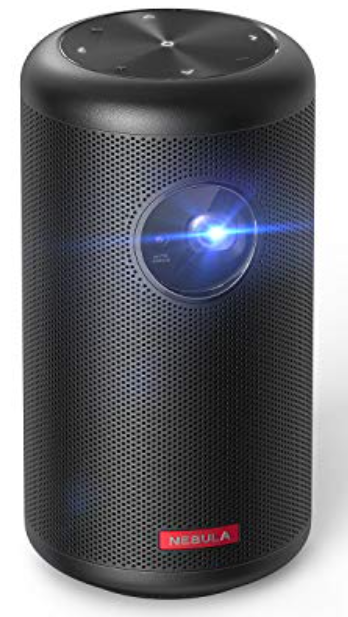
The Nebula Capsule 2 Projector is a compact, portable smart projector designed for users who want a cinematic experience anywhere. With its sleek design and powerful features, this mini projector is perfect for movie nights, business presentations, or casual streaming on the go. The Nebula Capsule 2 Projector stands out for its built-in Android TV 9.0 operating system, allowing direct access to thousands of streaming apps like YouTube, Hulu, and more. Its portability makes it ideal for travelers, students, and professionals who need a reliable projector without the bulk.
Key benefits include a 720p HD resolution, 200 ANSI lumens brightness, and a built-in 8W speaker for immersive audio. The projector supports wireless connectivity, screen mirroring, and even doubles as a Bluetooth speaker. Whether you're watching movies in a tent, giving a presentation in a small meeting room, or streaming content at home, the Nebula Capsule 2 Projector delivers convenience and versatility. The estimated price range is $450–$500, and while it's discontinued in some regions, it's still available through select retailers and online marketplaces.
What’s Included

Specifications of the Nebula Capsule 2 Projector
- Power supply: 15V 2A
- Power consumption: < 20W
- Standby power consumption: < 0.5W
- Display technology: 0.3 in 1280 × 720p DLP
- Light source: RGB LED
- Projection image size: 20 -100 in
- Resolution: 1280 × 720p
- Brightness: 200 ANSI Lumens
- Contrast ratio: 600:1
- Throw ratio: 1.3
- Throw distance: 0.58m to 3.08m
- CPU: Quad-core A53
- OS: Android TV 9.0
- RAM: 2GB DDR
- ROM: 8GB eMMC
- Speaker drivers: 8W
- Wi-Fi: IEEE802.11a/b/g/n Dual Frequency 2.4G / 5G
- Bluetooth version: V4.2
- USB file system: FAT32 / NTFS / exFAT
- Built-in battery type: Li-Polymer
- Capacity: 9700mAh 3.7V
- Movie playtime: approximately 3 hours in battery mode
- Recommended ambient: 32°F to 95°F / 0°C to 35°C
- Relative humidity: 15% ~ 85% (non-condensing)
- Storage temperature and humidity: 149°F / < 65°C, < 90% humidity
- Dimensions (H × D): 150 × 80 mm / 5.9 × 3.1 inch
- Weight: 740 g / 26.1 oz
Compared to similar portable projectors, the Nebula Capsule 2 Projector offers superior brightness, a more robust operating system, and better audio quality, making it a top choice for those seeking a balance between performance and portability.
Overview
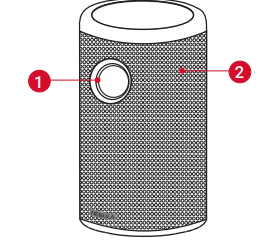
Front View
- Lens
- Air ventilation (inlet)
Rear View
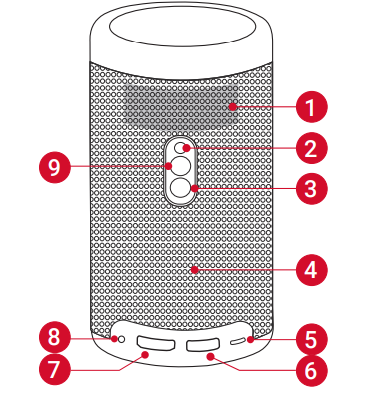
- Air ventilation (outlet)
- Infrared receiver
- Power button
- Press and hold for 2 seconds to power on / off
- Speaker
- USB-C port
- Connect to power supply (with supplied cable)
- USB port
- Connect to a USB flash drive
- HDMI input port
- Connect to a playback device
- AUX-out socket

- Press to switch between Bluetooth speaker mode and projector mode
- Bluetooth speaker power on / off
Top View
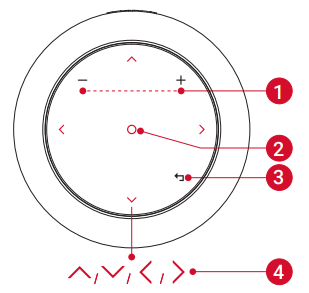
- Volume up / down
- Confirmation button
- Return button
- Navigation buttons
- Touch to go to the next/previous page
Bottom View
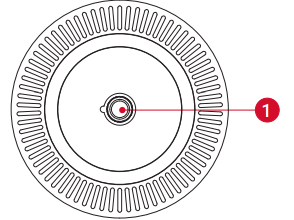
- 1/4" Tripod Socket
Remote Control
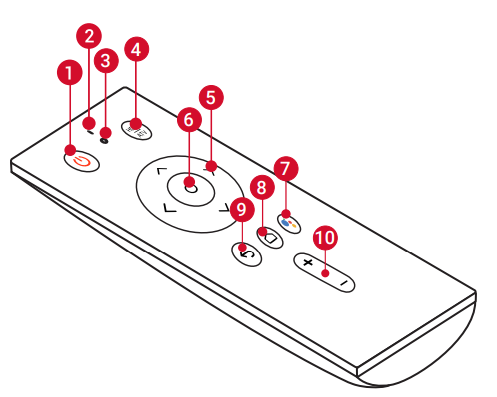
- Power on / off button
- Microphone
- LED indicator
- Signal source switch button
- Press to switch between Android TV™ and HDMI interfaces
- Press and hold for 3 seconds to engage manual focus
- Navigation buttons
- Navigate menus or adjust the selected contents
- Confirmation button
- Press to confirm a selection or entry
- Pause/resume play
- The Google Assistant button
- Press to talk to the Google Assistant (can be used only after Bluetooth pairing is successful)
- Home button
- Press to access the home menu
- Return button
- Return to the previous menu
- Volume up / down button
LED Indication
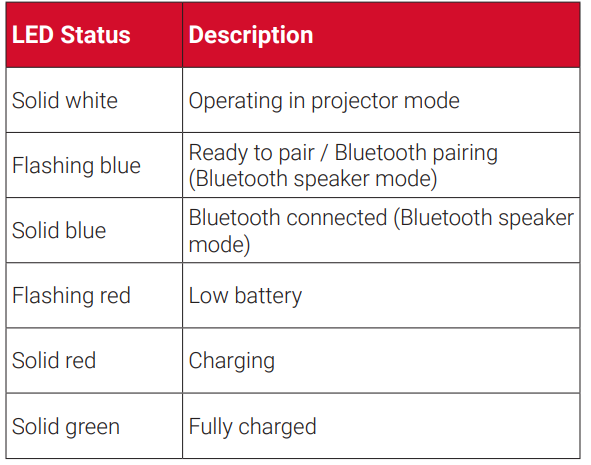
Nebula App
To easily control this device, we recommend downloading the dedicated Nebula app, Nebula Connect. By using this app, you can use the screen as a mouse.
- Download the Nebula Connect app from the App Store (iOS devices) or Google Play (Android devices).
- Enable Wi-Fi on your smartphone and select [Nebula Capsule II] as the device to be connected.
Note: Make sure your phone and Nebula Capsule II are connected to the same Wi-Fi network. - Open the Nebula Connect app and follow the on-screen instructions to complete connection setup.
Powering the Nebula Capsule II with Android TV™
Follow the on-screen instructions to complete the setup process.
Option 1. Quick setup
Android phone users can follow the instructions to quickly set up Android TV with their Android phone.
Option 2. Set up Nebula Capsule II
For iOS users, follow the instructions to complete the process.
- Skip the quick setup process.
- Connect Nebula Capsule II to the network.
- Sign in with your Google account.
Your Nebula Capsule II will be powered by Android TV after finishing the setup process.
Enjoy Google Features
Nebula Capsule II also supports Google features. Once connected to a wireless network, you can go online and enjoy movies, music, and pictures, and web browsing. Aside from the pre-installed apps, you can also install additional apps from Google Play, and talk to the Google Assistant to do certain tasks.
To talk to the Google Assistant:
- Make sure you’ve followed the steps in the section “Connect Bluetooth Accessories” to connect your remote control to Nebula Capsule II. Once connected, the LED indicator on the remote control turns solid red.
- Press the remote control to talk to the Google Assistant.
Troubleshooting the Nebula Capsule 2 Projector
- Capsule II fails to power on using the remote control.
- Press and hold I for 2 seconds on the projector to turn it on.
- When powered off, you cannot use the remote control to turn it on.
- The remote control doesn't work.
- Make sure the battery is already installed in the remote control.
- Replace the batteries.
- Images become blurred.
- Slightly move the projector to engage autofocus.
- Press and hold
 for 3 seconds to manually adjust the focus.
- Capsule II is unable to connect to a Wi-Fi network.
- Refresh the list of available networks and retry.
- Reboot the wireless router or the device and retry.
- How do I update firmware?
- When a new version is detected, you will be asked to reboot and update.
Preventive measures include regular firmware updates, avoiding extreme temperatures, and cleaning the lens gently. The Nebula Capsule 2 Projector comes with a 1-year warranty. For support, visit the official Nebula website or contact customer service at support@nebula.com.
Pros & Cons of the Nebula Capsule 2 Projector
Pros
- Compact and portable design
- 720p HD resolution with 200 ANSI lumens
- Android TV 9.0 for seamless app access
- Built-in 8W speaker with good audio quality
- Auto focus and Google Assistant remote
- Long battery life for a portable projector
Cons
- Not suitable for large venues or bright rooms
- Limited to 2.5 hours of battery at full brightness
- Noisy fan at higher brightness levels
- Discontinued in some regions, affecting availability
The Nebula Capsule 2 Projector offers excellent value for money for those who prioritize portability and smart features over raw power. Alternatives like the Anker Nebula Mars II or the LG PH550 offer similar features but may lack the integrated Android TV experience.
Customer Reviews of the Nebula Capsule 2 Projector
Users consistently praise the Nebula Capsule 2 Projector for its ease of use, portability, and vibrant image quality. Many highlight the convenience of Android TV and the built-in speaker. Common complaints include the short battery life at maximum brightness and the fan noise. The average star rating is 4.5 out of 5. Testimonials mention its reliability for travel and home use, with recommendations for those seeking a compact projector for casual viewing. Frequently mentioned issues include occasional Wi-Fi connectivity problems and the need for regular firmware updates.
Faqs
How do I set up the nebula Capsule 2 Projector for the first time?
What should I do if the nebula Capsule 2 Projector is not turning on or responding?
Can I use the nebula Capsule 2 Projector with my smartphone or laptop?
How bright is the nebula Capsule 2 Projector, and what is the ideal environment for its use?
How can I extend the battery life of my nebula Capsule 2 Projector during use?
What are the key features of the nebula Capsule 2 Projector that enhance user experience?
How do I maintain and clean the nebula Capsule 2 Projector to ensure longevity?
Why is the image on my nebula Capsule 2 Projector blurry, and how can I fix it?
More nebula manuals
Leave a Comment