
Setup: Nebula Capsule 3 Projector User Manual
Content
Nebula Capsule 3 Projector
Introduction
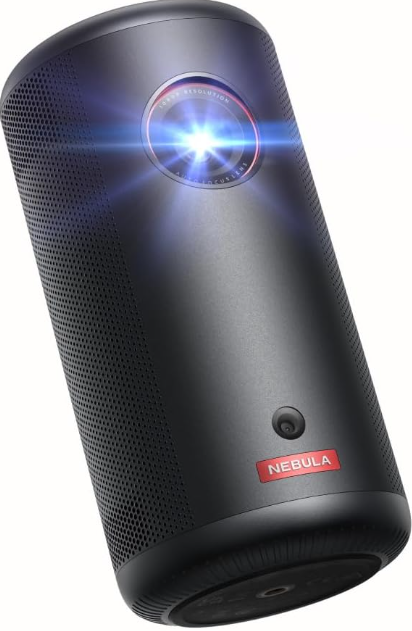
The Nebula Capsule 3 Projector is a compact, ultra-portable device designed for users who want a cinema-quality experience anywhere. With its sleek cylindrical design and lightweight build, this projector is perfect for travelers, students, and anyone seeking a mobile entertainment solution. The Nebula Capsule 3 Projector delivers Full HD 1080p resolution and up to 300 ANSI lumens of brightness, making it ideal for both indoor and outdoor use in low-light environments. It's built-in Android TV 11.0 allows direct streaming from popular apps like Netflix, while the integrated 8W speaker provides immersive audio.
Key benefits include a long-lasting 52Wh battery, auto focus, and keystone correction for hassle-free setup. The projector is compatible with HDMI, USB-C, and AUX connections, ensuring seamless integration with various devices. Priced around $549, the Nebula Capsule 3 Projector is widely available and offers excellent value for those seeking a portable, high-performance projector.
Specifications of the Nebula Capsule 3 Projector
- Input
- 5V = 3A or 9V = 3A or 12V = 3A or 15V = 3A or | 20V = 2.25A
- Power Consumption
- < 45W
- Standby Power Consumption
- < 0.5W
- Resolution
- 1920 × 1080
- Compatible Resolutions
- 480p (60 Hz), 576p (50 Hz), 720p (30 Hz), 720p (50 Hz), 720p (60 Hz), 1080p (24 Hz), 1080p (30 Hz), 1080p (50 Hz), 1080p (60 Hz), 4K2K (23.976 Hz), 4K2K (25 Hz), 4K2K (30 Hz), 4K2K (50 Hz), 4K2K (60 Hz), 4096 (23.976 Hz), 4096 (25 Hz), 4096 (30 Hz), 4096 (50 Hz), 4096 (60 Hz)
- Contrast Ratio
- 400:11
- Aspect Ratio
- 16:9
- Screen Size
- 40" to 120"
- Throw Ratio
- 1.2:1
- Throw Distance
- 1.06~3.18 m / 3.48~10.43 ft
- Light Source
- LED
- Focus
- Auto
- Keystone Correction
- Auto
- Speaker Output Power
- 8W
- Noise
- 28 dB
- Wi-Fi
- Wi-Fi 2.4 GHz/5.0 GHz 802.11 a/b/g/n/ac
- Bluetooth Version
- 5.1
- Bluetooth Range
- 25 m / 82 ft
- USB Format
- FAT, FAT32
- Operating Temperature
- For Europe and the UK, 0°C to 25°C|
- For other countries and regions, 0°C to 35°C /| 32°F to 95°F
- Remote Control Batteries
- AAA × 2
The Nebula Capsule 3 Projector outperforms many competitors in its class with superior brightness, resolution, and battery life, making it a top choice for portable projectors.
What's Included
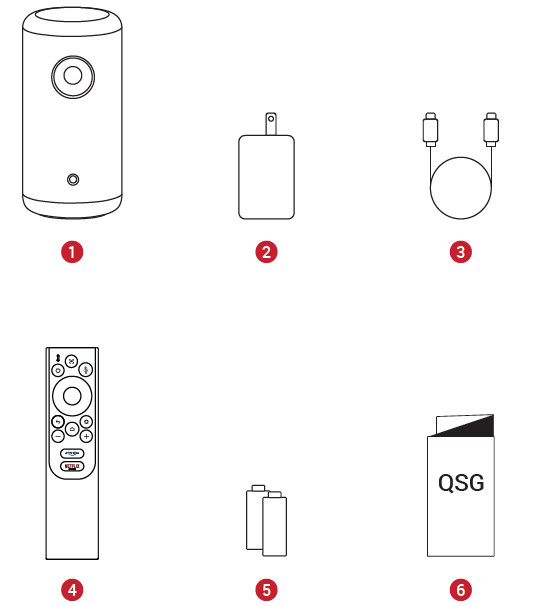
- Nebula Capsule 3
- Adapter
- Charging Cable
- Remote Control
- AAA Battery × 2
- Quick Start Guide
At a Glance
Projector'
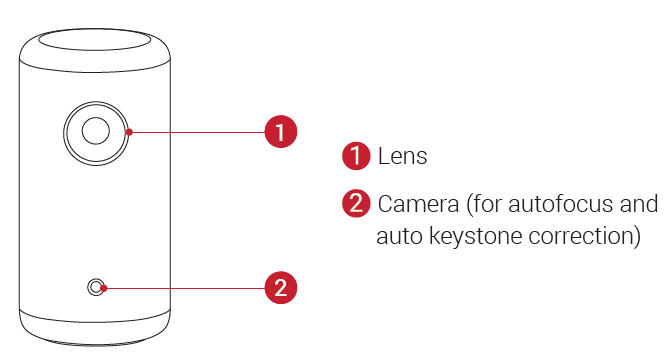
Front View
Rear View
Infrared Receiver
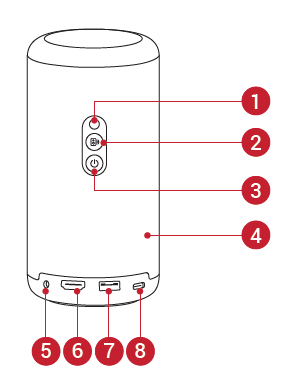
- Mode switch button / Bluetooth speaker on / off button
- Press to switch between Bluetooth speaker mode and projector mode.
- Power button
- Press and hold for 3 seconds to power on / off.
- Press to wake up the projector / enter standby mode in projector mode.
- Speaker
- AUX-out port
- Connect to an external sound output device.
- HDMI input port
- Connect to a playback device via HDMI output.
- USB-A port
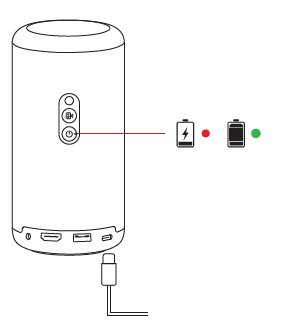
- Connect to the power supply with the charging cable.
- Connect to a USB drive.
- USB-C Port
- Connect to the power supply with the charging cable
Top View
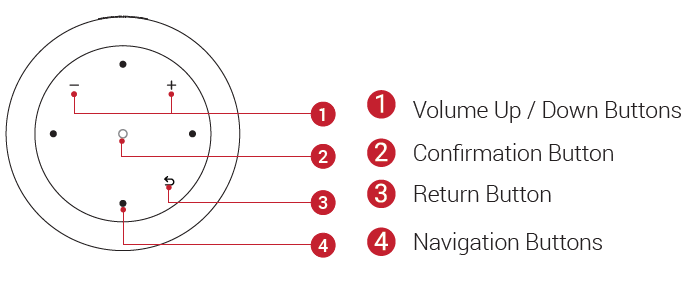
Bottom View
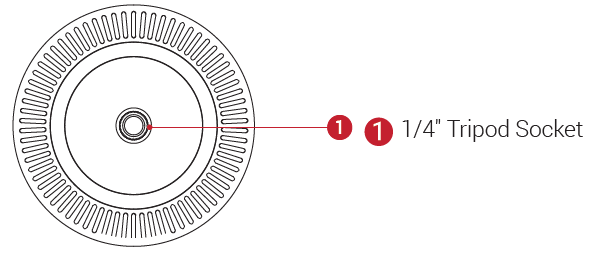
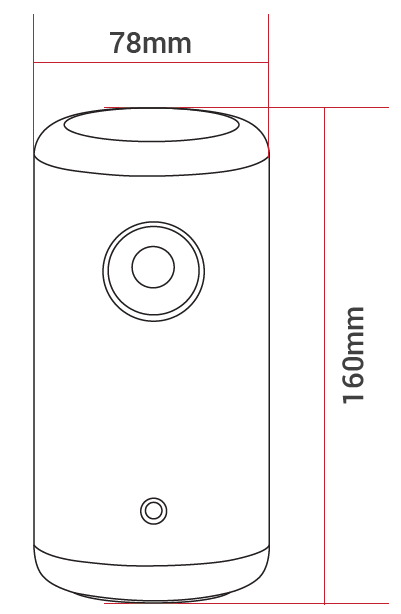
Dimensions
160 (H) x 78 (D) mm / 6.3 (H) × 3.1 (D) in
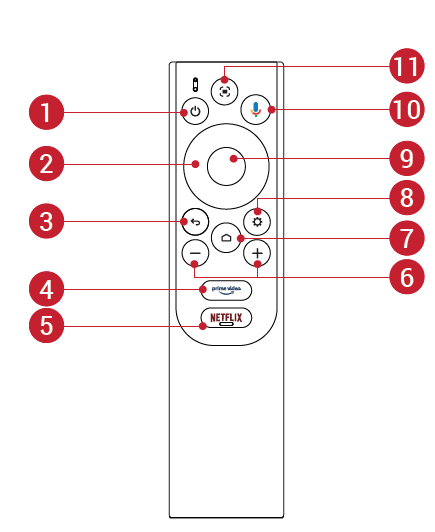
Remote Control
- Power on / off
- Navigation
- Return to the previous menu
- Open Prime Video
- Open Netflix
- Volume up / down
- Access the home menu
- Access more options
- Pause/resume/confirm selection
- Activate the Google Assistant
- Adjust focus
- Remote Control: Google TV RCU
- Model: D0442
Getting Started
Prepare the Remote
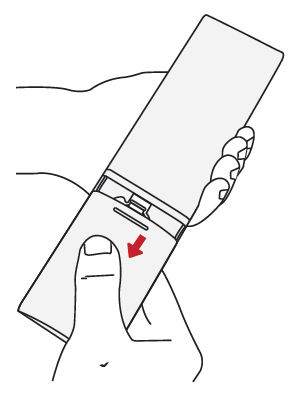
Slide to open the battery compartment.
Insert new batteries matching the polarity (+/-) and close the battery compartment.
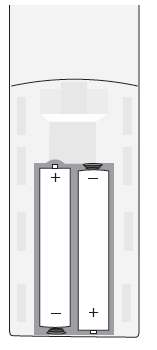
- For first-time use, follow the on-screen instructions to pair the remote with your projector.
Position Your Projector
Place the projector on a stable, flat surface in front of the projection surface. For the best results, the projection surface should be white and flat.
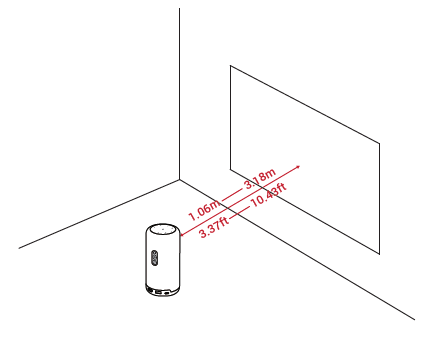
- It is unnecessary to tilt the projector towards the projection surface. You can correct the projection image with the built-in autofocus and auto-keystone correction.
- You may also install the projector onto a tripod (sold separately).
- The distance between the projector and the projection surface determines the projection image size. For the best result, position the projector 1.06~3.18 m / 3.37~10.43 ft away from the projection surface to get a screen size of 40~120 inches.
Charge Your Projector
For first-time use, fully charge your projector using the provided adapter and charging cable
Power On / Off
Press and hold the power button for 3 seconds to power on the projector.
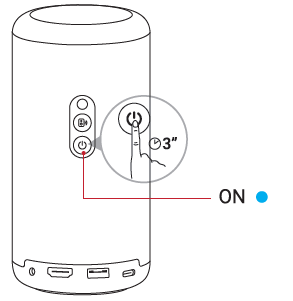
- You can also press and hold the power button on the remote for 3 seconds to power off.
- When powered on, press the power button on the projector or remote to switch to standby mode.
- In HMDI Source Mode, the projector will switch to standby mode after 10 minutes of button inactivity or when no signal is detected.
- When standby mode lasts for 30 minutes, the projector will automatically power off.
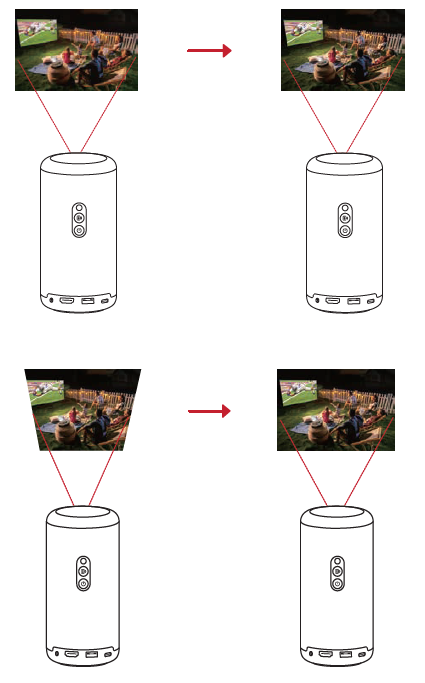
Autofocus and Auto Keystone Correction
To enable autofocus and auto keystone correction, slightly move the projector or press the button on the remote.
Setup
When using the projector for the first time, follow the on-screen display (OSD) instructions to complete the basic setup.
- Pair the remote with your projector..
- Select your language
- Set up your TV with your Android phone (optional)
- Connect to Wi-Fi
- Sign in with your Google account
Troubleshooting the Nebula Capsule 3 Projector
- Fails to Power On
- The projector may be out of power. Charge the projector for 15-30 minutes and see if the power button light turns on.
- Cannot Charge
- Use the included adapter and charging cable to charge the projector.
- Try a different adapter (at least 30W) and USB-C charging cable.
- Cannot connect to a Wi-Fi Network
- Place your projector within 16 ft / 5 m of the router and reconnect.
- Set your router to 2.4 GHz or 5 GHz and retry.
- Restart your projector and router and retry.
- Try a different Wi-Fi network or your phone's hotspot.
- Blurry Image
- Slightly move the projector or press on
 the remote to start autofocus.
 - To manually adjust the focus, go to [Settings] > [Projector Settings] > [Focus Settings] > [Manual Focus Correction], and us and on the remote.
- Adjust the projection angle and direction,, as well as the height of the project, or if necessary.
- Slightly move the projector or press on
- Distorted Image
- Update the firmware to the latest version via [Settings] > [Device Preferences] > [About] > [System update]> [Check for update].
- Go to [Settings] > [Projector Settings] > [Image Correction], turn on [Manual Keystone Correction], and select [Manual Keystone
- Correction Access].
- Move the projector left or right, or alter the tilt if necessary.
- No HDMI Signal
- Use a different HDMI cable.
- Connect your project to another HDMI playback device.
- Connect the HDMI playback device to your TV via an HDMI cable to check if the device or cable malfunctions.
- Adjust the HDMI playback device's output resolution/frequency to be the same as the projector's.
- How to Play Videos without Wi-Fi
- Download videos to a USB drive in FAT32 format. For the following steps, see Play from a USB Drive.
Preventive measures include regular cleaning of ports and lenses, and avoiding extreme temperatures. The Nebula Capsule 3 Projector comes with a 1-year warranty. For support, contact Anker customer service at support@anker.com or visit the official Nebula website.
Pros & Cons of the Nebula Capsule 3 Projector
Pros
- Ultra-portable and lightweight design
- Full HD 1080p resolution with 300 ANSI lumens
- Long battery life (up to 2.5 hours)
- Auto focus and keystone correction
- Built-in Android TV 11.0 for streaming
- 8W Dolby Digital speaker
Cons
- Limited brightness for well-lit rooms
- Only 16GB internal storage
- No optical zoom
- Higher price compared to basic models
The Nebula Capsule 3 Projector offers excellent value for money, especially for users prioritizing portability and image quality.
Customer Reviews of the Nebula Capsule 3 Projector
Users consistently praise the Nebula Capsule 3 Projector for its sharp image quality, ease of use, and portability. Many highlight the auto focus and keystone correction as standout features. The built-in speaker is noted for its clarity, though some recommend external speakers for larger gatherings. Common complaints include the limited battery life for extended use and the need for a dark room for optimal viewing. The projector holds an average rating of 4.5 stars, with most buyers recommending it for travel, outdoor movies, and casual home use.
Faqs
How do I set up the nebula Capsule 3 Projector for the first time?
Why is my nebula Capsule 3 Projector not connecting to Wi-Fi?
Can I use the nebula Capsule 3 Projector as a Bluetooth speaker?
What devices are compatible with the nebula Capsule 3 Projector?
How do I optimize the image quality on my nebula Capsule 3 Projector?
How long does the battery last on the nebula Capsule 3 Projector?
How do I clean and maintain my nebula Capsule 3 Projector?
What should I do if the nebula Capsule 3 Projector image is blurry or distorted?
More nebula manuals
Leave a Comment