
Setup: Nebula Mars 3 Projector User Manual
Content
Nebula Mars 3 Projector
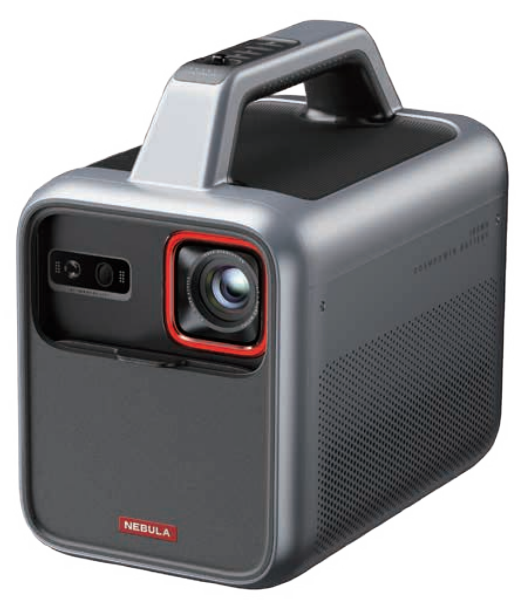
Introduction
The Nebula Mars 3 Projector is a cutting-edge portable smart projector designed by Anker, targeting outdoor enthusiasts and home entertainment lovers alike. Released in July 2023, this model stands out for its remarkable blend of portability, image quality, and all-in-one functionality, making it an ideal companion for backyard movie nights, camping trips, or impromptu presentations. With a sleek, durable design and a built-in battery capable of up to five hours of continuous use, it delivers cinema-quality 1080p Full HD images with up to 1,000 ANSI lumens of brightness.
Equipped with Android TV 11 and integrated streaming apps, the Mars 3 provides a seamless smart TV experience without needing extra devices. Powerful 40-watt mono speakers enrich your audio experience, and features like auto-focus, automatic keystone correction, and screen-fit technology enable quick, hassle-free setup—even in outdoor or unconventional environments. The projector’s price typically ranges between $800 and $1,100, readily available from major online retailers and specialty electronics stores.
This projector is particularly suited for users who desire a versatile, high-performance portable projector with excellent battery life and brightness for outdoor use. Whether for family entertainment, gaming, or presentations on the go, the Nebula Mars 3 balances portability with premium features to meet diverse multimedia needs.
Specifications of the Nebula Mars 3 Projector
- Input
- 19V == 9.47A
- Power Consumption
- 150W
- Standby Power Consumption
- < 1W
- Resolution
- 1920 × 1080p
- Compatible Resolutions
- 480p (60 Hz), 576p (50 Hz), 720p (30 Hz), 720p (50 Hz), 720p (60 Hz), 1080p (24 Hz), 1080p (30 Hz), 1080p (50 Hz), 1080p (60 Hz), 4K2K (23.976 Hz), 4K2K (25 Hz), 4K2K (30 Hz), 4K2K (50 Hz), 4K2K (60 Hz), 4096 (23.976 Hz), 4096 (25 Hz), 4096 (30 Hz), 4096 (50 Hz), 4096 (60 Hz)
- USB-A Output Power (Charging)
- 10W
- USB-C Output Power (Charging)
- 15W
- Contrast Ratio
- 400:1
- Aspect Ratio
- 16:9
- Screen Size
- 30" to 200"
- Throw Ratio
- 1.2:1
- Throw Distance
- 0.8-5.3 m / 2.62-17.39 ft
- Light Source
- LED
- Focus
- Auto
- Keystone Correction
- Auto
- Speaker Output Power
- 40W max
- Noise
- 28 dB at 25°C
- Wi-Fi
- Wi-Fi 2.4 GHz/5.0 GHz 802.11 a/b/g/n/ac
- Bluetooth Version
- 5.1
- Bluetooth Range
- 25 m / 82 ft
- USB Format
- FAT, FAT32, NTFS
- Operating Temperature
- 0°C~35°C / 32°F~95°F
- Remote Control Batteries
- AAA x 2
What's Included
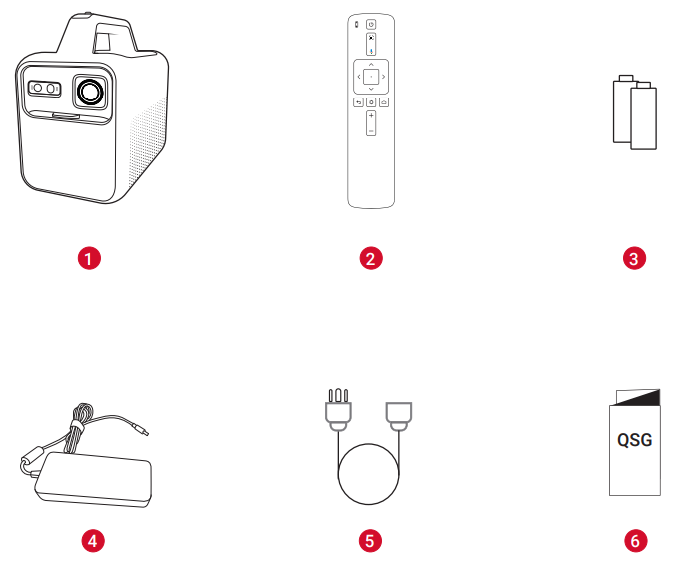
- Nebula Mars 3
- Remote Control
- AAA Battery × 2
- Power Adapter
- Power Cord
- Note: The plug type varies by region. Quick Start Guide
At a Glance
- Projector
- Front View
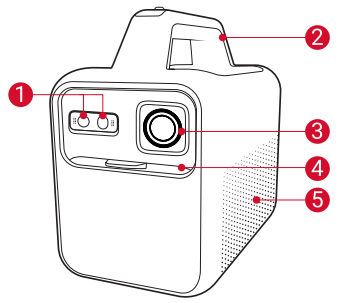
- Sensors (for autofocus and auto keystone correction) Handle
- Lens
- Lens cover
- Slide down to turn on and automatically adjust focus
- Slide up to turn off
- Loudspeaker
Rear View
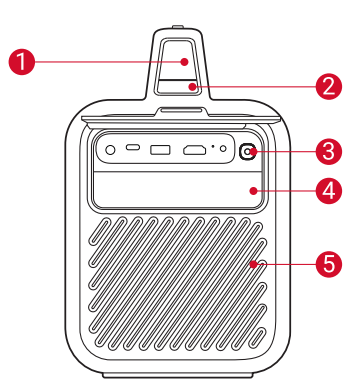
- LED screen
- Indicates current battery level and power mode
- Power mode button
- Press to switch power modes when the projector is on
- Press once to check the battery level when the projector is off
- Press and hold for 2 seconds to enable charge-out when the projector is off
- Ambient light button
- Press to turn the ambient light on / off
- Increase brightness
- Ambient light
- Air ventilation (outlet)
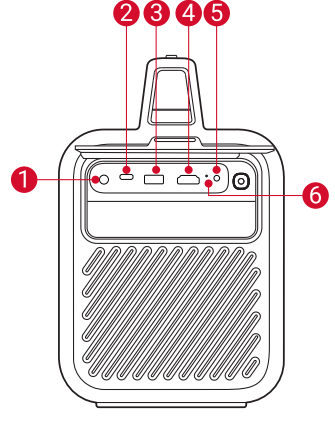
- DC IN port
- Connect to the power supply
- USB-C port
- Connect to a USB drive
- Charge an external device as a power bank
- USB-A port
- Connect to a USB drive
- Charge an external device as a power bank
- HDMI port
- Connect to a playback device via HDMI output
- AUX-OUT port
- Connect to an external sound output device
- Reset button
- Press to reset your projector
Top View
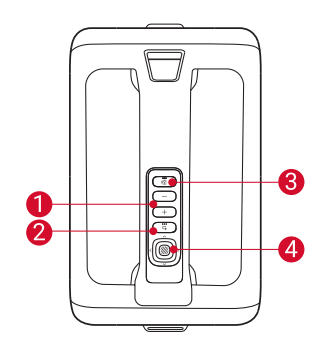
- Volume up / down buttons
- Return button
- Bluetooth speaker button
- Press to enter or exit
- Bluetooth speaker mode
- Navigation/confirmation buttons
Bottom View
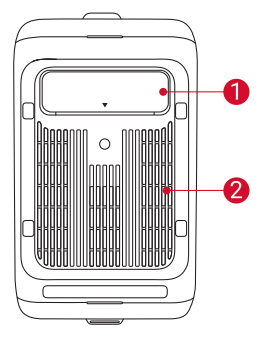
- Adjustable stand
- Air ventilation (inlet)
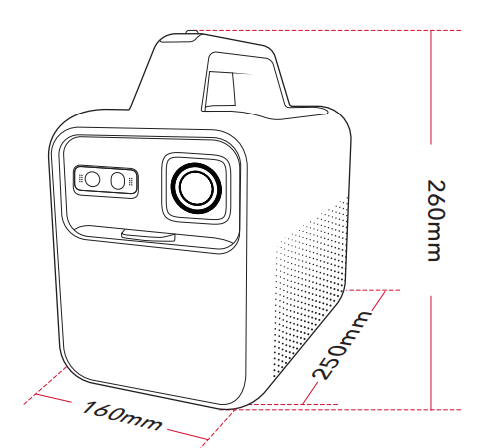
Dimensions
250 (L) × 160 (W) × 260 (H) mm / 9.8 (L) × 6.3 (W) × 10.2 (H) in
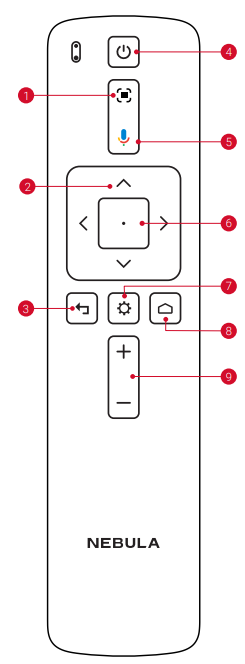
Remote Control
- Adjust focus
- Navigation
- Return to the previous menu
- Power on / off or switch to standby mode
- Activate the Google Assistant
- Confirm a selection / Pause /Resume
- Access more options
- Access the home menu
- Volume up / down
Getting Started
Prepare the Remote
- Slide to open the battery compartment.
Insert new batteries matching the polarity (+/-) and close the battery compartment.
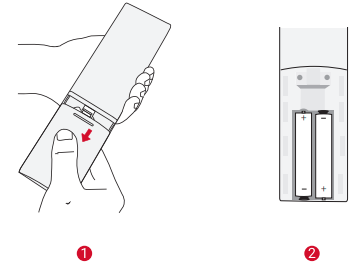
- For first-time use, follow the on-screen instructions to pair the remote with your projector.
Position Your Projector
Place the projector on a stable, flat surface in front of the projection surface. For the best results, the projection surface should be white and flat.
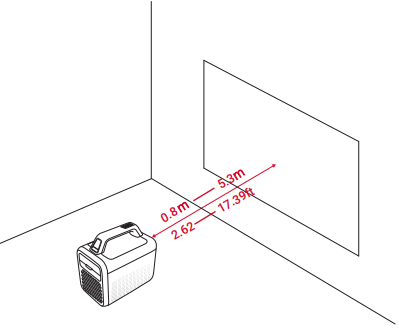
- It is unnecessary to tilt the projector towards the projection surface. You can correct the projection image with the built-in autofocus and auto-keystone correction.
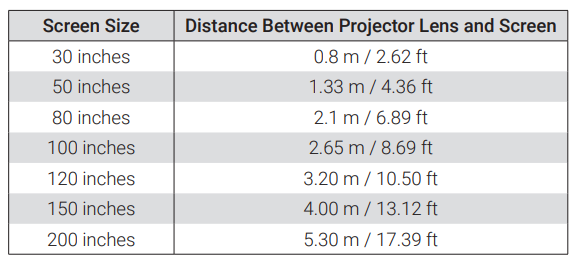
- The distance between the projector and the projection surface determines the projection image size. For the best result, position the projector 0.8-5.3 m / 2.62-17.39 ft away from the projection surface to get a screen size of 30-200 inches.
Power On / Off
Slide the lens cover down to turn on the projector, and slide it up to turn it off.
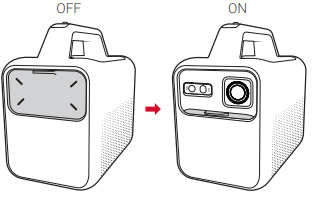
- You can also press and hold the power button on the remote for 3 seconds to power off.
- When powered on, press the power button on the remote to switch to standby mode.
- In HDMI Source Mode, the projector will switch to standby mode after 10 minutes of button inactivity or when no signal is detected.
- When standby mode lasts for 30 minutes, the projector will automatically power off.
Auto Image Correction
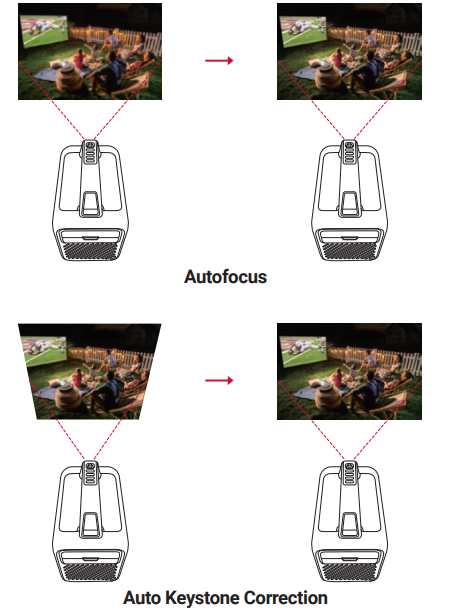
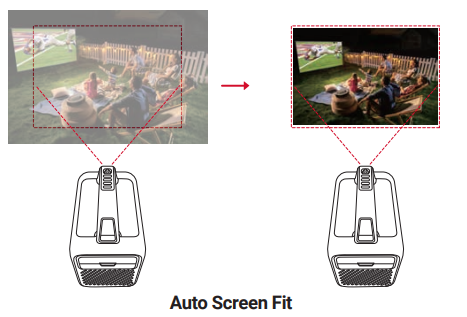
Auto Screen Fit
Auto image correction includes autofocus, auto keystone correction, and auto screen fit. These features can be enabled in three ways: by powering on the projector, by pressing he remote, or by slightly moving the projector.
To set your auto image correction preferences, go to > [Projector Settings] > [Image Correction].
Setup
When using the projector for the first time, follow the on-screen display (OSD) instructions to complete the basic setup.
- Pair the remote with your projector.
- Select your language
- Set up your TV with your Android phone (optional)
- Connect to Wi-Fi
- Sign in with your Google account
Common Troubleshooting Tips for the Nebula Mars 3 Projector
- Fails to Power On
- The projector may be out of power. Charge the projector for 15-30 minutes and see if the LED screen lights up.
- Cannot Charge
- Use the included adapter and power cord to charge the projector.
- Try a different adapter (at least 180W) and power cord.
- Cannot connect to a Wi-Fi Network
- Place your projector within 16 ft / 5 m of the router and reconnect.
- Set your router to 2.4 GHz or 5 GHz and retry.
- Restart your projector and router and retry.
- Try a different Wi-Fi network or your phone's hotspot.
- Blurry Image
- Slightly move the projector or press on the remote to start autofocus.
- To manually adjust the focus, go to [Settings] > [Projector Settings] > [Focus Settings] > [Manual Focus Correction], and use and on the remote.
- Adjust the projection angle and direction, as well as the height of the projection,r if necessary.
- Distorted Image
- Update the firmware to the latest version via [Projector Settings] > [Updates] > [Firmware Update].
- Go to [Settings] > [Projector Settings] > [Image Correction] > [Perform Manual Keystone Correction].
- Move the projector left or right, or alter the tilt if necessary.
- No HDMI Signal
- Use a different HDMI cable.
- Adjust the HDMI playback output resolution to be the same as the projector's.
- How to Install Netflix
- On your projector, download and install the Nebula Play app from Google Play. Open Nebula Play and select [Tips] > [Netflix Installation]. Then follow the on-screen instructions to install Netflix.
- How to Control Netflix with Mouse Mode
- Install Nebula Connect on your phone and connect with Mars
- Select Mouse mode. Use one finger to move and click, or two fingers to scroll
- How to Play Videos without Wi-Fi
- Download videos to a USB drive in FAT32 format. For the following steps, see
- Play from a USB Drive
Pros & Cons of the Nebula Mars 3 Projector
- Pros:
- High-quality 1080p resolution with bright 1,000 ANSI lumens output
- Long-lasting battery life of up to 5 hours, suitable for outdoor use
- Convenient Android TV 11 integration with streaming apps and Google Assistant
- Excellent built-in 40W speaker delivering clear and loud sound
- User-friendly features like auto-focus, auto keystone, and screen-fit for quick setup
- Portable and durable design with included kickstand and tripod mount
- Cons:
- Brightness may be insufficient in very bright or daylight conditions
- Some users report occasional lag or sluggishness in the Android TV interface monoo speaker system limits stereo sound immersion
- Build quality could feel less premium compared to fixed home theater projectors.
- Price is on the higher end for portable projectors in this category
- Value for Money: Despite some interface delays, the Bulala Mars 3 projector offers excellent value for users seeking a portable, bright, and feature-rich outdoor projector compared to other battery-powered 1080p models.
Customer Reviews and Feedback for the Nebula Mars 3 Projector
Users frequently praise the Nebula Mars 3 Projector for its bright, clear 1080p image and impressive built-in sound system, citing it as the best portable projector they have owned for outdoor movie nights and road trips. Commonly highlighted features include the effortless auto-focus and keystone correction, which make setup quick and easy even in uneven outdoor spaces.
Typical complaints center around the interface lag of Android TV and occasional software crashes, which some users find frustrating but manageable with firmware updates. Battery life is generally rated positively, with most users achieving close to 5 hours of viewing time, though some wish for a longer duration.
Many reviewers give the projector 4 to 4.5 stars, recommending it highly for those prioritizing portability, image quality, and built-in smart features. It is frequently recommended for backyard cinemas, camping, and casual presentations, although users note it performs best in low-light conditions.
Faqs
How do I set up the nebula Mars 3 Projector for outdoor use?
What should I do if the nebula Mars 3 Projector's autofocus or keystone correction isn't working?
Can the nebula Mars 3 Projector connect to smartphones and other devices?
What are the key features of the nebula Mars 3 Projector that enhance outdoor viewing?
How can I optimize image quality on the nebula Mars 3 Projector in different lighting conditions?
What maintenance is required to keep the nebula Mars 3 Projector in good condition?
How do I troubleshoot if the nebula Mars 3 Projector's interface is lagging or apps crash?
Is the battery life sufficient for portable use of the nebula Mars 3 Projector, and can it charge other devices?
More nebula manuals
Leave a Comment