
Setup: Nebula X1 Projector User Manual
Content
nebula X1 Projector
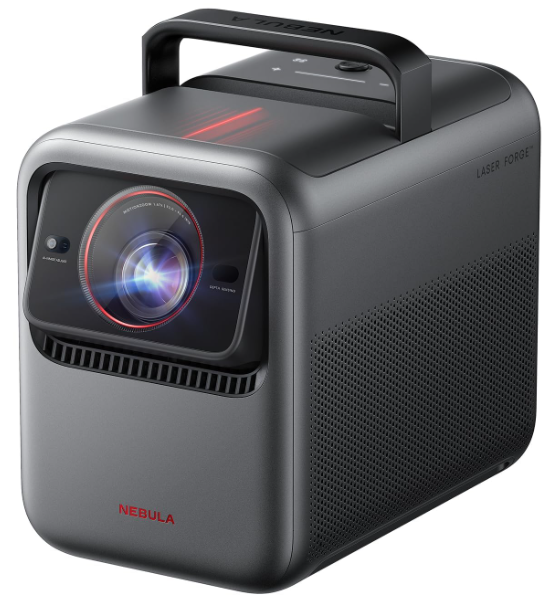
Introduction
The nebula X1 ProNebula is a cutting-edge portable projector designed to deliver a premium cinematic experience anywhere you go. Combining compact size with advanced projection technology, the nebula X1 is Nebulat for home theaters, business presentations, gaming sessions, and outdoor movie nights. Its sleek design and user-friendly interface make it an ideal choice for tech enthusiasts and casual users alike seeking high-quality visuals without bulky equipment.
Key benefits include ultra-bright LED projection with vivid colors, integrated Android OS for streaming apps, and powerful built-in speakers for immersive audio. The projector supports 1080p Full HD resolution and features smart connectivity options such as HDMI, USB, and Wi-Fi, enabling seamless content sharing from smartphones, laptops, and gaming consoles.
Targeted at home entertainment lovers, educators, and professionals on the move, the Nebula X1 Pro Nebula provides versatile use cases from movie nights and gaming to business presentations and classroom learning. It typically retails in the mid-range price bracket of approximately $400 to $600, available through major online retailers and select electronics stores.
Nebula X1 Projector Specifications
- Display Technology: DLP with LED light source
- Resolution: 1920 x 1080 pixels (Full HD)
- Brightness: Up to 500 ANSI lumens, suitable for dim to moderately lit rooms
- Contrast Ratio: 10000:1 for deep blacks and vibrant visuals
- Projection Size: 20" to 120" diagonal
- Connectivity: HDMI 1.4, USB 2.0, Wi-Fi 5 GHz and 2.4 GHz, Bluetooth 5.0
- Audio: Dual 10W Harman Kardon speakers with Dolby Digital support
- Operating System: Android 9.0 with Google Play Store access
- Battery Life: Up to 3 hours of wireless use per charge
- Dimensions: 7.9 x 5.6 x 2.5 inches; Weight: 1.7 pounds
Compared to similar portable projectors in its class, the Nebula X1 offers brighter output and higher native resolution than many rivals, along with a more robust operating system for smart streaming. Its built-in Harman Kardon speakers provide superior audio quality, setting it apart from standard mini projectors that often require external sound systems.
What's included
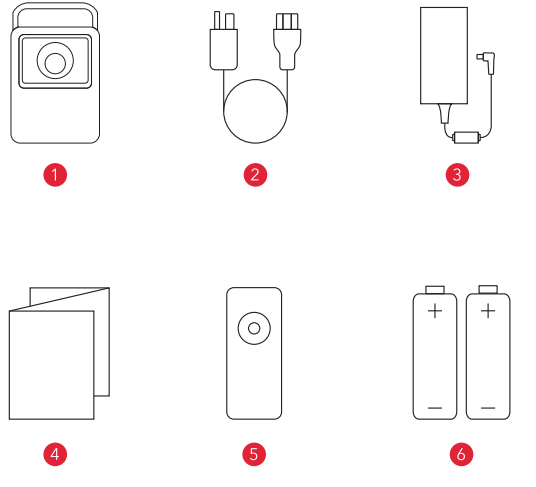
- NEBULA X1
- Adapter
- AC Cable
- Quick Start Guide
- Remote Controller
- AAA Battery × 2
At a Glance
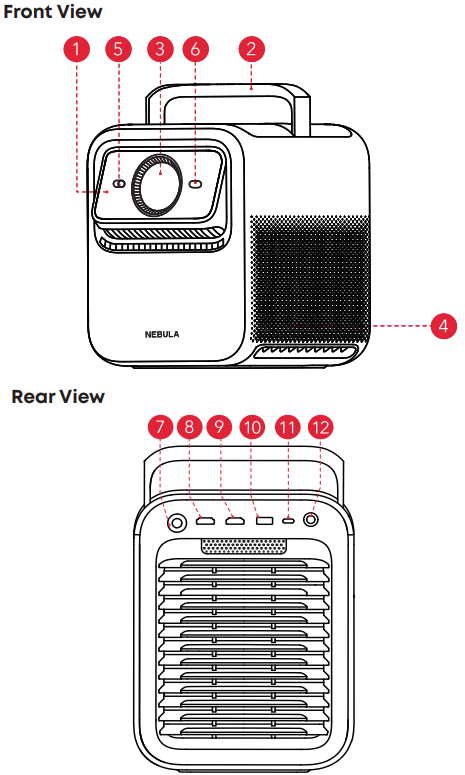
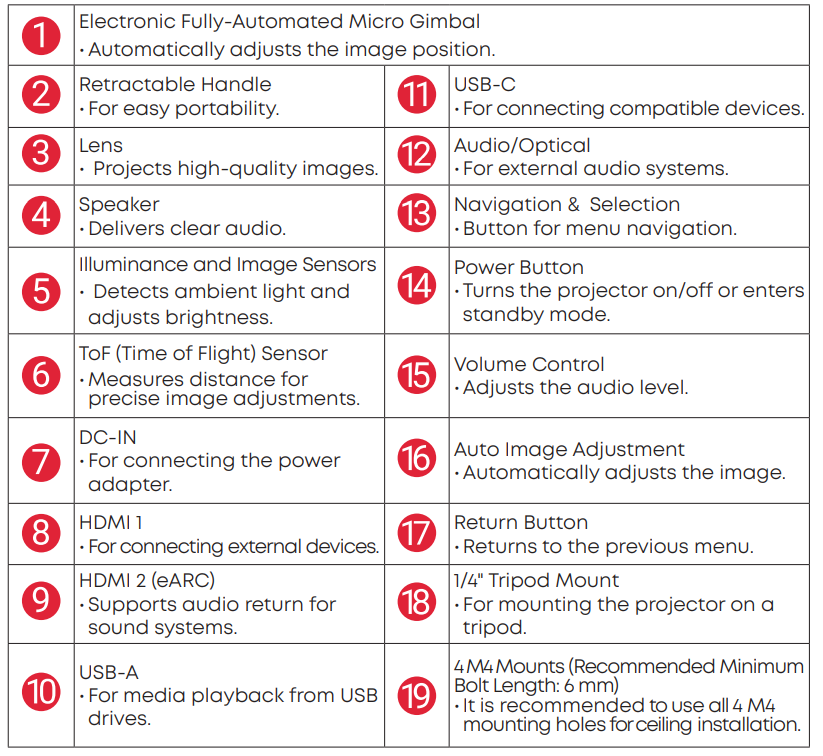
Top View
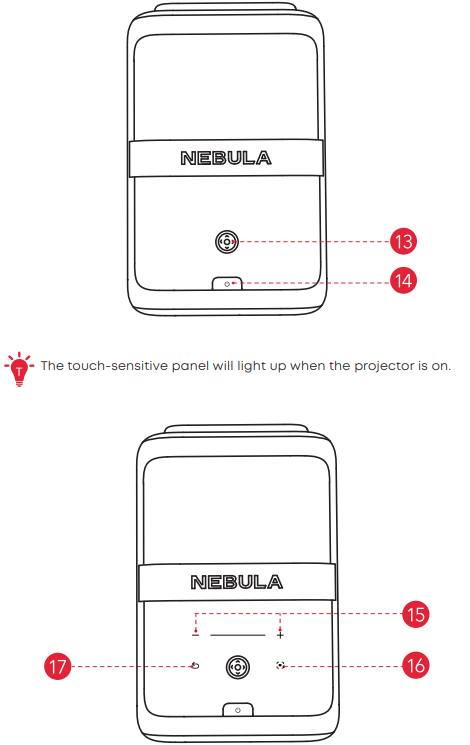
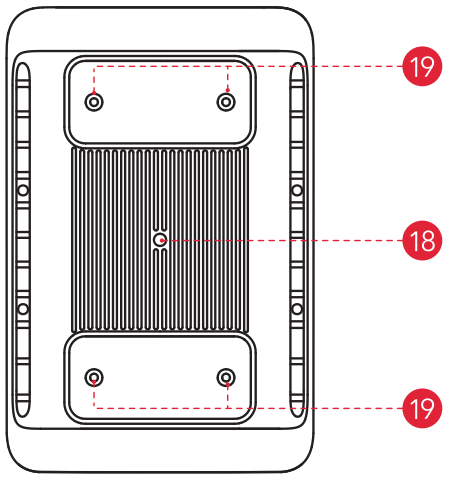
Bottom View
Remote Control
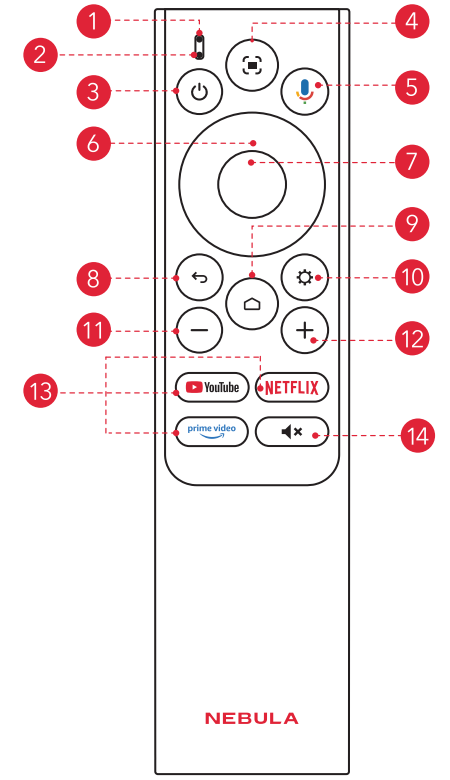
- Status Indicator
- Microphone
- Power
- Short press to enter standby mode; long press to power off / restart / Sleep/ switch to Bluetooth speaker mode
- Auto Image Adjustment
- Press to enable auto image adjustment.
- Long-press to direct to Nebula Dashboard (a shortcut interface for enabling Manual Focus, Move & Zoom, Spatial Adaptation, Screen Fit, and All Projector Settings).
- Google Assistant
- Press and hold to talk to Google Assistant.
- Navigation
- Control the cursor on the screen.
- Confirm
- Press to select, pause, or resume.
- Return
- Return to the previous page.
- Home
- Press to go to the home page, long-press to open settings.
- Settings
- Press to go to settings.
- Volume Down
- Press to reduce volume.
- Volume Up
- Press to increase volume.
- Streaming Apps
- Press to open YouTube, Netflix, or Prime Video.
- Mute
- Press to mute/unmute the sound.
Getting Started
Placement
Place this device on a stable, flat surface, and point it squarely toward the projection surface. For best results, the projection surface should be white.
This projector features an optical zoom lens that allows you to adjust the throw ratio of your projector from 0.9:1 to 1.5:1.

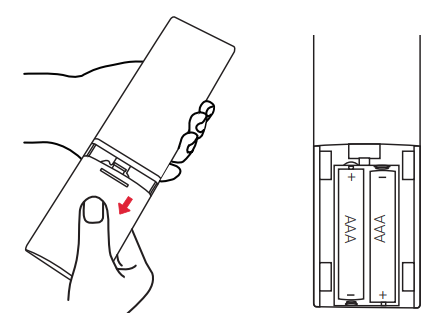
Prepare Remote Control
- Slide down to open the battery compartment.
- Insert two AAA batteries, matching the polarity (+ / -) as indicated.
Connect to Power
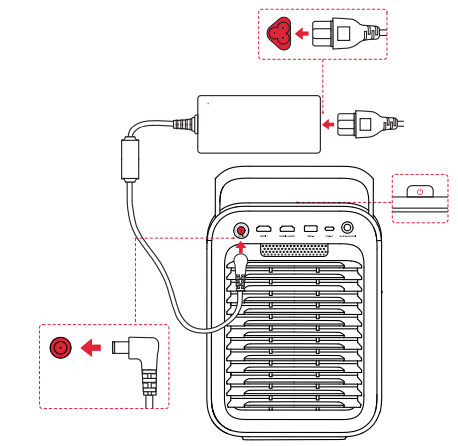
Plug the cord into the adapter. Then connect the projector to the power supply. When successfully connected to the power supply, the power button on the projector will turn red.
Power On / Off
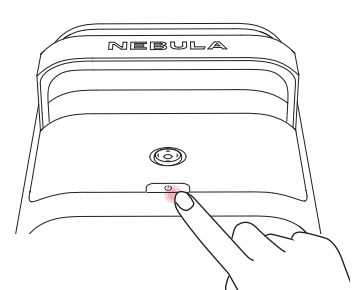
- Power On: Press the power button once.
- When the projector is powered on, the power button will turn steady white.
Power Off:
- Press and hold the power button for 3 seconds (wait for the on-screen prompt).
- Confirm power off with the navigation button or wait 15 seconds for automatic power off.
- Standby Mode: Short-press the power button to enter standby mode.
Troubleshooting the Nebula X1 Projector: Common Issues & Solutions
- Cannot Charge
- Use the included adapter and charging cable to charge the projector.
- Cannot connect to a Wi-Fi Network
- Place your projector within 16 ft / 5 m of the router and reconnect.
- Set your router to 2.4 GHz or 5 GHz and retry.
- Restart your projector and router and retry.
- Try a different Wi-Fi network or your phone's hotspot.
- Blurry Image
- Ensure that the Camera/TOF on the front panel is not blocked or dirty.
- Slightly move the projector or press the auto focus icon on the remote to start auto focus.
- To manually adjust the focus, go to [All Settings] > [Projector] > [Focus] > [Perform Manual Focus], and use left and right on the remote to make the adjustments.
- Adjust the projection angle and direction, as well as the height of the projection,r if necessary.
- For auto-focus to function properly, the distance between the projector and the screen should be between 1.5 to 4 meters.
- Auto Keystone Correction Failed
- Ensure that the Camera/TOF on the front panel is not blocked or dirty.
- The best automatic keystone correction distance is 1.0-4.0m, horizontal ±30°@3m/ ±10°@4m.
- Auto Screen Fit Failed
- Ensure the screen is rectangular with black borders.
- Check if the screen color contrasts sharply with the borders; avoid using screens that are close to black in color.
- Ensure the distance between the screen and the projector is within 4 m.
- Ensure the screen border width is 5mm.
- Ensure the projected image covers the entire screen.
- Ensure the screen size is at least 10% larger than the projection area.
- Ensure the central grid is within the screen and not obstructed.
- If auto screen fit failed, you can perform manual keystone correction via [All Settings] > [Projector] > [Keystone Correction] > [Perform Manual Keystone Correction].
- Eye Guard Failed
- Ensure that the Camera/TOF on the front panel is not blocked or dirty.
- Eye Guard feature works best at a distance of 10 cm to 4 m.
- Go to [All Settings] > [Projector] >[Eye Guard] and check if the feature has been enabled.
- Wall Color Adaptation Failed
- Ensure that the Camera/TOF on the front panel is not blocked or dirty. Ensure the image is projected onto a light-colored wall (color temperature between 3500K and 15000K, color coordinates within 0.45).
- No HDMI Signal
- Use a different HDMI cable.
- Connect your projector to another HDMI playback device.
- Connect the HDMI playback device to your TV via an HDMI cable to check if the device or cable malfunctions.
- Adjust the HDMI playback device's output resolution/frequency to be the same as the projector's.
- No Sound Output from External Speakers
- Check if the projector is set to mute mode.
- Check if the projector's "HDMI2/eARC" port or Bluetooth is connected to an external audio device.
- How to Control Netflix with Mouse Mode
- Install Nebula Connect on your phone and connect with NEBULA X1. Select Mouse mode. Use one finger to move and click, or two fingers to scroll.
- How to Play Videos without Wi-Fi
- Download videos to a USB drive in FAT32 format. For the following steps, see Play Video from HDMI / USB Devices.
Pros and Cons of the Nebula X1 Projector
Pros
- Compact and Portable: Lightweight design makes it easy to carry and set up anywhere.
- High-Quality Visuals: Full HD resolution and 500 lumens of brightness deliver clear, vibrant images.
- Smart Features: Android OS with Google Play enables direct streaming without external devices.
- Excellent Audio: Dual Harman Kardon speakers provide rich sound without needing extra speakers.
- Good Battery Life: Up to 3 hours of wireless use supports outdoor and travel scenarios.
Cons
- Brightness Limitations: 500 lumens may struggle in very bright or outdoor daylight conditions.
- Price Point: Slightly higher cost compared to some basic portable projectors without smart features.
- Android OS Version: Runs on Android 9.0, which may lack compatibility with the latest apps over time.
- Limited Zoom: No optical zoom; requires physical repositioning for image size adjustments.
Overall, the Nebula X1 Pro Nebula offers strong value for money, especially for users prioritizing portability and smart streaming capabilities over extreme brightness. Alternatives like basic LED projectors may be cheaper but lack the integrated OS and audio quality.
Customer Reviews and Feedback on Nebula X1 Projector
Users consistently praise the Nebula X1Proa for its ease of use and impressive picture quality in a portable format. Many highlight the convenience of built-in apps and Wi-Fi connectivity as major positives. The audio quality from the Harman Kardon speakers is also frequently mentioned as better than expected for a compact projector.
Common complaints include concerns about brightness in well-lit rooms and occasional minor lag in streaming apps due to the Android 9.0 system. Some users note that the price is on the higher side compared to non-smart projectors.
Overall star ratings average around 4.2 out of 5, with recommendations focused on home theater and casual use rather than professional or brightly lit environments. Buyers considering the Nebula X1 Pro often emphasize its portability and smart features as decisive factors.
Faqs
How do I set up the nebula X1 Projector for the first time to achieve the best picture quality?
What can I do if the nebula X1 Projector image appears blurry or out of focus?
Can the nebula X1 Projector be used outdoors, and what are the brightness requirements?
How do I connect wireless speakers or a microphone to the nebula X1 Projector for enhanced sound experience?
What maintenance steps should I follow to keep my nebula X1 Projector performing optimally?
What are the key features of the nebula X1 Projector’s optical system that improve image quality?
Does the nebula X1 Projector support popular streaming apps, and how do I access them?
Why is the nebula X1 Projector quieter than other projectors, and how does its cooling system work?
More nebula manuals
Leave a Comment