
Setup: Nebula Prizm Projector User Manual
Content
Nebula Prizm Projector
Introduction
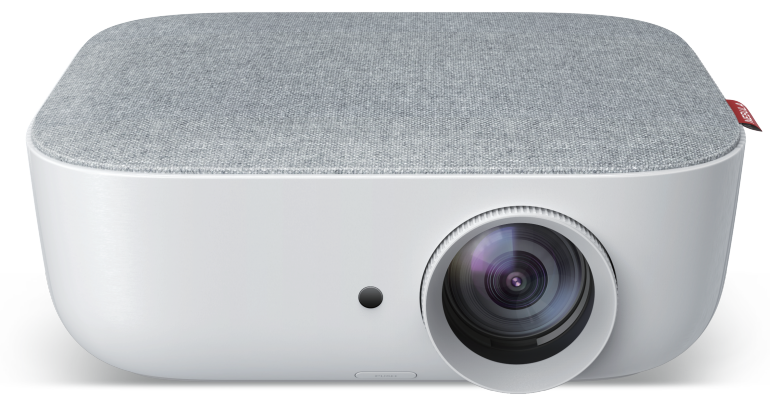
The Nebula Prizm Projector is a compact, portable LED projector designed for users seeking a big-screen experience without the bulk or high cost of traditional home theater systems. With its Full HD 1080p resolution, dual speakers, and flexible connectivity, the Nebula Prizm Projector is ideal for movie nights, gaming, and casual presentations. Whether you're watching films in your living room, sharing photos with friends, or streaming content from your mobile device, the Prizm delivers crisp visuals and immersive audio in a sleek, easy-to-use package.
Key benefits include a long-lasting LED lamp (up to 30,000 hours), horizontal and vertical keystone correction for flexible placement, and support for HDMI and USB inputs. The projector is best suited for low-light environments, making it perfect for bedrooms, small living rooms, or outdoor movie setups. The Nebula Prizm Projector is typically available for under $200, offering excellent value for budget-conscious buyers looking for a portable projector with solid performance.
What’s Included

Specifications and Features
- Brightness: 200 ANSI lumens (ideal for dark or dimly lit rooms)
- Resolution: 1920x1080 Full HD (1080p)
- Aspect Ratio: 16:9 (HD)
- Contrast Ratio: 1,000:1
- Display Technology: 5.2" TFT LCD
- Lamp Type: LED (30,000-hour lifespan)
- Projection Size: 40" to 120" diagonal
- Throw Ratio: 1.35:1
- Keystone Correction: Horizontal and vertical
- Audio: Dual 5W speakers
- Connectivity: HDMI 1.4, USB, audio out (mini jack)
- Weight: 5.3 lbs
- Dimensions: 3.81" x 10.43" x 10.98"
- Power: 125W, 100V-240V
The Nebula Prizm Projector outperforms many entry-level projectors in its price range, offering true 1080p resolution and dual speakers for a more immersive experience compared to models with lower resolution or single speakers.
Overview
Front View
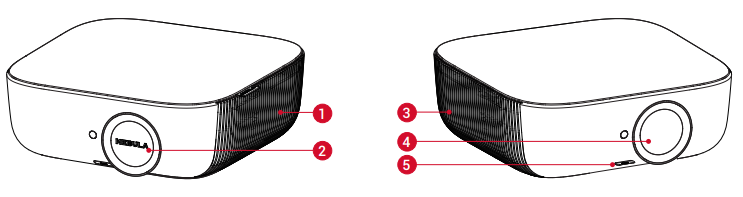
- Loudspeaker/ Air ventilation (inlet)
- Lens cover
- Air ventilation (outlet)
- Lens
Rotate to adjust focus - PUSH button
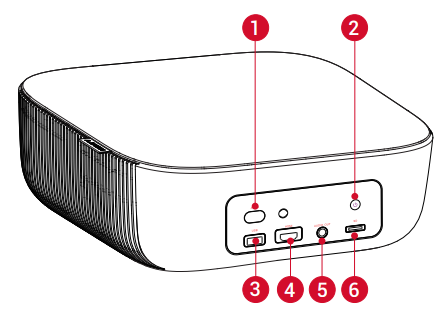
- AC-IN
Connect to the power supply
Press to power on/off - USB
Connect to a USB storage device - HDMI
Connect to a playback device with HDMI output - AUDIO OUT
Connect to a headphone or an external speaker - SD card slot
Insert an SD card
Bottom View
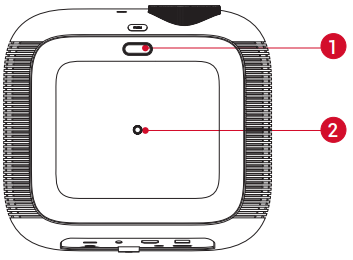
- Flip stand slot
- Tripod socket
Remote Control
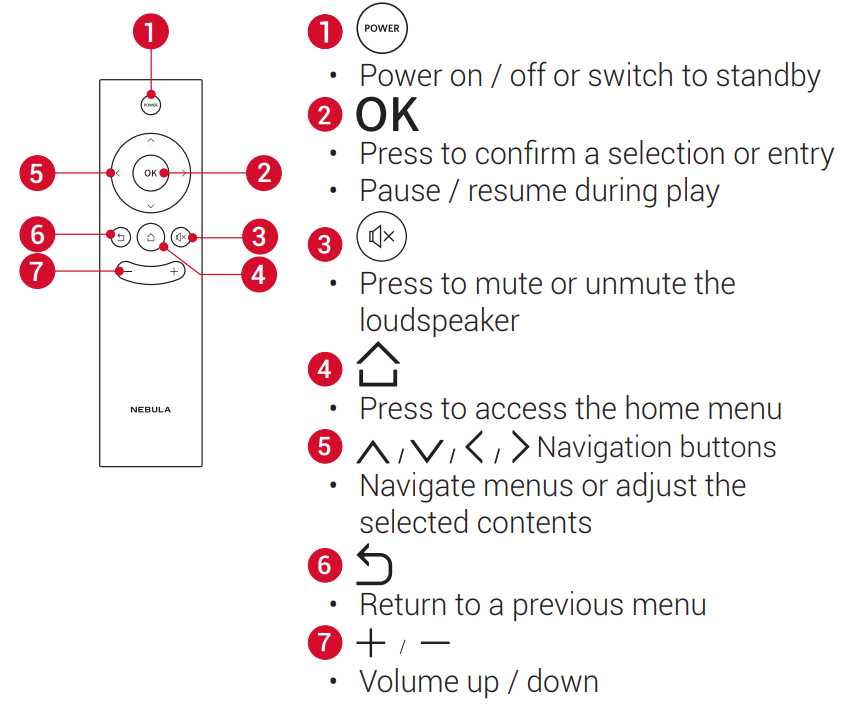
Important Safety Instructions
Read and understand all instructions before you use this device. Do not make any changes or settings that are not described in this manual. If physical injury, loss of data, or damage is caused by failure to follow instructions, the warranty does not apply.
Setup
- To reduce the risk of fire and/or electric shock, do not expose the device to rain or moisture, and objects filled with liquids, such as vases, should not be placed on the device.
- Do not place the device in areas susceptible to excessive dust and dirt or near any appliance generating a strong magnetic field.
- To prevent overheating, do not block or clog the ventilation openings.
- Never place the device in a confined space. Always leave enough space around the device for ventilation.
- Protect the device against direct sunlight, heat, large temperature fluctuations, and moisture.
- When the device runs for a long period of time and the surface becomes hot, shut it down and unplug the power cord. Resume operation only after the device has cooled.
- Always handle the device with care. Avoid touching the lens.
- Never place heavy or sharp objects on the device or the power cord.
- To avoid electric shock, do not disassemble
- Only use attachments or accessories specified by the manufacturer.
- Avoid extreme vibration. It may damage the internal components.
- Do not allow children to handle the device without supervision.
- Under the following conditions, a layer of moisture can appear inside the device,, which can lead to malfunctions: a) if the device is moved from a cold to a warm area; b) after a cold room is heated; c) when the device is placed in a damp room. To avoid any moisture, seal the device in a plastic bag before moving it to another room, and wait for one to two hours before you take it out of the bag.
Power Supply
- Power off the device before removing the power supply from the socket.
- Protect the power cord from being walked on or pinched, particularly at plugs, convenience receptacles, and the point where they exit from this device.
- Unplug this device if there are lightning storms or when unused for a long period of time.
- Where the MAINS plug or an appliance coupler is used as the disconnect device, the disconnect device shall remain readily operable.
- Before you make or change any connections, ensure that all devices are disconnected from the power outlet.
- Never touch the mains cable of the mains connection with wet hands.
Hearing Safety
- To avoid hearing damage, do not listen for extended periods at high volume. Set the volume at a safe level.
Cleaning
- Power off the device and remove it from the power supply before cleaning the surface.
- Use a soft, lint-free cloth. Never use liquid, gaseous, or easily flammable cleansers (like sprays, abrasives, polishes, and alcohol).
- Do not use any liquid cleaning agents to clean the le,, ns as they may damage the protective coating on the lenses.
- Wipe the surfaces gently. Be careful that you do not scratch the surfaces.
- Use lens cleaning paper to clean the lens of this projector.
Repairs
- Do not make any repairs to the device yourself. Only have your device repaired by an authorized service center.
- Improper maintenance can result in injuries or damage to the device.
- Refer all servicing to qualified service personnel.
Play from External Devices
This projector can also be connected to external devices, including headphones and speakers. When connected to external speakers, the built-in speaker system is disabled.
- Use a 3.5mm audio cable or an adapter (not provided) to connect your headphones or external speakers.
- Connect the other end of the cable to the AUDIO OUT port on this projector.
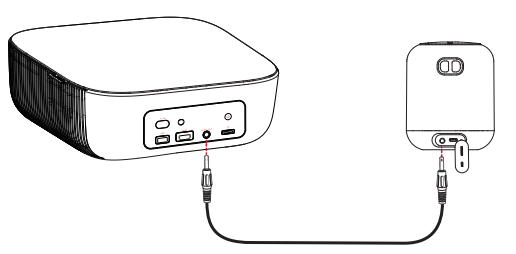
Note: Before connecting headphones, turn down the volume to avoid straining your ears.
Troubleshooting Common Issues
- No Image or Dim Picture: Ensure the room is dark enough; increase projector brightness in settings.
- No Sound: Check audio connections; disable Dolby Digital on source devices if using HDMI.
- Blurry Image: Manually adjust focus; ensure projector is placed at the correct distance (1m-3m for optimal clarity).
- Overheating/Fan Noise: Allow proper ventilation; avoid blocking air vents.
- Connection Problems: Use high-quality HDMI/USB cables; restart the projector and the source device.
The Nebula Prizm Projector comes with a 1-year warranty. For further assistance, contact Anker support at support.seenebula.com.
Fail to power on with the remote control?
Make sure that this projector is connected to the power supply.
The remote control doesn’t work?
- Make sure the battery is already installed in the remote control.
- Replace new batteries.
Blurred image?
- Press
 on the remote control to access the home menu, select [Setting] > [V. Keystone] to adjust the keystone value.
 - Rotate the keystone correction knob to focus the image.
Reversed projection image?
- Press to access the home menu, select [Setting] > [Projector Mode] and switch to the correct state.
Warranty
30-Day Money-Back Guarantee for Any Reason
You may return your undamaged product and packaging within 30 days of purchase to receive a FULL REFUND for any reason. If the reason for the return isn’t quality-related, the customer must pay for the return shipping.
12-Month Warranty for Quality-Related Issues
Nebula’s products are warranted to be free from material and workmanship defects for 12 months from the date of purchase. Within this period, Nebula will provide a replacement and cover any return shipping costs for products that fail in normal use.
Please Note: Any provided shipping labels must be used within 20 days from the date they’re issued by Nebula Support.
- support@SeeNebula.com
- +1 (800) 988 7973 (US) Mon-Fri 9:00 - 17:00 (PT)
- www.SeeNebula.com
Pros and Cons
Pros
- True 1080p resolution for sharp, clear images
- Dual 5W speakers deliver rich, room-filling audio
- Portable and lightweight design
- Long-lasting LED lamp (30,000 hours)
- Flexible connectivity (HDMI, USB)
Cons
- Limited brightness for well-lit rooms
- Not ideal for business presentations or detailed text
- Fan noise can be noticeable in quiet environments
The Nebula Prizm Projector offers excellent value for casual users and movie enthusiasts, outperforming many competitors in its price range.
Customer Reviews
The Nebula Prizm Projector has received positive feedback for its image quality, sound, and ease of use. Users praise its portability and the ability to create a large screen in small spaces. Common complaints include the need for a dark room and occasional fan noise. Most reviewers rate it 4 out of 5 stars, recommending it for home entertainment and casual use. Typical comments highlight the projector’s value for money and its suitability for movie nights and gaming.
Faqs
How do I set up the nebula Prizm Projector for the first time?
What should I do if the nebula Prizm Projector image is blurry or out of focus?
Can the nebula Prizm Projector connect wirelessly to smartphones or tablets?
What are the main features of the nebula Prizm Projector that enhance viewing experience?
Why is the nebula Prizm Projector’s brightness sometimes insufficient, and how can I optimize it?
How can I troubleshoot no sound issues on my nebula Prizm Projector?
What maintenance is required to keep the nebula Prizm Projector in good working condition?
Is the nebula Prizm Projector suitable for business presentations involving PowerPoint or Excel?
More nebula manuals
Leave a Comment