
Setup: Nebula Cosmos Max Projector User Manual
Content
Nebula Cosmos Max Projector
Introduction
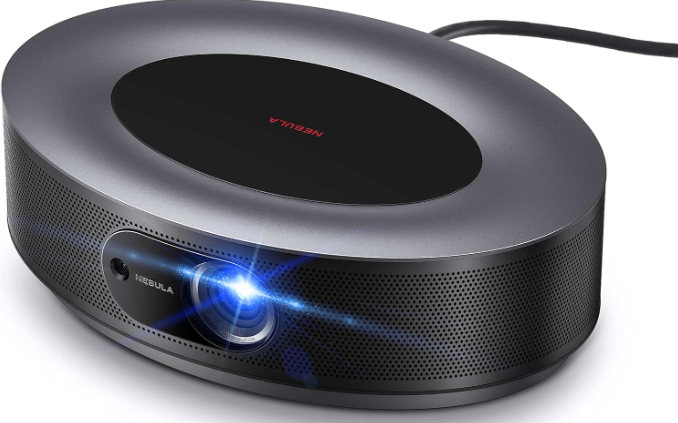
The Nebula Cosmos Max Projector is a premium 4K-capable home entertainment device designed to deliver a cinematic experience in small to medium-sized rooms. Powered by Anker Innovations, this projector blends advanced DLP technology with a powerful LED light source to output up to 1500 ANSI lumens. Its unique selling points include a “Faux-4K” resolution achieved through pixel-shifting technology, built-in Android TV 9.0 for direct streaming, and an integrated autofocus system that ensures sharp images without manual adjustment.
Targeted at home theater enthusiasts, gamers, and multimedia consumers seeking an all-in-one projector solution, the Cosmos Max excels in streaming popular apps, gaming consoles, and content playback via HDMI and USB. The inclusion of Dolby Digital Plus quad speakers offers immersive sound without the need for external audio devices.
Available for approximately $1,700 to $1,800 at launch, the Nebula Cosmos Max Projector offers a competitive price point for a 4K-capable smart projector with integrated streaming and advanced image processing features. Despite being discontinued in some markets, it remains popular for buyers seeking a compact, feature-rich home cinema setup.
What’s Included

Specifications of the Nebula Cosmos Max Projector
- Power supply: 19V 9.47A
- Power consumption: < 180W
- Standby power consumption: < 0.5W
- Display technology: UHD 3840 × 2160p DLP
- Light source: RGB LED
- Projection image size: 30-150 inches
- Contrast ratio: 1000:1
- Throw ratio: 1.2
- Throw distance: 0.8m to 3.98m
- CPU: Quad-core ARM Cortex-A55
- OS: Android TV 9.0
- RAM: 2GB DDR
- ROM: 16GB eMMC
- Speaker drivers: 10W × 4
- Wi-Fi: IEEE802.11a/b/g/n/ac Dual Frequency 2.4G/5G
- Bluetooth version: V4.2
- USB file system: FAT32 / NTFS / exFAT
- Recommended ambient: 41°F to 95°F / 5°C to 35°C
- Relative humidity: 15% ~ 85% (non-condensing)
- Storage temperature and humidity: < 149°F / 65°C, < 90% humidity Dimensions (H*D): 350 × 250 × 100 mm / 13.8 × 9.8 × 3.9 inch Weight: 3.3 kg / 118.2 oz
Safety Instructions
Read all instructions before you use this device. Do not make any changes or create settings that are not described in this manual. If physical injury, loss of data, or damage is caused by failure to follow instructions, the warranty does not apply.
Setup
- To reduce the risk of fire and/or electric shock, do not expose the device to rain or moisture. Objects filled with liquids, such as vases, should not be placed on this device.
- Do not place this device on soft surfaces such as tablecloths or carpets; otherwise, the device could be a fire hazard.
- Do not place this device in areas susceptible to excessive dust and dirt or near any appliance generating a strong magnetic field.
- To prevent overheating, do not block or clog the ventilation openings.
- Never place this device in a confined space. Always leave enough space around this device for ventilation.
- Protect this device from overexposure to direct sunlight, heat, large temperature fluctuation,s and moisture. Avoid extreme temperatures. The suitable operations and storage temperature for this device and its accessories is 0°F to 95°F/ 0°C to 35°C.
- When this device is running for a long period of time, the surface may become hot. Shut it down immediately and unplug the charger. Resume operation after this device has cooled down.
- Always handle this device with care. Avoid touching the lens. Do not allow children to handle the device without supervision.
- Never place heavy or sharp objects on this device.
- To avoid electric shock, do not disassemble.
- Use attachments or accessories specified by the manufacturer only.
- Avoid extreme vibrations as they may damage the internal components.
- Possibly hazardous optical radiation emitted from this product; do not stare at the operating lamp. Maybe harmful to the eyes.
Power Supply
- Use only the provided power adapter.
- Power off the device before removing the power supply from the socket.
- Protect the power cord from being walked on or pinched, particularly at plugs, convenience receptacles, and the point where they exit from this device.
- Unplug this device if there are lightning storms or when unused for a long period of time.
- Before you make or change any connections, ensure that all devices are disconnected from the power outlet.
- Never touch the power cable or the power connector with wet hands.
Hearing Safety
- To prevent hearing damage, do not listen for extended periods at high volume. Set the volume to a safe level.
Charging
- The charger type is an HKA18019095-6C with output voltage/current of DC 19V/9.47A. The charger should be installed near this product and should be easily accessible.
- This charger is for indoor use only.
- When charging, place this device in an environment that has a normal room temperature (ranges from 5°C to 25°C/ 41°F to 77°F recommended) and good ventilation.
- Due to the enclosure material used, this device must only be connected to a USB interface of version 2.0 or higher.
Cleaning
- Use a soft, lint-free cloth. Never use liquid, gaseous, or easily flammable cleansers to clean.
- Do not use any liquid cleaning agents to clean the lens to avoid damaging the coating film on the lens.
- Use lens cleaning paper to clean the lens.
Repairs
- Do not make any repairs to this device yourself. Only have your device repaired by an authorized service center.
- Improper maintenance can result in injuries or damage to this device.
- Refer all servicing to qualified service personnel.
Caution
- Possibly hazardous optical radiation emitted from this product;, do not stare at the operating lamp. Maybe harmful to the eyes.
Overview
- Camera for Autofocus
- Lens
- Speaker
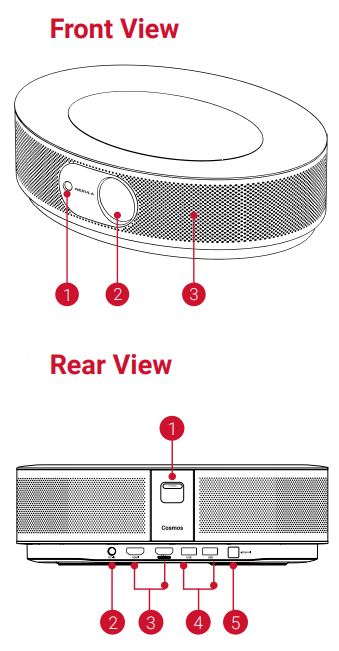
- Power Button
- Press to power on
- Press and hold to power off
- DC Input
- HDMI Input Port
- Connect to a playback device
- USB-A Port
- Connect to a USB flash drive
- Optical Audio Port
- Connect to an audio device using an optical cable
Top View
- Tripod socket
Bottom View
- Adjust Focus
- Navigation
- Back
- Power On / Off
- Press to activate Google Assistant
- Confirm the selected content
- Home
- System Settings
- Volume Up / Down
Remote Control: Nebula RC
Model: D0413
LED Indicator

Nebula App
To easily control this device, we recommend downloading When using for the first time, When using for the first time.
Download the Nebula Connect app from the App Store (iOS devices) or Google Play (Android devices).
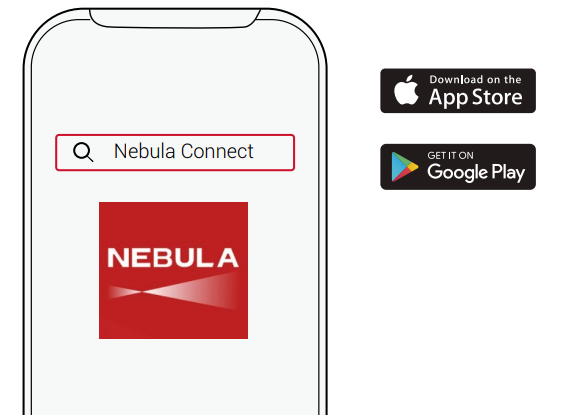
- Enable Bluetooth on your smartphone and select [Nebula Cosmos Max ] as the device to be connected.
- Open the Nebula Connect app and follow the on-screen instructions to complete the connection setup.
Powering Nebula Cosmos Max with Android TV™
Follow the on-screen instructions to complete the setup process.
Option 1. Quick setup
Android phone users can follow the instructions to quickly set up Android TV with their Android phone.
Option 2. Set up Nebula Cosmos Max
For iOS users, follow the instructions to complete the process.
- Skip the quick setup process.
- Connect Nebula Cosmos Max to the network.
- Sign in with your Google account.
Your Nebula Cosmos Max will be powered by Android TV after finishing the setup process.
Using Nebula Cosmos Max
Play from HDMI Playback Devices
Nebula Cosmos Max can be connected to various HDMI playback devices such as a TV box, TV stick, DVD player, set-top box (STB), gaming consoles, or other devices. Two HDMI devices can be connected to the projector simultaneously to stream video at 4K@60 fps.
To play from HDMI playback devices:
Connect Nebula Cosmos Max to an HDMI playback device with an HDMI cable (not included).
It will automatically start HDMI playback once connected to an HDMI playback device.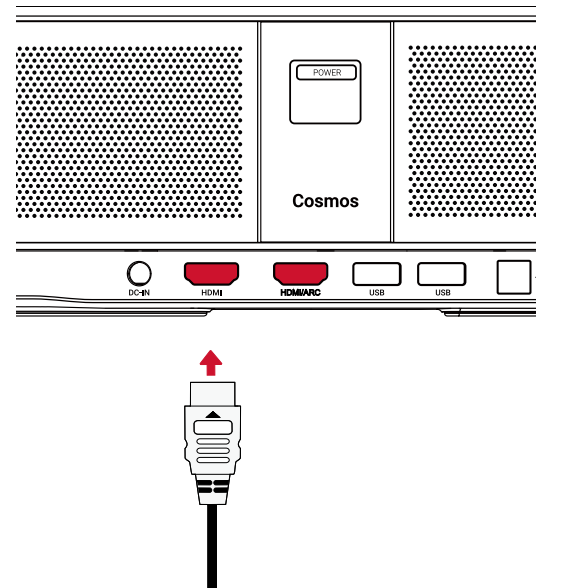
Enjoy Google Features
Nebula Cosmos Max also supports Google features. Once connected to a wireless network, you can access online services, enjoy movies, music,c and pictures, and browse online. Aside from the pre-installed apps, you can also install any other apps from Google Play, and talk to the Google Assistant to do certain tasks.
To talk to the Google Assistant:
- Make sure you’ve followed the steps in the section “Connect Bluetooth Accessories” to connect your remote control to Nebula Cosmos Max . Once connected, the LED indicator on the remote control turns solid red.
- Press the remote control to talk to the Google Assistant.
Troubleshooting Your Nebula Cosmos Max Projector
- Problem: The Projector won’t power on
Solution: Check the power cable connection and ensure the outlet is working. Try a different power source. If still no power, contact support. - Problem: Blurry image or focus issues
Solution: Use the powered autofocus feature by pressing the focus button. If autofocus fails, manually adjust the projector placement or clean the lens. - Problem: No signal or HDMI input is not detected
Solution: Confirm the HDMI cable is securely connected, switch HDMI ports, and ensure the source device resolution is compatible (supports up to 4K60). Restart devices if needed. - Problem: Audio not playing
Solution: Check volume settings, confirm audio output is set to internal speakers, or connect external audio via optical out. Verify app audio settings when streaming. - Error Codes: Refer to the user manual for specific error code meanings. Common resets or power cycles usually resolve minor glitches.
- Preventive Measures: Keep the projector well-ventilated, clean the lens regularly, avoid moving while powered on, and keep the firmware updated via Android TV system updates.
- Warranty & Support: Comes with a 1-year limited warranty. For assistance, contact Anker/Nebula customer support via the official website or authorized service centers.
Fail to turn on the projector with the remote control?
- Press POWER on the projector to turn it on.
- When powered off, you cannot use the remote control to turn it on.
The remote control doesn’t work?
- Make sure the battery is already installed in the remote control.
- Replace the batteries.
Blurred image?
- Slightly move the projector to engage autofocus.
- Press
 to manually adjust the focus.
Cannot connect to a Wi-Fi network?
- Refresh the list of available networks and retry.
- Reboot the wireless router or the device and retry.
How do I update the firmware?
- When a new version is detected, you will be asked to reboot and update.
Pros & Cons of the Nebula Cosmos Max Projector
- Pros:
- Sharp “Faux-4K” image utilizing pixel shifting for excellent resolution at a competitive price
- Bright 1500 ANSI lumens LED light source suitable for small to medium rooms
- Built-in Android TV 9.0 enables easy access to streaming apps without external devices
- Integrated Dolby Digital Plus quad speakers provide impressive audio quality without additional speakers
- Autofocus and keystone correction simplify setup and provide clear images
- Compact design with good connectivity options (HDMI, USB, Wi-Fi, Bluetooth)
- Cons:
- Contrast ratio (1,000:1) is average; blacks appear more grayish, limiting deep shadow detail.
- Discontinued status may limit availability and future software support
- No lens shift or zoom adjustment beyond the fixed throw ratio
- Input lag (~96.5ms at 1080p60) is moderate, less ideal for competitive gaming
- Pixel shifting technology means the image is not true native 4K
- Price is higher than some entry-level 1080p projectors, but justified by features
Customer Reviews of the Nebula Cosmos Max Projector
Users prefer the Nebulaa Cosmos Max Projector for its vivid colors, ease of setup, and the convenience of Android TV integration. Positive reviews highlight the sharp image quality achieved through pixel shifting and the surprisingly robust built-in speakers that eliminate the need for external sound systems. The autofocus feature is frequently mentioned as a significant time saver.
Common complaints include the projector’s moderate contrast ratio, resulting in less deep blacks, and the lack of zoom flexibility,y requiring precise placement. Some users report occasional software bugs in the Android TV platform, but these are generally resolved through updates. On average, the projector receives ratings around 4 out of 5 stars, with many recommending it for home cinema users who value smart features and 4K streaming capabilities.
Overall, the Cosmos Max is often recommended for those seeking a balance between image quality, smart functionality, and audio performance within a compact projector design.
Faqs
How do I properly set up the nebula Cosmos Max Projector for optimal 4K image quality?
What should I do if the nebula Cosmos Max Projector is not connecting to Wi-Fi or streaming apps?
Can I use the nebula Cosmos Max Projector with gaming consoles like PS5 or streaming devices like Apple TV?
What are the main features of the nebula Cosmos Max Projector that enhance home entertainment?
How can I improve the picture contrast and brightness on my nebula Cosmos Max Projector?
What maintenance steps are recommended to extend the lifespan of the nebula Cosmos Max Projector?
Why does the image on my nebula Cosmos Max Projector appear blurry or distorted, and how do I fix it?
Is the nebula Cosmos Max Projector compatible with external sound systems or headphones?
More nebula manuals
Leave a Comment