
Setup: Nebula Cosmos 4K SE Video Projector User Manual
Content
Nebula Cosmos 4K SE Video Projector

Introduction
The Nebula Cosmos 4K SE Video Projector is a cutting-edge portable projector designed to deliver a premium home theater experience with crystal-clear 4K resolution and vibrant Dolby Vision imagery. Combining advanced hybrid laser and LED light sources, it boasts a bright 1800 ANSI lumens output, making it suitable for various ambient lighting conditions. Its compact design and lightweight build of just 9.9 lbs make it highly portable, perfect for users who want cinematic quality on the go or in multiple rooms.
This projector is ideal for home entertainment enthusiasts, gamers seeking low-latency performance, and professionals aiming for high-quality presentations without bulky equipment. With smart functionality powered by Google TV OS, users enjoy seamless streaming access to over 10,000 apps, including official 4K Netflix support, directly from the device without additional dongles.
Featuring a fixed lens with a 1.2:1 throw ratio and fast autofocus, the Cosmos 4K SE can project large images up to 200 inches, making it perfect for immersive movie nights, gaming sessions, or casual presentations. The estimated price range is around $1,040 to $1,400, positioning it as a premium yet accessible option within the portable 4K projector market. Available since August 2024, it’s supported by a 1-year limited warranty and global customer service options.
What’s Included
- NEBULA Cosmos 4K SE
- AC Cable
The number of cables provided and the type of plug may vary by region. - Remote Control
- AAA Batteries
- Quick Start Guide

Technical Specifications and Key Features of the Nebula Cosmos 4K SE Video Projector
- Display Technology: 0.47" DLP with 4K UHD resolution (3840 x 2160 pixels), native 1080p
- Brightness: 1800 ANSI lumens with Hybrid LED + Laser Phosphor light source
- Color Accuracy: ΔE < 1, 123.3% Rec. 709 color gamut, Dolby Vision support
- Projection Size: 59.66" to 200.10" diagonal screen, 1.2:1 throw ratio
- Lens: Fixed focal length with powered autofocus, no lens shift or zoom
- Keystone Correction: Auto vertical ±40° and auto horizontal ±30°
- Audio: Dual 15W speakers with Dolby Audio support
- Connectivity: HDMI 2.1 (x2), USB-A, Aux input, Bluetooth speaker mode, Wi-Fi with AirPlay and Miracast
- Operating System: Google TV OS with access to 10,000+ apps, including official Netflix 4K
- Performance: Quad-Core ARM Cortex-A55 CPU, ARM Mali-G52 MC1 GPU, 2 GB RAM, 16 GB storage
- Dimensions & Weight: 10.4” x 8.7” x 6.5” (263×165×265 mm), 9.9 lbs (4.5 kg)
- Light Source Life: Up to 30,000 hours
- Additional Features: MEMC for smooth motion, NebulaMaster™ image engine, Dolby Vision HDR, Bluetooth speaker mode
Compared to similar portable 4K projectors, the Cosmos 4K SE offers one of the brightest outputs and superior color precision, enhanced by Dolby Vision and advanced image processing technologies, distinguishing it as a leader in its class.
Projector
Front View
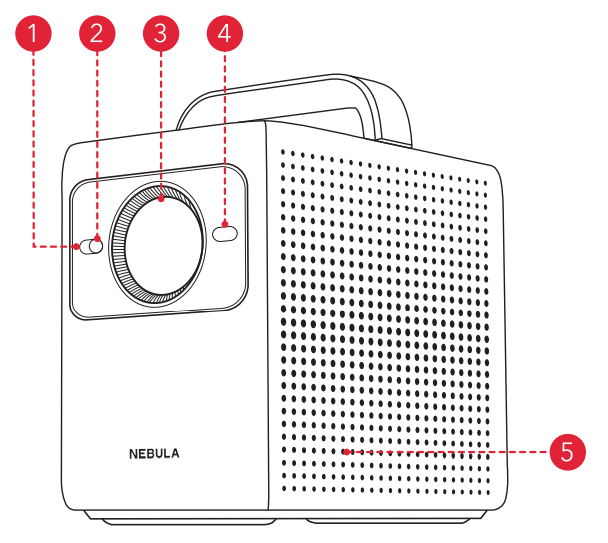
- Illuminance Sensor
- Image Sensor
- Lens
- ToF (Time of Flight)
- Speaker
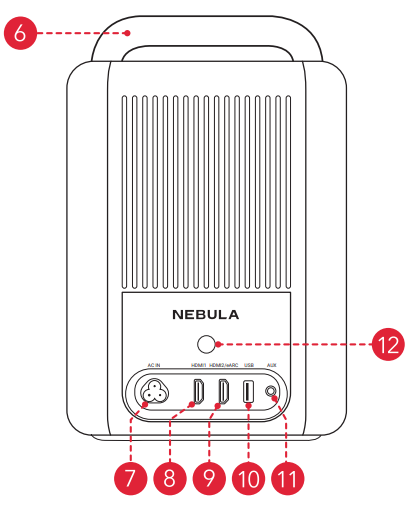
Rear View - Handle
- AC IN
- Connect to the power supply.
- HDMI 1
- Connect to a playback device with HDMI output.
- HDMI 2 / eARC
- Connect to a playback device with HDMI output and support the connection of external devices, such as sound systems, for audio return capabilities.
- USB-A
- Connect to a USB storage device.
- AUX
- Connect to headphones or an external speaker.
- Infrared Receiver
- Receive infrared control signals from the remote control.
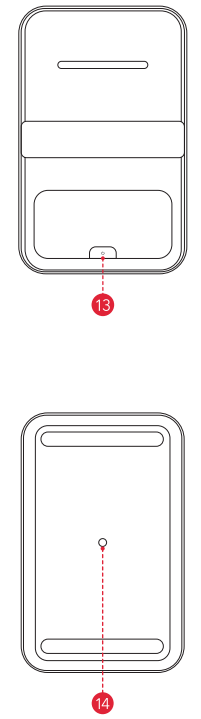
Top and Bottom View
- Receive infrared control signals from the remote control.
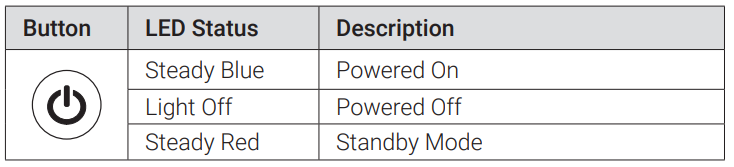
- Power Button
- 1/4" Tripod Socket
- The 1/4" Tripod Socket can be used to connect a tripod, stand, ceiling mount, etc.
Remote Control
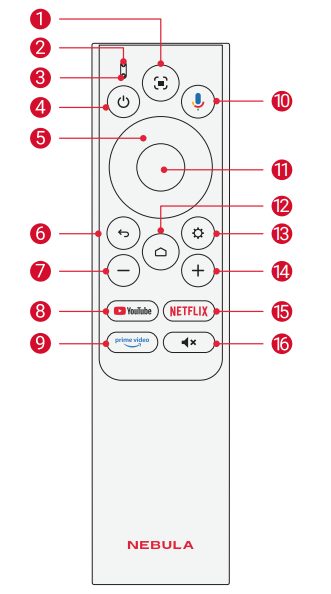
- Auto image adjustment
- Status indicator
- Microphone
- Power on / off / switch to standby mode
- Navigation
- Return button
- Volume down
- Open YouTube
- Open Prime Video
- Activate the Google Assistant
- Confirm a selection/pause/resume
- Access the home menu
- Access more options
- Volume up
- Open Netflix
- Press to mute or unmute the sound
LED Light Guide
Nebula Connect App
To easily control the projector, we recommend you download the Nebula Connect app.
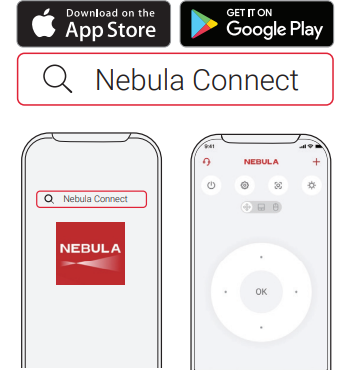
- Download the Nebula Connect app from the App Store (iOS devices) or Google Play (Android devices).
- Enable Bluetooth on your smartphone.
- Open the Nebula Connect app and select [NEBULA Cosmos 4K SE] as the device to be connected.
- Follow the on-screen instructions to complete the connection setup.
Using Your Projector
- Select an App
Once connected to a wireless network, you can access online services, enjoy movies, music, and pictures, and browse online. You can download more apps from Google Play.- Press the home page icon to access the home page.
- Select [Apps] > [Search for apps and games].
- Voice Assistant
After pairing your remote control with the projector via Bluetooth, press the Google Assistant button on the remote. You can speak to the Google Assistant and request your commands. - Wireless Casting
You can wirelessly cast movies, games, music, and the entire screen from your iOS, macOS, Android, or Windows device to NEBULA Cosmos 4K SE.
Cast In-App Content
You can cast content from apps that support Chromecast, such as YouTube and Prime Video.- Connect your device and projector to the same wireless network.
- Open the streaming app on your device.
- Play a video clip and tap the cast icon on the video screen.
- Select NEBULA Cosmos 4K SE to connect. The projector will mirror the video screen on your device.
- Cast Device Screen
You can cast the entire screen from your device to the projector. Before that, please ensure NEBULA Cosmos 4K SE and your device are connected to the same wireless network.
For iOS devices:
- Install the Nebula Cast app on your projector.
- Open the Nebula Cast app and follow the on-screen instructions to complete the process.
- Access the Control Center of your device and click the Screen Mirror icon.
- Click on "NEBULA Cosmos 4K SE" in the device list.
For Android devices:
- Enter the Google Home APP and select "NEBULA Cosmos 4K SE".
- Tap the [Cast my screen] icon on the page.
Troubleshooting Common Issues with the Nebula Cosmos 4K SE Video Projector
- Cannot Charge
- Use the included adapter and charging cable to charge the projector.
- Cannot connect to a Wi-Fi Network
- Place your projector within 16 ft / 5 m of the router and reconnect.
- Set your router to 2.4 GHz or 5 GHz and retry.
- Restart your projector and router and retry.
- Try a different Wi-Fi network or your phone's hotspot.
- Blurry Image
- Ensure that the Camera/TOF on the front panel is not blocked or dirty.
- Slightly move the projector or press the auto focus icon on the remote to start auto focus.
- To manually adjust the focus, go to [Settings] > [Projector] > [Focus Settings] > [Manual Focus Correction], and use left and right on the remote.
- Adjust the projection angle and direction, as well as the height of the projector, if necessary.
- For auto-focus to function properly, the distance between the projector and the screen should be between 1.5 to 4 meters.
- Auto Keystone Correction Failed
- Ensure that the Camera/TOF on the front panel is not blocked or dirty.
- The best automatic keystone correction distance is 1.0-4.0m, horizontal ±30°@3m/ ±10°@4m.
- Auto Screen Fit Failed
- Ensure the screen is rectangular with black borders.
- Check if the screen color contrasts sharply with the borders; avoid using screens that are close to black in color.
- Ensure the distance between the screen and the projector is within 4 m.
- Ensure the screen border width is 5mm.
- Ensure the projected image covers the entire screen.
- Ensure the screen size is at least 10% larger than the projection area.
- Ensure the central grid is within the screen and not obstructed.
- If auto screen fit failed, you can perform manual keystone correction via [Settings] > [Projector] > [Image Correction] > [Perform Manual Keystone Correction].
- Eye Guard Failed
- Ensure that the Camera/TOF on the front panel is not blocked or dirty.
- Eye Guard feature works best at at a distance of 10 cm to 4 m.
- Go to [Settings] > [Projector] > [Advanced Settings] > [Eye Guard] and check if the feature has been enabled.
- Wall Color Adaptation Failed
- Ensure that the Camera/TOF on the front panel is not blocked or dirty.
- Ensure the image is projected onto a light-colored wall (color temperature between 3500K and 15000K, color coordinates within 0.45).
- No HDMI Signal
- Use a different HDMI cable.
- Connect your projector to another HDMI playback device.
- Connect the HDMI playback device to your TV via an HDMI cable to check if the device or cable malfunctions.
- Adjust the HDMI playback device's output resolution/frequency to be the same as the projector's.
- No Sound Output from External Speakers
- Check if the projector is set to mute mode.
- Check if the projector's "HDMI2/eARC" port or Bluetooth is connected to an external audio device.
- How to Control Netflix with Mouse Mode
- Install Nebula Connect on your phone and connect with NEBULA Cosmos 4K SE. Select Mouse mode. Use one finger to move and click, or two fingers to scroll.
- How to Play Videos without Wi-Fi
- Download videos to a USB drive in FAT32 format. For the following steps, see Play Videl from HDMI / USB Devices.
Nebulala Cosmos 4K SE Video Projector comes with a 1-year limited warranty covering manufacturing defects. For additional support, contact Nebula customer service via their official website or authorized dealer support channels.
Pros & Cons of the Nebula Cosmos 4K SE Video Projector
Pros:
- Outstanding image quality: True 4K UHD with Dolby Vision and accurate color calibration (ΔE <1) delivers stunning visuals.
- Bright and versatile: 1800 ANSI lumens brightness suitable for various lighting conditions and large screen sizes up to 200 inches.
- Smart OS integration: Google TV OS enables direct access to streaming apps, including official 4K Netflix support, without additional devices.
- Portability: Compact design with a soft silicone handle supports easy room-to-room use.
- Hybrid light source: Laser + LED ensures long lifespan (up to 30,000 hours) and stable performance.
Cons:
- Fixed lens: No zoom or lens shift limits setup flexibility compared to some competitors.
- A moderate native contrast ratio: 400:1 may impact black levels in very dark environments.
- Audio limited to built-in speakers: While Dolby Audio is enhanced, external speakers may be needed for audiophiles.
- Price point: Slightly higher MSRP (~$1,300) than some portable projectors, but justified by premium features.
- Remote range: The Bluetooth remote has weaker performance when used behind the projector.
Customer Reviews and User Feedback on the Nebula Cosmos 4K SE Video Projector
Users praise the Nebula Cosmos 4K SE Video Projector for its impressive image sharpness, vivid colors, and convenient portability. The 4K Dolby Vision support and smart Google TV integration are frequently highlighted as standout features, providing excellent value for home theater enthusiasts.
Common complaints include the fixed lens limitation and occasional autofocus issues in very bright rooms. Some users note that the built-in speakers, while clear, may not fully satisfy high-end audio expectations.
Overall, the projector rates highly with average star ratings around 4.5 out of 5, with many recommending it for anyone seeking a balance of portability, image quality, and smart functionality without the complexity of external devices.
Faqs
How do I set up the nebula Cosmos 4K SE Video Projector for the first time?
What should I do if the nebula Cosmos 4K SE Video Projector image is blurry or out of focus?
Can the nebula Cosmos 4K SE Video Projector connect to smartphones and tablets for screen mirroring?
What are the key features of the nebula Cosmos 4K SE Video Projector that enhance image quality?
How do I optimize the nebula Cosmos 4K SE Video Projector for low ambient light conditions?
What troubleshooting steps can I take if the nebula Cosmos 4K SE Video Projector won’t power on?
How often should I clean and maintain the nebula Cosmos 4K SE Video Projector for optimal performance?
Is the nebula Cosmos 4K SE Video Projector suitable for gaming and what are its latency features?
More nebula manuals
Leave a Comment