
Netgear AC2100 Smart WiFi Router User Manual
Content
Netgear AC2100 Smart WiFi Router Review: A Complete Product Manual
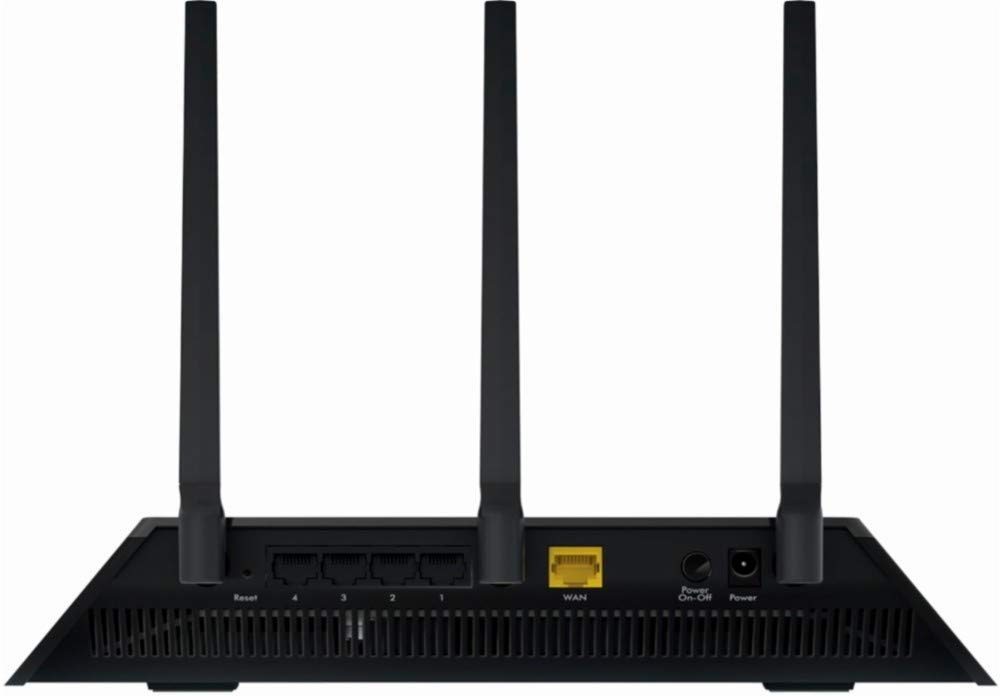
The netgear AC2100 Smart WiFi Router is a dual-band Nighthawk-class router designed for homes that need stable wireless coverage, fast gigabit networking, and straightforward management. With AC2100-rated speeds of up to 800 Mbps on the 2.4 GHz band and 1300 Mbps on the 5 GHz band, it is built for everyday streaming, online gaming, video calls, and large-file transfers in medium-sized homes. Its Beamforming+ support, simultaneous dual-band operation, and Gigabit Ethernet ports make it a practical choice for users who want stronger signal reliability than entry-level routers can usually provide.
This router is especially appealing to families, remote workers, and users with multiple connected devices who need dependable performance without moving to a more expensive WiFi 6 model. It also suits households that still rely on wired connections for gaming consoles, desktop PCs, or smart home hubs, thanks to its four LAN ports and one WAN port. A USB 3.0 port adds convenient storage or printer sharing options.
The netgear AC2100 Smart WiFi Router is commonly positioned in the mid-range category, with typical pricing often around the low-to-mid $100 range depending on retailer, region, and stock availability. It remains available through major online electronics sellers and select retail channels, though availability can vary because this is an older but still relevant AC-class router.
Netgear AC2100 Smart WiFi Router Specifications and Key Features
- WiFi standard: IEEE 802.11ac dual-band Gigabit router
- Wireless speeds: AC2100 class with up to 800 Mbps on 2.4 GHz and 1300 Mbps on 5 GHz
- Band support: Simultaneous dual-band 2.4 GHz and 5 GHz
- Antennas: 3 external antennas for broader coverage and better signal shaping
- Ethernet ports: 1 WAN port and 4 Gigabit LAN ports
- USB: 1 USB 3.0 port for sharing storage or peripherals
- WiFi technology: Beamforming+ for improved range, stability, and focused signal delivery
- Security: WPA2 wireless security, guest network support, and standard router firewall features
- Physical size: Approximately 11.22 x 7.26 x 1.97 inches
- Weight: About 1.65 lb
In real-world use, this router offers dependable performance for HD streaming, cloud backups, and multiple-device browsing, but it does not match the newer efficiency, higher client capacity, or advanced features of WiFi 6 routers. Compared with similar AC routers, the netgear AC2100 Smart WiFi Router stands out for its strong Gigabit connectivity, good coverage tools, and USB 3.0 sharing, while newer mesh systems may offer easier whole-home expansion.
Pros and Cons of the Netgear AC2100 Smart WiFi Router
Pros
- Strong dual-band performance: The AC2100 speed class handles streaming, browsing, and gaming well in typical home environments.
- Gigabit wired connections: Four LAN ports are useful for consoles, smart TVs, NAS devices, and desktops.
- Beamforming+ support: Helps improve signal direction and can strengthen coverage in harder-to-reach areas.
- USB 3.0 sharing: Convenient for connecting external drives for basic network storage use.
- Good value for AC-class buyers: A practical option for users who do not need a premium WiFi 6 router.
Cons
- Not a WiFi 6 router: Older wireless technology means lower future-proofing and less efficiency with many devices.
- No mesh-native experience: It is not ideal for users who want seamless whole-home mesh expansion.
- Security is older-generation: WPA2 is reliable, but it lacks newer WPA3 support found on modern alternatives.
- Premium alternatives offer more: Newer routers can provide better speed consistency, smarter traffic handling, and stronger multi-device performance.
Overall, the netgear AC2100 Smart WiFi Router offers solid value if you want dependable AC performance and wired connectivity at a reasonable price. If your home has many WiFi 6 devices or you need advanced parental controls and mesh features, a newer router may be the better investment.
Customer Reviews for Netgear AC2100 Smart WiFi Router: Common Praise and Complaints
Customer feedback for the netgear AC2100 Smart WiFi Router is generally positive, especially from buyers who value easy setup, stable coverage, and strong wired performance. Many users give it ratings around 4 out of 5 stars for everyday home use, noting that it performs well for streaming and gaming in medium-sized spaces.
- Praise: “Setup was quick, and the connection has stayed stable across multiple devices.”
- Praise: “Great for wired gaming and fast file transfers through the Gigabit ports.”
- Complaint: “It works well, but I wish it had newer WiFi 6 features.”
- Complaint: “Coverage is good, but very large homes may need a mesh system or extender.”
Frequent compliments focus on reliability, performance consistency, and value for money. Common concerns include the lack of WPA3, absence of mesh integration, and the fact that newer routers can deliver better long-term performance. Buyers who want a straightforward AC router for a moderate-size home will usually find it a sensible purchase, while users looking for the latest wireless standard may want to consider newer Nighthawk or mesh alternatives.
Frequently Asked Questions About the Netgear AC2100 Smart WiFi Router
Is the Netgear AC2100 Smart WiFi Router good for gaming?
Yes, it is a solid choice for casual to moderate gaming, especially when devices are connected through Gigabit Ethernet for lower latency and more stable speeds.
How many devices can it handle?
It is suitable for typical family use with multiple phones, laptops, smart TVs, and smart home devices, though heavy multi-user households may prefer a newer WiFi 6 model.
Is it worth buying in 2026?
It is worth considering if you want an affordable, dependable AC router with good wired features. If you want the latest wireless technology, a newer router may be a better long-term choice.
Faqs
How do I set up the netgear AC2100 Smart WiFi Router for the first time?
Why is my netgear AC2100 Smart WiFi Router not connecting to the internet after setup?
What devices are compatible with the netgear AC2100 Smart WiFi Router?
How can I improve WiFi speed on the netgear AC2100 Smart WiFi Router?
What should I do if the netgear AC2100 Smart WiFi Router keeps dropping connections?
How do I secure the netgear AC2100 Smart WiFi Router for home use?
Can the netgear AC2100 Smart WiFi Router handle 4K streaming and online gaming?
How often should I update and maintain the netgear AC2100 Smart WiFi Router?
More netgear manuals
Leave a Comment