
Netgear Nighthawk 5G Mobile Hotspot User Manual
Content
Netgear Nighthawk 5G Mobile Hotspot Review and Product Manual
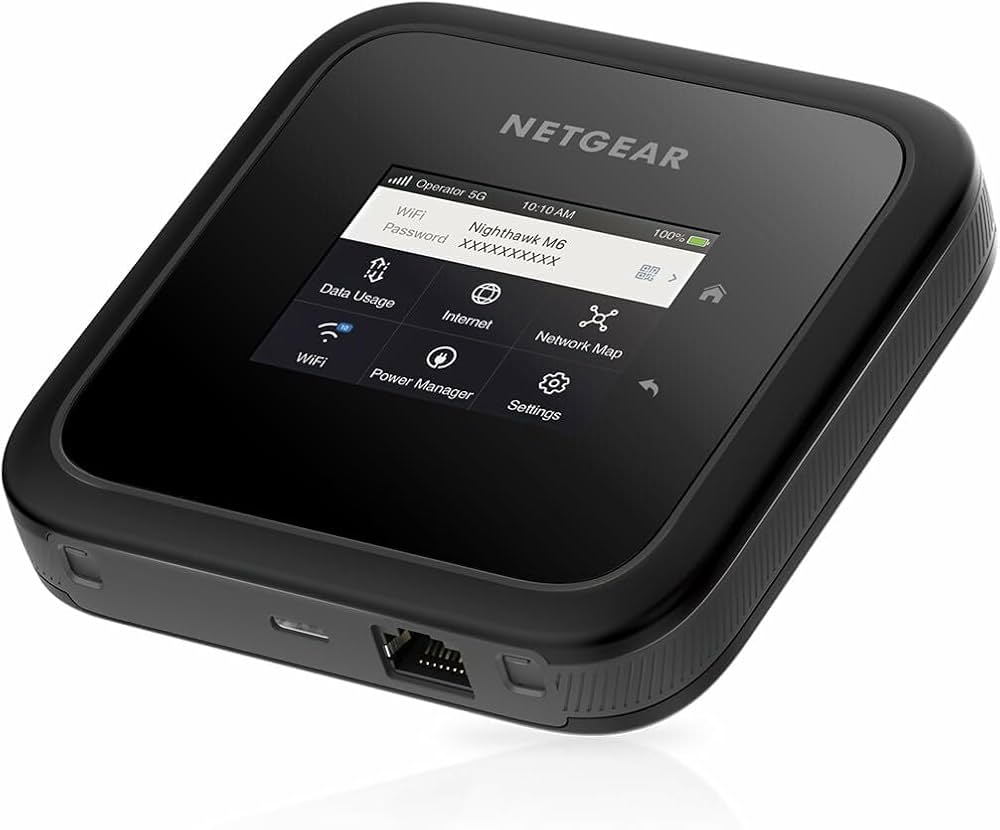
The Netgear Nighthawk 5G Mobile Hotspot is a premium portable Wi-Fi solution built for users who need fast, reliable internet on the move. Designed for travelers, remote workers, small teams, and digital nomads, it delivers 5G connectivity in a pocket-friendly form factor while supporting multiple devices at once. The biggest appeal is simple: it turns a cellular data connection into a private Wi-Fi network you can carry anywhere, making it ideal for airport lounges, hotel rooms, RV trips, field work, and temporary workspaces.
As a high-end mobile hotspot, the Netgear Nighthawk 5G Mobile Hotspot typically sits in the premium price range, with current market pricing for the latest Nighthawk 5G models commonly around $499.99. Availability is generally strong through Netgear’s direct store and select retailers, though exact stock can vary by region and carrier compatibility. Depending on the version, users may also find unlocked models, travel-focused editions, and variants with eSIM support. The device stands out for Wi-Fi 6 or newer wireless performance, multi-device sharing, long battery life, and support for demanding use cases like video conferencing, cloud backups, and streaming on the go.
For buyers comparing portable internet options, this hotspot is positioned above basic LTE hotspots and below full mobile router setups in complexity. It is especially attractive for users who want a compact, premium hotspot with strong wireless performance, flexible connectivity, and a straightforward setup experience. If dependable mobile broadband is essential, the Netgear Nighthawk 5G Mobile Hotspot is one of the most recognizable names in the category.
Pros & Cons of the Netgear Nighthawk 5G Mobile Hotspot
Pros
- Fast 5G performance: Ideal for large file uploads, HD video calls, and streaming while traveling.
- Portable and easy to use: Small enough for a backpack or carry-on, with quick setup for work trips and mobile teams.
- Multiple-device support: Great for connecting laptops, phones, tablets, and smart devices at the same time.
- Premium wireless features: Many versions include Wi-Fi 6, Gigabit Ethernet, USB-C, and removable batteries for added flexibility.
- Strong value for frequent travelers: The higher upfront cost can be worthwhile if you rely on mobile internet every day.
Cons
- Expensive: At roughly $499.99 for current models, it costs much more than entry-level 4G LTE hotspots.
- Carrier and band compatibility matter: Buyers must verify network support before purchase to avoid performance issues.
- Battery life varies by usage: Heavy 5G use, multiple devices, and streaming can drain the battery faster.
- Alternatives may offer better value: Some users may prefer less expensive mobile hotspots or a home 5G router if portability is not essential.
Overall, the Netgear Nighthawk 5G Mobile Hotspot offers strong performance and polished hardware, but its premium pricing means it delivers the best value for users who truly need portable 5G internet rather than occasional backup connectivity.
Customer Reviews and Real-World Feedback
Customer feedback for the Netgear Nighthawk 5G Mobile Hotspot is generally positive, with many buyers praising its speed, simple setup, and ability to keep multiple devices online during travel. Common ratings for the category often land around 4.5 to 4.6 out of 5 stars, especially among users who value dependable hotspot performance for work and travel.
Typical praise: “Fast enough for Zoom calls and file uploads from the road,” and “easy to connect my laptop and phone within minutes.”
Common complaints: Users often mention the premium price, battery drain under heavy use, and the need to confirm carrier compatibility before buying. Some also note that Wi-Fi performance can be affected by distance, walls, or crowded wireless environments.
For most buyers, the recommendation is clear: choose the Netgear Nighthawk 5G Mobile Hotspot if you want a high-quality portable internet device for frequent travel, remote work, or backup connectivity. If your needs are light and budget-focused, a lower-cost LTE hotspot may be more practical. For users who need consistent mobile broadband performance, this model remains a strong purchase.
Faqs
How do I set up the netgear Nighthawk 5G Mobile Hotspot for the first time?
Why is my netgear Nighthawk 5G Mobile Hotspot not connecting to the internet?
What devices can connect to a netgear Nighthawk 5G Mobile Hotspot?
How can I improve the speed of my netgear Nighthawk 5G Mobile Hotspot?
How do I fix a netgear Nighthawk 5G Mobile Hotspot that keeps dropping Wi‑Fi connections?
Can I use the netgear Nighthawk 5G Mobile Hotspot while traveling internationally?
How do I update the firmware on a netgear Nighthawk 5G Mobile Hotspot?
What maintenance steps help keep a netgear Nighthawk 5G Mobile Hotspot working reliably?
More netgear manuals
Leave a Comment