
How to Use: Netgear ADSL Modem with Ethernet or USB Connection DM602 User Manual
Content
Netgear ADSL Modem with Ethernet or USB Connection DM602: Product Overview
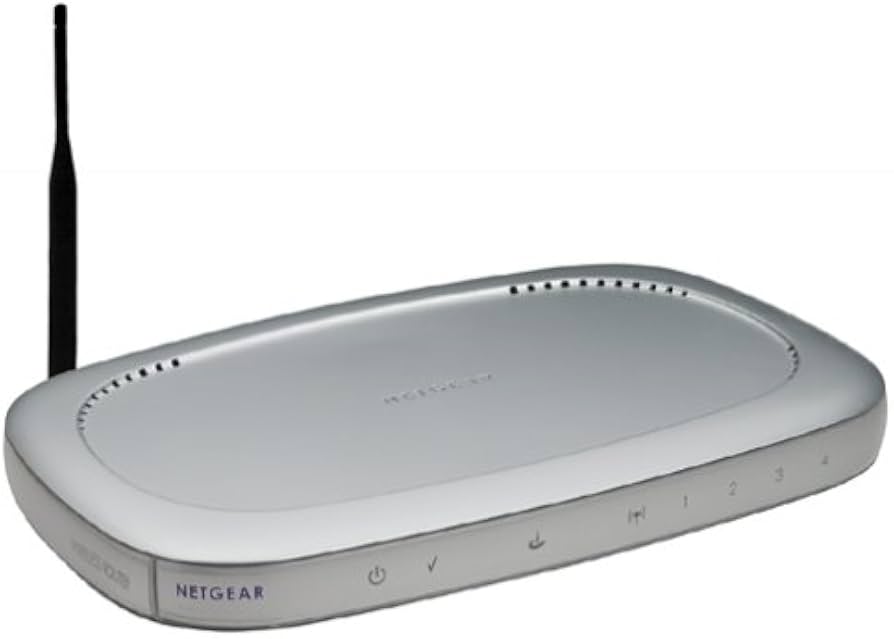
The Netgear ADSL Modem with Ethernet or USB Connection DM602 is a classic broadband access device designed for users who need a simple, dependable way to connect a home or small office network to an ADSL line. It combines Ethernet and USB connectivity, making it flexible for older desktops, laptops, and basic router-based setups. This dual-connection approach was one of its biggest strengths, especially for households that needed a modem compatible with multiple operating systems and legacy hardware.
The DM602 is well suited for users setting up a DSL internet connection without advanced routing features. It is commonly used as a standalone modem paired with a separate router, or directly connected to a single computer. Key benefits include straightforward installation, broad compatibility, and support for standard ADSL protocols such as PPPoE and PPPoA. The device also supports bridged Ethernet encapsulation, which makes it useful in many ISP environments.
Although it is an older product, the Netgear ADSL Modem with Ethernet or USB Connection DM602 remains relevant for users maintaining legacy DSL connections. Typical availability is through used markets, refurbished sellers, and old-stock listings, with an estimated price range of about $10 to $40 depending on condition and accessories. For anyone searching for a compact, dependable ADSL modem with both Ethernet and USB options, the DM602 offers practical value at a low cost.
Technical Specifications and Key Features of the Netgear DM602
- Connection types: 10/100 Ethernet RJ-45 and USB 1.1
- WAN interface: ADSL over RJ-11
- Supported standards: T1.413, G.DMT, G.Lite, ITU Annex A
- Routing and access protocols: TCP/IP, DHCP server and relay, PPPoE, PPPoA, RFC 1483, RFC 2684 bridged Ethernet encapsulation
- Indicator LEDs: Power, ADSL, Ethernet status, USB status
- Power adapter: 18VAC, 0.6A, 11W max or localized adapter variants depending on region
- Dimensions: approximately 28 x 175 x 118 mm
- Weight: about 0.6 kg
- Operating temperature: 0 to 40°C
- Operating humidity: 10% to 90% noncondensing
In practical use, the Netgear ADSL Modem with Ethernet or USB Connection DM602 is best described as a basic, reliable modem rather than a high-performance gateway. Compared with newer DSL modems and modem-router combos, it lacks advanced Wi‑Fi, gigabit networking, and modern security features. However, for legacy ADSL service, its simple architecture can be an advantage because it is easier to configure and troubleshoot.
Setup Guide: How to Install the Netgear DM602 ADSL Modem
Start by connecting the modem to the DSL wall jack using a standard phone cable and then plug in the power adapter. If you are using a computer directly, connect either the Ethernet cable or the USB cable, but avoid using both at the same time unless your setup specifically requires it. For most users, Ethernet is the preferred option because it is more stable and simpler to manage.
Next, wait for the Power and ADSL LEDs to become steady. If the ADSL light continues flashing, the modem is still trying to sync with your provider’s line. Open your computer’s network settings and confirm that DHCP is enabled if your ISP provides automatic addressing. For PPPoE or PPPoA connections, enter the username and password supplied by your internet provider in the modem or router interface if applicable.
Safety tips are important during setup. Do not connect the modem near water, keep it in a ventilated area, and avoid using damaged cables. If the connection fails, try a different Ethernet cable, restart the modem, and check whether your phone line filter is installed correctly. For paired router setups, place the modem before the router in the signal chain: DSL line to modem, modem to router, router to devices.
Troubleshooting the Netgear ADSL Modem with Ethernet or USB Connection DM602
Common issues with the Netgear ADSL Modem with Ethernet or USB Connection DM602 usually involve line sync, cable problems, or ISP authentication errors. If the ADSL light never becomes solid, the modem may not be receiving a valid DSL signal. Check the wall jack, microfilters, and phone cable first. If the Ethernet light is off, replace the cable and confirm the computer or router network port is active.
- No Power: Verify the adapter is plugged in securely and that the outlet works.
- ADSL Light Flashing: The modem is searching for sync; inspect the DSL line and filters.
- No Internet After Sync: Recheck PPPoE or PPPoA login details from your ISP.
- USB Not Detected: Reinstall drivers and try another USB port.
- Intermittent Drops: Reduce line noise, shorten cable runs, and test with a different filter.
If you encounter a line or authentication error, reboot the modem and retry the connection after a short wait. Keep the device dust-free and well-ventilated to prevent overheating and unstable operation. NETGEAR support resources are available through the company’s product support pages, and phone support numbers may vary by region. Because this is an older model, warranty coverage is often expired on used units, so refurbished sellers and marketplace warranties are the most common support options today.
Pros and Cons of the Netgear DM602 ADSL Modem
Pros
- Dual connectivity with Ethernet and USB for flexible installation
- Simple, straightforward setup for legacy ADSL lines
- Supports common DSL protocols including PPPoE and PPPoA
- Compact design that fits easily on a desk or shelf
- Good value for users who only need a basic DSL modem
Cons
- No built-in Wi‑Fi or advanced router features
- USB 1.1 is slow by modern standards
- Limited appeal outside legacy ADSL environments
- Older hardware may be harder to source in new condition
- Not suitable for fiber, cable, or modern high-speed broadband
For value for money, the DM602 makes sense only if you need a low-cost modem for an older DSL service. Compared with newer modem-router combinations, it is far less capable, but its simplicity can reduce setup headaches in compatible environments.
Customer Reviews and User Feedback on the Netgear DM602
User feedback for the DM602 is generally positive among people who needed a dependable ADSL modem for older connections. Typical ratings cluster around 4 out of 5 stars for reliability and compatibility, especially when used with Ethernet. Many reviewers praise its plug-and-play feel and the convenience of having both USB and Ethernet options.
Common complaints focus on its age, limited speed by modern standards, and dependence on legacy DSL service. One typical comment is: “It worked well for my old DSL line and was easy to install, but it is definitely outdated now.” Another frequent remark is that Ethernet is the better choice because USB can be less convenient and slower.
Overall, the Netgear ADSL Modem with Ethernet or USB Connection DM602 is a sensible purchase for users maintaining older broadband setups. It is not the best choice for modern internet plans, but it remains a practical, affordable solution for legacy DSL connections.
Faqs
How do I set up the netgear ADSL Modem with Ethernet or USB Connection DM602 for the first time?
What should I do if the netgear ADSL Modem with Ethernet or USB Connection DM602 is not syncing with my DSL line?
Can I use the netgear ADSL Modem with Ethernet or USB Connection DM602 with both USB and Ethernet at the same time?
Why is my internet speed slow on the netgear ADSL Modem with Ethernet or USB Connection DM602?
Which devices and operating systems are compatible with the netgear ADSL Modem with Ethernet or USB Connection DM602?
How do I troubleshoot frequent disconnects on the netgear ADSL Modem with Ethernet or USB Connection DM602?
What features make the netgear ADSL Modem with Ethernet or USB Connection DM602 useful for home internet setup?
How should I maintain and care for the netgear ADSL Modem with Ethernet or USB Connection DM602 to keep it working reliably?
More netgear manuals
- How to Use: Netgear NeoTV Max (NTV300SL) Streaming Player User Manual
- How to Use: Netgear High Speed Cable Modem CM1000 User Manual
- Setup: Netgear Nighthawk Pro Gaming Router XR1000 User Manual
- How to Use: Netgear Multi-Gig Speed Cable Modem CM1100 User Manual
- Setup: Netgear Nighthawk AX2400 WiFi 6 Router User Manual
- How to Use: Netgear Multi-Gig Speed Cable Modem CM1200 User Manual
Leave a Comment