
Setup: Netgear Nighthawk Pro Gaming Router XR1000 User Manual
Content
Netgear Nighthawk Pro Gaming Router XR1000: High-Performance Wi-Fi 6 Gaming Router for Competitive Play
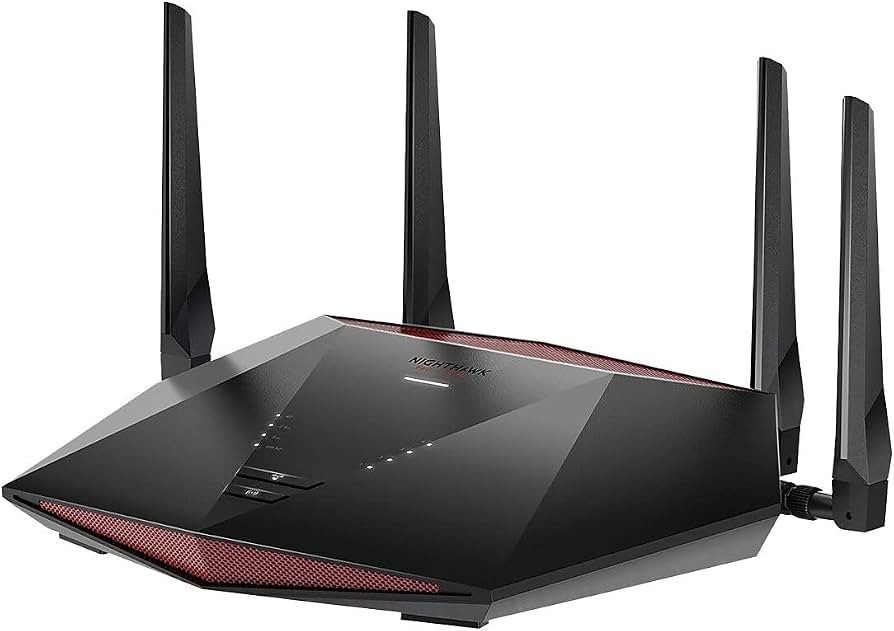
The Netgear Nighthawk Pro Gaming Router XR1000 is a Wi-Fi 6 gaming router built for players who want low-latency connections, strong wireless throughput, and advanced traffic controls in one device. It uses AX5400 dual-band Wi-Fi 6 technology, delivering up to 600 Mbps on the 2.4 GHz band and up to 4.8 Gbps on the 5 GHz band, while the 1.5 GHz triple-core processor helps manage heavy network traffic efficiently. The router also includes DumaOS 3.0, a gaming-focused dashboard designed to reduce lag, prioritize games, and give users more control over their home network.
This model is a strong fit for competitive gamers, streamers, households with multiple connected devices, and anyone who wants more insight into ping, server selection, and network performance. Features such as geofencing, QoS controls, ping monitoring, OFDMA, MU-MIMO, beamforming, and 160 MHz channel support make it especially appealing for fast-paced online gaming and smooth 4K streaming. The router offers four Gigabit LAN ports, one Gigabit WAN port, WPA3 security, and USB 3.0 connectivity for additional flexibility.
At launch, the XR1000 was priced around $349.99, though current retail pricing can vary widely by region and promotions, with many listings placing it closer to the mid-range premium segment. The Netgear Nighthawk Pro Gaming Router XR1000 remains available through major online retailers and Netgear channels, making it accessible for buyers seeking a gaming-first Wi-Fi 6 upgrade.
Pros and Cons of the Netgear Nighthawk Pro Gaming Router XR1000
Pros
- Excellent gaming tools: DumaOS 3.0 provides geofencing, ping heatmaps, and traffic prioritization that help competitive players reduce lag and choose better servers.
- Strong Wi-Fi 6 performance: AX5400 speeds, OFDMA, MU-MIMO, and 160 MHz support make it a capable router for modern gaming laptops, consoles, and smart homes.
- Fast wired connectivity: Four Gigabit LAN ports are ideal for consoles, PCs, and streaming devices that benefit from stable Ethernet connections.
- Good value for serious gamers: Compared with basic Wi-Fi 6 routers, the XR1000 adds more advanced controls and gaming-specific optimization.
- Premium hardware: The 1.5 GHz triple-core processor and 512 MB of RAM help it handle multiple devices more smoothly than entry-level models.
Cons
- No Wi-Fi 6E or 6 GHz band: Buyers wanting newer tri-band performance may prefer alternatives like Wi-Fi 6E or Wi-Fi 7 routers.
- No 2.5GbE port: For users with multi-gig internet plans, the Gigabit WAN port may be a limitation.
- Price is higher than mainstream routers: It offers strong gaming features, but casual users may find cheaper AX5400 routers more practical.
- Best for advanced users: The DumaOS interface is powerful, but some settings may feel overwhelming compared with simpler plug-and-play models.
Customer Reviews for the Netgear Nighthawk Pro Gaming Router XR1000
Customer feedback for the Netgear Nighthawk Pro Gaming Router XR1000 is generally positive, with many users praising the stable Wi-Fi 6 speeds, strong signal coverage, and gaming-focused software. A common theme in reviews is the router’s ability to improve online gaming responsiveness, especially when wired devices and wireless traffic are both active.
Typical praise includes comments like: “Great for console gaming and streaming at the same time” and “DumaOS makes it easy to see what is slowing the network down.” Many buyers also highlight the easy setup process and the value of having four LAN ports for a gaming desk or entertainment center.
Common complaints center on the premium price, the lack of 6 GHz support, and the absence of multi-gig Ethernet. Some users also mention that the advanced gaming tools are most useful after spending time learning the interface. Overall rating sentiment is often around 4.2 to 4.5 out of 5 stars, with the strongest recommendations coming from competitive gamers and households with multiple connected devices.
If the priority is low-latency gaming, strong Wi-Fi 6 performance, and detailed network control, the Netgear Nighthawk Pro Gaming Router XR1000 is a solid buy. If the goal is maximum future-proofing, a Wi-Fi 6E or Wi-Fi 7 alternative may be a better fit.
Faqs
How do I set up the netgear Nighthawk Pro Gaming Router XR1000 for the first time without losing internet access?
What should I do if the netgear Nighthawk Pro Gaming Router XR1000 keeps dropping Wi-Fi during gaming?
Which XR1000 features help reduce ping and lag for online gaming?
Is the netgear Nighthawk Pro Gaming Router XR1000 compatible with fiber, cable, and mesh networks?
How do I optimize the netgear Nighthawk Pro Gaming Router XR1000 for the best gaming performance?
Why is the netgear Nighthawk Pro Gaming Router XR1000 slow on certain devices but fast on others?
How often should I update and maintain the netgear Nighthawk Pro Gaming Router XR1000?
What can I do if the netgear Nighthawk Pro Gaming Router XR1000 setup page will not load?
More netgear manuals
- Setup: Netgear Nighthawk AX2400 WiFi 6 Router User Manual
- How to Use: Netgear NeoTV Max (NTV300SL) Streaming Player User Manual
- Netgear Range Max WiFi Range Extender WPN824EXT User Manual
- How to Use: Netgear ADSL Modem with Ethernet or USB Connection DM602 User Manual
- Netgear CM500 High-Speed Cable Modem User Manual
- How to Use: Netgear High Speed Cable Modem CM1000 User Manual
Leave a Comment