
Setup: Panasonic Home Network System HUB KX-HNB600C User Manual
Content
Panasonic Home Network System HUB KX-HNB600C
Introduction
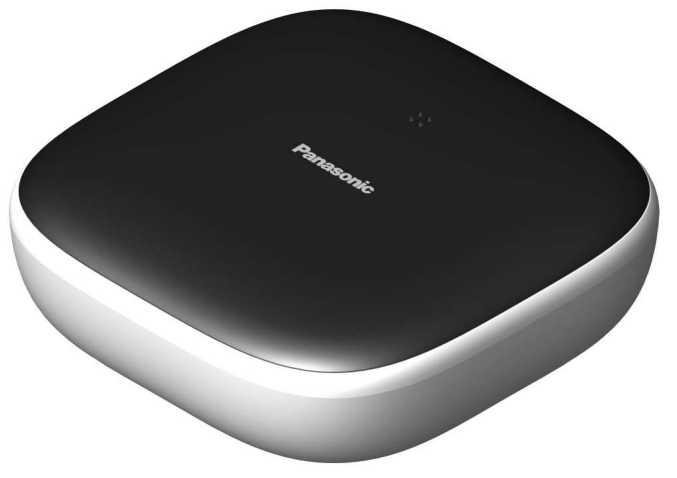
The Panasonic Home Network System HUB KX-HNB600C is a sophisticated smart home hub designed to unify and manage your home security and communication devices seamlessly. Serving as the core of Panasonic’s home network ecosystem, this hub integrates with compatible cameras, sensors, smart plugs, and digital handsets to provide a comprehensive, connected living experience.
Key benefits include centralized control of multiple smart devices, real-time alerts to smartphones or tablets, and support for making and receiving landline calls through your mobile devices while at home. The hub uses robust DECT 6.0 technology for long-range wireless communication between devices, complemented by standard Wi-Fi (IEEE 802.11 b/g/n) to connect to your home router, ensuring reliability and ease of setup.
This system is ideal for homeowners seeking a flexible, expandable security and communication solution without recurring subscription fees. Use cases extend from real-time monitoring with indoor and outdoor cameras to automated alerts triggered by motion or door/window sensors, enhancing safety and convenience.
As of 2025, the Panasonic Home Network System HUB KX-HNB600C typically ranges from $200 to $300, depending on region and retailer availability. While sometimes not available through all online partners, it can often be found through authorized Panasonic dealers or specialty smart-home electronics outlets.
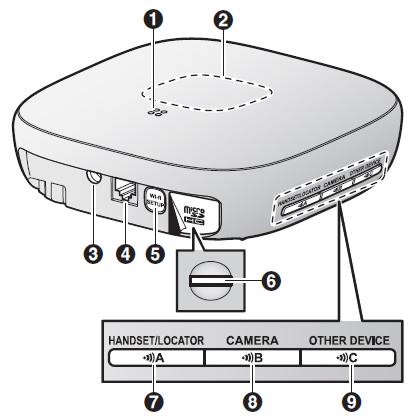
Part names and functions
- Speaker
- LED indicator
- DC jack
- LINE jack
- MWi-Fi SETUP
Used when performing initial setup. - microSD card slot
Used when inserting a microSD card.
Remove the label when inserting. - HANDSET/LOCATOR
Used when registering a handset. You can also press this button to locate a misplaced handset. - CAMERA
Used when registering a camera. - OTHER DEVICE
Used when registering other devices, such as sensors and smart plugs.
Specifications
- Standards
DECT:
DECT (Digital Enhanced Cordless Telecommunications)
Wi-Fi:
IEEE 802.11b/g/n - Frequency range
DECT:
1.92 GHz – 1.93 GHz
Wi-Fi:
2.412 GHz – 2.462 GHz (channels 1 – 11) - RF transmission power
DECT:
115 mW (max.)
Wi-Fi:
100 mW (peak transmission power) - Encryption
WPA2™-PSK (TKIP/AES), WPA™-PSK (TKIP/AES), WEP (128/64 bit) - Simplified configuration
WPS (PBC) - Power source
120 V AC, 60 Hz - Power consumption
Standby: Approx. 3.5 W
Maximum: Approx. 4.0 W - Operating conditions
0 °C – 40 °C (32 °F – 104 °F)
20 % – 80 % relative air humidity (dry) - Alert tone volume
High alert level: approx. 90 dB
Low alert level: approx. 73 dB (measured approx. 10 cm (3 15/16 inches) in front of the centre of the unit) - Dimensions (height ´ width ´ depth)
Approx. 42 mm ´ 130 mm ´ 130 mm (1 21/32 inches ´ 5 1/8 inches ´ 5 1/8 inches) - Mass (weight)
Approx. 220 g (0.49 lb)
Accessory information
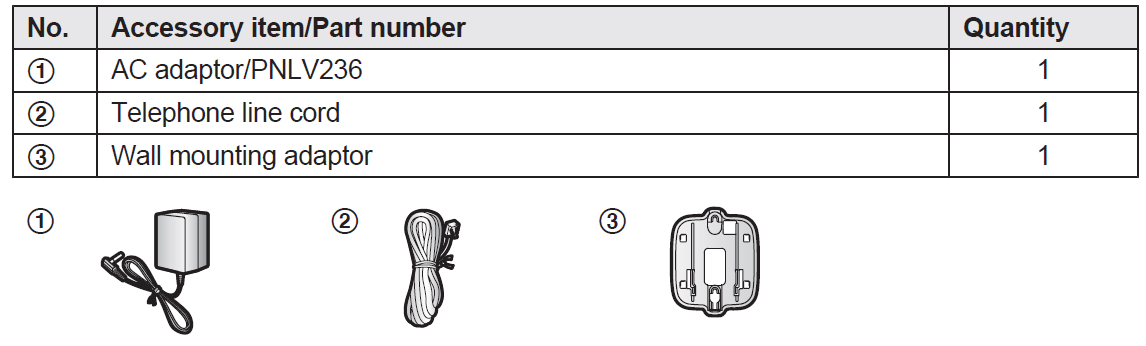
Supplied accessories
Additional accessories:: microSD card (not supplied)
A commercially available microSD card must be inserted into the hub to record images from cameras. The following types of microSD cards are supported.
- microSD / SDHC card: Up to 32 GB
Note:
Please contact your nearest Panasonic dealer for sales information.
Installation
- To prevent the risk of fire or electrical shock, do not expose the product to rain or any type of moisture.
- Do not place or use this product near automatically controlled devices such as automatic doors and fire alarms. Radio waves emitted from this product may cause such devices to malfunction, resulting in an accident.
- Do not allow the AC adaptor or telephone line cord to be excessively pulled, bent,, or placed under heavy objects.
- Keep small parts, such as microSD cards, out of the reach of children. There is a risk of swallowing. In the event they are swallowed, seek medical advice immediately.
Important safety instructions
When using your product, basic safety precautions should always be followed to reduce the risk of fire, electric shock, and injury to persons, including the following:
- Do not use this product near water, for example, near a bathtub, washbowl, kitchen sink, or laundry tub, in a wet basement,, or near a swimming pool.
- Avoid using a telephone (other than a cordless type) during an electrical storm. There may be a remote risk of electric shock from lightning.
- Do not use the telephone to report a gas leak in the vicinity of the leak.
- Use only the power cord indicated in this document.
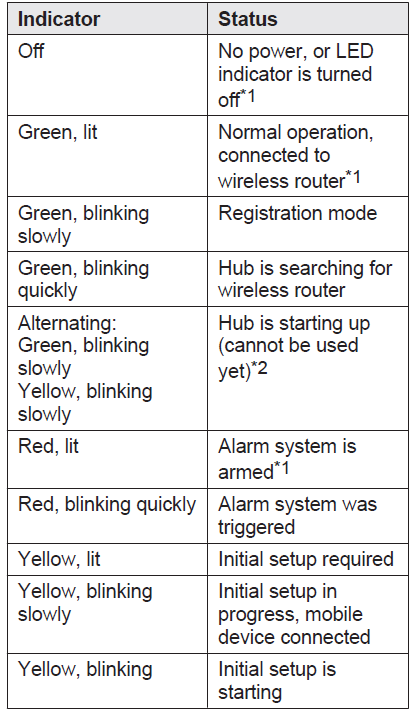
LED indicator
You can use the LED indicator to confirm the hub’s status.
Setu
Initial setup
Confirm the following before you begin.
- Make sure you have installed the [Home Network] app on your mobile device
- Make sure the hub and your wireless router are turned on,, and the hub’s LED indicator is lit in yellow
- Make sure the hub is located within range of your wireless router
- Make sure your mobile device is connected to your wireless router
- Make sure your mobile device can connect to the Internet
- Make sure you know the network name (SSID) and password assigned to your wireless router
Initial setup for iPhone, iPad
- Start the [Home Network] app.
- If prompted, follow the on-screen instructions and select the appropriate region/country.
- If prompted to select the device to be set up, tap [Hub].
- When prompted, tap [Set up the Hub].
- When prompted, press MWi-Fi SETUP on the hub.
- The LED indicator blinks in yellow.
- Change your mobile device’s Wi-Fi setting temporarily so that it connects to the hub directly.
- Open your mobile device’s [Settings] app, tap [Wi-Fi], select “KX-HNB600_Panasonic”, enter “00000000” as the password, and then tap [Join].
- If more than 1 item named “KX-HNB600_Panasonic” is displayed, wait approximately. 10 minutes and perform this procedure from the beginning.
- Start the [Home Network] app again.
- If necessary, enter the password required to connect to your wireless router and then tap [Next].
The hub and your mobile device connect to your wireless router.- If prompted, follow the on-screen instructions and connect your mobile device to your wireless router, start the app again, and then tap [Add This Mobile Device].
- If you enter the wrong Wi-Fi password,[Setup failed.] is displayed and the hub’s LED indicator lights.
Proceed as follows according to the colour of the hub’s LED indicator. - If the LED indicator is lit in yellow, repeat the initial setup procedure from the beginning.
- If the LED indicator is blinking quickly in green, you must reset the hub’s Wi-Fi settings. See “If the hub’s LED indicator blinks in green”, page 13.
- When prompted, press MWi-Fi SETUP on the hub.
- Your mobile device will be registered to the hub.
- When prompted, follow the on-screen instructions and set the password used to log in to the hub while away from home, and then tap [OK].
- When prompted, enter a name for the hub and for your mobile device and then tap [OK].
- The hub name setting is used by your mobile device to identify the hub. This is useful when you have multiple hubs..
- The mobile device name setting is used by the hub and other system users to identify your mobile device.
This is useful when performing certain operations, such as deregistering or making intercom calls using a cordless handset.
- When prompted, select whether you want to customize device profiles, i.e., the device name, location, and other settings for your devices.
- If you choose not to customize the device profiles now, you can change them later if desired. For details about customizing device profiles, refer to the User’s Guide (page 16).
- If you choose to customize the device profiles now, change each setting as desired. When finished, tap
 repeatedly until the “completed messages displayed.
 - The app’s home screen is displayed when initial setup is complete.
If the hub’s LED indicator blinks in green
If you enter the wrong Wi-Fi password during the initial setup procedure for iPhone or iPad, [Setup failed.] is displayed,, and the hub’s LED indicator blinks quickly in green. In this case, perform the following.
- Press and hold the 3 registration buttons on the side of the hub and MWi-FSETUPN on the back of the hub at the same time (4 buttons total) until the hub’s LED indicator blinks slowly in green and yellow.
- Wait for the hub’s LED indicator to light in yellow.
- Repeat the initial setup procedure (“Initial setup for iPhone, iPad”, page 12 ).
Initial setup for Android devices
- Start the [Home Network] app.
If prompted, follow the on-screen instructions and select the appropriate region or country.
If prompted to select the device to be set up, tap [Hub]. - When prompted, tap [Set up the Hub].
- When prompted, press MWi-SETUPPN on the hub.
The LED indicator blinks in yellow.
The app temporarily changes your mobile device’s Wi-Fi settings so that it connects to the hub directly. - If necessary, enter the password required to connect to your wireless router and then tap [Next].
The hub and your mobile device connect to your wireless router. - When prompted, press MWi-Fi SETUP on the hub.
Your mobile device will be registered to the hub. - When prompted, follow the on-screen instructions and set the password used to log in to the hub while away from home an, and then t ndandp [OK].
- When prompted, enter a name for the hub and for your mobile device and then tap [OK].
The hub name setting is used by your mobile device to identify the hub. This is useful when you have multiple hubs.
The mobile device name setting is used by the hub and other system users to identify your mobile device.
This is useful when performing certain operations, such as deregistering or making intercom calls using a cordless handset. - When prompted, select whether you want to customize device profiles, i.e., the device name, location, and other settings for your devices.
If you choose not to customize the device profiles now, you can change them later if desired. For details about customizing device profiles, refer to the Guide (page 16).
If you choose to customize the device profiles now, change each setting as desired. When finished, press your device’s “back” button repeatedly until the“completed” message is displayed.
The app’s home screen is displayed when initialization is complete.
Troubleshooting Panasonic Home Network System HUB KX-HNB600C
Common issues with the Panasonic Home Network System HUB KX-HNB600C involve connectivity interruptions, error codes, and device registration problems. If your hub’s LED indicator blinks red or does not connect to your smartphone or devices, it may be out of DECT wireless range (approx. 50 meters indoors) or experiencing Wi-Fi interference.
- Error Code Fixes: For Wi-Fi setup failures, confirm your home router operates on 2.4GHz within channels 1 to 11 and supports WPA2-PSK encryption.
- Device Registration: Use the one-push pairing button to easily add new devices; ensure the hub is in pairing mode (solid yellow LED) before registering.
- Preventive Measures: Place the hub centrally in your home, away from metal obstructions or concrete walls to maintain optimal DECT and Wi-Fi signal strength.
Panasonic provides a standard warranty with support options accessible via their official website or regional customer service centers. For assistance, contact Panasonic support directly through their help portal or by phone for personalized troubleshooting guidance.
Warranty
PANASONIC PRODUCT - LIMITED WARRANTY EXCHANGE PROGRAM
Panasonic Canada Inc. warrants this product to be free from defects in material and workmanship under normal use and for a period as stated below from the date of original purchase agrees to, at its option either (a) repair your product with new or refurbished parts, (b) replace it with a new or a refurbished equivalent value product, or (c) refund your purchase price. The decision to repair, replace,, or refund will be made by Panasonic Canada Inc.
- Home Network System Products – One (1) year
- microSD card (Included model only) – One (1) year
LIMITATIONS AND EXCLUSIONS
This warranty ONLY COVERS failures due to defects in materials or workmanship, and DOES NOT COVER normal wear and tear or cosmetic damage. The warranty ALSO DOES NOT COVER damages which occurred in shipment, or failures which are caused by products not supplied by Panasonic Canada Inc., or failures which result from accidents, misuse, abuse, neglect, mishandling, misapplication, alteration, faulty installation, set-up adjustments, misadjustment of consumer controls, improper maintenance, improper batteries, power line surge, lightning damage, modification, introduction of sand, humidity or liquids, commercial use such as hotel, office, restaurant, or other business or rental use of the product, or service by anyone other than a Authorized Servicer, or damage that is attributable to acts of God.
Pros and Cons of the Panasonic Home Network System HUB KX-HNB600C
Pros:
- Comprehensive Integration: Connects multiple smart home devices,, including cameras, sensors, and handsets,, ts for unified control.
- Long Range Wireless: DECT 6.0 technology enables reliable communication up to 50 meters indoors, outperforming typical Wi-Fi range for device links.
- Easy Setup: Simple Wi-Fi configuration via smartphone app and one-push pairing facilitates hassle-free installation.
- Cost-Effective: No recurring subscription fees required, offering excellent value compared to paid security services.
Cons:
- Availability: Limited availability through some online retailers may require purchasing through authorized dealers.
- Wi-Fi Limited to 2.4GHz: The hub does not support 5GHz Wi-Fi, which may affect network performance in congested environments.
- Device Range Sensitivity: Physical obstacles such as metal doors or concrete walls can reduce communication effectiveness.
- Feature Limitations: Maximum camera recording per event is limited to 15 minutes, which may not suit all surveillance needs.
When compared to similar smart home hubs, the Panasonic KX-HNB600C stands out for integrated landline call support and DECT connectivity,,ivity but lacks some advanced cloud features present in subscription-based systems.
Customer Reviews of Panasonic Home Network System HUB KX-HNB600C
Users generally praise Panasonic Home Network System HUB KX-HNB600C for its reliable wireless connections and ease of integration with various Panasonic devices. Many highlight the convenience of receiving system alerts directly on their smartphones and the seamless landline call functionality through mobile devices as standout features.
Common complaints include occasional difficulties with Wi-Fi setup, especially in homes with complex network configurations, and limited availability for purchase. Some users note the effective but limited 15-minute camera recording duration and the sensitivity of wireless signals to physical barriers.
Overall, the hub receives an average rating of 4 out of 5 stars, with users recommending it for those seeking a DIY home monitoring system without ongoing fees. Frequent advice encourages placing the hub in an optimal location to maximize device connectivity and prevent signal loss.
Faqs
How do I perform the initial setup of the panasonic Home Network System HUB KX-HNB600C with a mobile device?
What should I do if the panasonic Home Network System HUB KX-HNB600C LED indicator is blinking yellow quickly?
Can the panasonic Home Network System HUB KX-HNB600C be integrated with Panasonic smart cameras like the KX-HNC600?
How do I connect the panasonic Home Network System HUB KX-HNB600C to my home Wi-Fi router securely?
What features of the panasonic Home Network System HUB KX-HNB600C help with remote home monitoring?
Why is my panasonic Home Network System HUB KX-HNB600C not connecting to the mobile app after setup?
How often should I maintain and update the panasonic Home Network System HUB KX-HNB600C for optimal performance?
Is the panasonic Home Network System HUB KX-HNB600C compatible with both iOS and Android mobile devices?
More panasonic manuals
- How to Use: Panasonic Home Monitoring Camera Front Door-Outdoor KX-HN7001 Instruction Manual
- Setup & Usage: Panasonic Home Monitoring Camera KX-HN1007 Instruction Guide
- How to Use: Panasonic Home Network System Indoor Camera KX-HNC200 Instruction Manual
- Setup: Panasonic Home Monitoring Camera Front Door KX-HN7002 Instruction Guide
- How to Use: Panasonic Home Network System HUB UKX-HNB600C Instruction Manual
- Setup: Panasonic Home Monitoring Camera Front Door KX-HN7001 Instruction Guide
Leave a Comment