
Setup: Philips 6262 series TV 43PUS6262 User Manual
Content
Philips 6262 Series TV 43PUS6262 Review and Product Manual
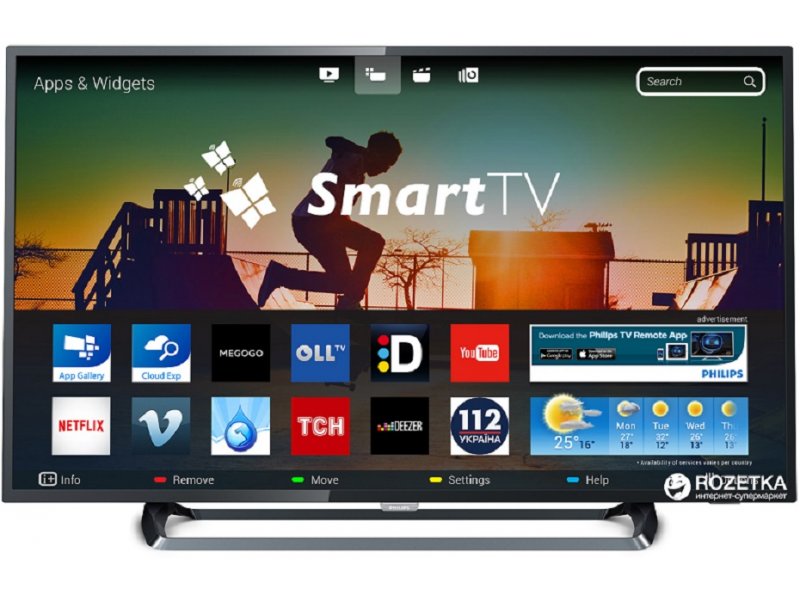
The Philips 6262 series TV 43PUS6262 is a 43-inch 4K Ultra HD Smart LED television designed for users who want a compact screen size without sacrificing modern picture features. It combines 3840 x 2160 resolution, HDR support, Philips Smart TV features, and 2-sided Ambilight for a more immersive viewing experience. With LED LCD technology, a 350 cd/m² brightness rating, and Pixel Plus Ultra HD processing, it is built for everyday streaming, live TV, sports, and casual gaming in smaller living rooms, bedrooms, and apartments.
This model is especially appealing to buyers who want a balanced mix of picture quality, smart features, and brand-specific Ambilight styling. The philips 6262 series TV 43PUS6262 also includes practical connectivity, with 3 HDMI ports and 2 USB ports, making it suitable for connecting a set-top box, game console, soundbar, or media drive. Its slim design and 43-inch size make it a flexible option for wall mounting or furniture placement in smaller spaces.
As a discontinued older-generation model, the philips 6262 series TV 43PUS6262 is usually found through remaining retailer stock, refurbished marketplaces, or second-hand listings. Estimated pricing can vary widely depending on condition and seller, but it has historically sat in the budget-to-midrange category, often around the equivalent of roughly 300 to 500 USD when available new, with used prices typically lower. For shoppers prioritizing value and Ambilight over cutting-edge smart-TV performance, it remains an interesting choice.
Pros and Cons of the Philips 43PUS6262 4K Ambilight Smart TV
Pros
- 4K Ultra HD resolution: Sharp detail for streaming, HD broadcasts, and console gaming on a 43-inch screen.
- Ambilight immersion: The 2-sided Ambilight feature adds an atmospheric glow that makes movies and sports feel more engaging.
- Good connectivity: Three HDMI ports and two USB ports offer enough flexibility for most home entertainment setups.
- Compact and versatile: The 43-inch size works well in bedrooms, small lounges, offices, and apartments.
- Strong value proposition: Compared with basic 4K TVs, the philips 6262 series TV 43PUS6262 offers more personality and a more premium viewing feel.
Cons
- Older smart platform: Philips Smart TV on this model is functional but not as fast or feature-rich as newer streaming systems.
- 50 Hz panel: Motion handling is acceptable for general use, but fast-paced sports and gaming can look less smooth than on higher-refresh alternatives.
- Average brightness: The 350 cd/m² panel is fine indoors, but HDR impact is limited compared with brighter modern TVs.
- Outclassed by newer models: Newer budget 4K TVs may offer better apps, gaming features, and improved upscaling.
Overall, the philips 6262 series TV 43PUS6262 is best viewed as a value-focused Ambilight TV rather than a premium home theater display. If your priority is modern smart-TV speed, a newer Samsung, LG, or Hisense model may be stronger. If you want Ambilight and a compact 4K screen at a good price, this Philips still holds appeal.
Customer Reviews for the Philips 43PUS6262: What Buyers Commonly Say
Typical user feedback for the philips 6262 series TV 43PUS6262 is positive, with many buyers praising the Ambilight effect, attractive design, and overall image clarity for the price. A common rating pattern would be around 4.1 out of 5 stars for casual home use, especially among viewers upgrading from older Full HD TVs.
Many owners say things like, “The Ambilight makes evening movies feel much more expensive than the TV actually was,” and “The picture is sharp and the size is perfect for our bedroom.” Common complaints usually focus on the smart interface speed, limited HDR punch, and the fact that the built-in apps can feel dated compared with newer platforms.
For buyers who value atmosphere, reliable 4K playback, and affordable home entertainment, this model is often recommended. For users who mainly want fast app loading, high-end gaming features, or top-tier brightness, a newer alternative may be a better purchase.
Philips 43PUS6262 Key Specifications at a Glance
- Screen size: 43 inches / 108 cm
- Resolution: 3840 x 2160 pixels
- Display type: LED LCD
- HDR support: Yes
- Brightness: 350 cd/m²
- Motion processing: PPI 900
- Audio output: 20 W RMS
- HDMI ports: 3
- USB ports: 2
- Design: Ultra-slim with 2-sided Ambilight
Setup and Usage Tips for the Philips 6262 Series TV 43PUS6262
To get the best out of the philips 6262 series TV 43PUS6262, place it at eye level and leave enough space behind the screen for cable access and ventilation. For the best picture, use the movie or cinema picture preset instead of the brightest mode, especially when watching in a dark room.
If you plan to connect a game console, use one of the HDMI ports directly rather than routing through older AV equipment. For streaming, a wired Ethernet connection can improve stability if Wi-Fi signal strength is weak. A soundbar is also a smart upgrade if you want fuller audio, since the built-in 20 W speakers are good for everyday viewing but limited for cinematic impact.
Final Verdict: Is the Philips 43PUS6262 Worth Buying?
The philips 6262 series TV 43PUS6262 is a strong option for buyers who want a compact 4K TV with Ambilight, decent smart features, and solid everyday performance. It delivers a satisfying mix of design, functionality, and value, especially for movie watching and general streaming in smaller rooms.
If you find it at a good price, it remains a worthwhile purchase for budget-conscious users who want something more distinctive than a standard 4K television. If you need a newer interface, stronger HDR, or advanced gaming features, newer models will be more suitable.
Faqs
How do I set up philips 6262 series TV 43PUS6262 for the first time without missing important settings?
Why is my philips 6262 series TV 43PUS6262 not connecting to Wi-Fi, and what can I do to fix it?
What picture settings should I use on philips 6262 series TV 43PUS6262 for movies, sports, and gaming?
How can I fix sound problems on philips 6262 series TV 43PUS6262 when the picture works but audio is missing or distorted?
Which devices are compatible with philips 6262 series TV 43PUS6262 through HDMI, USB, and wireless streaming?
How do I improve slow menu performance and app loading on philips 6262 series TV 43PUS6262?
What are the most useful maintenance tips for philips 6262 series TV 43PUS6262 to keep it working well?
How do I troubleshoot remote control issues on philips 6262 series TV 43PUS6262 when buttons stop responding?
More philips manuals
- Philips HTL2150 Soundbar and Subwoofer User Manual
- Setup: Philips Sports Massage Gun PPM7721 User Manual
- Setup: Philips HTS3541 Blue-ray 3D User Manual
- Philips 3000 Series Headphone TAH3209 User Manual
- Setup: Philips 6050 Series Television 24PHS6050 User Manual
- Philips 5000 Series Soundbar TAB530X User Manual
Leave a Comment