
Philips 7500 Series Television User Manual
Content
Philips 7500 Series Television: A Practical 4K Smart TV Manual for Everyday Viewing
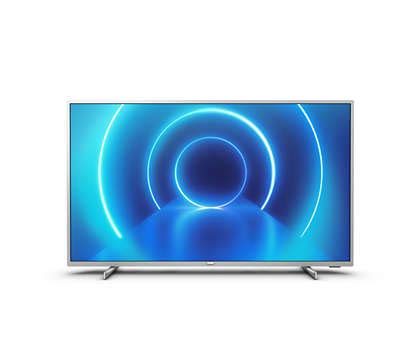
The Philips 7500 Series Television is designed for viewers who want a balance of sharp picture quality, smart features, and distinctive Philips Ambilight styling. Available in several screen sizes and model variants, the lineup includes 4K Ultra HD LED models with Android TV or Philips’ smart platform, HDR support, and, on many versions, three-sided Ambilight for a more immersive viewing experience. Typical configurations include 3840 x 2160 resolution, 60 Hz refresh rates, Wi‑Fi connectivity, multiple HDMI ports, USB inputs, and integrated digital TV tuners, making the series suitable for streaming, gaming, and everyday broadcast viewing.
One of the biggest selling points of the Philips 7500 Series Television is Ambilight, which extends colors beyond the screen for a more cinematic feel, especially in darker rooms. The TV is also a strong choice for households that want a straightforward smart TV setup for Netflix, YouTube, live TV, and console gaming without paying flagship prices. Depending on size, region, and model year, the estimated price range generally falls from the mid-range to upper-mid-range category, often around $500 to $1,200 USD or equivalent local pricing. Availability varies by market, with newer units and remaining stock commonly found through major electronics retailers, online marketplaces, and Philips regional product pages.
Pros and Cons of the Philips 7500 Series Television
Pros
- 4K Ultra HD resolution delivers crisp detail for movies, sports, and streaming content.
- Ambilight on supported models adds a unique immersive effect that many alternatives do not offer.
- Smart TV features support popular streaming apps and easy app navigation.
- Multiple HDMI and USB ports make it convenient for game consoles, soundbars, and media players.
- Good value for money for buyers who want premium-style features without stepping into premium pricing.
Cons
- Refresh rates are usually standard 60 Hz, so fast-action gaming may not match higher-end models.
- Sound output is often adequate but not exceptional, so a soundbar can improve performance.
- Older or region-specific models may have less consistent app support than newer smart TV platforms.
- Compared with Samsung Crystal UHD or LG entry-level 4K TVs, Philips stands out more for Ambilight than raw panel performance.
For buyers comparing alternatives, the Philips 7500 Series Television is best when immersive lighting and solid all-around performance matter more than chasing the highest gaming specifications. It remains a strong mid-range choice for families, streamers, and casual gamers.
Customer Reviews and Real-World Feedback on Philips 7500 Series TV
Customer feedback for the Philips 7500 Series Television is generally positive, with many users praising the picture quality, Ambilight effect, and easy setup. Typical review scores for similar 7500 Series models often land around 3.8 out of 5 stars, reflecting a mix of satisfaction and practical criticisms. One common compliment is that the TV feels “much more expensive than it is” thanks to the lighting effect and clean design. Another frequent praise is that streaming apps and HDMI device switching are simple for everyday use.
Common complaints usually focus on average built-in speakers, occasional smart platform limitations on older models, and the fact that 60 Hz performance may not fully satisfy competitive gamers. A typical user comment might read: “Great picture and amazing Ambilight, but I added a soundbar for better audio.” Another might say: “Excellent value if you want a stylish 4K TV for movies and streaming.” Overall, the Philips 7500 Series Television is a smart buy for users who want a feature-rich, visually distinctive TV and are comfortable pairing it with external audio for the best experience.
Faqs
How do I set up philips 7500 Series Television for the first time without missing any important settings?
Why is my philips 7500 Series Television not connecting to Wi-Fi, and how can I fix it?
How do I improve picture quality on philips 7500 Series Television for movies, sports, and gaming?
What devices are compatible with philips 7500 Series Television, and how do I connect them properly?
Why does my philips 7500 Series Television keep buffering on streaming apps, and what should I do?
How can I fix sound problems on philips 7500 Series Television when the picture works but the audio does not?
How often should I update and maintain philips 7500 Series Television to keep it running smoothly?
How do I reset philips 7500 Series Television if menus freeze or settings stop responding?
More philips manuals
Leave a Comment