
Setup & Features: Philips Monitor 1000 Series User Manual
Content
Philips Monitor 1000 Series: Complete Product Manual and Buying Guide
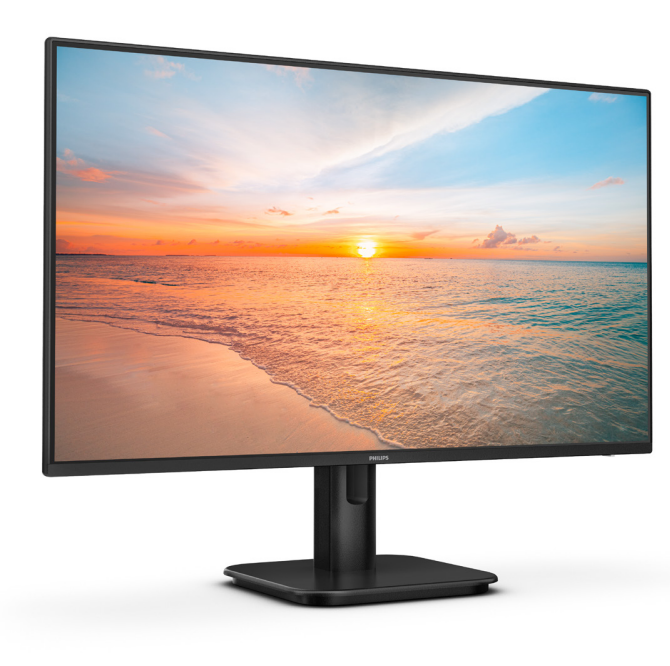
The Philips Monitor 1000 Series is built for everyday productivity, home office work, study, and casual entertainment. With Full HD resolution, IPS panel options, fast response times, and smooth refresh rates up to 100 Hz or higher on select models, this monitor line focuses on delivering sharp visuals, comfortable viewing, and simple plug-and-play usability. Many models also include eye-care features such as LowBlue mode and flicker-free technology, making the Philips Monitor 1000 Series a practical choice for long work sessions and mixed-use setups.
One of the main strengths of the Philips Monitor 1000 Series is its balance of affordability and modern features. Users get wide viewing angles, anti-glare coatings, and a clean design that fits well in compact desks, remote workstations, and student setups. Depending on the exact model, connectivity may include HDMI, VGA, USB-C, and integrated speakers, giving buyers flexible options without a steep learning curve.
This series is aimed at office users, students, remote workers, and light gamers who want reliable performance without paying premium prices. Typical pricing usually falls in the budget-to-midrange category, roughly between $100 and $300 depending on screen size, resolution, and connectivity. Availability is generally strong through major electronics retailers, online marketplaces, and regional Philips distribution channels.
Specifications for Philips Monitor 1000 Series
- Display sizes commonly available: 23.8-inch and 27-inch models
- Panel technology: IPS on many variants for wider viewing angles and better color consistency
- Resolution: Full HD 1920 x 1080 on mainstream models; some models in the broader 1000 Series line offer QHD or 4K options
- Refresh rate: Up to 100 Hz on several Full HD models, with select models supporting higher refresh rates
- Response time: Typically 4 ms gray-to-gray, with 1 ms MPRT on supported configurations
- Brightness: Commonly around 250 cd/m², with some variants offering up to 300 cd/m² or more
- Contrast ratio: Typically 1300:1 to 1500:1 depending on the model
- Viewing angles: 178° horizontal and 178° vertical on IPS versions
- Anti-glare screen coating: Included on most models for reduced reflections
- Connectivity: HDMI, VGA, and on some models USB-C with power delivery and USB hub support
- Eye-care features: Flicker-free technology, LowBlue mode, and adaptive sync on certain variants
Compared with similar entry-level monitors, the Philips Monitor 1000 Series often stands out for its strong value, modern refresh rates, and broader feature set. It is a better fit than basic 60 Hz office monitors for users who want smoother scrolling, easier multitasking, and a more comfortable daily experience.
Detailed Description of the Philips Monitor 1000 Series
The Philips Monitor 1000 Series is designed to be simple, efficient, and visually comfortable. It uses an LCD panel with LED backlighting to produce stable brightness and reliable image quality across typical home and office tasks. On IPS-equipped models, the screen maintains accurate color and contrast even when viewed from the side, which is helpful for shared workspaces, collaborative meetings, and dual-monitor setups.
In real-world use, this monitor series works well for writing, spreadsheets, web browsing, online learning, video calls, and streaming. The higher refresh rate helps motion feel smoother when moving windows, scrolling through long documents, or playing light games. Build quality is generally solid for the price, with lightweight yet durable materials and a clean stand design that suits most desks. Many models also support VESA mounting, making it easy to attach the monitor to an arm or wall bracket for a more ergonomic setup.
User experience is typically straightforward, with on-screen menus that are easy to navigate and input switching that works well for laptops, desktops, and consoles. The overall design prioritizes practicality over premium styling, which is ideal for buyers who want dependable performance in a budget-friendly package.
Setup Guide: How to Set Up Philips Monitor 1000 Series
1. Unbox the monitor carefully and place the screen face down on a soft, clean surface.
2. Attach the stand or base according to the alignment marks until it clicks securely into place.
3. Position the monitor on a stable desk and connect the power cable.
4. Connect your device using HDMI, VGA, or USB-C, depending on the model and your computer’s available ports.
5. Turn on the monitor and select the correct input source from the on-screen menu if needed.
6. Adjust brightness, contrast, color mode, and eye-care settings such as LowBlue mode for comfortable viewing.
7. If supported, enable the highest available refresh rate in your operating system’s display settings.
For safety, avoid forcing connectors, keep ventilation openings clear, and do not place the monitor near heat sources or wet areas. If the display does not appear, check the cable seating, confirm the selected input source, and restart the connected device. For USB-C models, confirm that the laptop supports DisplayPort Alt Mode and power delivery if charging is expected.
Troubleshooting Philips Monitor 1000 Series Problems
- No signal message: Check the HDMI, VGA, or USB-C cable, confirm the correct input source, and test with another device.
- Flickering display: Lower the refresh rate temporarily, replace the cable, and verify that adaptive sync settings are compatible.
- Dim or uneven image: Increase brightness, disable eco mode, and reset picture settings to default.
- Audio not working on HDMI: Confirm that the monitor is selected as the output device on your computer and that the source includes audio over HDMI.
- USB-C charging not active: Make sure the connected laptop supports USB-C power delivery and that the cable is rated properly.
- Image cut off or stretched: Set the correct resolution, usually 1920 x 1080, and use the monitor’s native aspect ratio.
Preventive care includes using quality cables, keeping the screen clean with a microfiber cloth, and updating graphics drivers when performance issues appear. Warranty coverage and support options depend on the region and seller, so buyers should keep the purchase receipt and product serial number available. For help, contact Philips customer support, the retailer, or the local authorized service center listed in the product documentation.
Pros and Cons of Philips Monitor 1000 Series
Pros
- Excellent value for money for office, study, and home use
- IPS models offer wide viewing angles and consistent color quality
- Higher refresh rates create smoother scrolling and better everyday responsiveness
- Eye-care features help reduce strain during long sessions
- Simple setup with broad connectivity options on many variants
- Good choice for users who want a reliable monitor without overspending
Cons
- Base models may lack advanced ergonomic adjustments
- Brightness and contrast are good for the price but not class-leading
- Some versions do not include a USB hub or premium speaker system
- Design is functional rather than highly premium
- Best suited to productivity and casual gaming, not demanding creator workflows
Compared with alternatives in the same category, the Philips Monitor 1000 Series is especially attractive for buyers who want a balanced feature set and dependable daily performance. It is often a smarter purchase than a no-name budget monitor, while still staying affordable.
Customer Reviews of Philips Monitor 1000 Series
Customer feedback is generally positive, with many users rating the series around 4.5 out of 5 stars for overall value and ease of use. Buyers frequently praise the sharp Full HD image, smooth 100 Hz performance, and easy assembly. One common testimonial theme is that the monitor feels noticeably better than a standard 60 Hz office display.
Typical praise includes comments such as, “Great for work and light gaming,” and “Easy to set up with excellent screen clarity.” Common complaints usually mention limited ergonomics, average built-in audio, and occasional disappointment when a model does not include USB-C or a USB hub. Most users still recommend the Philips Monitor 1000 Series for students, remote workers, and budget-conscious shoppers who want a dependable everyday monitor.
For the best experience, choose a variant with the ports and stand adjustments that match your workflow, especially if you plan to connect a laptop, console, or dual-device setup.
Faqs
How do I set up philips Monitor 1000 Series for the first time without display issues?
Why is my philips Monitor 1000 Series not showing a signal from my laptop or desktop?
What is the best way to adjust the philips Monitor 1000 Series for eye comfort during long work sessions?
Which devices are compatible with philips Monitor 1000 Series, and what ports should I use?
How can I improve picture quality and performance on philips Monitor 1000 Series?
What should I do if philips Monitor 1000 Series has flickering, lines, or a distorted screen?
How do I clean and maintain philips Monitor 1000 Series safely?
Can I mount philips Monitor 1000 Series on a wall or monitor arm?
More philips manuals
- How to Use: Philips Massage Gun Sports Massage Gun PPM7323 User Manual
- How to Use: Philips Blu-ray Player BDP2205 User Manual
- How to Use: Philips Blu-ray Disc™ / DVD Player BDP1502 User Manual
- How to Use: Philips Respironics PR System One CPAP or BiPAP Machine Paired User Manual
- How to Connect: Philips Soundbar 8000 Series TAB8947 User Manual
- Setup & Features: Philips EasyKey 6000 Series Smart Lever Door Lock DDL61S-SHBS User Manual
Leave a Comment