
Samsung Android Tablet SM-T570 User Manual
Content
Samsung Android Tablet SM-T570 Review and Product Manual
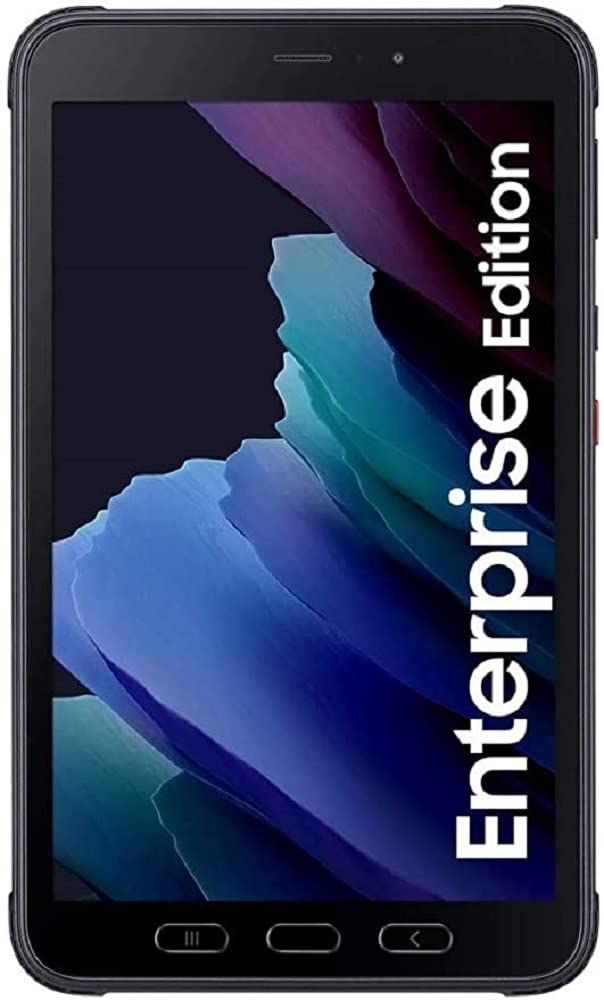
The Samsung Android Tablet SM-T570 is best known as the Galaxy Tab Active3, a rugged 8-inch business tablet built for field work, mobile teams, and demanding everyday use. It combines a compact WUXGA display, an Exynos 9810 octa-core processor, 4 GB RAM, expandable storage, and a replaceable 5050 mAh battery, making it a practical choice for professionals who need durability more than a thin consumer design. With IP68 water and dust resistance, MIL-STD-810H protection, and S Pen support, the Samsung Android Tablet SM-T570 stands out for construction, logistics, healthcare, warehouse management, and outdoor service environments.
This rugged Android tablet is also appealing for users who want a dependable device for note-taking, barcode-style workflows, secure enterprise use, and media consumption on the go. The 8-inch 1920 x 1200 display delivers sharp text and solid color clarity, while the compact body makes it easy to carry with one hand. Depending on configuration and market, pricing typically falls in the mid-range to upper-mid-range used and refurbished segment, with availability now mainly through resellers, business channels, and second-hand marketplaces rather than mainstream retail. If you are looking for a durable Android tablet with business-grade features, the Samsung Android Tablet SM-T570 remains a strong value-focused option, especially compared with standard consumer tablets that offer less protection and fewer field-ready features.
Pros and Cons of the Samsung Android Tablet SM-T570
Pros
- Rugged build quality: IP68 protection and MIL-STD-810H durability make it ideal for worksite use, travel, and outdoor conditions.
- Compact and practical: The 8-inch form factor is easier to carry than larger tablets, especially for mobile technicians and warehouse staff.
- Replaceable battery: The 5050 mAh battery can be swapped, which is a major advantage for long shifts and enterprise deployments.
- S Pen support: Useful for signatures, annotations, forms, and field notes without needing a separate accessory.
- Expandable storage: microSD support helps users store offline files, manuals, and training materials.
Cons
- Older hardware: The Exynos 9810 platform is capable for business tasks, but it is not built for heavy gaming or modern high-end multitasking.
- Limited screen size: The 8-inch display is portable, but it may feel small for spreadsheet-heavy work or split-screen productivity.
- Availability issues: New units are harder to find, so many buyers must consider refurbished or used devices.
- Value for money: It is excellent for rugged-use buyers, but less compelling if you only need a casual home tablet.
Compared with standard Android tablets, the Samsung Android Tablet SM-T570 offers far better durability and field readiness. Compared with newer rugged tablets, it may lack the latest performance, but it still delivers strong value for buyers who prioritize toughness over raw speed.
Customer Reviews for the Samsung Android Tablet SM-T570
Average user impression: 4.3/5 stars
Customer feedback for the Samsung Android Tablet SM-T570 is generally positive, especially among business and field-service users. Many owners praise the rugged design, replaceable battery, and reliable performance for work apps, PDF viewing, and note-taking. A common testimonial theme is that the tablet “feels built for real work,” with users appreciating the bright 8-inch display and the convenience of S Pen input.
Common complaints usually focus on the older processor, the smaller screen, and the challenge of finding new stock. Some users also note that the tablet is heavier than consumer models, which is expected for a rugged device. Buyers looking for a dependable work tablet often recommend it, while casual users may prefer a lighter and cheaper entertainment tablet.
- Praise: Durable, portable, and ideal for business use.
- Complaint: Performance is solid but not class-leading.
- Recommendation: Best for workers who need a rugged Android tablet more than a premium media device.
Key Specifications of the Samsung Android Tablet SM-T570
- Display: 8-inch WUXGA, 1920 x 1200 resolution
- Processor: Samsung Exynos 9810 octa-core
- Memory: 4 GB RAM
- Storage: 64 GB or 128 GB, depending on version
- Expandable Storage: microSD support
- Battery: 5050 mAh, user-replaceable
- Durability: IP68 and MIL-STD-810H
- Connectivity: Wi-Fi, LTE options depending on model
- Input: S Pen support
- Operating System: Android 10 on original release configurations
Who Should Buy the Samsung Android Tablet SM-T570?
The Samsung Android Tablet SM-T570 is a smart choice for field engineers, delivery teams, healthcare workers, warehouse operators, and professionals who need a rugged tablet that can handle drops, dust, and moisture. It is also a practical option for organizations that want a durable Android device for forms, inventory systems, mobile documentation, and remote support tasks.
If your priority is entertainment, lightweight browsing, or high-end gaming, a newer consumer tablet may be better. If your priority is durability, long-term serviceability, and business-focused features, the Samsung Android Tablet SM-T570 remains one of the most practical rugged Android tablets in its class.
Faqs
How do I set up samsung Android Tablet SM-T570 for the first time?
What should I do if samsung Android Tablet SM-T570 is running slowly or freezing?
How can I fix battery drain on samsung Android Tablet SM-T570?
Which accessories are compatible with samsung Android Tablet SM-T570?
How do I connect samsung Android Tablet SM-T570 to Wi‑Fi, Bluetooth, and other devices?
Why is samsung Android Tablet SM-T570 not charging, and how can I troubleshoot it?
How can I improve storage and memory performance on samsung Android Tablet SM-T570?
How should I clean and maintain samsung Android Tablet SM-T570 for long-term use?
More samsung manuals
- Samsung Galaxy A14 5G Smartmobile User Manual
- Setup & Features: Samsung Over The Range Microwave Oven User Manual
- Samsung AX90 Air Purifier User Manual
- How to Use: Samsung Battery Pack Wireless Battery Pack User Manual
- Samsung 5003 Series LED TV User Manual
- Setup & Features: Samsung Series 7 & 8 Television User Manual
Leave a Comment