
Samsung S20 FE G781U User Manual | Features & Settings
Content
Samsung S20 FE G781U
Introduction
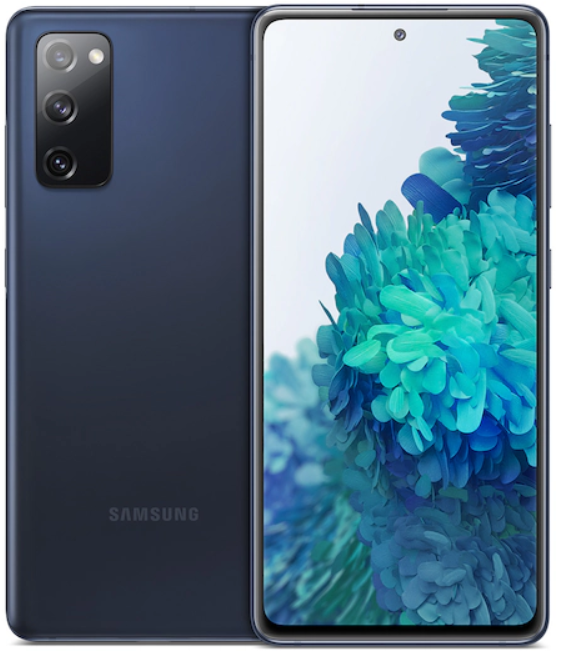
The Samsung S20 FE G781U is a powerful and feature-rich smartphone that offers a premium user experience. With its sleek design, high-quality camera, and fast performance, it is the perfect device for both work and play.
Specifications
- Display: 6.5-inch Super AMOLED Infinity-O display
- Resolution: 1080 x 2400 pixels
- Processor: Qualcomm Snapdragon 865
- RAM: 6GB
- Storage: 128GB (expandable up to 1TB with microSD card)
- Camera: Triple rear camera setup (12MP + 12MP + 8MP) and 32MP front camera
- Battery: 4500mAh
- Operating System: Android 10 with One UI 2.5
- Connectivity: 5G, Wi-Fi 6, Bluetooth 5.0, NFC
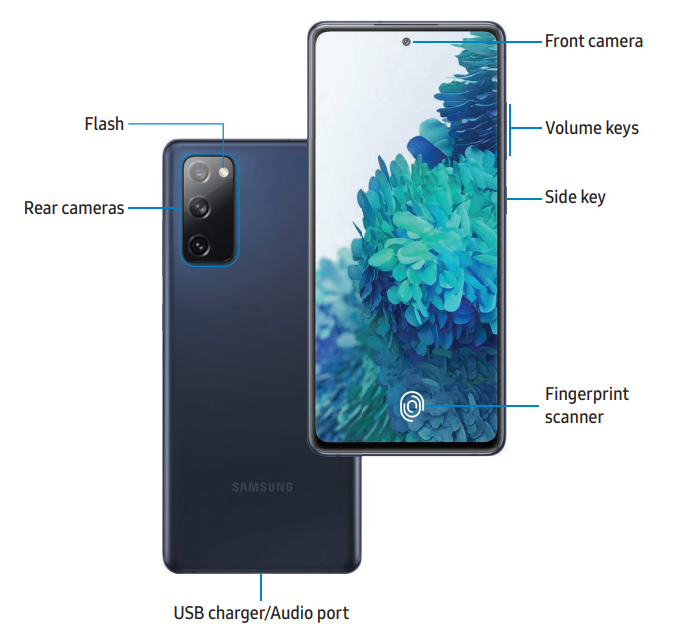
- Features: IP68 water and dust resistance, face recognition, fingerprint sensor
Instructions
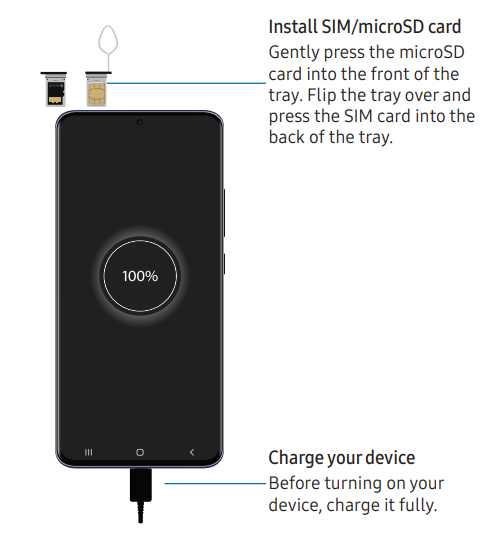
- Insert SIM card: Open the SIM card slot using the provided SIM ejector tool. Insert the SIM card and close the slot.
- Charge the device: Connect the USB Type-C cable to the device and the power adapter. Plug the power adapter into a power outlet to start charging.
- Set up the device: Follow the on-screen instructions to set up your device, including choosing your language, connecting to a Wi-Fi network, and signing in to your Google account.
- Customize settings: Explore the settings menu to customize your device according to your preferences, such as adjusting display brightness, setting up biometric security, and configuring notifications.
- Transfer data: Use the Samsung Smart Switch app to transfer data from your old device to your new Samsung S20 FE G781U.
Set up your device
Charge the battery | Wireless PowerShare
Your device uses a nano-SIM card. A SIM card may be preinstalled, or you may be able to use your previous SIM card. Contact your carrier for more details.
NOTE :The use of mobile devices on an aircraft or a ship may be subject to federal and local guidelines and restrictions. Check with appropriate authorities and always follow crew instructions regarding when and how you may use your device
NOTE :Use only charging devices and batteries (if applicable) that are approved by Samsung. Samsung charging devices and batteries are designed for your device to maximize battery life. Using other charging devices and batteries may void your warranty and may cause damage.
NOTE; Your device is IP68 rated for dust and water resistance. To maintain the water-resistant and dust-resistant features of your device, make sure that the SIM card/Memory card tray openings are maintained free of dust and water, and the tray is securely inserted prior to any exposure to liquids. For more information, see Maintaining water and dust resistance. .
Charge the battery
Your device is powered by a rechargeable battery. A charger (charging head and USB Type-C cable) is included with the device for charging the battery from a power outlet.
TIP: While charging, the device and the charger may become hot and stop charging. This usually does not affect the device’s lifespan or performance and is in the device’s normal range of operation. Disconnect the charger from the device and wait for the device to cool down.
Wireless PowerShare
Wirelessly charge your compatible Samsung devices using your phone. Some features are not available while sharing power.
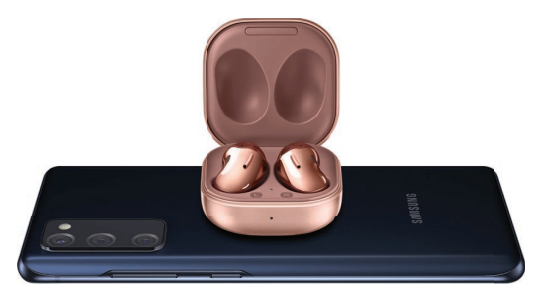
- From Quick settings, tap Wireless PowerShare to enable this feature.
- With the phone face down, place the compatible device on the back of the phone to charge. A notification sound or vibration occurs when charging begins.
NOTE Wireless PowerShare works with most Qi-Certified devices. Requires minimum 30% battery to share. Speed and power efficiency of charge varies by device. May not work with some accessories, covers, or other manufacturer’s devices. If you have trouble connecting or charging is slow, remove any cover from each device.
For best results when using Wireless PowerShare, please note:
- Remove any accessories or cover before using the feature. Depending on the type of accessory or cover, Wireless PowerShare may not work properly.
- The location of the wireless charging coil may vary by device, so you may need to adjust the placement to make a connection. When charging starts, a notification or vibration will occur, so the notification will help you know you've made a connection.
- Call reception or data services may be affected, depending on your network environment.
- Charging speed or efficiency can vary depending on device condition or surrounding environment.
- Do not use headphones while charging with Wireless PowerShare.
Device maintenance
View the status of your device’s battery, storage, and memory. You can also automatically optimize your device’s system resources.
Quick optimization
- | Battery | Storage | Memory | Advanced options | Language and input | Date and time | Troubleshooting
Quick optimization
The quick optimization feature improves device performance through the following actions:
- Identifying apps that use excessive battery power and clearing unneeded items from memory.
- Deleting unnecessary files and closing apps running in the background.
- Scanning for malware.
To use the quick optimization feature:
- From Settings, tap Device care > Optimize now.
Battery
View how battery power is used for your various device activities.
- From Settings, tap Device care > Battery for options:
- Battery usage: View power usage by app and service.
- Power mode: Select a power mode to extend battery life.
- App power management: Configure battery usage for apps that are used infrequently.
- Wireless PowerShare: Enable wireless charging of supported devices with your device’s battery.
- Charging: Enable the following options to support fast charging capabilities:
- Fast charging
- Fast wireless charging
Storage
View the device storage and usage. You can also mount, unmount, or format an optional memory card (not included).
- From Settings, tap Device care > Storage.
Troubleshoot
| Issue / Symptom | Possible Causes | Solutions / Fix Steps |
|---|---|---|
| Device won’t power on | Drained battery, system crash, faulty charger | 1. Charge with original adapter for 15–20 mins. 2. Press Vol Down + Power for 10–15 sec. 3. Try another charger/cable. 4. Dry USB port if moisture detected. |
| Phone freezes / unresponsive | App conflict, low memory | 1. Force restart (Vol Down + Power). 2. Clean RAM: Settings › Device Care › Memory › Clean Now. 3. Boot in Safe Mode to test apps. |
| Battery drains quickly | Background apps, high brightness, 5G usage | 1. Lower screen brightness. 2. Set network to LTE only. 3. Put unused apps to sleep. 4. Update system & apps. |
| Phone overheating | Heavy use, charging during gaming, background apps | 1. Avoid gaming while charging. 2. Close background apps. 3. Remove case temporarily. 4. Check Samsung Members › Diagnostics › Battery & Temp. |
| Wi-Fi / Mobile data not working | Network glitch, SIM error | 1. Toggle Airplane Mode ON/OFF. 2. Restart phone & router. 3. Reset Network Settings. 4. Reinsert SIM or try another SIM. |
| Camera not opening / crashes | Corrupted cache, software bug | 1. Clear cache: Settings › Apps › Camera › Storage › Clear Cache/Data. 2. Restart. 3. Update Camera app. 4. Try in Safe Mode. |
| No sound / mic not working | Dirt, app issue, muted sound | 1. Check sound mode. 2. Clean mic/speaker with soft brush. 3. Run Samsung Members › Diagnostics. 4. Restart and test. |
| Charging not working | Faulty cable/port, moisture | 1. Use original charger. 2. Clean USB-C port. 3. Test wireless charging. 4. Replace cable or adapter if needed. |
| Display flickering / no display | Cache error, s |
Faqs
Does the Samsung S20 FE G781U support wireless charging?
Can I expand the storage of the Samsung S20 FE G781U?
Is the Samsung S20 FE G781U waterproof?
Does the Samsung S20 FE G781U have a headphone jack?
What version of Android does the Samsung S20 FE G781U run?
More samsung manuals
- Setting up: Samsung SM-R323 Gear VR User Manual | Installing and wearing
- Initial Set-up: Samsung 6 Series Smart LED User Manual
- Samsung J3 Orbit S367VL User Manual | Features & Setting
- How to Pair: Samsung SM-R322 Gear VR User Manual | Functions
- Samsung MU6300 TV User Manual | Connection & Features
- Samsung Tab S2 T810 User Manual | Settings & Configurations
Leave a Comment