
Tcl Nxtpaper 70 Pro Smartphone User Manual
Content
Introduction to the TCL NXTPAPER 70 Pro Smartphone
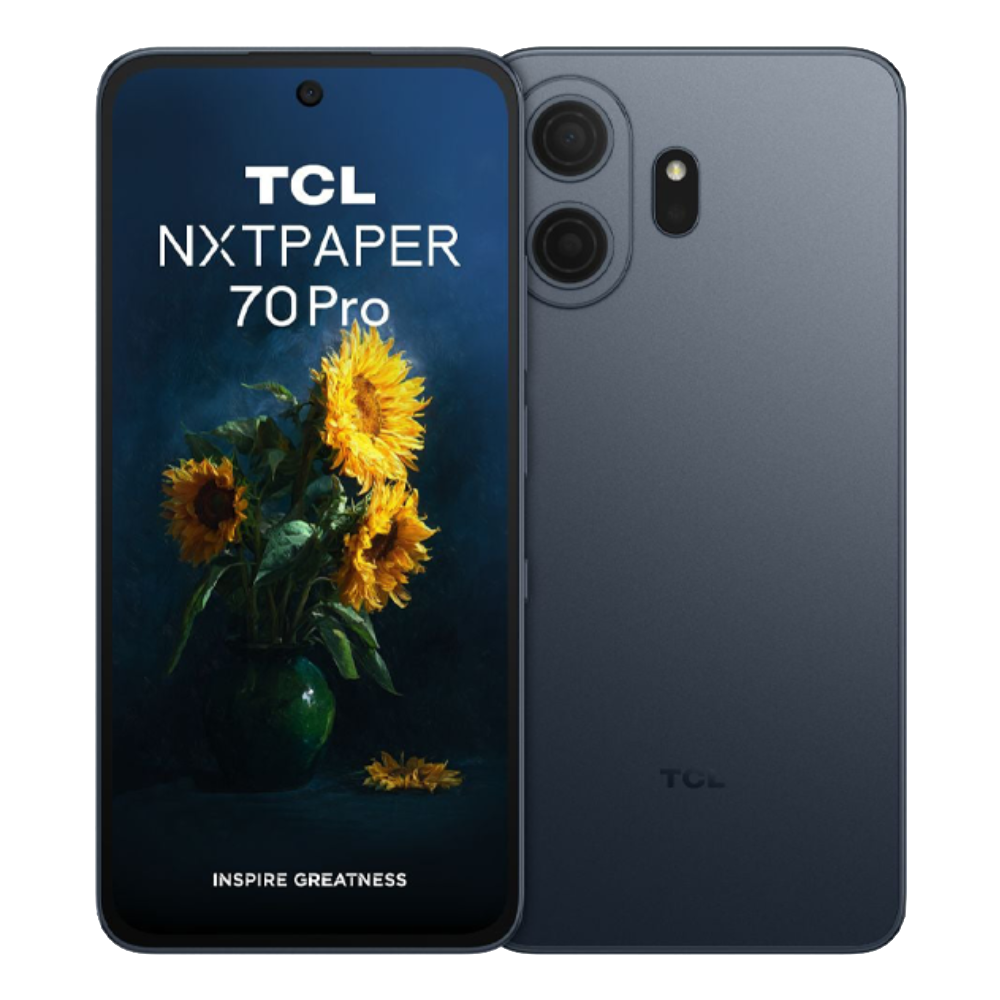
The TCL NXTPAPER 70 Pro Smartphone is a modern 5G Android phone designed for users who want a larger display, eye-comfort features, and dependable everyday performance in one affordable package. Its standout feature is TCL’s NXTPAPER display technology, which aims to reduce glare and provide a paper-like viewing experience for reading, browsing, streaming, and long work sessions. With a 6.9-inch 120Hz screen, the phone is especially appealing to students, professionals, comic readers, and anyone who spends hours on their device.
This model combines a MediaTek Dimensity 7300 processor, 8GB of RAM, and storage options up to 512GB, making it suitable for multitasking, social media, video playback, note-taking, and light gaming. It also includes 5G connectivity, a 50MP main camera with optical image stabilization, IP68 water and dust resistance, and a 5,200mAh battery with 33W wired charging. That mix of features makes the TCL NXTPAPER 70 Pro Smartphone a strong value option for users who want a premium-feeling device without flagship pricing.
Estimated pricing typically falls in the budget-to-midrange category, with availability varying by region and carrier. In many markets, it has been listed around the low-to-mid $300 range, while promotional pricing can go lower depending on retailer and storage configuration. The phone is available through TCL’s regional stores and select mobile carriers and online retailers. If you want a large-screen Android phone focused on comfort, reading, and daily reliability, this model deserves attention.
Specifications of the TCL NXTPAPER 70 Pro Smartphone
- Display: 6.9-inch NXTPAPER LCD, 1080 x 2340 resolution, 120Hz refresh rate
- Processor: MediaTek Dimensity 7300 built on 4nm architecture
- Memory: 8GB RAM with virtual RAM expansion on supported variants
- Storage: 256GB or 512GB internal storage, depending on market
- Battery: 5,200mAh capacity
- Charging: 33W wired fast charging
- Rear cameras: 50MP main camera with OIS plus 8MP ultra-wide camera
- Front camera: 32MP selfie camera
- Connectivity: 5G, Wi-Fi, Bluetooth, GPS, NFC on select variants
- Durability: IP68 dust and water resistance
- Security: Side-mounted fingerprint sensor
- SIM support: Dual SIM and eSIM support on some versions
- Operating system: Android 16 with TCL UI customization
In performance terms, the Dimensity 7300 places it in the efficient midrange segment rather than the high-end flagship class. Compared with similarly priced phones, the TCL NXTPAPER 70 Pro Smartphone stands out more for display comfort, battery life, and reading-focused usability than raw gaming power. It competes with midrange 5G phones from Samsung, Motorola, and Xiaomi that offer standard OLED or LCD panels, but TCL’s matte, eye-friendly display gives it a unique identity.
Detailed Description of the TCL NXTPAPER 70 Pro Smartphone
The TCL NXTPAPER 70 Pro Smartphone is built around the idea that a phone should be comfortable to use for long periods. TCL’s NXTPAPER display is tuned to reduce reflections and create a softer visual experience, which helps when reading ebooks, browsing documents, or watching content in bright rooms. The 120Hz refresh rate keeps scrolling smooth, while the 6.9-inch size makes text, video, and split-screen tasks easier to handle.
The phone’s design emphasizes practicality. The large screen is paired with a slim profile, durable construction, and IP68 protection, making it suitable for commuting, travel, and everyday outdoor use. The 50MP main camera with OIS is designed to deliver stable photos and better low-light results than basic budget cameras, while the 8MP ultra-wide lens adds flexibility for landscapes and group shots.
In real-world use, the device is well suited for reading, streaming, email, navigation, and productivity apps. The large battery can comfortably handle a full day of typical use, and the 33W charger helps restore power faster than many entry-level phones. User experience is generally centered on comfort, display readability, and dependable day-to-day performance rather than gaming-first specifications.
Setup Guide for the TCL NXTPAPER 70 Pro Smartphone
- Insert your SIM card or activate your eSIM if your model and carrier support it.
- Power on the device by holding the side button until the TCL logo appears.
- Choose your language, region, and Wi-Fi network during the first-time setup.
- Sign in to your Google account to restore apps, contacts, and backups.
- Set up fingerprint unlock in the security menu for faster access.
- Adjust display settings, including NXTPAPER mode, brightness, and refresh rate.
- Enable battery optimization and app permissions based on your usage preferences.
- Pair Bluetooth accessories such as earbuds, smartwatches, or speakers from the connectivity menu.
For best results, keep the phone updated before installing major apps. If mobile data or 5G does not connect, restart the device, confirm carrier compatibility, and check APN settings. Use only certified chargers and cables to protect battery health. Avoid exposing the phone to water beyond its IP68 rating limits, and do not attempt to charge it while the charging port is wet. If setup stalls, a factory reset should be the last step after backup and basic troubleshooting.
Troubleshooting the TCL NXTPAPER 70 Pro Smartphone
- Problem: Phone will not turn on. Solution: Charge for at least 20 minutes using an approved charger, then try a forced restart.
- Problem: Weak 5G or mobile signal. Solution: Confirm SIM activation, carrier support, and network mode settings.
- Problem: Slow performance. Solution: Close background apps, clear storage space, and install available updates.
- Problem: Fingerprint unlock fails. Solution: Re-register fingerprints and clean the sensor and finger surface.
- Problem: Charging is slow. Solution: Use the original 33W charger and check the cable for wear.
- Problem: Screen looks dim indoors. Solution: Disable auto-brightness temporarily and check NXTPAPER display settings.
If the device shows repeated software errors after updates, a restart often clears temporary system glitches. For persistent issues, contact TCL support through the official regional support channel, the retailer’s after-sales team, or the carrier if the phone was purchased on contract. Warranty coverage usually depends on the region and seller, so keep your proof of purchase. Preventive care includes regular updates, gentle charging habits, and avoiding drops or liquid exposure.
Pros and Cons of the TCL NXTPAPER 70 Pro Smartphone
Pros
- Excellent eye-comfort display with reduced glare and a paper-like feel
- Large 6.9-inch screen is ideal for reading, streaming, and multitasking
- 120Hz refresh rate delivers smooth scrolling and animations
- IP68 protection adds strong durability for a midrange device
- 5,200mAh battery supports all-day use for most users
- 50MP main camera with OIS improves stability and detail
- Strong value for users who want a unique screen experience
Cons
- Not a top-tier gaming phone compared with Snapdragon 8-series rivals
- NXTPAPER display may feel unusual to users who prefer vivid OLED panels
- Charging speed is decent but not class-leading
- Camera setup is good for the price, but not flagship-level
- Regional storage, SIM, and feature availability may vary
For buyers comparing alternatives, the TCL NXTPAPER 70 Pro Smartphone is best if comfort and readability matter more than pure benchmark scores. If you want richer contrast, premium camera results, or faster charging, some AMOLED-based competitors may be a better fit. For everyday productivity, study, and entertainment, TCL’s approach offers a compelling balance of price and usability.
Customer Reviews of the TCL NXTPAPER 70 Pro Smartphone
Average user feedback trends positive, with many buyers praising the display comfort, battery life, and large screen size. A common rating pattern falls around 4 out of 5 stars, especially among readers, commuters, and people who use their phone for long sessions. One typical comment is, “The screen is much easier on my eyes than my old phone, and reading articles feels more natural.”
Frequent compliments include smooth scrolling, durable design, and reliable daily performance. Common complaints focus on the display’s different look compared with traditional OLED phones, along with the fact that charging and camera performance are solid rather than exceptional. Buyers who value a comfortable viewing experience tend to recommend it, while power users and heavy mobile gamers often prefer more performance-focused alternatives.
For most people looking for a practical midrange Android phone, the TCL NXTPAPER 70 Pro Smartphone is an easy recommendation if eye comfort is a priority. If the buyer wants the brightest or most colorful panel, a standard AMOLED competitor may be more suitable.
Faqs
How do I set up the tcl Nxtpaper 70 Pro Smartphone for the first time?
What should I do if the tcl Nxtpaper 70 Pro Smartphone is slow, lagging, or freezing?
How do I get the best battery life on the tcl Nxtpaper 70 Pro Smartphone?
Is the tcl Nxtpaper 70 Pro Smartphone compatible with my carrier, SIM card, and eSIM setup?
How do I use the Nxtpaper display features on the tcl Nxtpaper 70 Pro Smartphone more effectively?
Why is the tcl Nxtpaper 70 Pro Smartphone not charging properly, and how can I fix it?
How can I improve camera quality on the tcl Nxtpaper 70 Pro Smartphone in low light?
What maintenance tips help keep the tcl Nxtpaper 70 Pro Smartphone working like new?
More tcl manuals
Leave a Comment