
Setup & Usage: Eksa Air Joy Pro Gaming Headset User Manual
Content
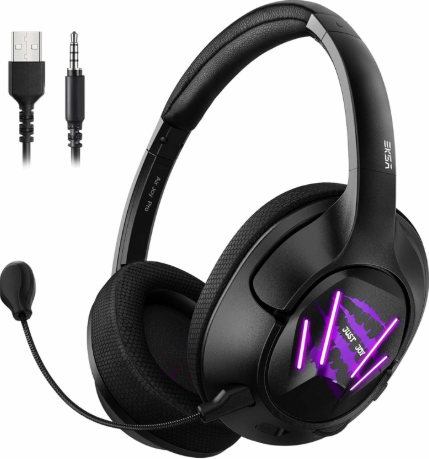
Eksa Air Joy Pro Gaming Headset
Introduction
The Eksa Air Joy Pro Gaming Headset is designed to elevate your gaming experience with its combination of comfort, sound quality, and advanced features. Built for serious gamers and streamers, this headset offers immersive 7.1 surround sound that allows you to pinpoint every footstep and in-game cue with precision. Its lightweight design and memory foam ear cushions ensure comfort during extended gaming sessions, while the adjustable microphone guarantees crystal-clear communication with teammates.
Equipped with Bluetooth 5.0 for stable wireless connectivity and a rechargeable battery that supports up to 20 hours of gameplay, the eksa Air Joy Pro fits seamlessly into any gaming setup. It is compatible with PC, PlayStation, Xbox, Nintendo Switch, and mobile devices, making it a versatile choice for multi-platform gamers. The headset is priced competitively in the mid-range category, typically available between $70 and $100, and can be purchased through popular online retailers and gaming stores.
Whether you're a casual gamer aiming for better sound clarity or a professional seeking reliable gear for streaming and competitive play, the eksa Air Joy Pro Gaming Headset delivers a top-tier audio experience with user-friendly features that enhance every moment of play.
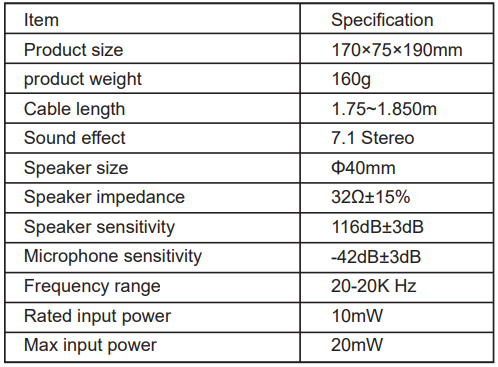
Specifications
Package List
- 1 X EKSA Air Joy Pro Gaming Headset
- 1 X Detachable Microphone
- 1 X 3.5 mm Audio Cable
- 1 X USB Audio Cable
- 1 X Y Extension Cable
- 1 X Operating Instruction
- 1 X Carry Pouch
At a Glance
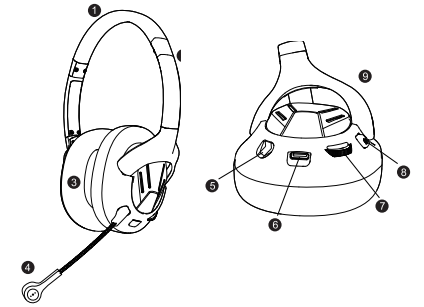
- PU leather headband
- Steel arm to adjust headband
- Protein memory earmuffs
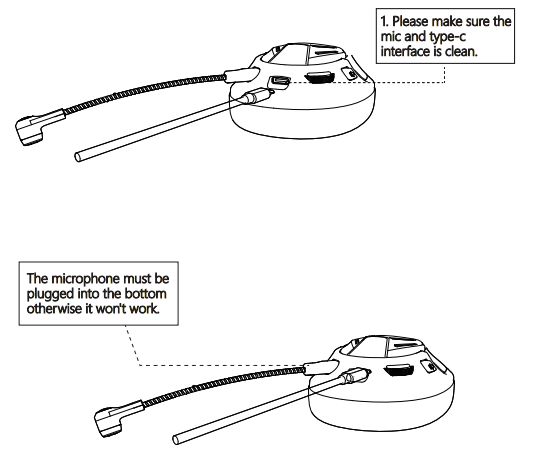
- Detachable microphone
- Detachable microphone port
- Type-C audio port
- Volume control
- Microphone mute switch(Factory default mute state)
- ABS bracket
- 3.5 mm audio cable
- Y extension cable
- USB 2.0 audio cable
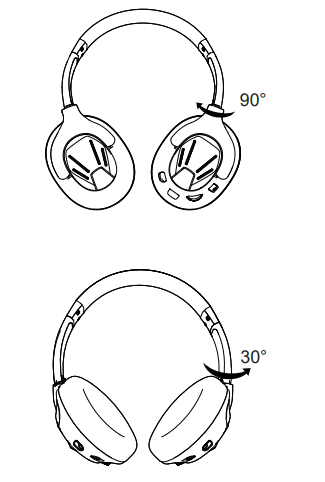
The bracket of the headset can be turned 90° inward and 30° outward. Excellent ergonomic design makes it suitable for all ages and head circumference sizes. Provides a maximum sense of comfort to the person wearing the headset, just like without wearing headphones. Even if you wear headphones for a long time, you won't feel uncomfortable.
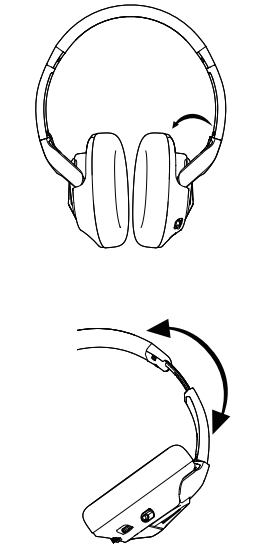
Can be adjusted on either side of the headset slider to the most suitable angle for you. (As shown below)
Usage
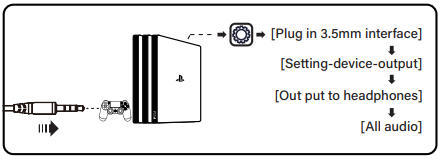
(PlayStation® 4)
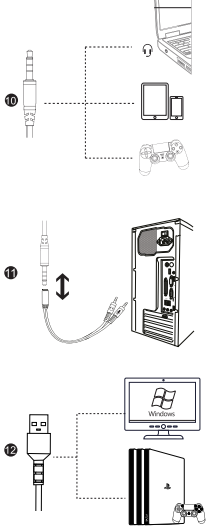
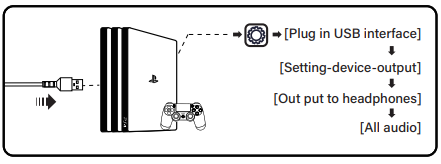
When using headphones on the PS4 ™ console: plug the USB cable directly into the console.
When using headphones on the PS4™ controller: unplug the USB cable from the PS4 ™ console, replace it witha 3.5mm audio cable, and plug the 3.5mm cable into the PS4™ console.
Steps for USB:
Steps for 3.5mm Audio Cable:
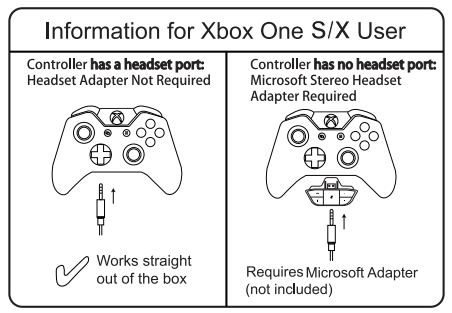
Usage (Xbox®one S/X)|
To use the EKSA headset with Xbox®One SIX, you will need the Xbox One S/X adapter (Not Included) that plugs into the Xbox® One S/X controller. Then connect directly to the Xbox One S/controller.
Usage with Mobile Device (Phone or Tablet)
To use the EKSA headset with a mobile device, plug the 3.5mm audio cable directly into the audio port on your phone or tablet.
Setup Guide for EKSA Air Joy Pro Gaming Headset
- Charge the Headset: Fully charge the headset using the included USB-C cable before initial use (approximately 2 hours).
- Power On: Press and hold the power button until the LED indicator lights up.
- Wireless Pairing: Enable Bluetooth on your device, search for “eksa Air Joy Pro,” and select it to pair. For wired use, plug the 3.5mm audio cable into your device's headphone jack.
- Configure Sound: On PC, install any recommended drivers or software to access 7.1 surround sound settings and customize audio profiles.
- Adjust Microphone: Position the adjustable mic near your mouth and test vocal clarity in your communication app.
- Troubleshooting Tips: If no sound is heard, check headset volume and device audio settings. Reset Bluetooth pairing if connectivity issues occur by turning the headset off and on again.
Safety Precautions: Avoid listening at high volumes for extended periods to prevent hearing damage. Keep the headset dry and clean, and stop use if discomfort or skin irritation occurs.
Troubleshooting for eksa Air Joy Pro Gaming Headset
- No Sound Output: Ensure the headset is powered on and properly connected. Check device volume levels and Bluetooth pairing status.
- Microphone Not Working: Confirm the mic is not muted and is fully extended. Test on another device to isolate software issues.
- Bluetooth Connectivity Drops: Keep the headset within a 10-meter range of the paired device without obstacles. Reset Bluetooth connection if needed.
- Charging Issues: Use the supplied USB-C cable and a compatible power source. Avoid third-party chargers that may deliver incorrect voltage.
- Error Codes: The headset’s LED blinking pattern indicates battery status or pairing errors; consult the manual for specific codes.
Preventive measures include regular firmware updates (if supported), avoiding exposure to extreme temperatures, and handling the headset carefully. The eksa Air Joy Pro comes with a 12-month warranty covering manufacturing defects. For additional support, users can contact eksa customer service through their official website or authorized retailers.
Pros & Cons of the eksa Air Joy Pro Gaming Headset
- Pros:
- Excellent 7.1 surround sound for immersive gaming
- Long battery life supporting extended sessions
- Comfortable, lightweight design with memory foam ear cushions
- Wide compatibility across multiple gaming platforms
- Good value for money compared to competitors in the same price range
- Cons:
- Bluetooth latency may affect fast-paced gaming on some devices
- Limited software customization options compared to premium headsets
- RGB lighting effects are basic and not extensively customizable
- Microphone sensitivity might pick up ambient noise in noisy environments
Customer Reviews of eksa Air Joy Pro Gaming Headset
Users of the eksa Air Joy Pro Gaming Headset consistently praise its sound quality and comfort, highlighting the impressive surround sound and lightweight feel as top benefits. Many gamers appreciate the wireless freedom and multi-platform compatibility, making it a versatile gaming accessory. The microphone’s clear transmission is often noted positively, especially for team communication during multiplayer games.
Common complaints include occasional Bluetooth connectivity drops and the mic picking up background noise, which some users mitigate by adjusting settings or using wired mode. On average, the headset scores 4 out of 5 stars in major online stores, with several recommending it as a budget-friendly alternative to more expensive gaming headsets. Buyers often emphasize its solid build quality and attractive price point as key reasons to choose the eksa Air Joy Pro.
Faqs
How do I set up the eksa Air Joy Pro Gaming Headset for PC and mobile devices?
What should I do if my eksa Air Joy Pro Gaming Headset microphone is not working?
Does the eksa Air Joy Pro Gaming Headset support 7.1 surround sound on all platforms?
How can I optimize the audio performance of my eksa Air Joy Pro Gaming Headset for gaming?
Is the eksa Air Joy Pro Gaming Headset compatible with Xbox One and PS4 consoles?
What maintenance tips should I follow to prolong the lifespan of my eksa Air Joy Pro Gaming Headset?
Why does the eksa Air Joy Pro Gaming Headset feel so lightweight compared to other headsets?
How do I troubleshoot sound issues like no audio or distorted sound on my eksa Air Joy Pro Gaming Headset?
More eksa manuals
Leave a Comment